Manage IP Phones
This topic describes the operations you can perform for IP phones directly on NovoOne Platform.
You can perform following operates for IP phones listed in the
Phones list (Path: ).
Reboot provisioned IP phones
- Log in to NovoOne Platform portal, go to .
- Reboot phones as needed.
- To reboot a phone, hover your mouse over
 beside the desired phone, and click
Reboot.
beside the desired phone, and click
Reboot. - To reboot phones in bulk, select the checkboxes of desired phones, and click at the top.
- To reboot a phone, hover your mouse over
- In the pop-up window, click OK.
Access a provisioned IP phone
- Log in to NovoOne Platform portal, go to .
- In the IP Address column, click
internal/external
IP address of the desired phone.
The browser automatically open a new tab to access this address.
Reassign a tenant user to a provisioned IP phone
- Log in to NovoOne Platform portal, go to .
- Click
 beside the desired phone.
 - In the Assign section, select a desired tenant
user.Tip: If the desired tenant user exists but is not listed in the drop-down list, to enable the user to be assigned the phone, enter the portal of the tenant to which the user belongs (Path: Tenant >
 ), then complete the following
settings on NovoOne Tenant portal as
needed.
), then complete the following
settings on NovoOne Tenant portal as
needed.- To release the tenant user from previous phone, see Release a User from a Provisioned IP Phone.
- To associate the tenant user with multiple IP phones, see Allow Multiple Registrations for One User.
- Click Save.
The extension of the tenant user is automatically registered on the phone.
Download configuration of a provisioned IP phone
- Log in to NovoOne Platform portal, go to .
- Hover your mouse over beside the desired phone, and click
Download Configuration.
The configuration file for the phone is downloaded to your computer.
Remove IP phones from phone list
- Log in to NovoOne Platform portal, go to .
- Remove phones as needed.
- To remove a phone, hover your mouse over
beside the desired phone, and click
Delete.
- To remove phones in bulk, select the checkboxes of desired phones, and click Delete at the top.
- To remove a phone, hover your mouse over
- In the pop-up window, click Confirm.
The system erases all configuration files for the phone and releases the assigned tenant user.
Export phone information
- Log in to NovoOne Platform portal, go to .
- Export phone information as needed.
- To expert information of all phones, directly click Export at the top.
- To export information of specific phones, select the checkboxes of desired phones, and click Export at the top.
The phone information is exported to a
.csvfile.
Import phone information
- Log in to NovoOne Platform portal, go to .
- At the top of the phone list, click Import.
- In the Download Template File section, click
Download Template File.
A template file is downloaded to your computer.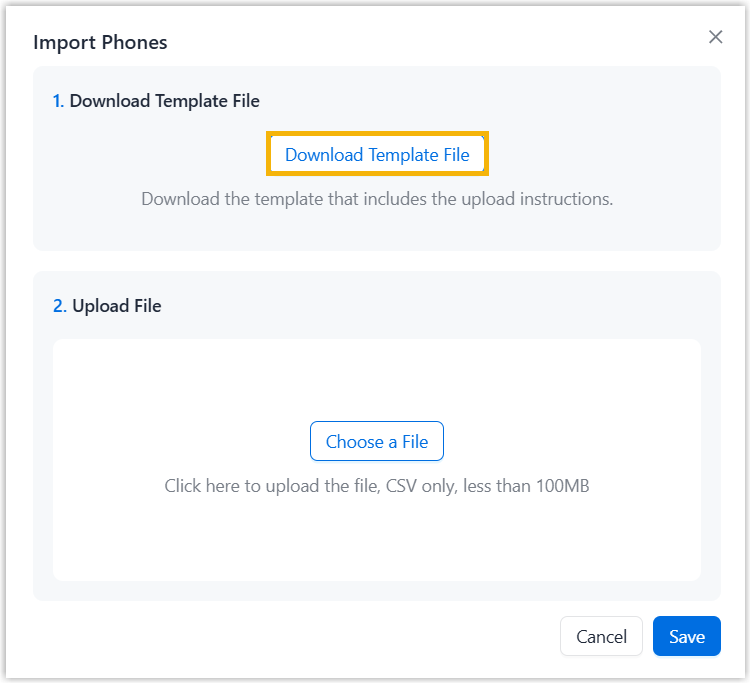
- Open the downloaded template file on your computer, and complete IP phone
details following the sample fields.Note: The completed file must meet the following requirements:
- Format: UTF-8.CSV
- Size: Less than 100 MB
- File name: Less than 127 characters
- Import parameters: Ensure that the import parameters meet requirements. For more information, see IP Phone Parameters.
- Back to NovoOne Platform portal.
- In the Upload File section, click Choose a
File and select your CSV file.
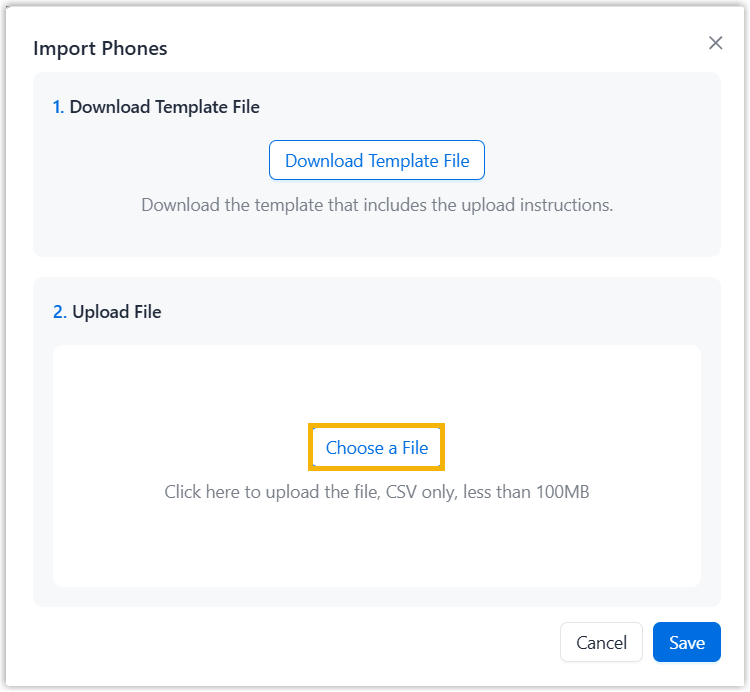
- Click Save.
The phone information in the CSV file will be displayed in the phone list.