View Default Auto Provisioning Templates
NovoOne Platform supports default templates of different device models. These templates provide general settings for common deployment scenarios and enable quick auto-provisioning of IP phones. This topic describes how to view a default template on NovoOne Platform.
Procedure
Note:
- Devices of different models may share the same template. For example, the template YSDP_YealinkT5xS of Yealink applies to Yealink T52S and T54S.
- Default templates in the list are automatically updated.
- Log in to NovoOne Platform portal, go to .
- Optional: At the top-right corner of the template list, enter a
vendor, template name, or device model in the search box to perform a fuzzy
search.
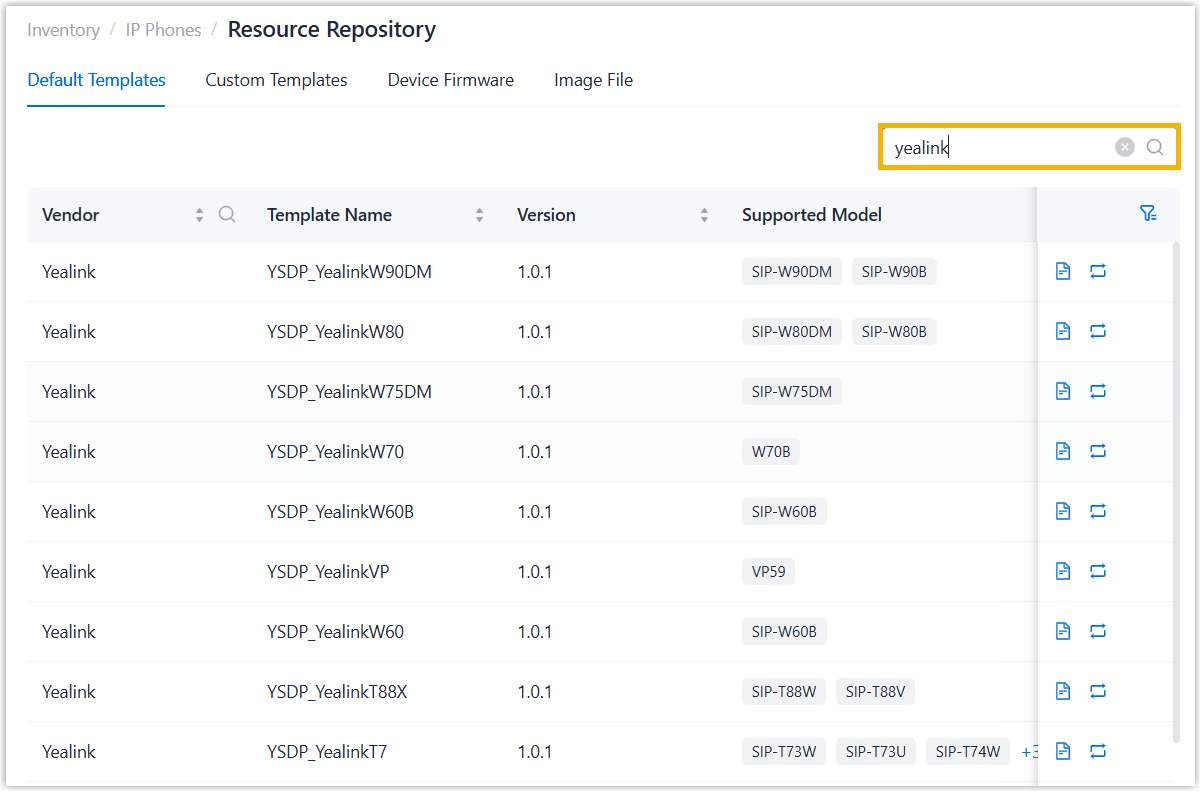
The matched templates are displayed on the web page.
- Click
 beside the desired device template.
The pop-up window displays the default configurations of the template.
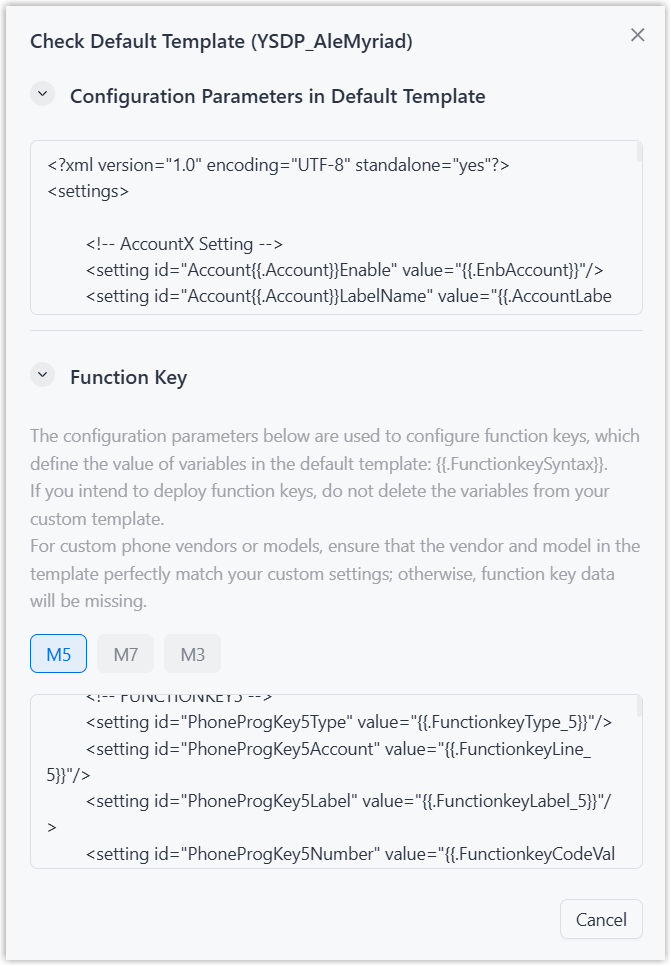
Section Description Parameter Configuration Parameters in Default Template The pre-defined configuration parameters in this template. There are two types of parameter value in the template. - Variables: Variables are attributes to
which various values can be assigned. A variable
starts with
{{., and ends with}}. For example, {{.PhoneWebLanguage}} means a variable of Phone Web Language setting. The phone web language varies on each phone according to specific phone configuration.For detailed information about variables, see Variables in Auto Provisioning Templates.
- Absolute value: Absolute is a fixed value
that applies to all devices that use this
template. For example,
features.dtmf.hide_delay = 1means setting the parameter value to 1 (Enabled).
Function Key The pre-defined function keys supported by the device model. Note: You can click the device model tab to view the supported keys. - Variables: Variables are attributes to
which various values can be assigned. A variable
starts with
What to do next
If configuration
discrepancies exist between phones newly provisioned and
previously provisioned that use the same default template (meaning the default
template has been automatically updated), you can apply the latest default template
to provisioned devices using one of the following methods.
- To apply the latest template to all devices that have been auto provisioned
to your tenants via the same template with previous version, click
 beside
the desired template.
beside
the desired template. - To apply the latest template to specified devices, including those that have
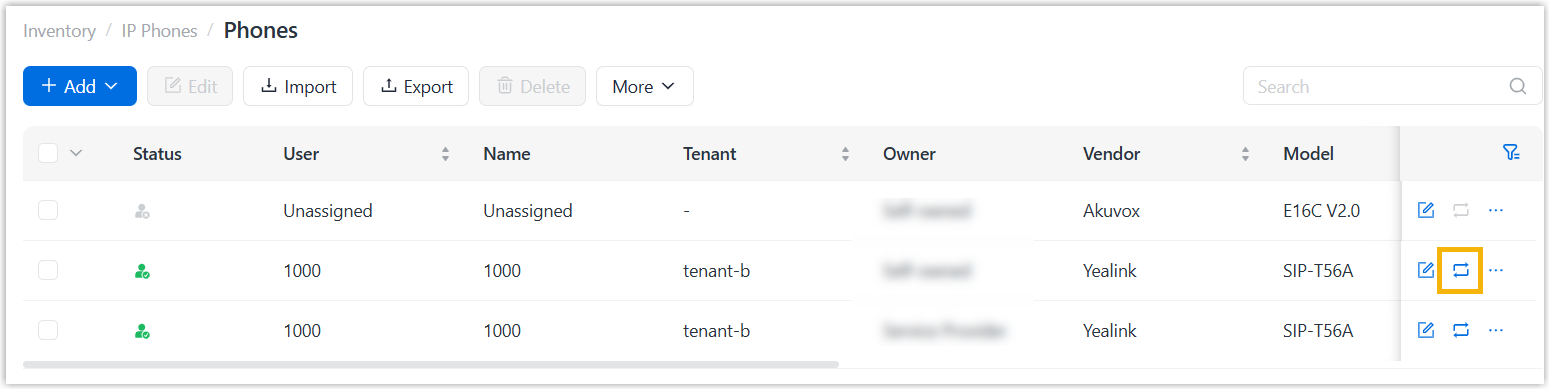
been auto provisioned to your resellers' tenants, go to and click beside the desired device.