Upload a Device Firmware
You can upload device firmwares used for device upgrade. This topic describes how to upload a device firmware on NovoOne Platform.
Prerequisites
You have obtained the phone firmware file to be uploaded.
Note: Each firmware file must not exceed 800 MB.
Procedure
Note: Up to 10 device firmwares can be uploaded.
- Log in to NovoOne Platform Portal, go to .
- Click Add.
- In the Device section, enter the basic information of
the model.

- Vendor: Select the firmware vendor.
- Model: Select the device model.
- In the Firmware section, fill in the basic
information of the firmware.
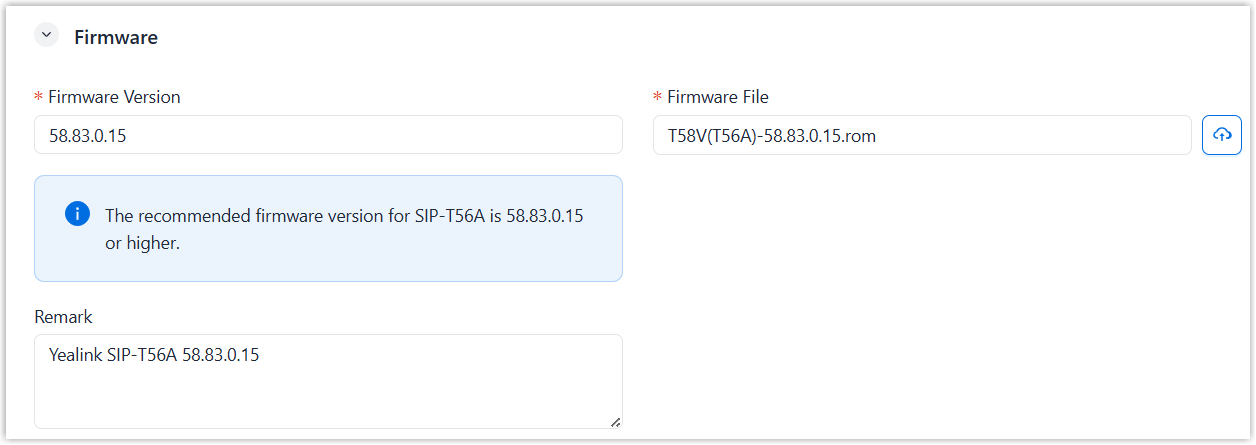
- Firmware Version: Enter the firmware version.
- Firmware File: Click
 to upload the firmware file from your computer.
 - Remark: Optional. Enter a short description about the firmware.
- Optional: In the Assign section, assign
the resource to your tenants and your resellers.
- Assign the resource to your tenants
to
enable their tenant administrators to use
it.
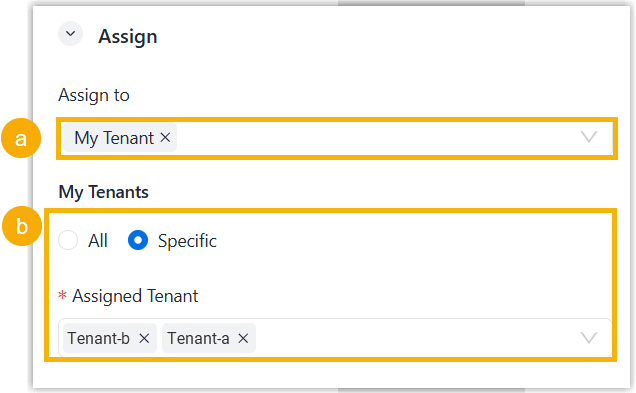
- In the Assign to drop-down list, select My Tenant.
- Specify the tenants as needed.
- To assign to all tenants, select All.
- To assign to specified tenants, select Specific and select desired tenants in the Assigned Tenant drop-down list.
- Assign the resource to your resellers to enable the resellers to use
it and assign it to their tenants.
- In the Assign to drop-down list, select Reseller.
- Specify the resellers using one of the following
methods.
Method Instruction Assign to all resellers except selected 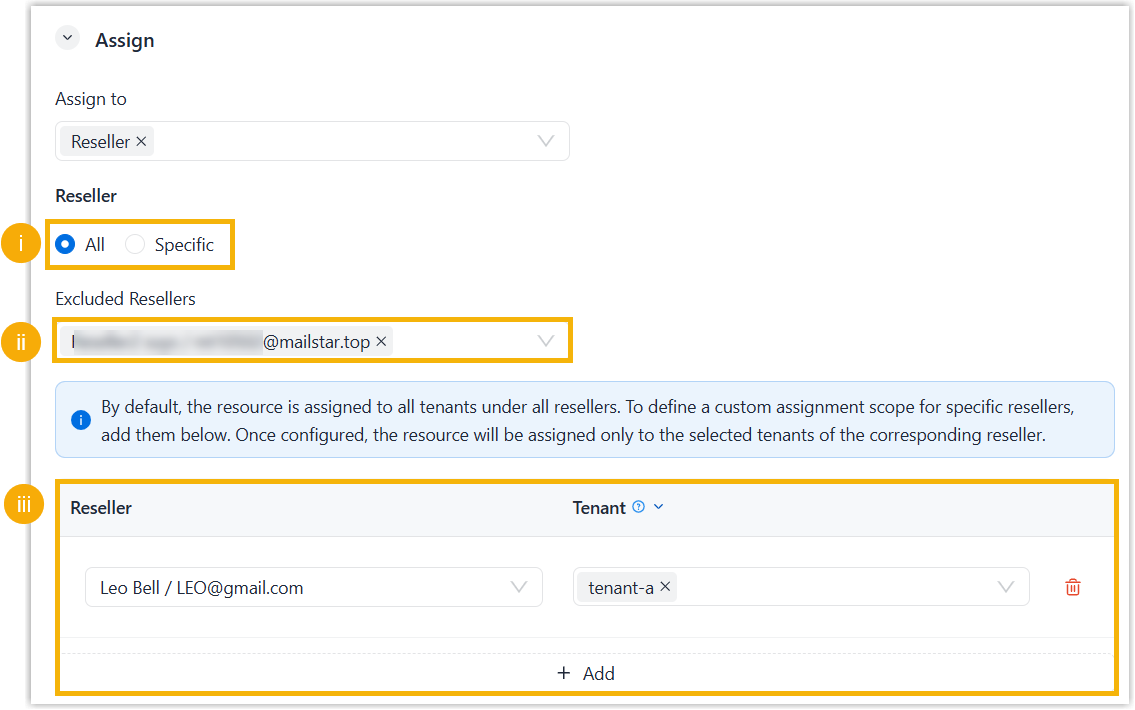
- Select All.
- Optional: To prevent specific resellers from using the resource, select the resellers in the Excluded Resellers drop-down list.
- Optional: To specify tenants whose
tenant administrators can use this resource, click
Add, select a reseller in
the Reseller drop-down list
and select the reseller's tenants in the
Tenant list.
To add more, repeat this step.
Assign to selected resellers only 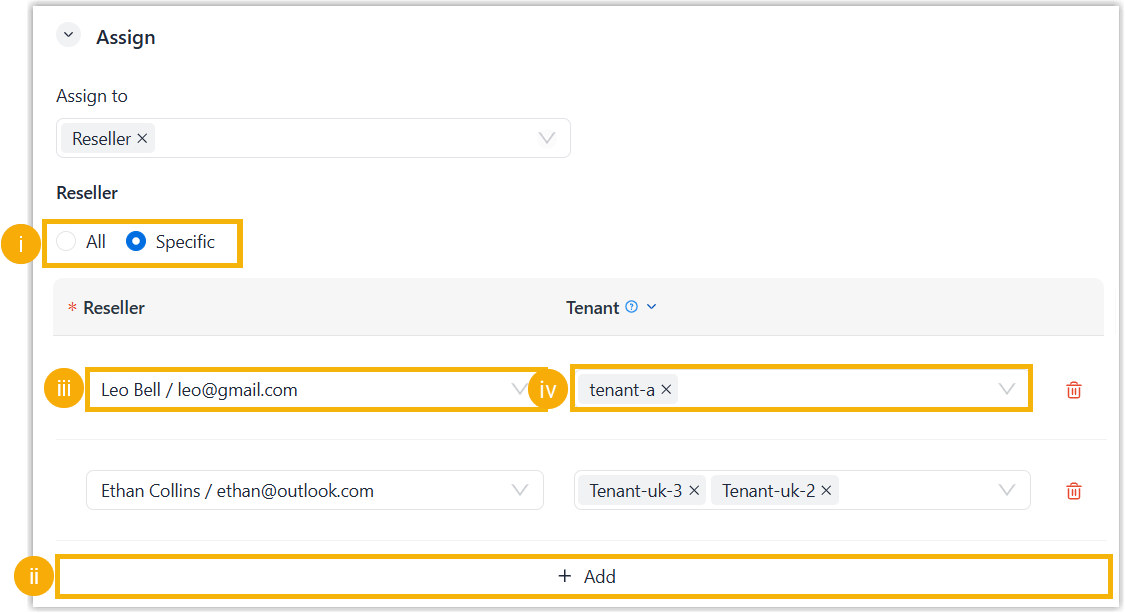
- Assign the resource to your tenants
to
enable their tenant administrators to use
it.
- Click Save.
Result
- The uploaded firmware is displayed on the Phone Management list. You can use it to upgrade provisioned devices.
- If you assigned the firmware to your tenants, the administrators for these tenants can use it to upgrade provisioned devices.
- If you assigned the firmware to your resellers' tenants, the firmware is displayed on the Phone Management list on the resellers' NovoOne Platform portal. They can reassign and use the firmware as needed.