Upgrade Device Firmware via Auto Provisioning
After uploaded device firmwares, you can directly upgrade the firmware on provisioned phones to specified version. This topic describes how to upgrade the phone firmwares via auto provisioning.
- Once the upgrade starts, the phone will automatically reboot and stop working until the upgrade completes.
- The procedures described in this topic do not apply to Cisco IP phones. To upgrade the firmware on provisioned Cisco phones, contact Yeastar Technical Support.
Prerequisites
You have uploaded the desired device firmware to NovoOne Platform.
Upgrade firmware to all applicable and provisioned phones
- Log in to NovoOne Platform Portal, go to .
- Click
 beside the desired device firmware.
 - In the pop-up window, click Confirm.
All applicable and provisioned phones assigned to your tenants are automatically reprovisioned and upgraded to the desired firmware version.
Upgrade firmware to specific provisioned phones
- Log in to NovoOne Platform, go to .
- Select the checkboxes of the IP phones with the same model and provisioned
via the same template, and click at the top.
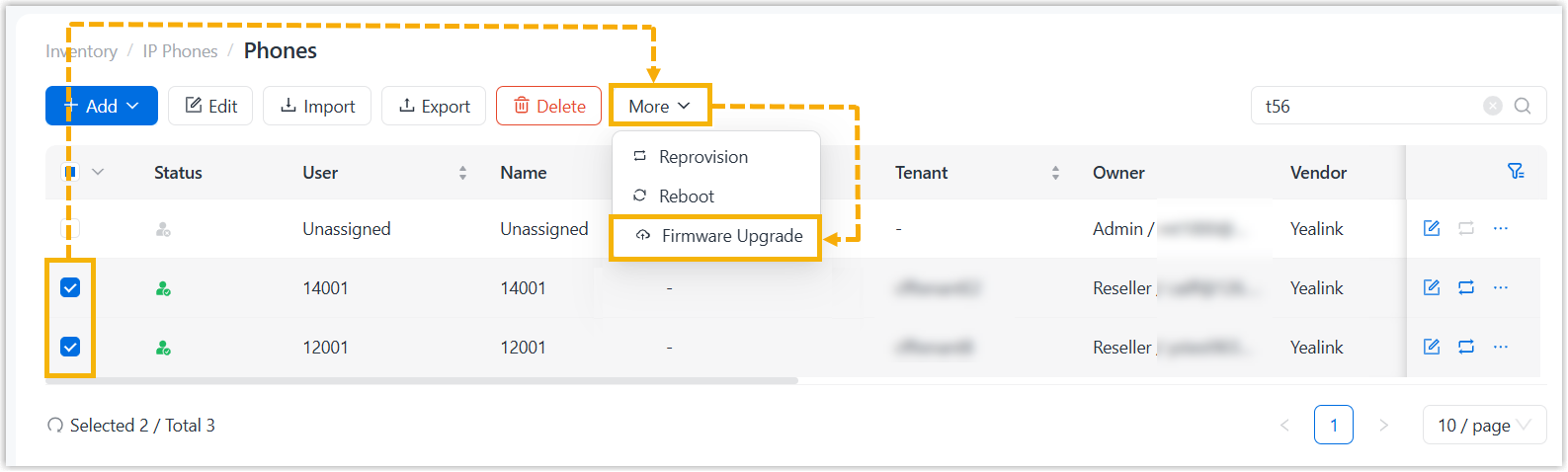
A window pops up displaying the device firmware whose vendor and model match those phones.
- In the pop-up window, select the firmware that you want to upgrade, and
click Upgrade Now.
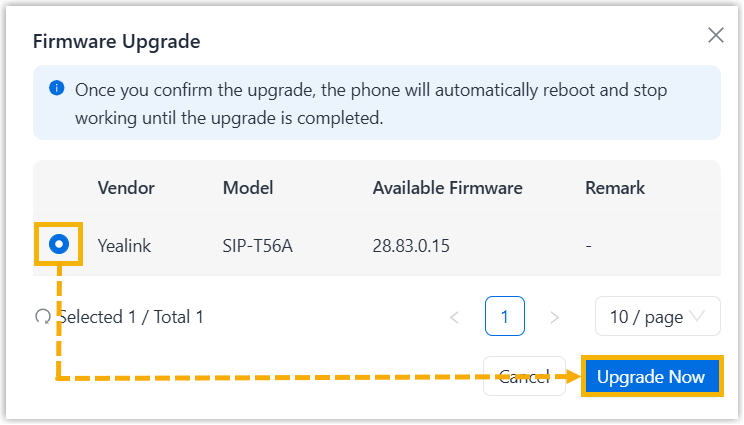
All applicable and provisioned phones in the Phones list are automatically reprovisioned and upgraded to the selected firmware version.