Manage Two-Factor Authentication (2FA)
After setting up 2FA, you can manage trusted devices or disable 2FA as needed.
Remove a trusted device
If you lose access to a trusted device, you can remove it from the trusted device list.
- Log in to NovoOne Tenant
portal, click your account at the top-right corner and
select Change Password &
Security.
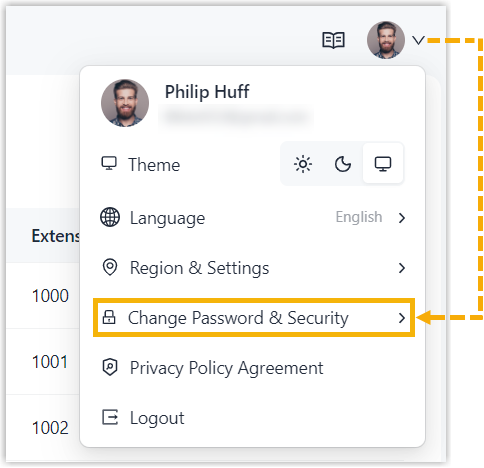
- Click Two-Factor Authentication tab.
- In the Trusted Devices section, click
 beside
the device that you want to remove, then click
Confirm.
beside
the device that you want to remove, then click
Confirm.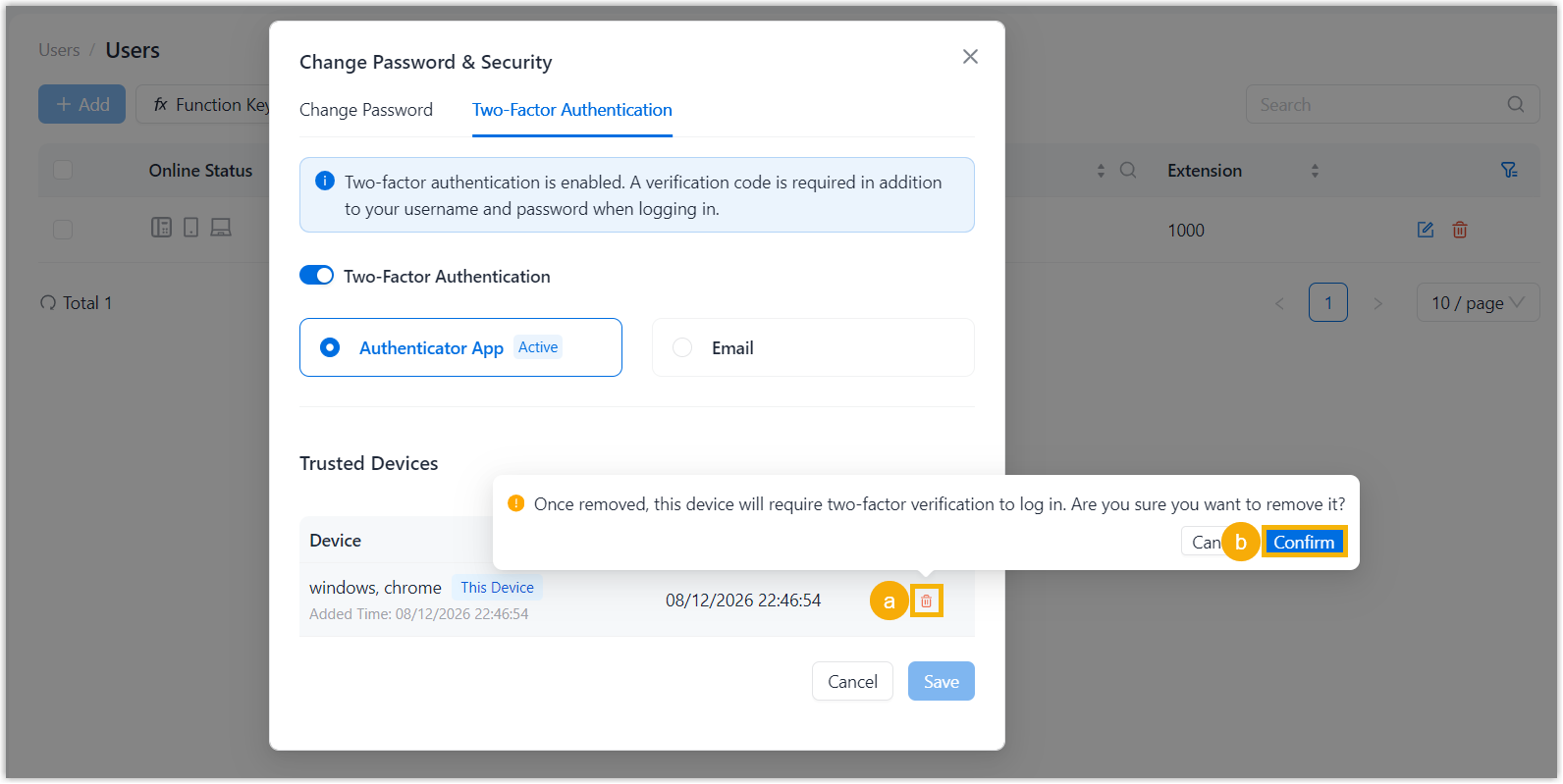
Disable 2FA
You can disable 2FA for your own account or for user accounts as needed.
- Disable 2FA for your account
-
- Log in to NovoOne Tenant
portal, click your account at the top-right corner and
select Change Password &
Security.
- Click Two-Factor Authentication tab.
- Turn off the switch of Two-Factor
Authentication, then enter your account password
and confirm the operation.
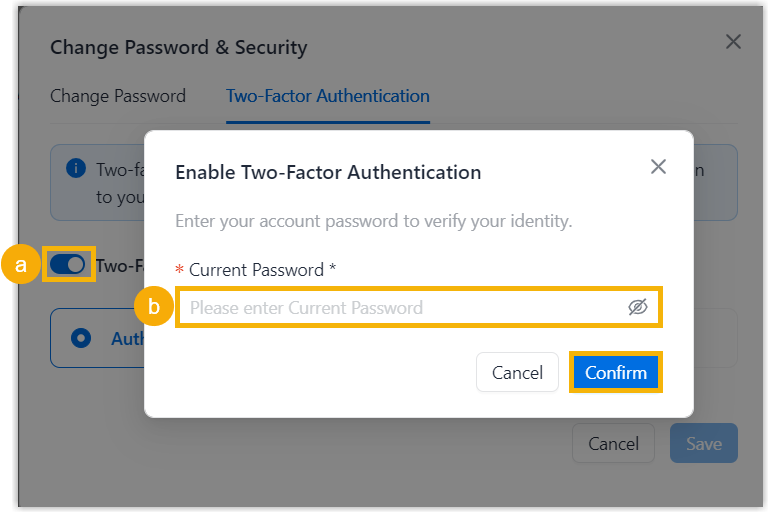
2FA is disabled for your account.
- Log in to NovoOne Tenant
portal, click your account at the top-right corner and
select Change Password &
Security.
- Disable 2FA for user account
- If users are unable to complete 2FA verification (e.g. they lose
authenticator device or can no longer receive authentication code via
email), you can disable 2FA for their accounts, so that they can sign in
using only their account credentials.
- Log in to NovoOne Tenant portal, go to .
- Click
 beside the
desired user.
beside the
desired user. - In the Security tab, unselect the
checkbox of Two-Factor Authentication and
enter your password to confirm the operation.
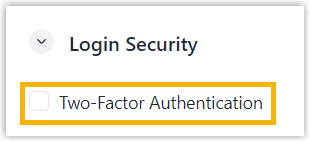
- Click Save.
2FA is disabled for the user account.