Configure Two-Factor Authentication (2FA) for Your Account
You can configure 2FA for your account using email or an authenticator application.
Configure 2FA using email
- Prerequisites
- Your account is associated with a valid email address.
- Procedure
-
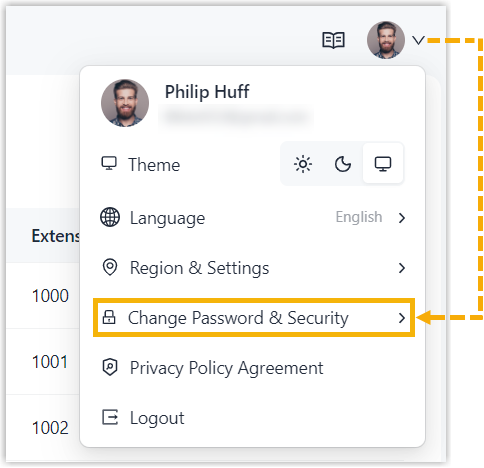
- Log in to NovoOne Tenant
portal, click your account at the top-right corner and
select Change Password &
Security.
- Enable the 2FA feature.
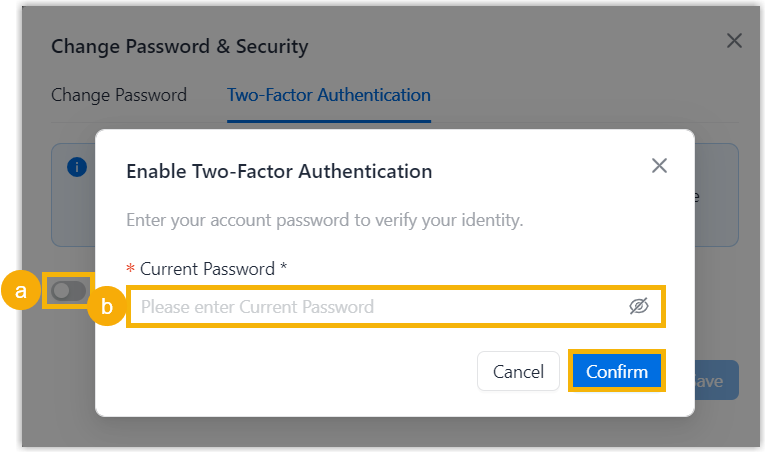
- In the Two-Factor Authentication tab, turn on the switch of Two-Factor Authentication.
- In the pop-up window, enter your account password, then click Confirm.
- Configure 2FA using email.
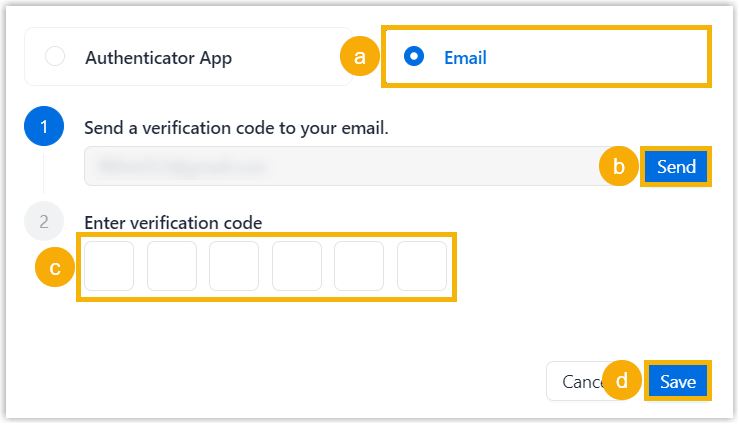
- Select Email as the authentication method.
- In the Send a verification code to your
email field, click
Send.A 6-digit authentication code is sent to your email address.Note: The authentication code expires 5 minutes after it is sent.
- In the Enter verification code field, enter the 6-digit authentication code.
- Click Save.
- Log in to NovoOne Tenant
portal, click your account at the top-right corner and
select Change Password &
Security.
- Result
2FA is configured for your account. The next time you log in to NovoOne Tenant portal, you must enter an authentication code (in addition to your username and password).
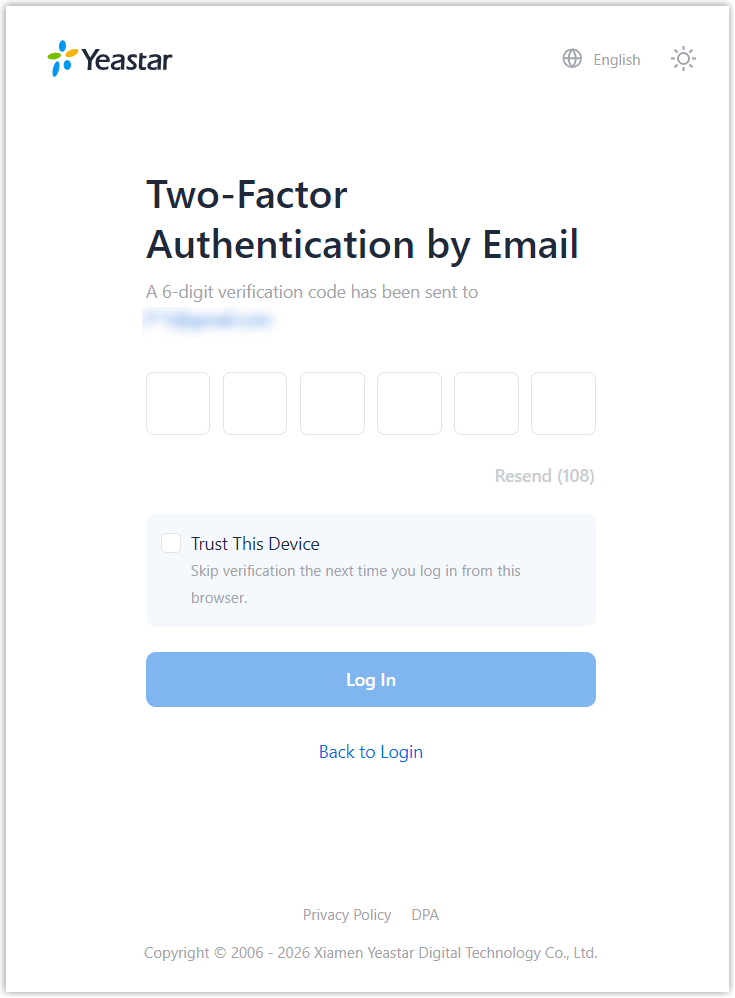 Note: For a frequently used device, you can select the checkbox of Trust This Device to add it as a trusted device. In this way, you will not need to enter an authentication code again on that device for the next 180 days.
Configure 2FA using an authenticator application
- Prerequisites
-
You have installed one of the following supported authenticator applications on your mobile phone.
- Procedure
-
- Log in to NovoOne Tenant
portal, click your account at the top-right corner and
select Change Password &
Security.
- Enable the 2FA feature.
- In the Two-Factor Authentication tab, turn on the switch of Two-Factor Authentication.
- In the pop-up window, enter your account password, then click Confirm.
- Configure 2FA using authenticator application.
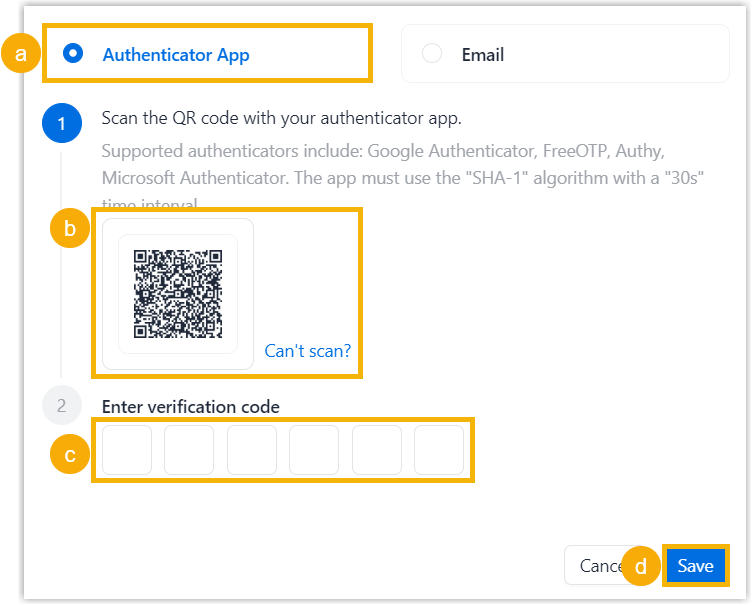
- Select Authenticator App as the authentication method.
- Add your account to the authenticator
application using one of the following methods.
Method Instruction Scan QR Code to quickly add the account You can quickly add your account to the authenticator application by scanning the QR code provided by NovoOne. - Open the authenticator application on your mobile phone, then select to scan a QR code.
- Scan the QR code displayed in NovoOne Tenant portal.
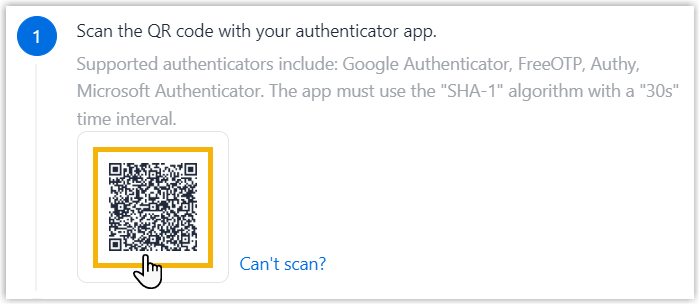
Your account is added to the application, and a 6-digit authentication code is generated.
Manually add the account If you can not scan QR code, you can manually add your account using the secret key provided by NovoOne. - On NovoOne Tenant Portal,
click Can't scan beside the
QR code.
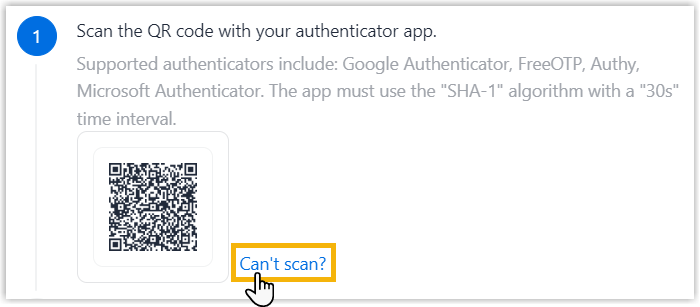
The system will generate a secret key. Note down the key for later use.

- Open the authenticator application on your mobile phone, then select to manually add an account.
- Enter the required information, then paste the
secret key.Note: If you need to complete more configurations for the secret key, you should set SHA1 as the algorithm for TOTP protocol, and set to generate 6-digit code with an interval of 30 seconds.
Your account is added to the application, and a 6-digit authentication code is generated.
- In the Enter verification code field, enter the 6-digit authentication code.
- Click Save.
- Log in to NovoOne Tenant
portal, click your account at the top-right corner and
select Change Password &
Security.
- Result
2FA is configured for your account. The next time you log in to NovoOne Tenant portal, you must enter an authentication code (in addition to your username and password).
Note: For a frequently used device, you can select the checkbox of Trust This Device to add it as a trusted device. In this way, you will not need to enter an authentication code again on that device for the next 180 days.