Enable Skills for an AI Receptionist
This topic describes how to configure different skills for an AI receptionist.
Supported skills
The system divides AI receptionist functionality into individual skills. Each skill can be enabled or disabled independently based on your needs. The supported skills for AI receptionists are listed as below:
| Skill | Description |
|---|---|
| Transfer by Context | Set up rules to route calls based on caller's intent. The AI
receptionist analyzes what the caller says and transfers them to
the appropriate destinations. The supported destination
includes:
For more information, see Set up transfer by context. |
| Dial by Name | Enable this feature to allow the AI receptionist to recognize
the
name or number of
internal users mentioned by callers and transfer the call to the
corresponding user. For more information, see Enable dial by name feature. |
Set up transfer by context
- Prerequisites
-
You have configured the desired transfer destinations (user, IVR, ring group, or queue).
- Procedure
-
- Log in to NovoOne Tenant portal, go to .
- Click the desired receptionist, then go to the Tools tab.
- Click the Transfer by context card, then
complete the following settings:
- Turn on the switch of Transfer by context.
- In the Transfer Prompt field, set
the prompt via any of the following methods to guide the
AI receptionist how to transfer a call.
Method Instruction Apply the default prompt Leave the field empty. The system will automatically apply the system built-in prompt. Tip: To view the default prompt content, click Use Default to populate the field, you can review it without making changes.Start from the default prompt 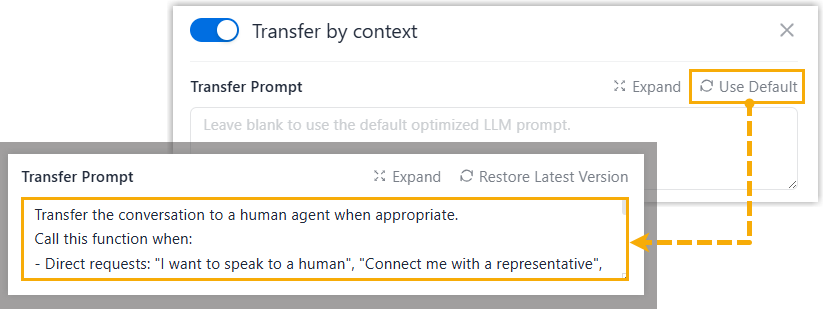
- At the top-right of the section, click
Use Default.
The field is populated with the system built-in prompt.
- Edit the prompt as needed.Tip: If you have previously saved a custom prompt and want to restore it after clicking Use Default, click Restore Previous Version. This button is available only after you click Use Default, and restores the prompt you had saved before clicking it, not the edits you just made.
Create a custom prompt from scratch Enter your own instructions directly into the field. Note: Write instructions that are structured, clear, concise, and unambiguous.For example,
Transfer callers to human agents when they
                                                  explicitly ask for one, or when the issue involves
                                                  account-specific changes
. - At the top-right of the section, click
Use Default.
- In the Transfer Rules section,
click Add to create a transfer
rule, then click Confirm.Note: You can add up to 20 transfer rules for each AI receptionist.
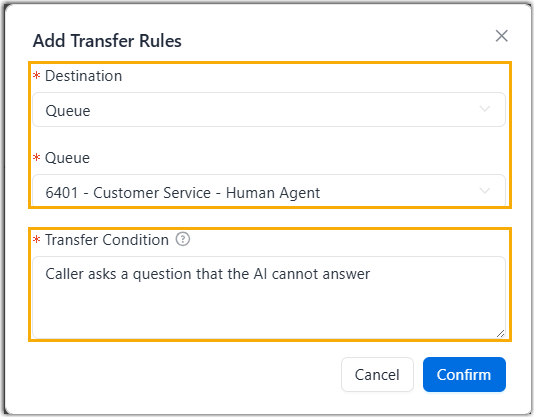
Setting Description Destination Select a destination type, then select the specific destination. Transfer Condition Enter a natural language description of the circumstances under which the transfer should occur. For example, Caller explicitly requests to speak to a human or Caller asks a question that the AI cannot answer.
- At the bottom of the right panel, click Save.
- Result
-
The Transfer by context skill is activated. AI receptionist will analyze callers' speech and transfer calls based on the specified conditions.
Enable dial by name feature
- Procedure
-
- Log in to NovoOne Tenant portal, go to .
- Click the desired receptionist, then go to the Tools tab.
- Click the Dial by Name card, then
complete the following settings:
- Turn on the switch of Dial by Name.
- In the Transfer to Users section,
specify the user range.
Option Description All All users can be called. Selected Users Only selected users can be called. If selected, select the desired users from the follow-up selection box.
Restricted Users The selected users can not be called; all other users are allowed. If selected, select the desired users from the follow-up selection box.
- Optional: Add key words to enhance name
recognition accuracy.

- Turn on the switch of Enhance Recognition.
- In the Keyword Prompt
field, enter keywords (such as full name, first
name, or job title) and press
Enter.Note:
- You can add up to 50 keywords.
- To quickly populate the keyword list with user names, click Sync User Names to import all users, or click Select User Name to import selected users.
- The keyword list is not automatically synchronized with user changes (such as new users, name edits, or deletions). You must manually update the list to keep it up-to-date.
- At the bottom of the right panel, click Save.
- Result
-
The Dial by Name skill is activated for the AI receptionist. When callers say a user name or extension number, the AI receptionist will recognize it and transfer the call to the corresponding user.