Add Contents to Knowledge Base
Knowledge base is a centralized repository of information that AI receptionists query in real time to answer caller inquiries. You can add well-organized contents to the knowledge base, and assign the knowledge base contents to an AI receptionist so it can reference the information when answering caller questions.
Limitations
You can add up to 10 knowledge base entries in the tenant.
Supported methods
Add contents by uploading a file
Upload a local document directly into the knowledge base. This method is ideal for large, structured documents such as product manuals, technical guides, user handbooks, and detailed documentation.
- Requirements
-
Item Requirements File size Maximum 20 MB per file. File type EPUB, PDF, DOCX, TXT, HTML, and MarkDown. - Procedure
-
- Log in to NovoOne Tenant portal, go to .
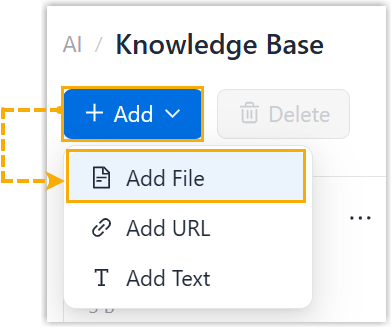
- Click Add, then select Add
File.
- In the pop-up window, do as follows:
- Click Choose a File.
- Select the desired file(s) from your computer, then
click Open.Note: You can upload up to 5 files at a time.
- Click Save.
- Result
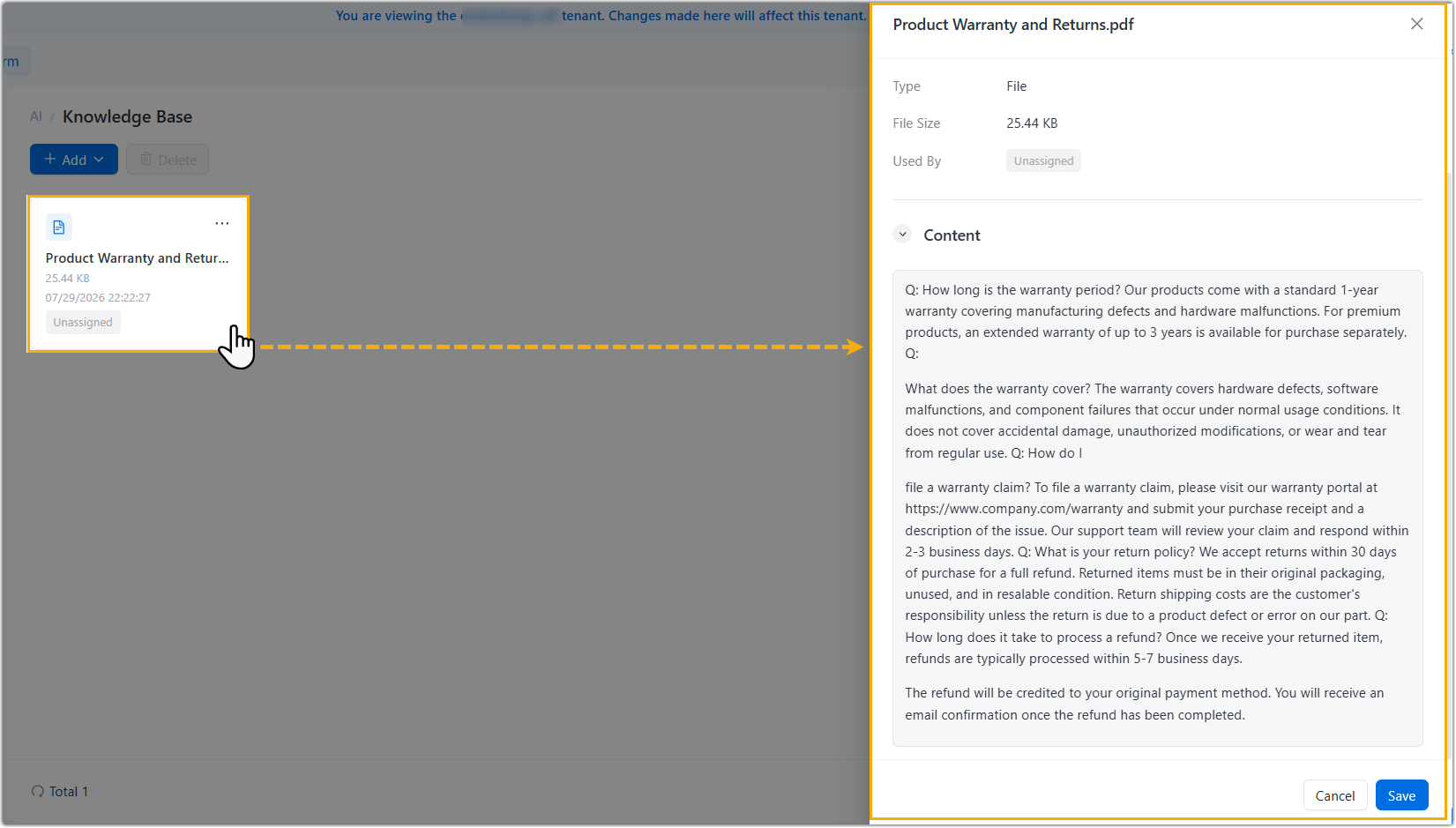
- The files are successfully uploaded and displayed in the knowledge base list. You can click the corresponding entry to view the file details as well as contents extracted from the file.
Add contents by providing a URL
Provide a web link for the AI receptionist to access and retrieve information from online sources. This method is suitable for frequently updated content such as online FAQs, support articles, or public documentation pages.
- Restrictions
-
- The AI receptionist only reads contents from the URL you provide. It does not automatically follow or crawl links embedded within that page to retrieve content from other pages. Therefore, if you need information from multiple pages, add each URL separately to your knowledge base.
- Contents imported via URL are not synced and updated automatically. If the page content changes, you need to re-upload the URL for the updates to take effect.
- Procedure
-
- Log in to NovoOne Tenant portal, go to .
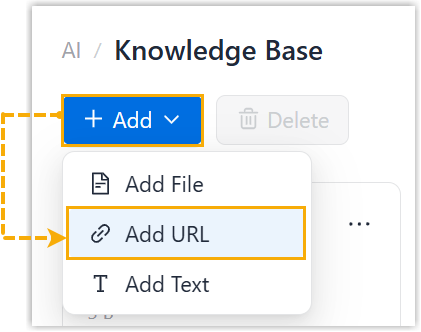
- Click Add, then select Add
URL.
- In the pop-up window, do as follows:
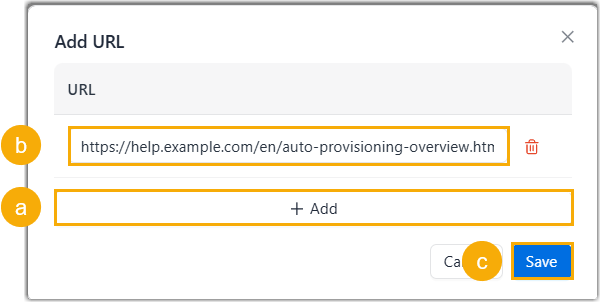
- Click Add.
- Paste the URL pointing to the desired content.Note:
- The URL must start with
https://. - You can add up to 5 URLs at a time.
- The URL must start with
- Click Save.
- Result
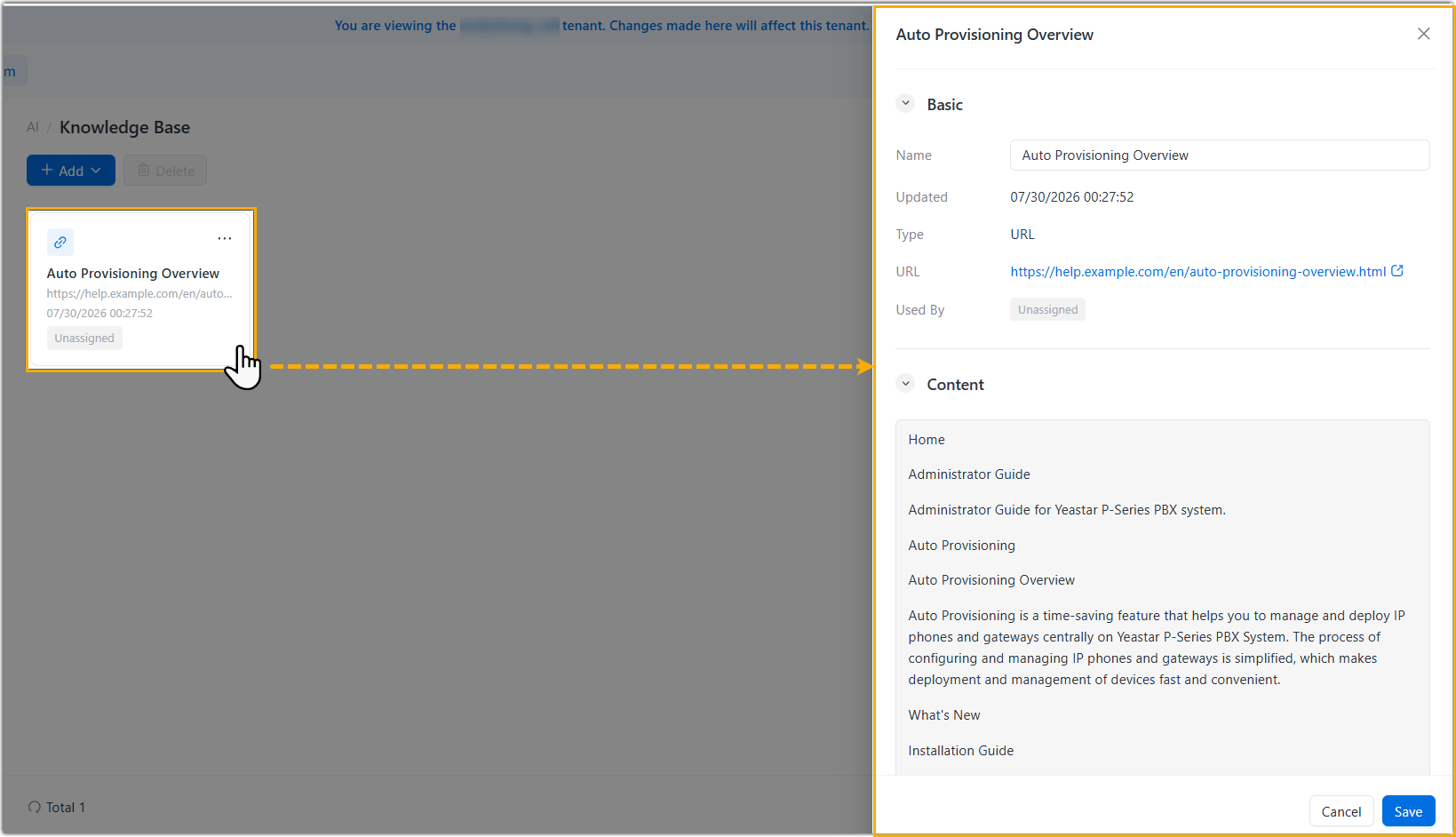
- The system parses contents from the URLs and add it to the knowledge
base. You can click the corresponding entry to view the page details and
the extracted content.
Add contents by pasting text
Enter or paste text content directly into the knowledge base. This method works best for small to medium-sized information, such as frequently asked questions, product summaries, company policies, or any other textual information callers may ask about. No separate file creation is required.
- Procedure
-
- Log in to NovoOne Tenant portal, go to .
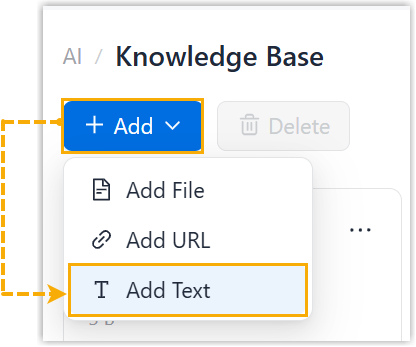
- Click Add, then select Add
Text.
- In the pop-up window, do as follows:
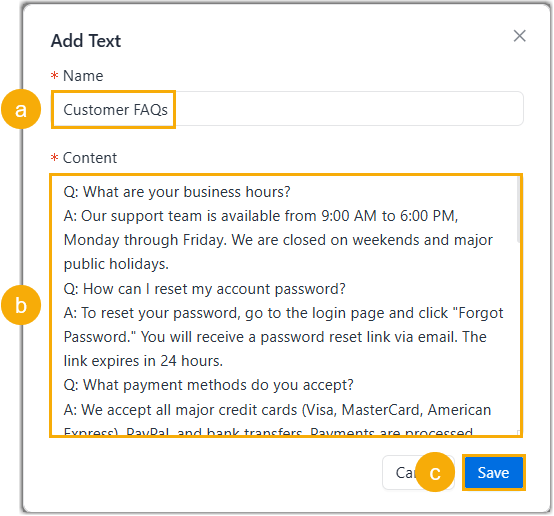
- In the Name field, enter a name for the content.
- In the Content field, enter or
paste the content.Tip: For optimal information retrieval, organize the content with clear headings and concise sections.
- Click Save.
- Result
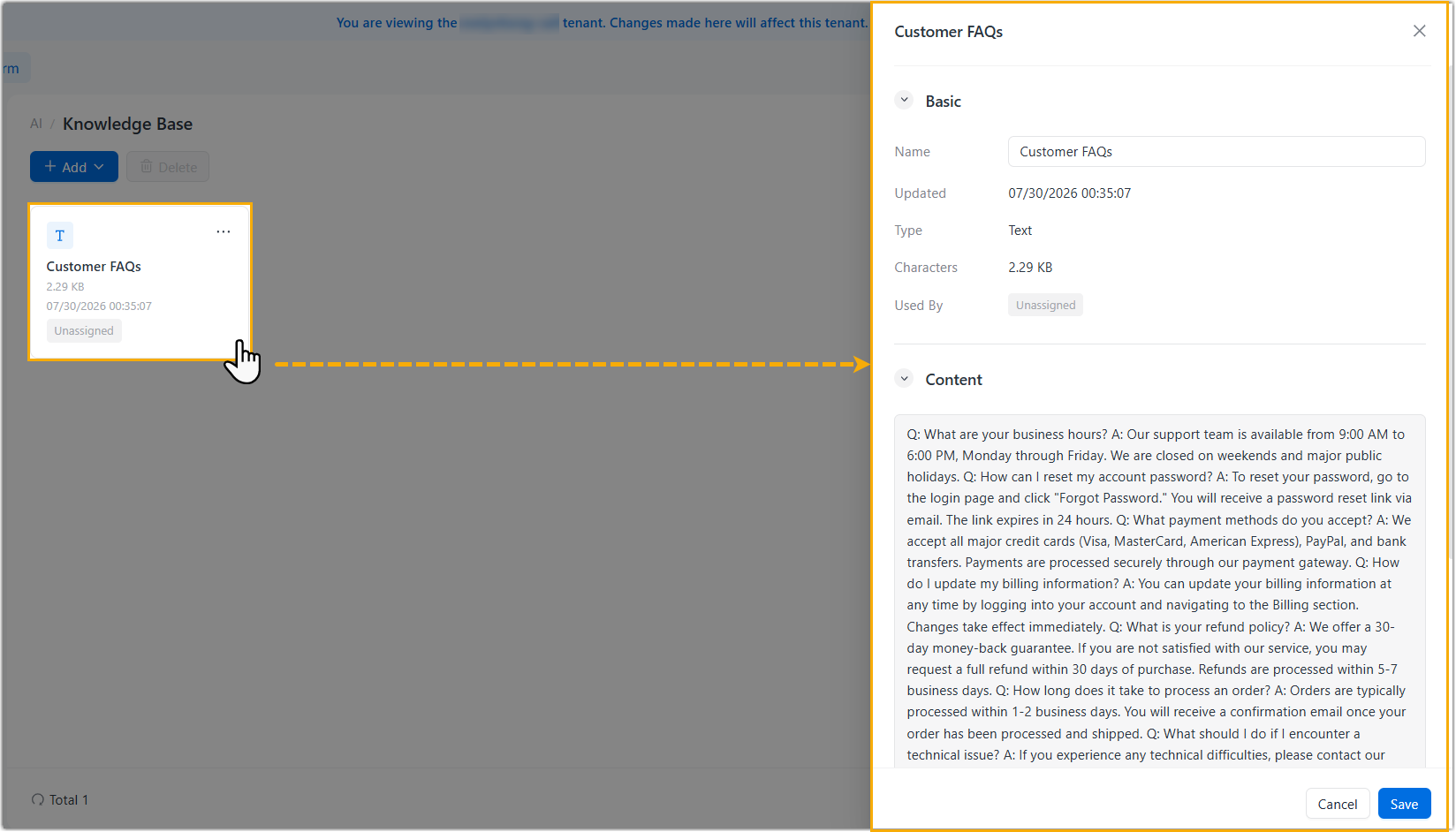
- The text content is added to the knowledge base. You can click the
corresponding entry to view the details and the full text.