Download CDR
NovoOne allows you to download CDRs to your local computer for call analysis or billing.
Prerequisites
(Optional) Customize CDR download settings.
Note: When manually downloading CDRs from Tenant portal, the
CDR list data is downloaded in
.csv format by default. You can
adjust the CDR download settings to specify the data range and the file
format.Step 1. Filter CDR
- Log in to NovoOne Tenant portal, go to .
- Set filter criteria to filter list data.
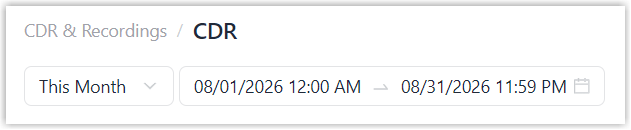
- Specify a time range.
- Filter by call participants.
Scenario Instruction Filter by participants for the entire call
In the Call From and Call To fields, enter the caller's or callee's number or name.  Note: You can swap values between the two fields by clicking
 .
.Filter by participants for a specific call leg
Click Filters, then enter the participant's number or name in the Second Participant and Last Participant fields. 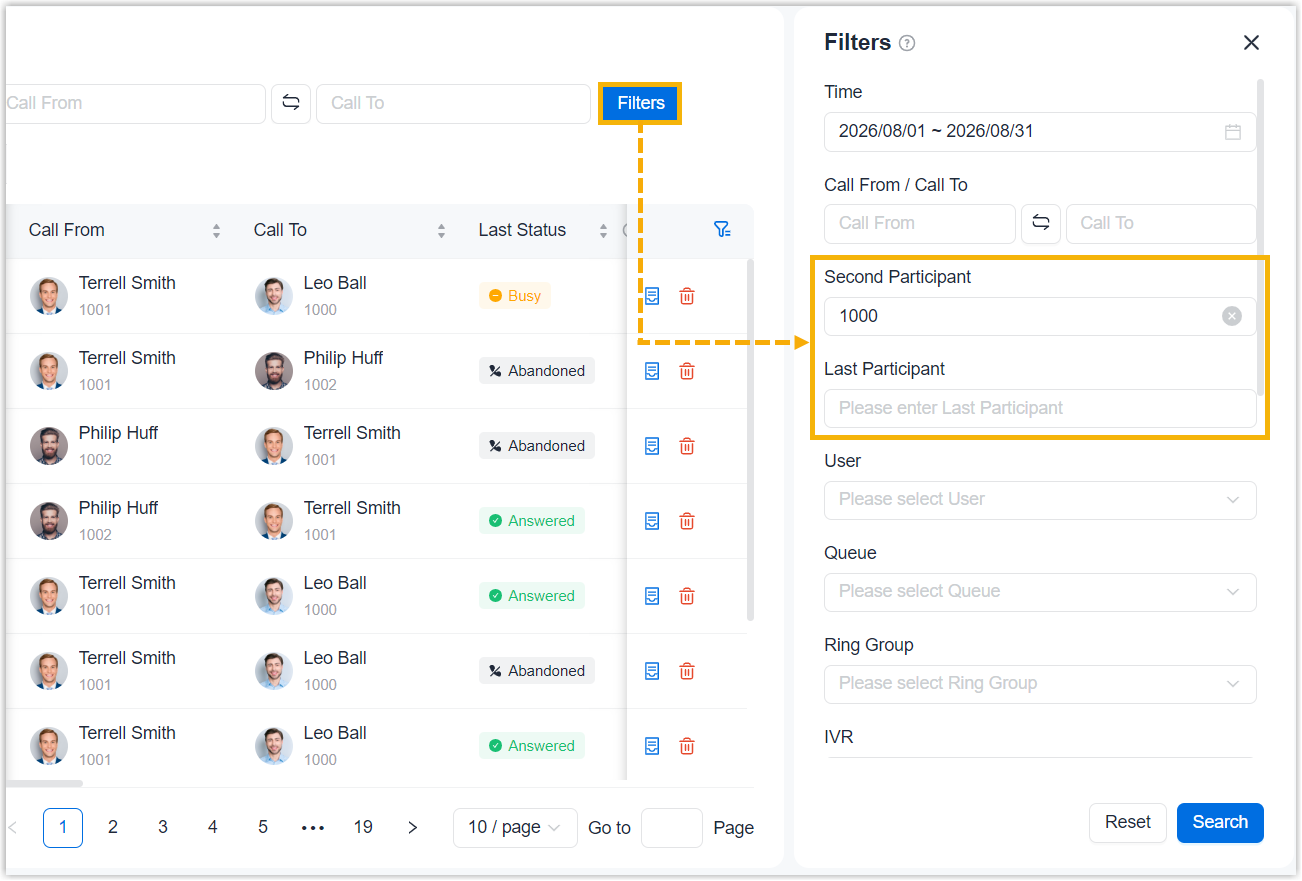
- Specify a time range.
- Set filter criteria to filter call leg data.Note: The following filters also apply to list data.
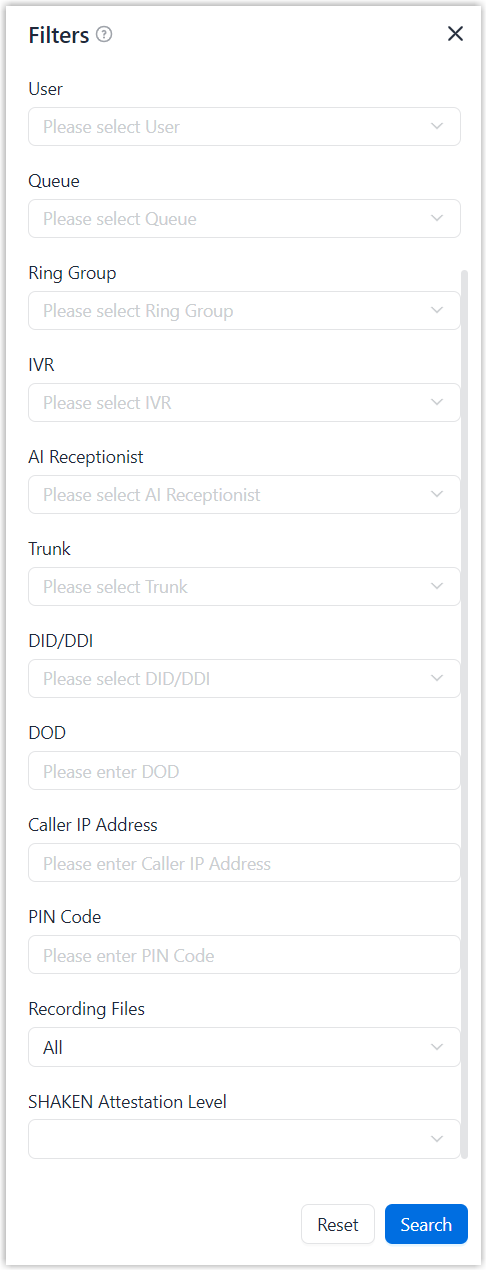
Filter Description User Select user(s) involved in the call. Queue Select queue(s) involved in the call. Ring Group Select ring group(s) involved in the call. IVR Select IVR(s) involved in the call. AI Receptionist Select AI Receptionist(s) involved in the call. Trunk Select trunk(s) used in the call. DID/DDI Select DID/DDI number(s) that caller dialed. Note: If Trunk is specified, only DID/DDI numbers associated with the selected trunk(s) can be selected.DOD Enter DOD number(s) used for outbound calls.
Caller IP Address Enter the IP address of the caller's device. PIN Code Enter the PIN code used for outbound calls. Recording Files Filter CDRs by call recording status.- All: Display all CDRs.
- Has Recording: Display CDRs with recordings.
- No Recording: Display CDRs without recordings.
SHAKEN Attestation Level Select attestation level(s) or signature verification result. - A: The call is signed with
SHAKEN attestation level
A. - B: The call is signed with
SHAKEN attestation level
B. - C: The call is signed with
SHAKEN attestation level
C. - Invalid: The call has an
invalid SHAKEN signature.Note: This option is available for inbound calls only.
- Unknown: The SHAKEN
attestation level can not be identified.Note: This option is available for inbound calls only.
- Unsigned: The call doesn't have a SHAKEN signature.
- Set column filters to narrow down the list data.
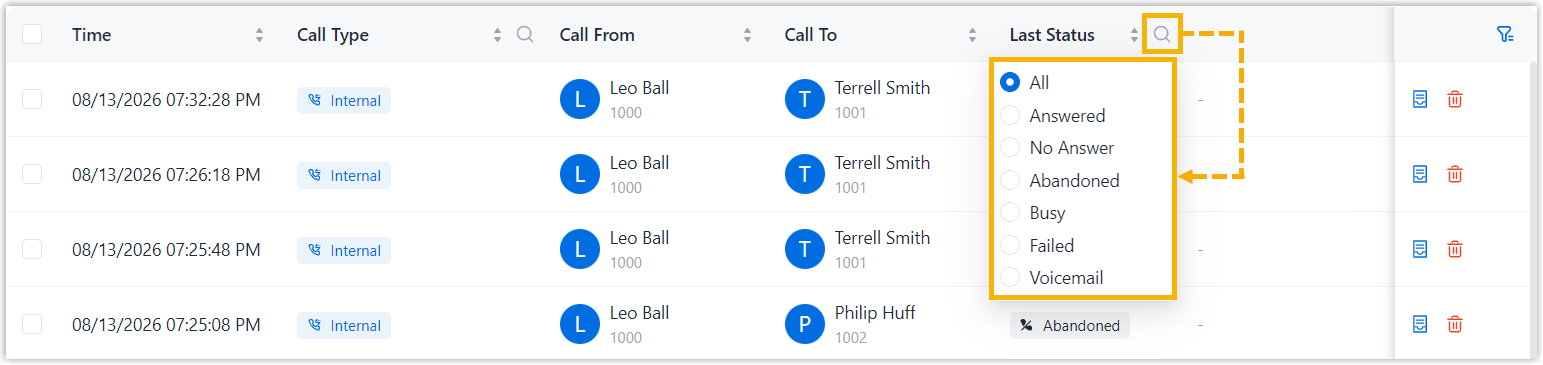
Filter Description ID Enter the CDR ID. Note: CDR ID is not displayed in the list by default. To display it, click and enable
ID field.
and enable
ID field.
Call Type Select call type(s). - Inbound
- Outbound
- Internal
Last Status Select final status of the call. - All
- Answered
- No Answer
- Abandoned
- Busy
- Failed
- Voicemail
Note: For calls with multiple call legs, the status of the last call leg is displayed.Call Legs Specify the number of call legs. Note:- Call leg is not displayed in the list by
default. To display it, click and enable
Call Legs field.
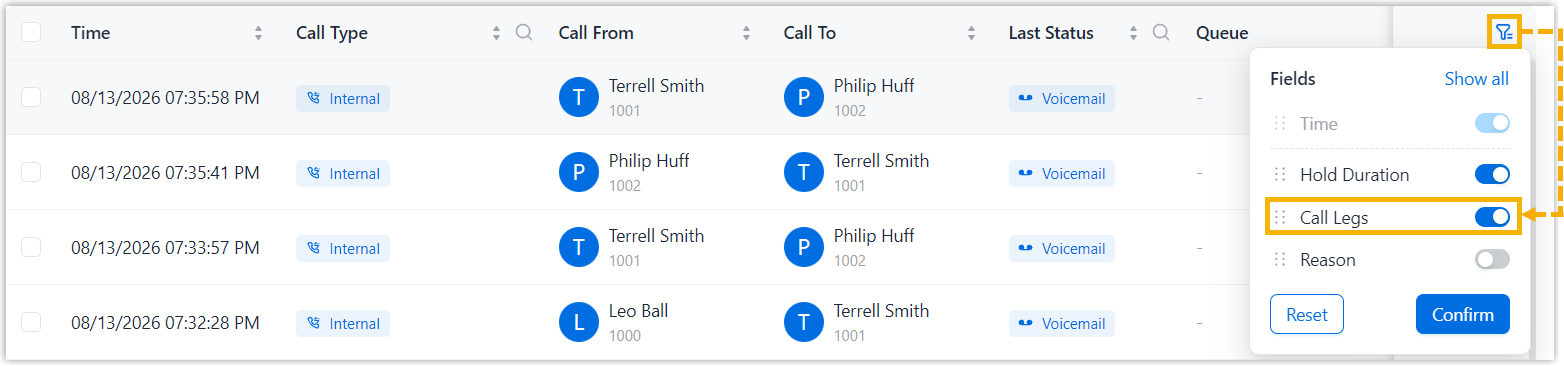
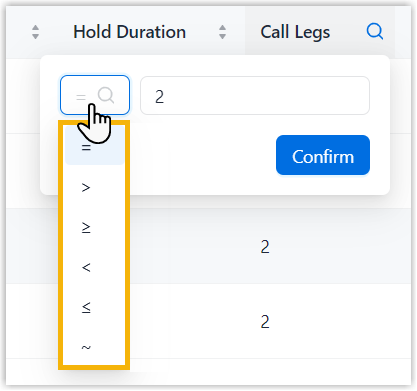
- The number can be an exact value or a range.
You can use comparison operators to specify a
range.
- Select more fields to display in the list.
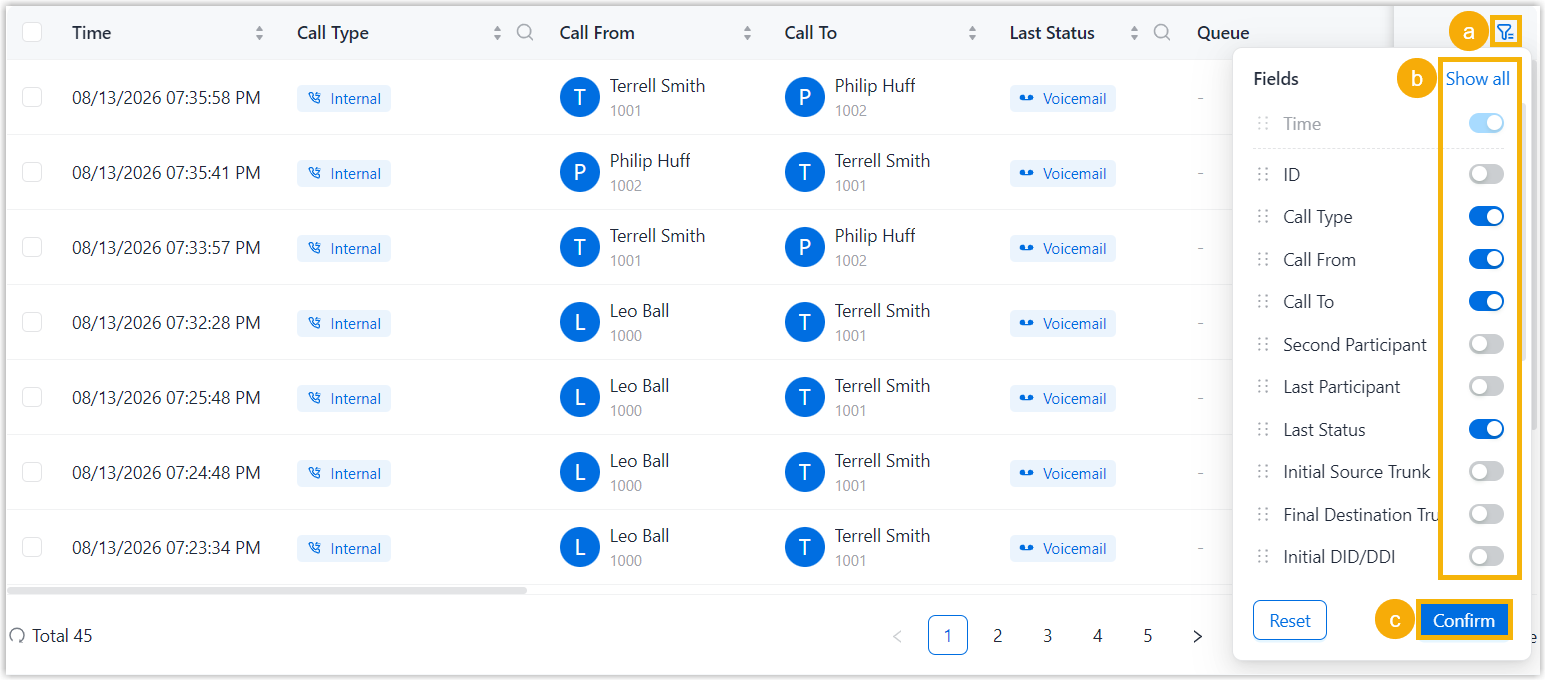
- On the right pane, click .
- Turn on the switch for the desired fields, or click Show all to display all fields.
- Click Confirm.
- On the right pane, click
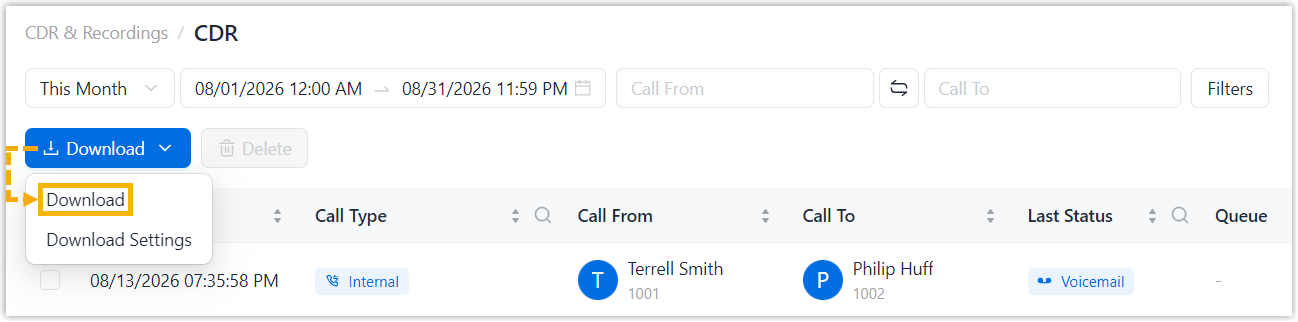
Step 2. Download CDR
Click Download, then select Download.
Result
CDRs that match the filter criteria are downloaded to your local computer in the selected format.