Customize CDR Download Settings
When manually downloading CDRs from Tenant portal, the CDR list data is downloaded in
.csv format by default. You can adjust the CDR download settings to
specify the data range and file format.
Procedure
- Log in to NovoOne Tenant portal, go to .
- Click Download, then select Download
Settings from the drop-down list.
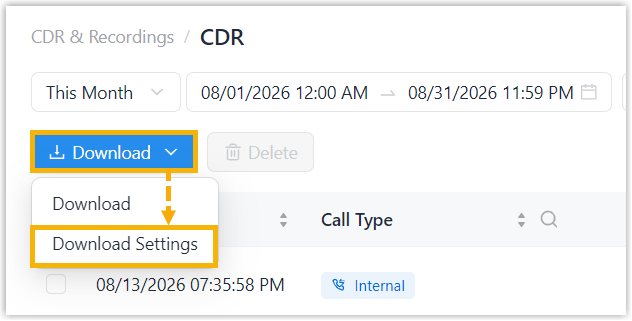
- In the pop-up window, configure the following settings.
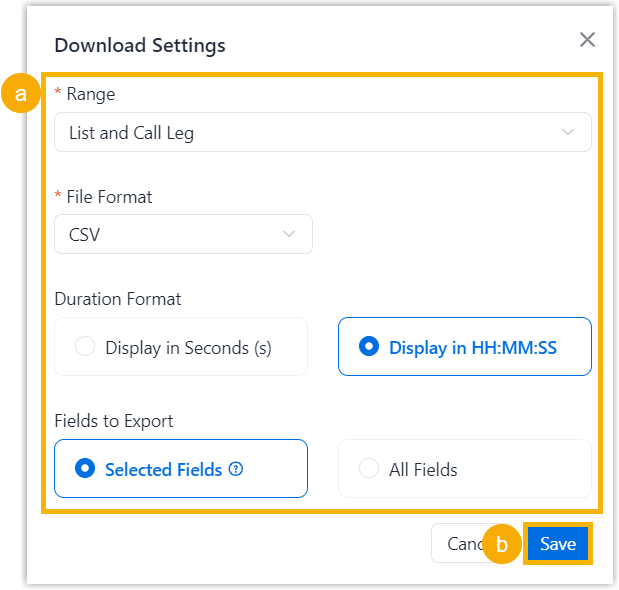
- Customize the CDR download settings.
Setting Description Range Specify the CDR data to download. - List Only
- Call Leg Only
- List and Call Leg
File Format Specify the file format for the downloaded CDR data. - CSV
- XLS
- HTML
Duration Format Specify the display format for duration-related fields. - Display in Seconds (s)
- Display in HH:MM:SS
Fields to Export Specify the fields to export. - Selected FieldsNote: If you choose this option, only the currently selected visible columns will be exported.
- All Fields
- Click Save.
- Customize the CDR download settings.
Result
The download settings are saved and retained for future downloads until you change them.