Add a Company Contact
This topic describes how to add a company contact.
Procedure
- Log in to NovoOne Tenant portal, go to Company Contacts.
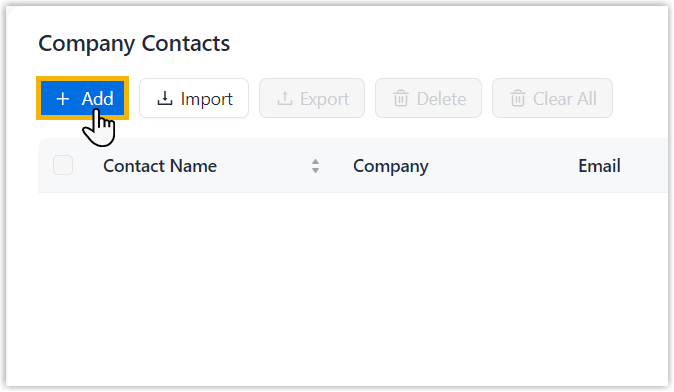
- At the top of the list, click Add.
- Configure the company contact.
- In the Contact Details section, configure the
contact's basic information.
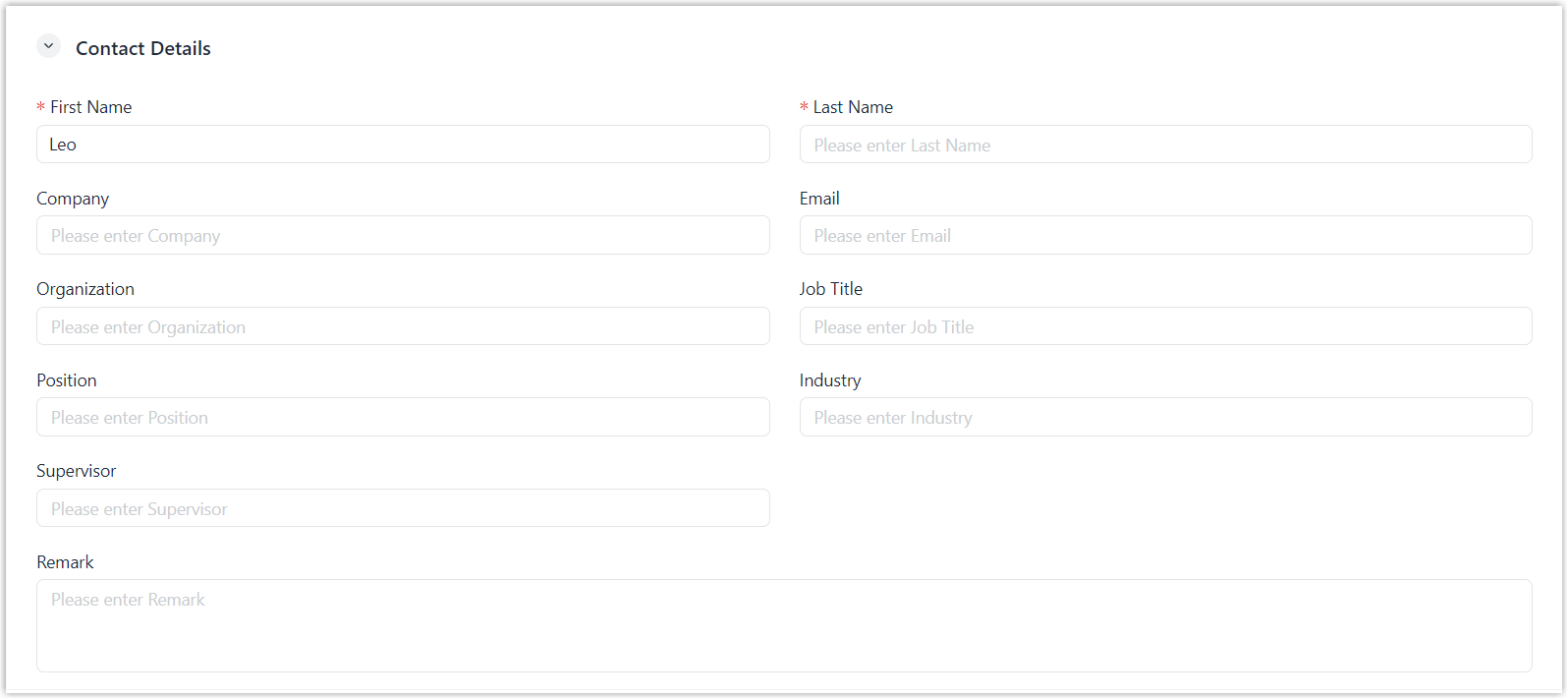 Note: Either First Name or Last Name is required.
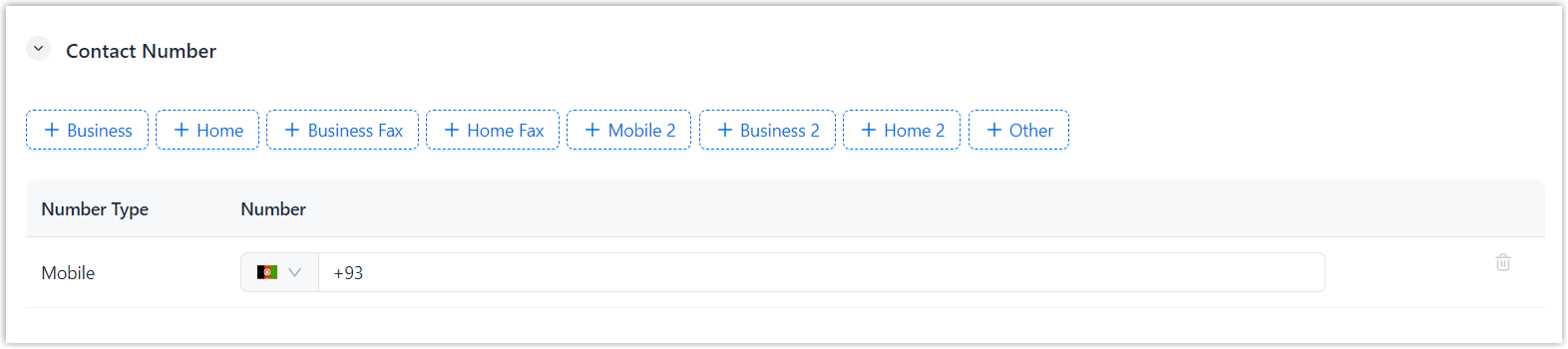
 - In the Contact Number section, add and configure
the contact's phone numbers.
 Note:
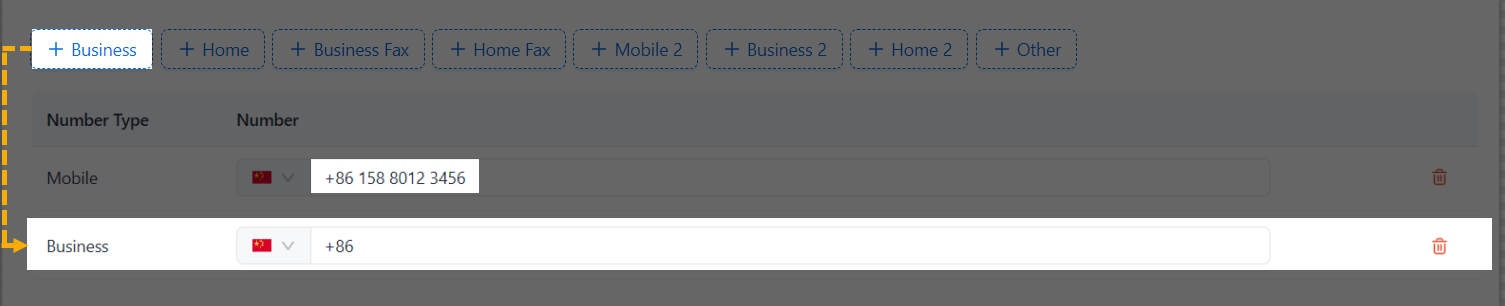
Note:- Enter the contact's mobile number directly, or click to
add additional numbers as needed.
- At least one phone number is required, and each phone
number must meet the following requirements:
- Only numbers, spaces, and characters
+-().are allowed.+can appear only once and only as the first character. -
The maximum character length is 31.
- Only numbers, spaces, and characters
- Enter the contact's mobile number directly, or click to
add additional numbers as needed.
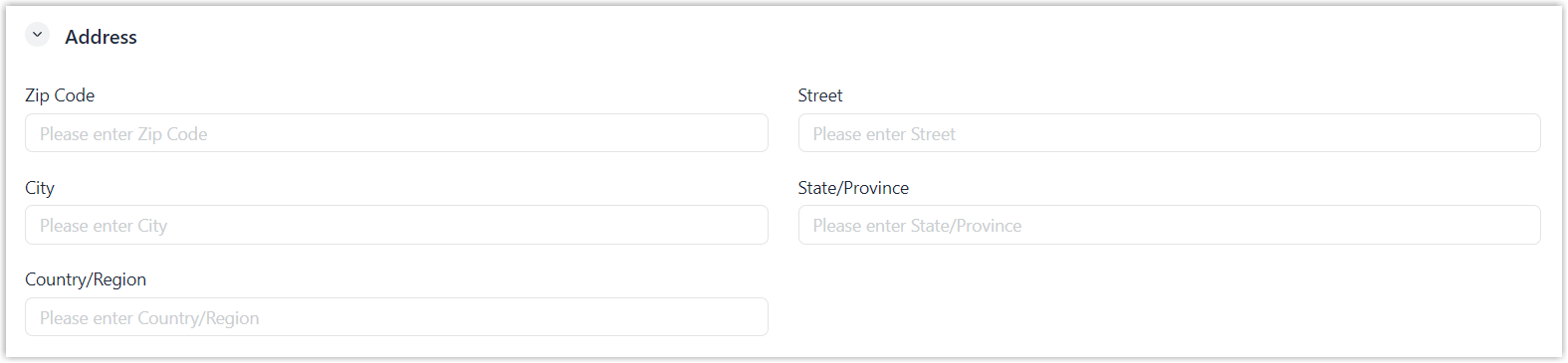
- In the Address section, configure the contact's
address information.
- In the Contact Details section, configure the
contact's basic information.
- Click Save.
Result
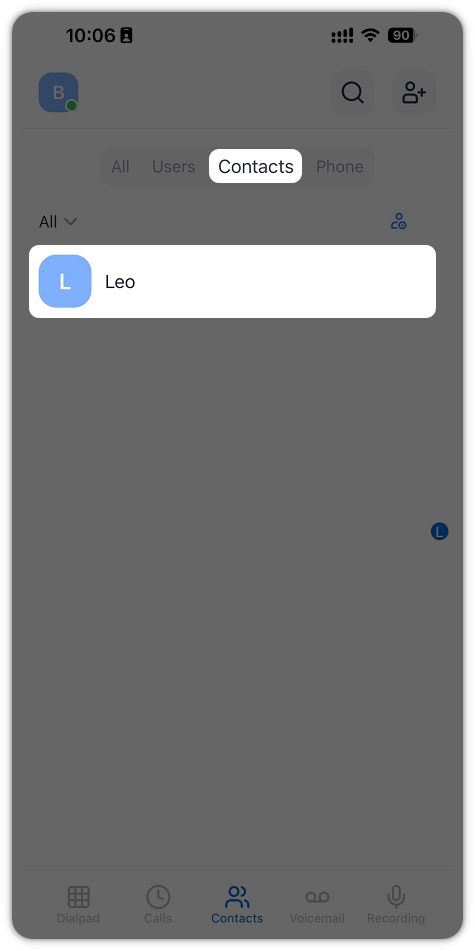
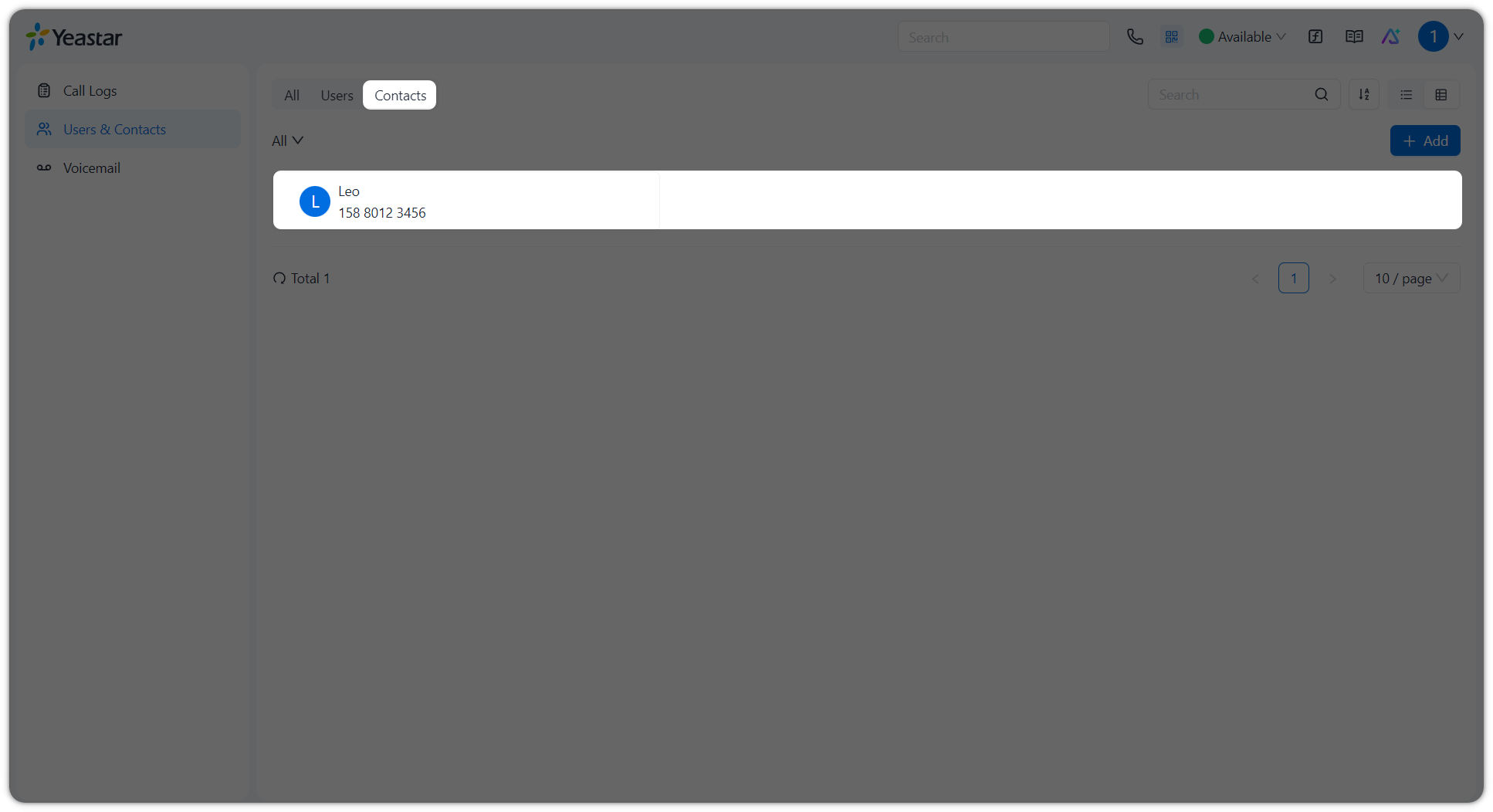
The company contact is added, and all users within the tenant ca view and reach the contact from their NovoOne clients, as shown below.
| NovoOne Mobile Client | NovoOne Web Client |
|---|---|
| Path:
|
Path:
|