Associate DID Numbers with SIP Trunks
This topic describes how to add DID numbers, associate them with specified SIP trunks, and specify which tenants(either your tenants or your resellers' tenants) are authorized to use these DID numbers.
Prerequisites
- You have purchased DID number(s) from your ITSP.
- You have created SIP trunks on NovoOne Platform. For more information, see the following topics:
- If you need to assign the DID number(s) to a specific reseller, make sure that you have assigned all SIP trunks to be associated with the DID number(s) to him/her.
Procedure
- Log in to NovoOne Platform portal, go to .
- At the top of the list, click Add.
- In the General section, add DID number(s) according
to your need.
- To add a single DID number, complete the following
settings.
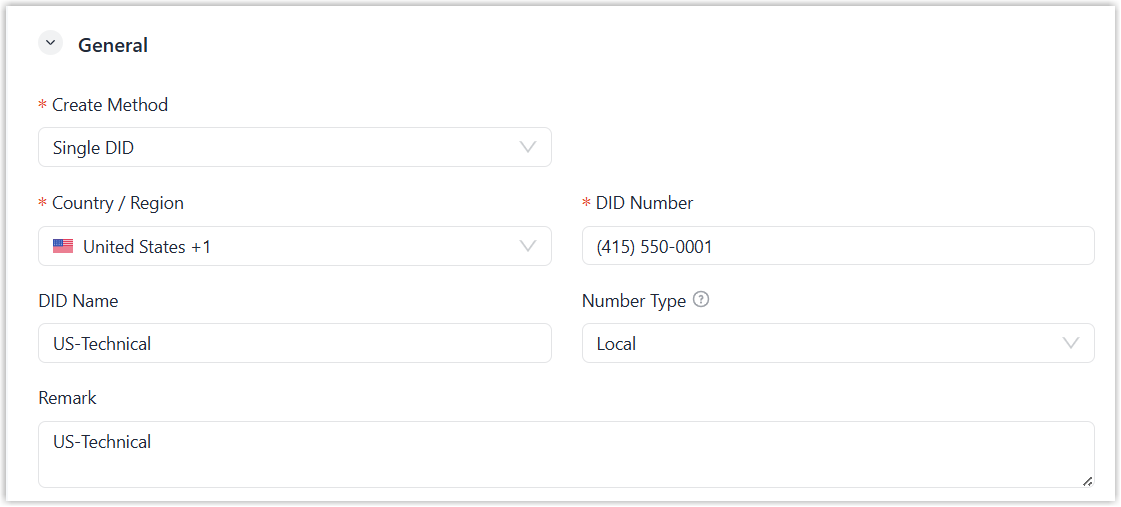
Settings Instruction Create Method Select Single DID. Country / Region Select the country or region the DID number belongs to. Note: You can refer to the the list of supported countries and regions to identify the DID number's country or region.If no matching entry is found, select Unknown Country. The platform will bypass country-based validation and route the DID number in its raw format.
DID Number Enter the DID number provided by your ITSP. Note:- Only numbers, blank
space and special characters
+-().are allowed, and the length should not be greater than 31 characters. - The system will automatically format the DID number based on the formatting rules of selected Country / Region.
DID Name Optional. Enter a name to distinguish inbound calls by the DID number. When the DID number is dialed, the name will be displayed on the called party's device. Note: The length of the name should not be greater than 127 characters.Number Type Optional. Select or customize the type of the DID number. Note: This setting is used for business categorization only and is not involved in number parsing or validation.Remark Optional. Enter a remark for the DID number. - Only numbers, blank
space and special characters
- To add a range of DID numbers, complete the following
settings.
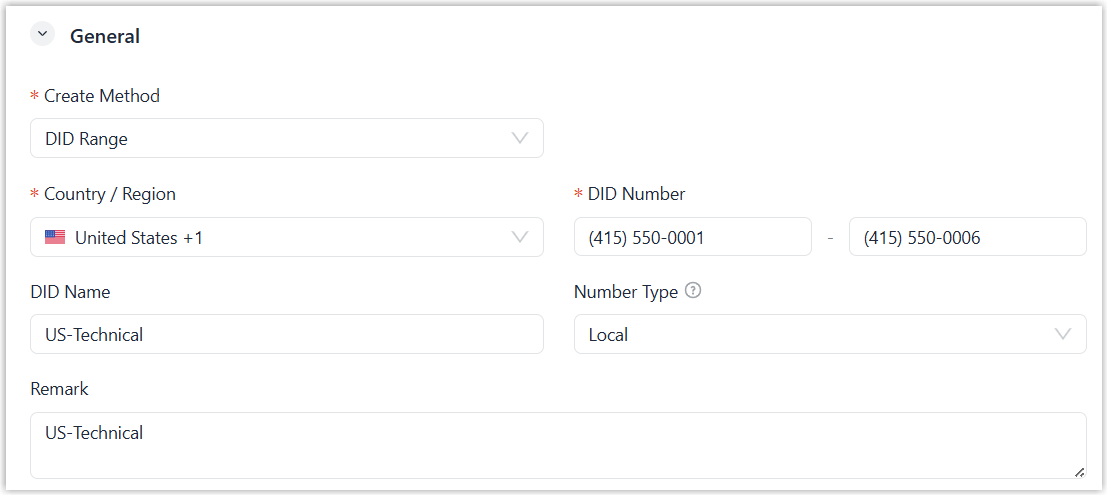
Settings Instruction Create Method Select DID Range. Country / Region Select the country or region the DID numbers belong to. Note: You can refer to the the list of supported countries and regions to identify the DID numbers' country or region.If no matching entry is found, select Unknown Country. The platform will bypass country-based validation and routes the DID numbers in their raw formats.
DID Number Enter the start number and end number of the DID range provided by your ITSP. Note:- Start and end DID numbers can not be from different countries and must have the same number length.
- The DID range must not exceed the maximum limit of 1000 numbers.
- Only numbers, blank
space and special characters
+-().are allowed, and the length should not be greater than 31 characters. - The system will automatically format the DID numbers based on the formatting rules of selected Country / Region.
DID Name Optional. Enter a name to distinguish inbound calls by DID numbers in the DID range. When each DID number in the DID range is dialed, the name will be displayed on the called party's device. Note: The length of the name should not be greater than 127 characters.Number Type Optional. Select or customize the type of the DID range. Note: This setting is used for business categorization only and is not involved in number parsing or validation.Remark Optional. Enter a remark for the DID range.
- To add a single DID number, complete the following
settings.
- In the Assign
DID section, complete the following setting.
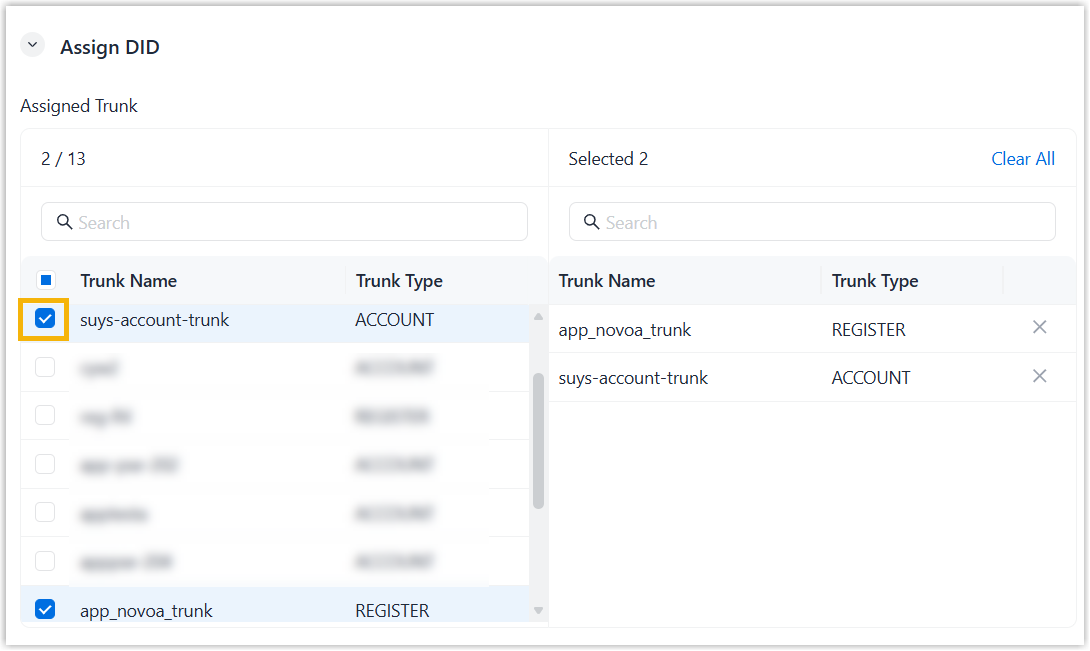
- In the Assigned Trunk box, select the desired
trunk(s) to associate them with the DID number(s).
- In the Assigned Reseller section, assign the
DID number(s) to either your tenants or your resellers as
needed.
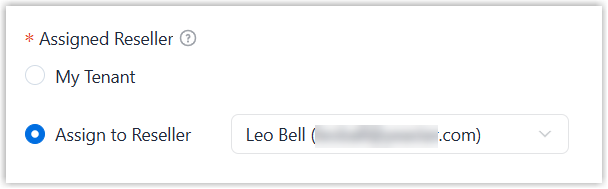
- To assign the DID number(s) to your tenants so that these DID numbers are available for your tenants to use, select My Tenant.
- To assign the DID number(s) to a specified reseller so that these DID numbers are available for the reseller's tenants to use, select Assign to Reseller and select the desired reseller from the drop-down list.
- In the Assigned Trunk box, select the desired
trunk(s) to associate them with the DID number(s).
- Click Save.
Result
The added DID number(s) is displayed in the DID Numbers list. If the DID number(s) is assigned to your reseller, it is also displayed in the DID Numbers list on the reseller's NovoOne Platform portal.
What to do next
- If you specify that the DID numbers can be used within your tenants, assign the number(s) to specified tenant(s).
- If you specify that the DID numbers can be used within a specified reseller's tenants, assign the number(s) directly to the reseller's tenant(s) or instruct the reseller to perform the assignment on their own.