Configure AI Voicemail Transcription with Built-in Service
Yeastar P-Series Software Edition supports AI voicemail transcription powered by built-in AI engine,allowing users to quickly review voicemail messages. This topic describes how to configure AI voicemail transcription with the built-in AI engine.
Requirements
| Item | Requirement |
|---|---|
| Firmware | 83.23.0.83 or later. |
| Subscription |
The AI Transcription feature includes one-time free minutes with your plan subscription (120 minutes for Enterprise Plan or 240 minutes for Ultimate Plan). To expand AI transcription minutes, subscribe to the following add-on service(s) (Path: ). 
Note: If both services are subscribed,
minutes are deducted from the monthly quota pack
first. |
Procedure
- Log in to PBX web portal, go to .
- Turn on the switch of
Voicemail Transcription.
 Tip: If you have already configured AI Call Transcription with the built-in AI engine, you can directly click Copy Settings from Call Transcription at the top-right corner to reuse the configuration, then modify the settings as needed.
 - In the Service Type drop-down list, select Build-in Service.
- Configure voicemail transcription settings.
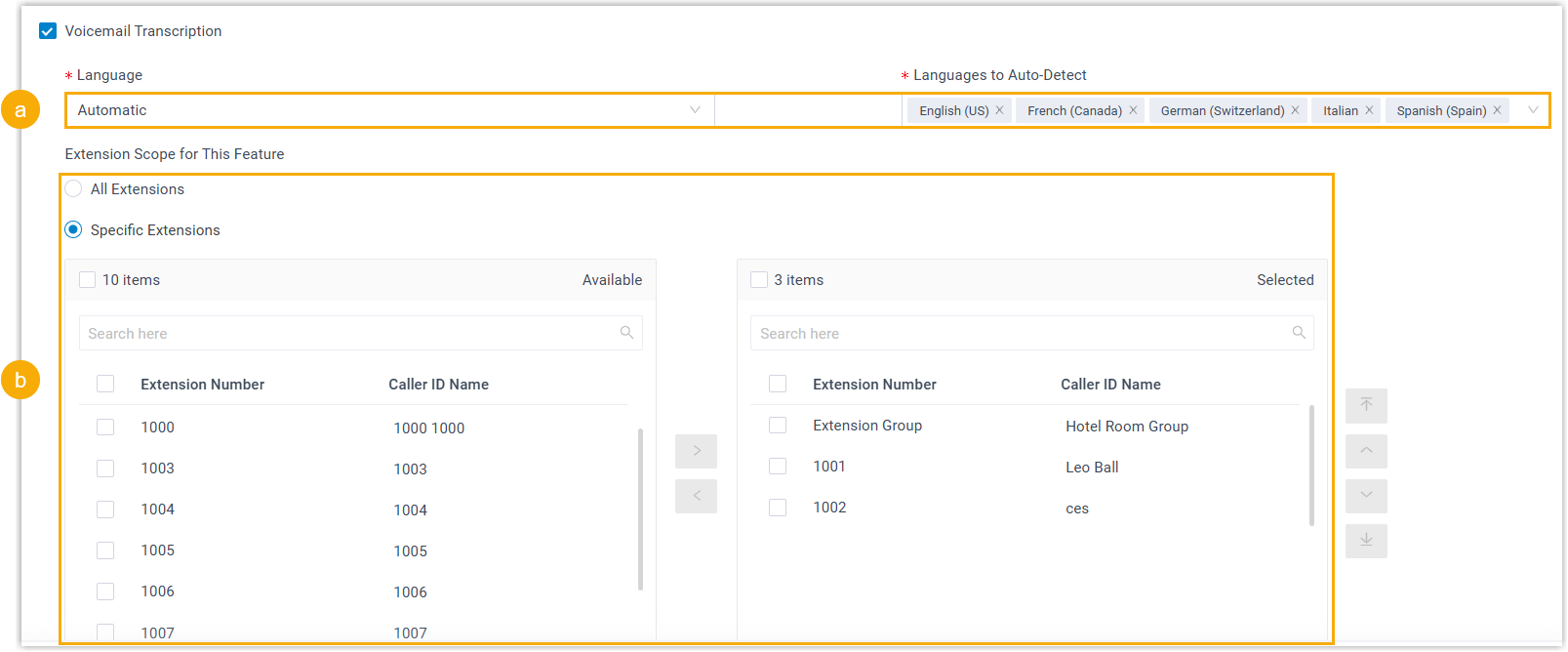
- Set the transcription language.
- Language: In the drop-down list, select the desired language to be detected and transcribed for voicemail messages.
- Languages to
Auto-Detect: If you set the
Language to Auto Detection, select the
desired languages for auto detection.
The system will automatically detect and transcribe voicemail messages in the selected languages.
Note:- You can select up to 5 languages for auto-detection simultaneously.
- Only one region can be selected per language. For example, you cannot select both English (UK) and English (US) at the same time.
- In the
Extension Scope for This Feature section,
specify which extensions / extension groups / departments are
allowed to use voicemail transcription feature.
- All Extensions: All extensions can use this feature.
- Specific Extensions: Only selected extensions can use this feature.
- Set the transcription language.
- Click Save.
Result
- The AI voicemail transcription feature powered by built-in AI engine is
enabled. The system will automatically transcribe both group and extension
voicemail messages into readable texts in the specified language via the
built-in service.Note: You can customize transcription language for single extension (Path: ), which will be applied to the group voicemails in Broadcast to Members mode and personal voicemails delivered to the extension. For more information, see Configure AI Voicemail Transcription for an Extension.
- The system automatically monitors
transcription usage and sends notifications when specific capacity
thresholds are reached:
- When transcription utilization rate (used minutes / total minutes)
of either the one-time capacity or
the monthly quota pack has reached the pre-configured
capacity thresholds, the PBX sends a notification Your AI
Transcription Usage is Reaching the Capacity Limit
to notify relevant contacts.Note:
- The default thresholds are 80%, 90%, and 95%.
- You can customize the thresholds for
one-time capacity and monthly quota pack
individually (Path: ).

- The total AI transcription minutes (both one-time capacity and monthly quota pack) is fully used, the PBX sends a notification AI Transcription Limit Reached to notify relevant contacts.
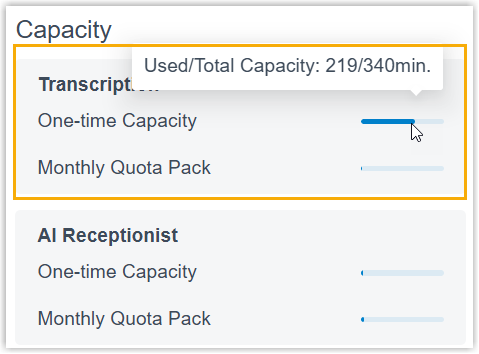
Note: In addition, you can track AI transcription usage using one of the following methods.- View used transcription minutes from the Transcription Usage Details report. For more information, see Access Transcription Usage Details Report.
- View used transcription minutes and total capacity directly from the
Dashboard (Only visible to super
administrator account).
- When transcription utilization rate (used minutes / total minutes)
of either the one-time capacity or
the monthly quota pack has reached the pre-configured
capacity thresholds, the PBX sends a notification Your AI
Transcription Usage is Reaching the Capacity Limit
to notify relevant contacts.