Add a Tool Manually
This topic describes how to create a custom tool by manually completing the tool configurations on the PBX.
Prerequisites
Obtain the following required information from the third-party API:
| Item | Description |
|---|---|
| Endpoint URL | The API request address (must use
HTTPS). |
| Request method | GET, POST, PUT, PATCH, or DELETE |
| Parameters | Path parameters, header parameters, query parameters, or body parameters required by the API request. |
| Authentication credentials | If the third-party API requires authentication, obtain its
static credentials (such as API key, Basic Auth username and
password, or static Bearer Token). Note: Dynamic authentication (e.g., OAuth 2.0) is not supported,
as it requires dynamic token acquisition and cannot be
pre-configured. Tip: You can pass the authentication credentials via the header
parameters in the configuration. For example,
Authorization: Bearer
                                            <your_static_token>
, X-API-Key:
<your_api_key>, etc. |
Procedure
- Log in to PBX web portal, go to .
- Click Add.Tip: You can seamlessly switch between Form Editor and JSON Editor from the top-right corner of the page.

- Configure the basic information.
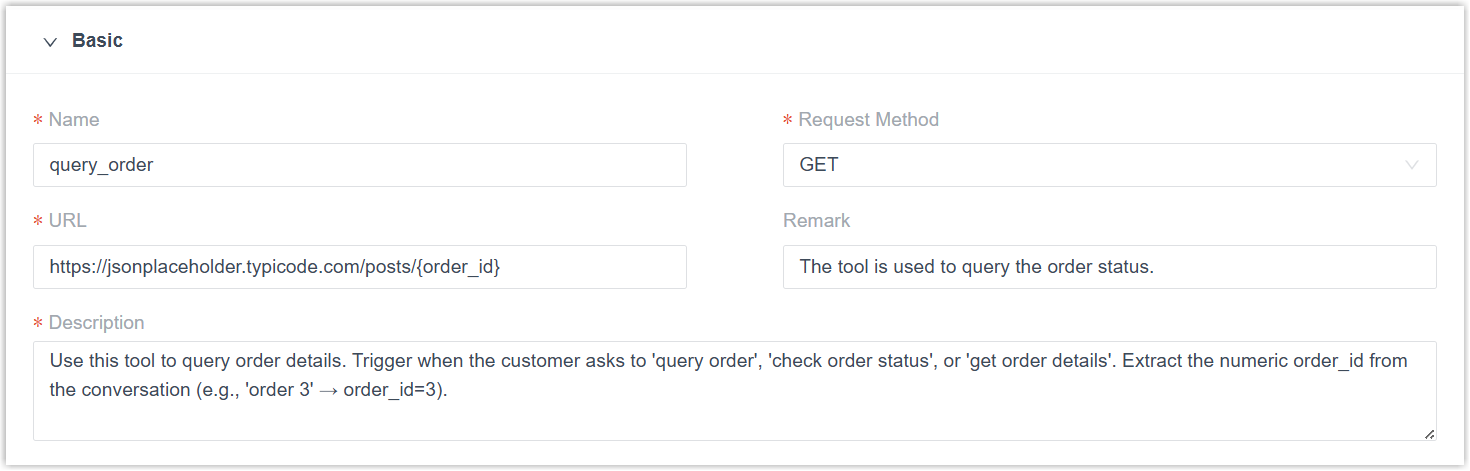
Setting Description JSON Field & Example Name Specify a unique name for the tool. Note: Only numbers, letters, underscore (_), and hyphen (-) are allowed."basic.name": "query_order"Request Method Select the HTTP method. "basic.method": "GET" //Valid value: GET/POST/PUT/PATCH/DELETEURL Enter the API endpoint URL. Note:- The URL must start with
https://. - You can add up to 5 path parameters
(
{path_param}) in the URL, and the parameter name may only contain numbers, letters, underscore (_), non-consecutive dots, and symbol@. In the subsequent configuration, you can set the AI receptionist to dynamically retrieve the values of these parameters based on the conversation.
"basic.url":"https://jsonplaceholder.typicode.com/posts/{order_id}"Remark Optional. Enter a remark to help you quickly identify the tool's purpose. "basic.remark": "Query order status tool"Description Enter a natural language description to instruct the AI receptionist when to use the tool and how it call it. "basic.description": "Use this tool to query order details. Trigger when customer asks to 'query order', 'check order status', or 'get order details'. Extract the numeric order_id from conversation (e.g., 'order 3' → order_id=3)." - The URL must start with
- Configure the execution rules.
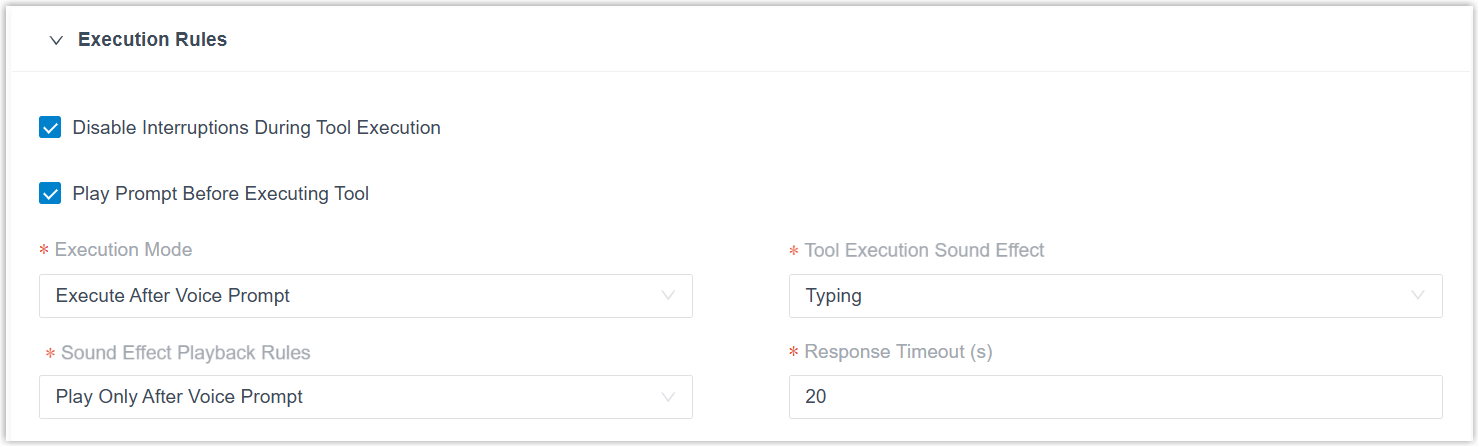
Setting Description JSON Field & Example Disable Interruptions During Tool Execution When selected, callers can not interrupt the AI receptionist while the tool runs.
"response_settings.disable_interruptions":true
// true = selected, false = unselected
Play Prompt Before Executing Tool When selected, the AI receptionist always speaks a prompt (e.g., "Let me check that for you") before running the tool. When unselected, the AI receptionist decides whether to speak a prompt automatically based on the recent execution latency of the tool. For example, skipping it for fast responses and speaking first for slow ones.
"response_settings.force_pre_tool_speech":true
// true = selected, false = unselected
Execution Mode Determines the execution behavior of the tool. - Execute Immediately on LLM Request: The tool runs as soon as the AI receptionist requests it.
- Execute After Voice Prompt: The tool runs after the AI receptionist plays a voice prompt.
- Async: The tool runs in the background
without pausing the conversation. The AI
receptionist does not wait for the response and
continues speaking immediately.Note: This mode is best suited for operations that don't require a response, such as sending an email or triggering an external workflow.
"response_settings.execution_mode":"lazy"
// Valid value: immediate/lazy/async
Tool Execution Sound Effect Specify the ambient sound during tool execution. Note: This setting is not available when Execution Mode is Async.- None: No sound will be played.
- Typing Sound: Play a keyboard typing effect.
- Music 1 - Music 4: Play one of the built-in ambient sound.
"response_settings.tool_call_sound":"Typing"
// Valid value: None/Typing/Music 1/Music 2/Music 3/Music 4
Sound Effect Playback Rules Specify when to play the ambient sound.Note: This setting is not available when Execution Mode is Async or Tool Execution Sound Effect is None.- Play Only After Voice Prompt: Plays only when the AI receptionist speaks a prompt before executing the tool.
- Always Play: Plays during every tool execution, regardless of whether the AI receptionist speaks a prompt first.
"response_settings.sound_behavior":"with_pre_speech"
// Valid value: with_pre_speech/always_play
Response Timeout (s) Specify the response timeout duration (in seconds). Note: The value must be between 5 and 120 seconds."response_settings.response_timeout":20 - Configure request parameters.
- Path parameters
- Path parameters are variables embedded in the URL path using
curly braces
{}. They are automatically extracted from the endpoint URL of the tool. 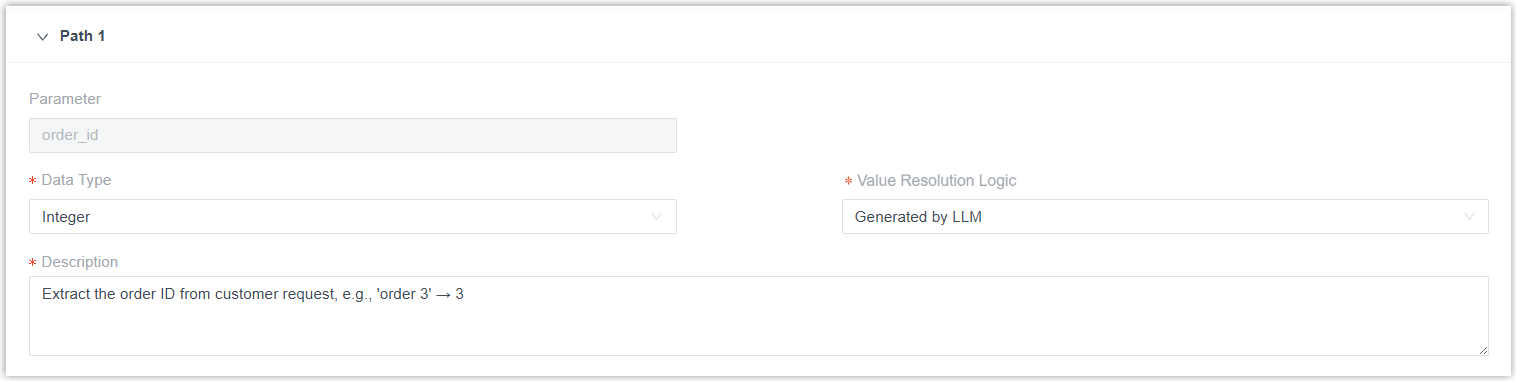
- Headers
-
Add and specify headers to be included in the request.Note:
- Only supports static header values. If
authentication needs to be passed in headers, use
static credentials (e.g.,
Authorization:
                                                  Bearer <Your_API_KEY>
). - Supports up to 20 headers.
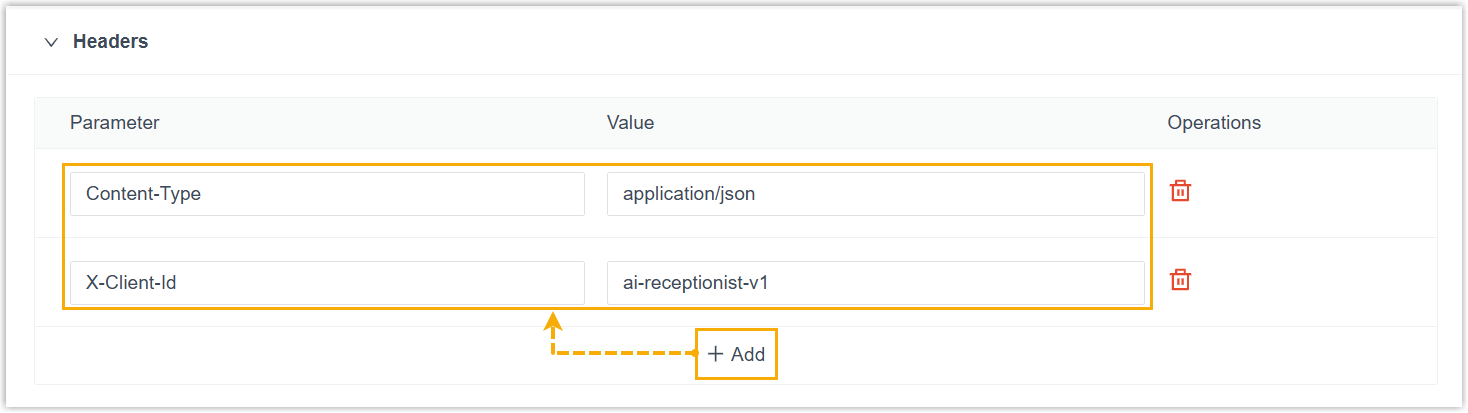
Setting Description JSON Field & Example Parameter Header name. "headers[].parameter": "Content-Type"Value Fixed header value. Note: Dynamic values are not supported."headers[].value": "application/json" - Only supports static header values. If
authentication needs to be passed in headers, use
static credentials (e.g.,
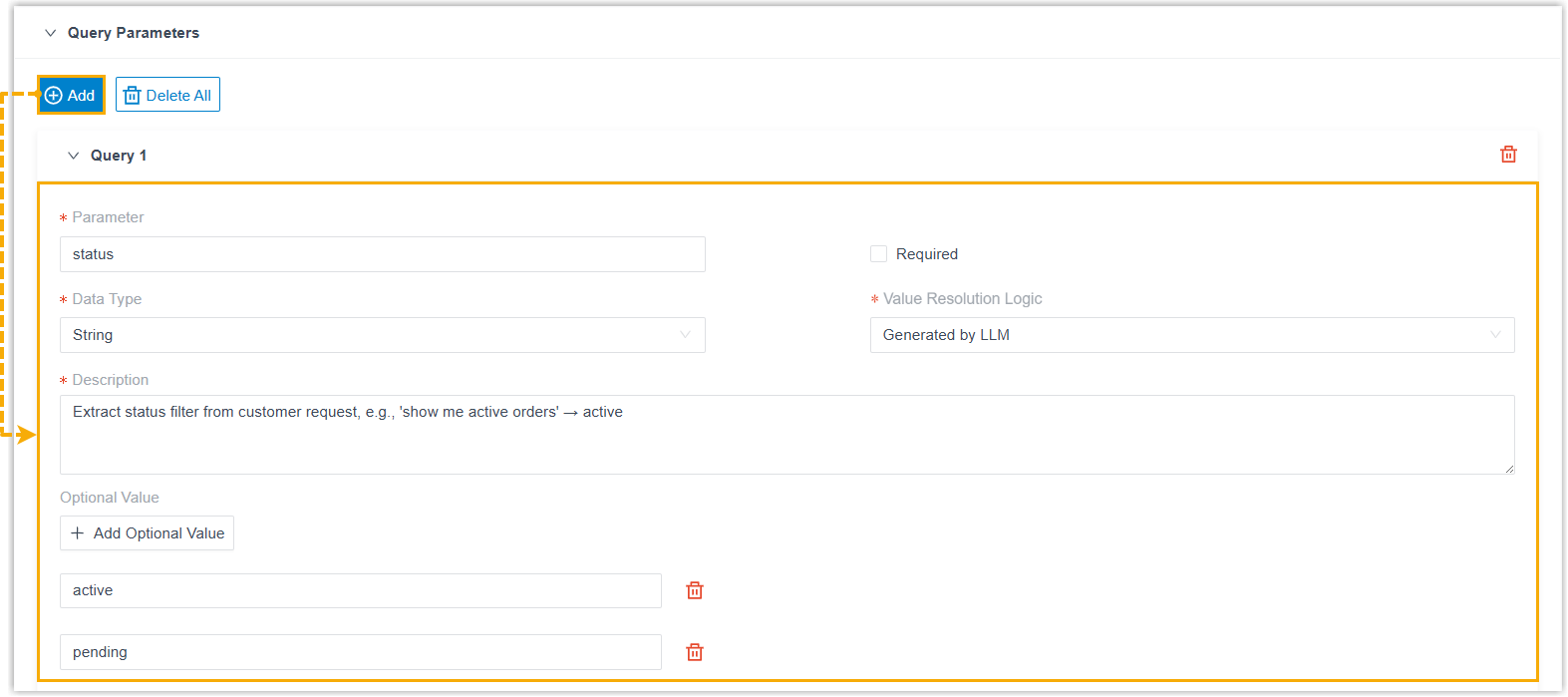
- Query parameters
- Add and specify the query parameters to be included in the
request.Note: Supports up to 10 query parameters.
- Body parameters
-
Add and specify the JSON body parameters to be included in the request.Note:
- This section appears only when the Request Method is POST, PUT, or PATCH.
- Supports up to 30 body parameters.
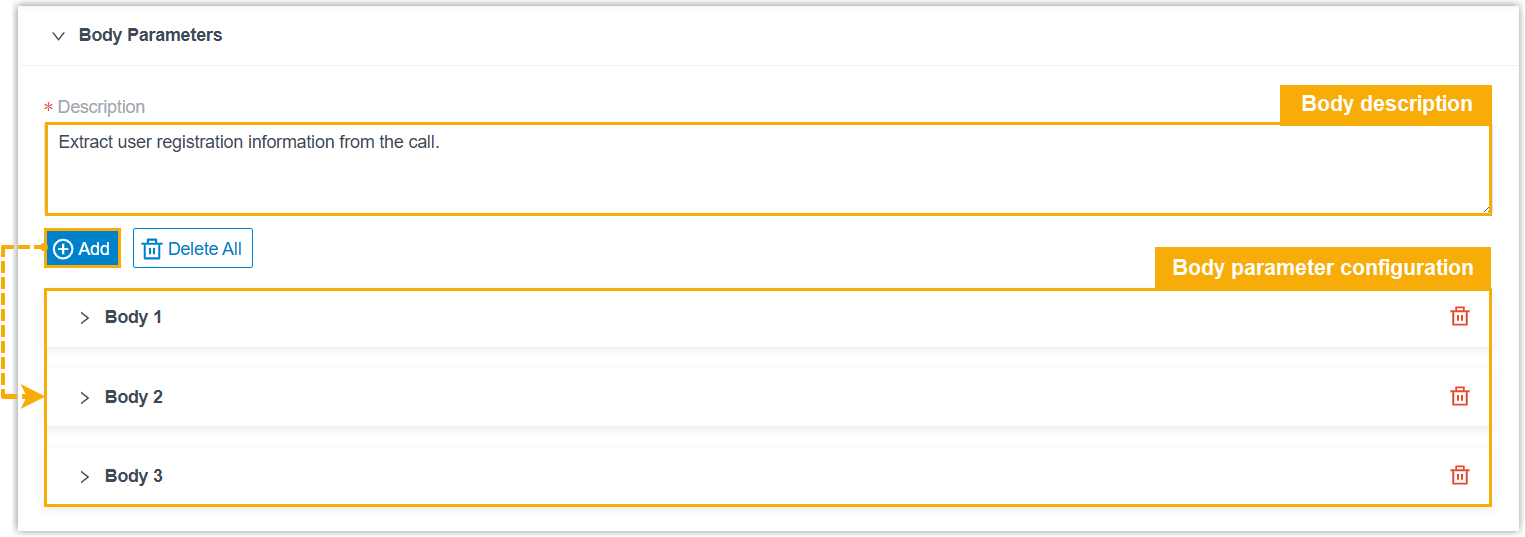
- Body description
Setting Description JSON Field & Example Description Enter a description to instruct the AI receptionist how to extract the body parameters from the call. "body_description":"Extract user registration information from the conversation." - Body parameter configuration

Setting Description JSON Field & Example Parameter Parameter name. Note: Only numbers, letters, underscore (_), non-consecutive dots, and symbol@are allowed."body_params[].parameter": "userId"Required Whether the parameter must be provided. If selected, the AI receptionist will repeatedly prompt the caller if the information is not provided.
"body_params[].required": trueData Type Select the data type of the parameter. - String: Text-based information such as names, emails, and addresses. Letters, numbers, and special characters are allowed.
- Boolean: Yes/no values, such as subscription consent or terms acceptance.
- Integer: Whole numbers without decimals, such as quantity, age, or ratings.
- Number: Numeric values that can be integers or decimals, such as order amount, discount rate, or product weight.
- Object: A key-value pair structure that groups multiple fields of different data types into a single set of information, such as registration information (including username, email, registration date).
- Array: A list of values of the same type, such as phone numbers, email addresses, or product IDs.
"body_params[].data_type": "String"
// Valid value: Boolean/Integer/Number/String/Object/Array
For Boolean/Integer/Number/String data type Value Resolution Logic Determine how the parameter value is obtained.- Constant Value: Use a fixed value specified in the Value field.
- Generated by LLM: AI receptionist extracts or generates the value dynamically.
"body_params[].value_logic": "constant"
// Valid value: constant/llm
Value Specify a fixed value for the parameter. Note: This setting is available only when Value Resolution Logic is Constant Value."body_params[].constant_value": "active" // Should be True or False when "data_type" is BooleanDescription Enter a natural language description to instruct the AI receptionist how to extract or generate the value from the call. Note: This setting is available only when Value Resolution Logic is Generated by LLM."body_params[].description": "Extract user ID from the call, e.g., 'user 123' → 123"Optional Value Optional. Click Add Optional Value to add predefined values that the AI receptionist can select from when the information matches one of the specified options. Note:- This setting is available only when Data Type is String and Value Resolution Logic is Generated by LLM.
- Supports up to 10 options.
"body_params[].optional_values": ["standard", "premium", "enterprise"]For Object data type Description Enter a natural language description to instruct the AI receptionist how to extract or generate the object value from the call. "body_params[].description:"Extract address information from the call."Object Defines one or multiple nested child parameters within an object.Note:- The parameter configuration of each child parameter is the same as that for Boolean/Integer/Number/String data type.
- Supports up to 10 child parameters.
"body_params[].children:[{ "parameter": "city", "required": true, "data_type": "String", "value_logic": "llm", "description": "Extract city name" },
{ "parameter": "zipcode", "required": false, "data_type": "String", "value_logic": "llm", "description": "Extract postal code" }]
For Array data type Description Enter a natural language description to instruct the AI receptionist how to extract or generate the array value from the call. "body_params[].description:"Extract all product tags mentioned by customer."Data Type Specifies the data type of the parameters in the array. - String: Text-based information such as names, emails, and addresses. Letters, numbers, and special characters are allowed.
- Boolean: Yes/no values, such as subscription consent or terms acceptance.
- Integer: Whole numbers without decimals, such as quantity, age, or ratings.
- Number: Numeric values that can be integers or decimals, such as order amount, discount rate, or product weight.
"body_params[].array_item.data_type": "String"Description Enter a natural language description to instruct the AI receptionist how to extract or generate the value from the call. "body_params[].array_item.description": "Extract a single product tag"Optional Value Optional. Click Add Optional Value to add predefined values that the AI receptionist can select from when the information matches one of the specified options. Note:- This setting is available only when Data Type is String.
- Supports up to 10 options.
"body_params[].array_item.optional_values": ["electronics", "books", "clothing"]
- Click Save.
Result
The tool is added successfully and displayed in the tool list.
What to do next
Assign the tool to an AI receptionist and test it in a conversation.