Customize Your Voicemail Settings
This topic describes how to customize your voicemail settings, including voicemail access PIN, new voicemail notification, voicemail play options, and voicemail greetings.
Procedure
- Log in to Linkus Desktop Client, go to .
- Turn on the option Enable Voicemail.
- In the Voicemail PIN Authentication
drop-down list, decide whether a PIN is required when you access voicemail.
- Enabled: You need to enter a PIN to access
your voicemail messages.
You can set the PIN number in the Voicemail Access PIN field.
- Disabled: You can access your voicemail messages directly.
- Enabled: You need to enter a PIN to access
your voicemail messages.
- In the New Voicemail Notification
section, decide whether to send email notifications or SMS messages when the
user receives a new voicemail message.
- Specify and configure notification method(s).
- To send new voicemail notification to an email address,
select the checkbox of the New Voicemail Email
Notification and complete the following
settings.
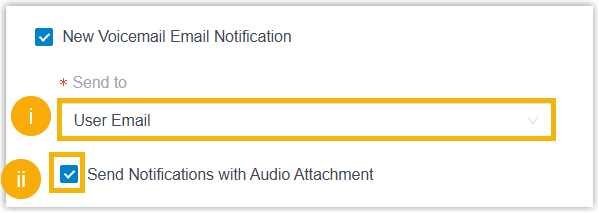
- In the Send to drop-down
list, select the target email address.
- To send voicemail message to your own email address, select User Email.
- To send voicemail message to a custom email
address, select Custom
Email.
After selected, you need to enter a custom email address in the Custom Email Address field.
- Optional: Select the checkbox of
Send Notifications with Audio
Attachment.
After selected, the system will send a notification email with the new voicemail message attached as a
.wavfile.
- In the Send to drop-down
list, select the target email address.
- To send new voicemail notification to a recipient number via
SMS channel, select the checkbox of the New
Voicemail SMS Notification and complete the
following settings.Note: This feature is available only when the following requirements are met:
- The firmware version of the PBX server is 37.25.0.23 or later.
- System administrator has enabled global new voicemail SMS notification.
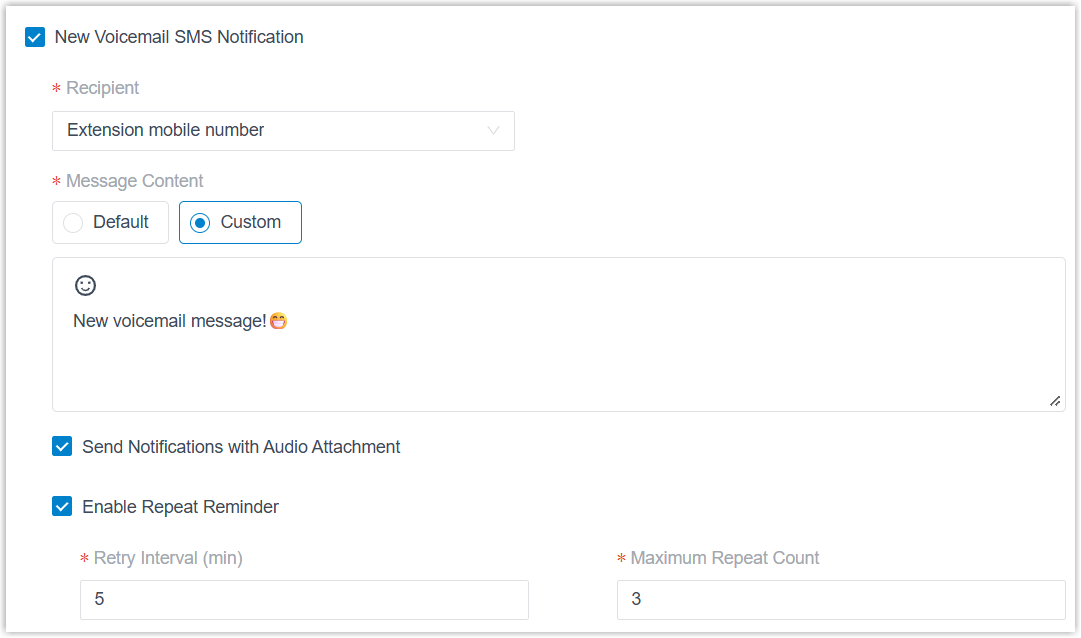
Setting Instruction Recipient Specify the recipient number. - Extension mobile number: The new voicemail notifications will be sent to your mobile number.
- Custom Number: The new voicemail
notifications will be sent to a custom
number.
After selected, you need to select the country/region code and enter the custom number.
Message Content Configure the message content. - To send the default message content, select
Default.
The content pre-configured by the system administrator is auto-filled in the text box and uneditable.
- To send the custom message content, select
Custom and fill in the content.Note: The maximum character length is 1600.
Send Notifications with Audio Attachment Optional. Select the checkbox to convert the voicemail message into a .wavaudio file and attach it to the SMS message.Enable Repeat Reminder Optional. Select the checkbox to send notifications repeatedly until either the maximum retry count is reached or the voicemail message is marked as read. After selected, enter numbers in both the Retry Interval (min) and Maximum Repeat Count fields to specify the retry interval in minutes and maximum repeat count.
For example, if Retry Interval (min) is set to "5" and Maximum Repeat Count is set to "3", after the initial reminder for a new voicemail, the system will send SMS messages every 5 minutes for three times until the voicemail message is marked as read.
- To send new voicemail notification to an email address,
select the checkbox of the New Voicemail Email
Notification and complete the following
settings.
-
In the After Notification drop-down list, set how to handle the voicemail message after the system has successfully notified the recipient by email or SMS message.
- Specify and configure notification method(s).
- Optional: Set whether to play the following messages when playing a voicemail.
- Play Date and Time: Enable this option to
play date and time when the message is received.
- Time Display Format: If Play Date and Time is enabled, you can specify the time format (12-hour or 24-hour) for announcing the message arrival time.
- Play Caller ID: Enable this option to play caller ID information.
- Play Message Duration: Enable this option to play duration of the message.
- Play Date and Time: Enable this option to
play date and time when the message is received.
- In the Voicemail Greeting section, decide which
greeting will be played to callers when they reach your mailbox.
By default, the system greeting is your default greeting, you can upload or record custom voicemail greetings and set it as the new default greeting.
 Note: If you want to play specific greetings based on your presence status, select an existing one from the corresponding drop-down list.

- Click Save.