Linkus Desktop Client Overview
Running on Windows and macOS, Linkus Desktop Client provides you with access to enterprise-grade telephony features from your computer desktop.
Linkus Desktop Client layout
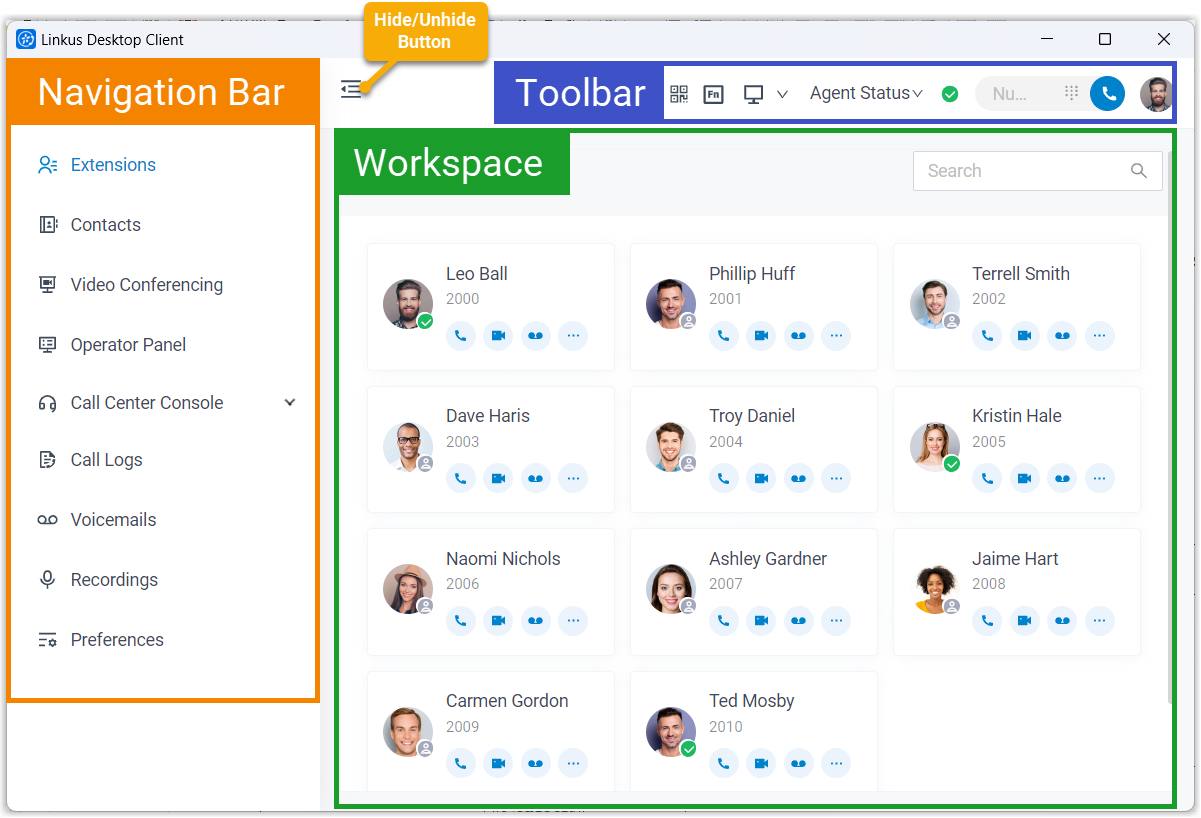
Navigation bar
Navigation bar provides quick access to the following features:
| Feature | Description |
|---|---|
| Extensions |
|
| Contacts |
|
| Chat |
|
| Video Conferencing | Initiate face-to-face meetings for instant communication among
team members and customers. For more information, see Video
Conferencing User Guide. Note: Linkus
Desktop Client only provides a menu entry for the feature.
When you access the feature, you will be redirected to the
feature on Linkus Web Client without entering any
credentials. |
| Operator Panel | Manage calls of members in a specific group. For more information, see Operator Panel User Guide. |
| Call Center Console | Handle queue calls and achieve real-time call monitoring,
management, and reporting. For more information, see Call Center Console User Guide. |
| Fax Management |
Send and receive faxes directly in Linkus, customize cover pages, and keep track of all fax logs. |
| Call Logs | Check and manage your call logs. |
| Voicemails | Check and manage your voicemails. |
| Recordings | Check and manage your call recording files. |
| Preferences |
Configure the following settings:
|
Toolbar
Toolbar provides quick access to common actions:
| Feature | Description |
|---|---|
 |
Quick access to download Linkus Mobile Client and Yeastar Linkus for Google. |
 |
Use function keys to monitor status of specific objects or quickly perform specific operations via function keys. |
 |
Switch between Desktop Client mode and CTI mode. |
| Agent Status | Change your status in a queue. |
 |
Change extension presence. |
  |
Place audio calls or video calls. |
| Account |
|
Workspace
An area where you can view or manage specific features.