Control Linkus Mobile Client by Linkus Desktop Client
By enabling CTI mode on Linkus Desktop Client, Linkus Mobile Client with your extension logged in can be connected to Linkus Desktop Client. In this way, Linkus Desktop Client acts as a visual control panel where you can perform the call operations (dial, record, hang up, etc.), while the audio stream is transmitted through the connected Linkus Mobile Client.
Scenario
Imagine that you use a CRM system on your office computer to manage customer relationships and contact customers with click-to-dial via Linkus Desktop Client, but the CRM system has restricted external network access. When you remotely access the office computer and click to dial via Linkus Desktop Client on the computer, the audio is actually transmitted through the office's network, not your local network. If the remote connection is unstable, you may experience audio quality issues.
In this case, you can install Linkus Mobile Client on your phone, and log in with your extension, then access your office computer to set Linkus Desktop Client to remotely control Linkus Mobile Client via CTI. In doing so, the audio streams will be directly routed through Linkus Mobile Client on your phone, avoiding the impact of unstable remote network connection and ensuring better audio quality.
Requirements
Make sure that PBX server and your Linkus clients meet the following requirements:
| Item | Requirement |
|---|---|
| PBX Server | The firmware version is 37.22.0.134 or later. |
| Linkus Desktop Client | Version 1.21.2 or later. |
| Linkus Mobile Client |
|
Procedure
- Log in to Linkus Desktop Client.
- At the top-right corner, click
 , then select Mobile
Client from the drop-down list.
, then select Mobile
Client from the drop-down list.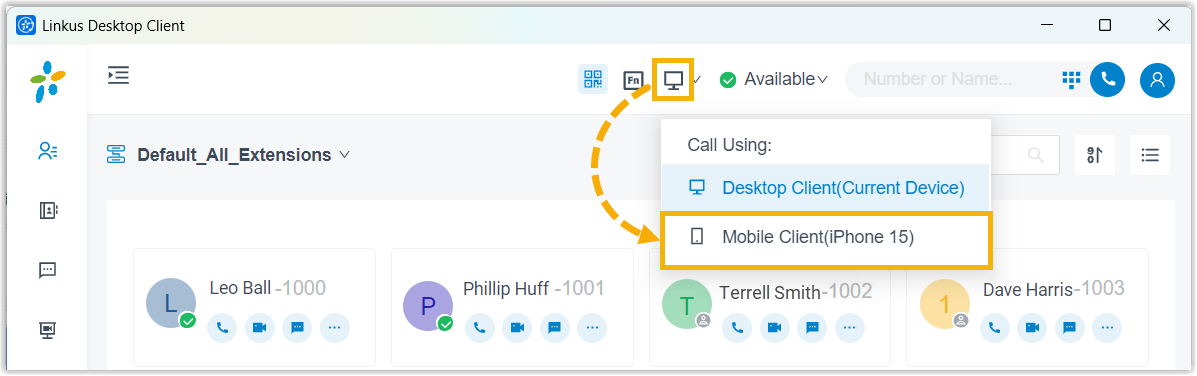
Result
- Make/End a call
- Reject a call
- Blind transfer a call
- Record a call
- Hold/Resume a call
- Flip a call