Set up Call Journal to Hubspot CRM
After the integration, you can set up call journal to automatically log all the call activities to HubSpot CRM when an associated user ends calls with CRM contacts.
Prerequisites
The HubSpot CRM integration is completed.
Procedure
- Log in to PBX web portal, go to .
- On the CRM integration page, turn on Call Journal.
- Configure the call journal settings according to your needs.
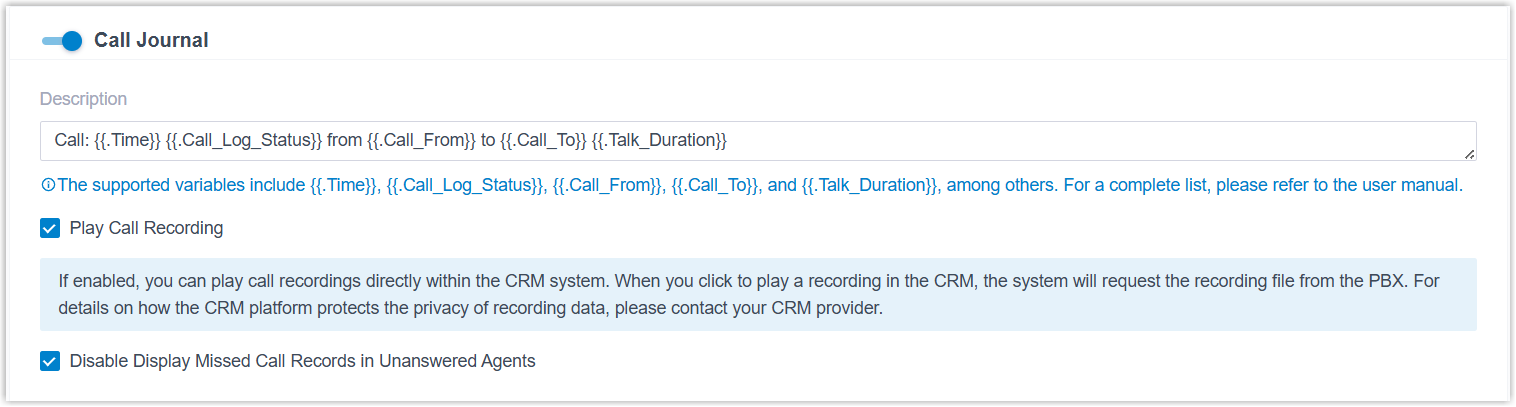
Setting Description Description The description of the call log. Note: The contents can be composed of variables. For the supported variables, see XML Descriptions for Integration Template - Call Journal Scenario Variables.Play Call Recording If enabled, the CRM users who associated with extensions on PBX can directly view and play call recordings stored on the PBX within the CRM system.
Note: When users click to play call recording in the CRM, the system will request recording file from the PBX. For details on how the CRM platform protects the privacy of recording data, please contact CRM provider.Disable Display Missed Call Records in Unanswered Agents If enabled, for queue and ring group calls, the PBX will only synchronize the call logs to the CRM of the agent who answers the call, while missed call logs for the same call are not synchronized to the CRM of agents who did not answer. - Click Save.
Result
- When the associated user ends a call with a CRM contact, the PBX will
automatically synchronize the call log with the predefined subject and
description.
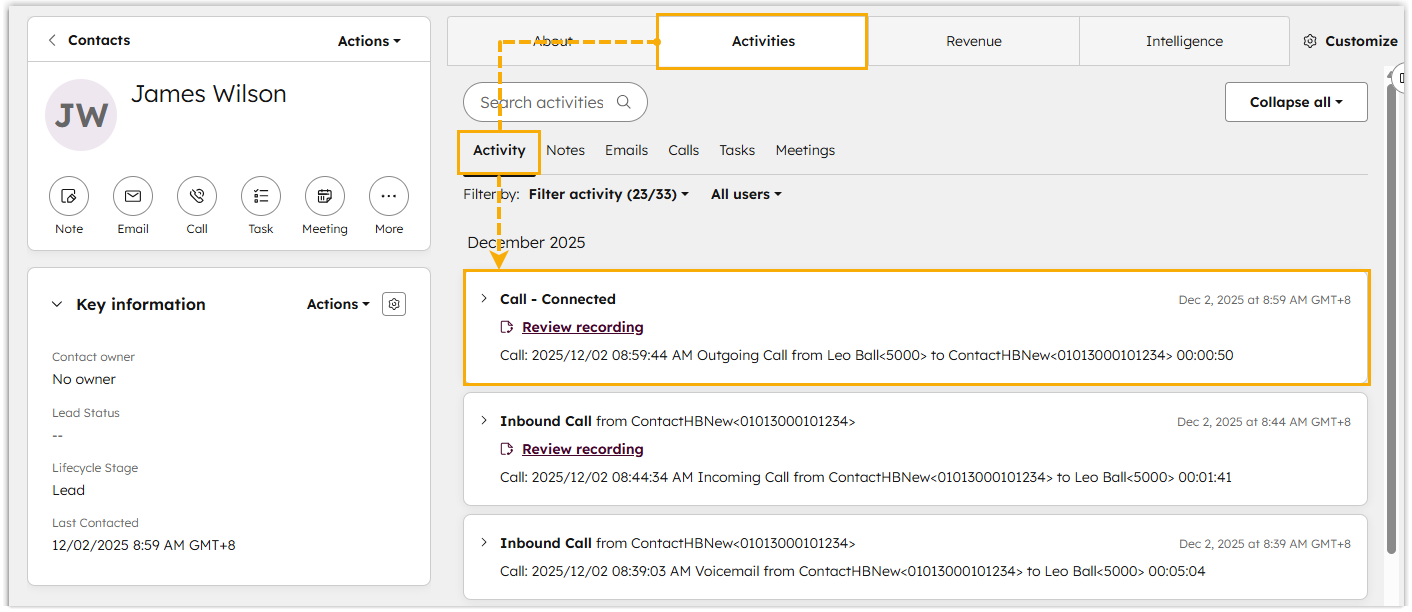
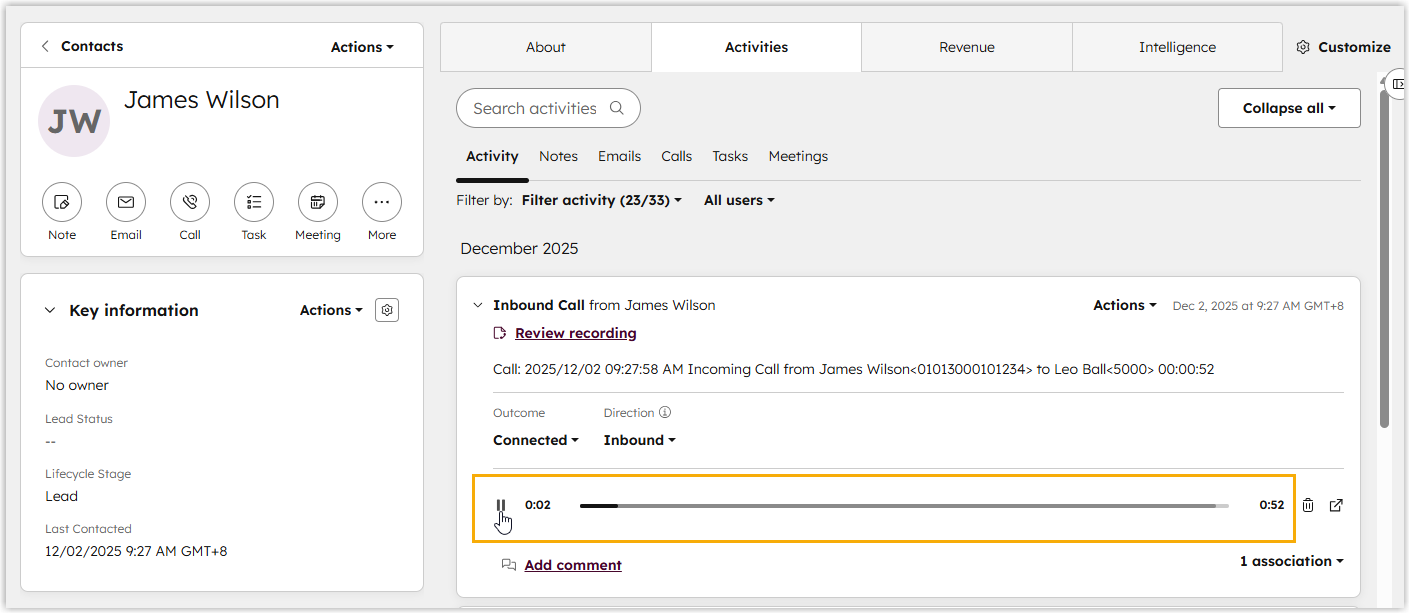
- If Play Call Recording is enabled, the user can then
view and play the recording directly from that synchronized activity.Note: If the recording file is deleted from the PBX, it will no longer be available for playback in the CRM.