Forward Door Phone Calls to an External Number
To avoid missing any visitor calls, you can configure the call forwarding feature for the extension registered on the Akuvox indoor monitor, so that the calls can be forwarded to an external number if no one answers.
Prerequisites
- You have associated the Akuvox intercom devices (both door phone and indoor monitor) with the PBX using one of the flowing methods:
- Make sure that the extension registered on the Akuvox indoor monitor has permission to make calls to the external number through the specified outbound route.
Scenario
- To avoid missing visitor calls when the called extension user can't answer them timely, you can configure forwarding strategy for No Answer. For more information about the configuration, see Forward calls without answers.
- To avoid missing visitor calls when the called extension user is on a call or rejects them, you can configure forwarding strategy for When Busy. For more information about the configuration, see Forward calls that be rejected and sent to a busy party.
Forward calls without answers
- Procedure
-
- Log in to PBX web portal, go to .
- Click
 beside the extension registered on
the Akuvox indoor monitor.
beside the extension registered on
the Akuvox indoor monitor. - On the extension configuration page, click the Presence tab.
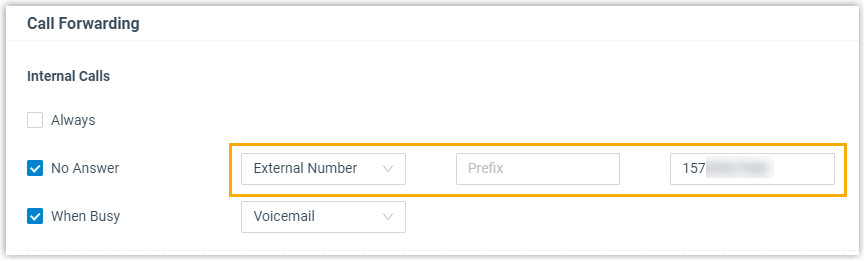
- In the Call Forwarding section, configure
Call Forwarding destination for internal calls.
- Select the checkbox of No Answer.
- In the drop-down list beside No Answer, select External Number as the forwarding destination.
- Enter the prefix of outbound route. Note: If there is no outbound dial pattern in the desired outbound route, leave this field empty.
- In the field beside Prefix, enter
an external number.
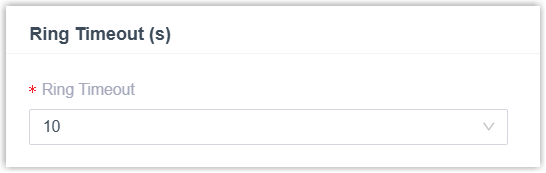
- Scroll down to the Ring Timeout (s)
section, in the Ring Timeout drop-down
list, select the waiting time before forwarding the
call.
- Click Save and Apply.
- Result
- When a visitor places a call from the door phone to the indoor monitor, but no one answers over the ringing duration, the call will be forwarded to specified external number.
Forward calls that be rejected and sent to a busy party
- Procedure
-
- Log in to PBX web portal, go to .
- Click beside the extension registered on
the Akuvox indoor monitor.
- On the extension configuration page, click the Presence tab.
- In the Call Forwarding section, configure
Call Forwarding destination for internal calls.
- Select the checkbox of When Busy.
- In the drop-down list beside When Busy, select External Number as the forwarding destination.
- Enter the prefix of outbound route. Note: If there is no outbound dial pattern in the desired outbound route, leave this field empty.
- In the field beside Prefix, enter
an external number.

- Click the Feature tab, scroll down to the
Call section, select the following
checkboxes.

- All Busy Mode for Endpoints: If selected, incoming calls will be forwarded to specified external number when the extension user is on a call on one endpoint.
- All Reject Mode for Endpoints: If selected, incoming calls will be forwarded to specified external number when the extension user rejects it on one endpoint.
- Click Save and Apply.
- Result
- When a visitor places a call from the door phone to the indoor monitor, but the called extension user is on a call or manually rejects it, the call will be forwarded to specified external number.