View Email Sent Logs
Email sent logs allow you to monitor mail delivery within NovoOne Platform portal and provide you with error messages to help you troubleshoot delivery issues more quickly. This topic describes how to view email sent logs.
Procedure
Note: The system retains email send logs for only the last 60
days. These logs cover emails sent from the NovoOne Platform
portal associated with accounts belonging to you, your colleagues, your resellers,
and your resellers' colleagues.
- Log in to NovoOne Platform portal, go to .
The list displays sent logs for emails delivered from your or your resellers' NovoOne platform portals.
- Filter or search email send logs as needed.
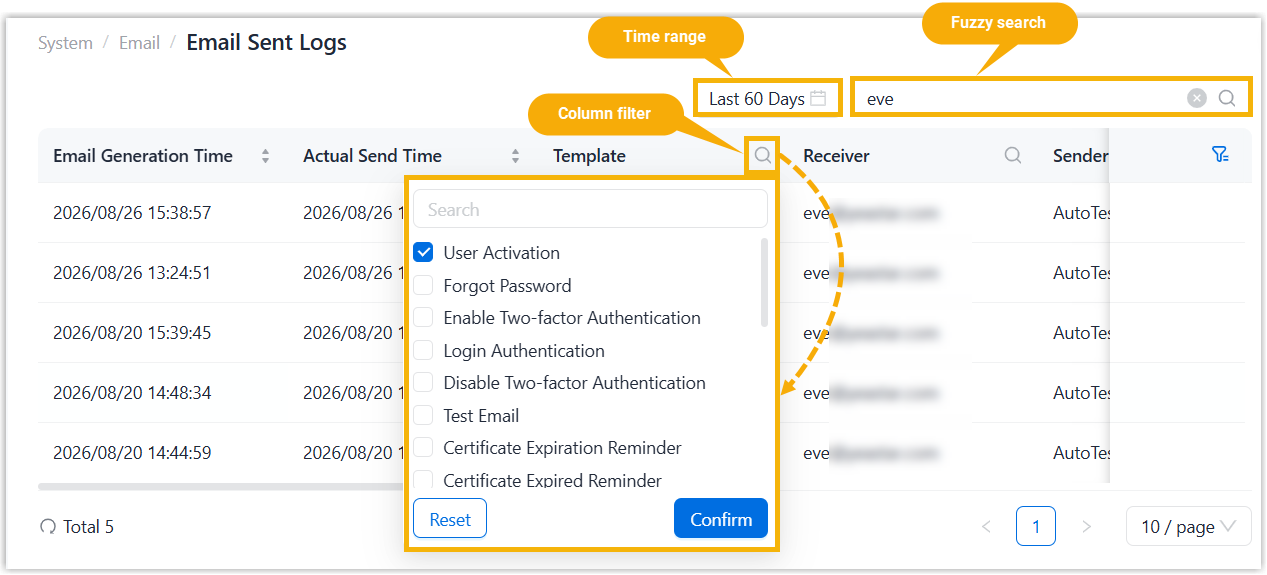
- Time range: Select a time range from the drop-down list to search the logs generated within the time range.
- Fuzzy search: Enter receiver information to perform a fuzzy search.
- Column filter: Filter by column value.
- Click
 beside a desired column.
 - Enter a desired value or select desired values.
- Click Confirm.Note: To clear the filter, click again, then click
Reset.
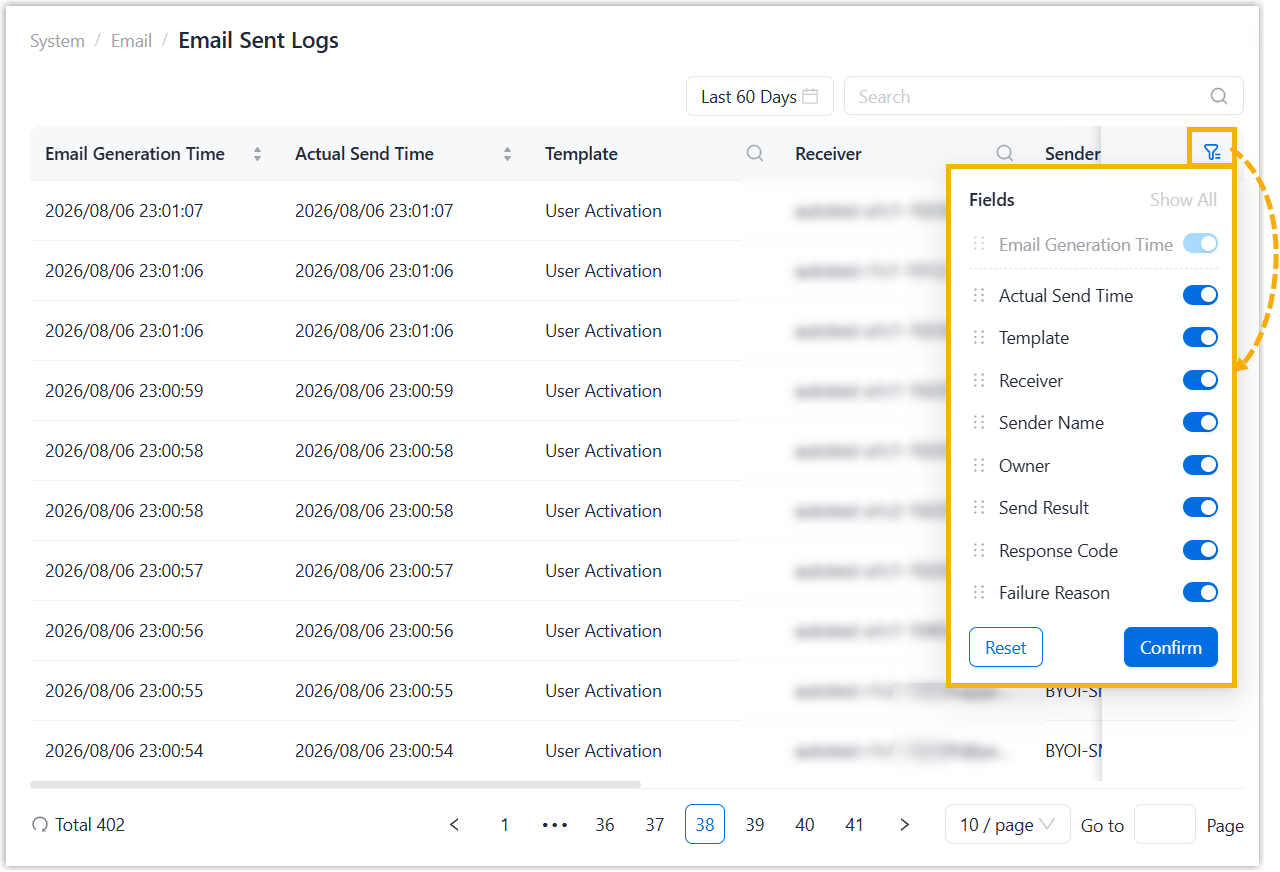
- Click
-
Configure which fields of email send logs can be displayed on the page as needed.Note:
- To turn on all switches with one click, click Show all.
- To reset the field display settings to system defaults, click Reset.
Result
The matched logs are displayed on the page with configured display fields.
If the Send Result column displays Failed, you can hover over the Failure Reason column of the corresponding log to check the complete error message.