Check Alarms
You can view alarm records about the events triggered on NovoOne Platform and reported by tenants owned by you and your resellers in the current region. This topic describes how to view the alarm records and check alarm details.
Procedure
You can check the details for alarm records using one of the following method.
Check alarm record detail on the Notifications list
- Log in to NovoOne Platform portal, click
 at the
top-right corner of the web page.
at the
top-right corner of the web page.A right panel slides out and displays the last 15 days of notifications.
- Under the Unread or All tab,
click desired notification to check the notification detail.
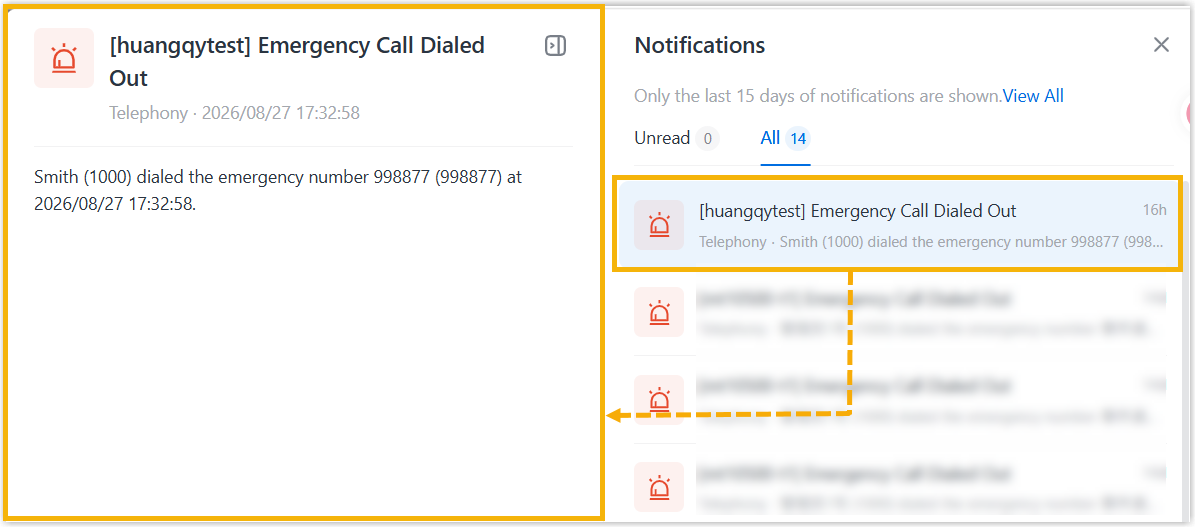
To check alarm records within other specific time range, click View All to access the Alarm List.
Check alarm record detail on the Alarm list
- Log in to NovoOne Platform portal, go to .
- Optional: Filter or search alarm records.
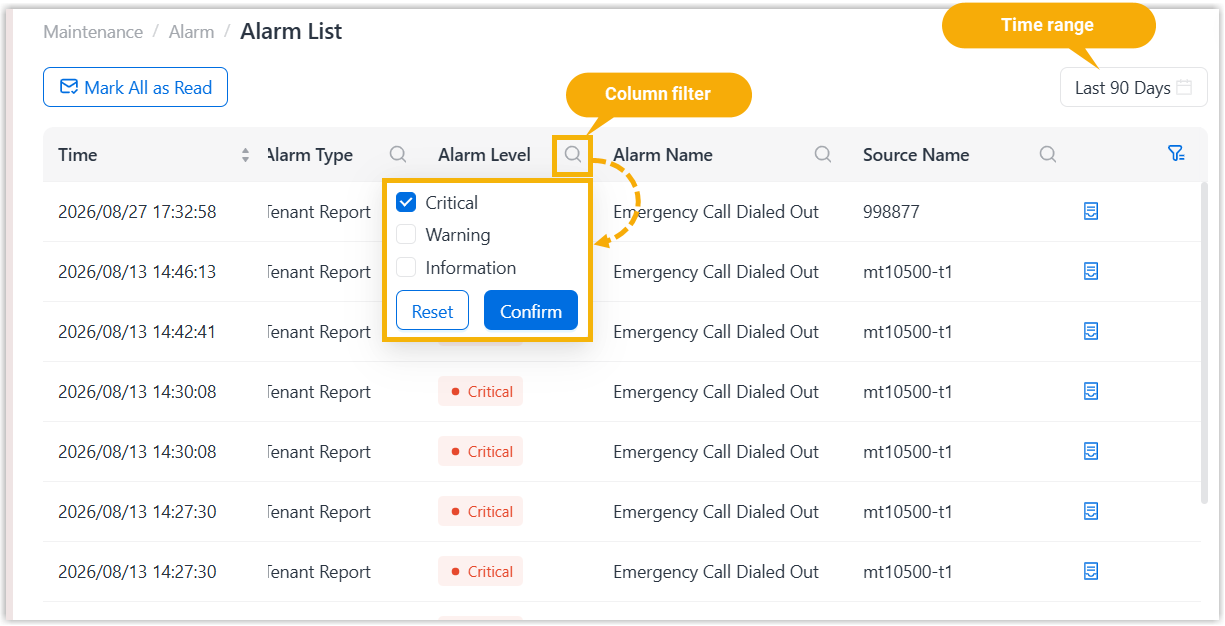
- Time range: Select a time range from the drop-down list to search the records generated or reported within the time range.
- Column filter: Filter by column value.
- Click
 beside a desired column.
 - Enter a desired value or select desired values.
- Click Confirm.Note: To clear the filter, click again, then click
Reset.
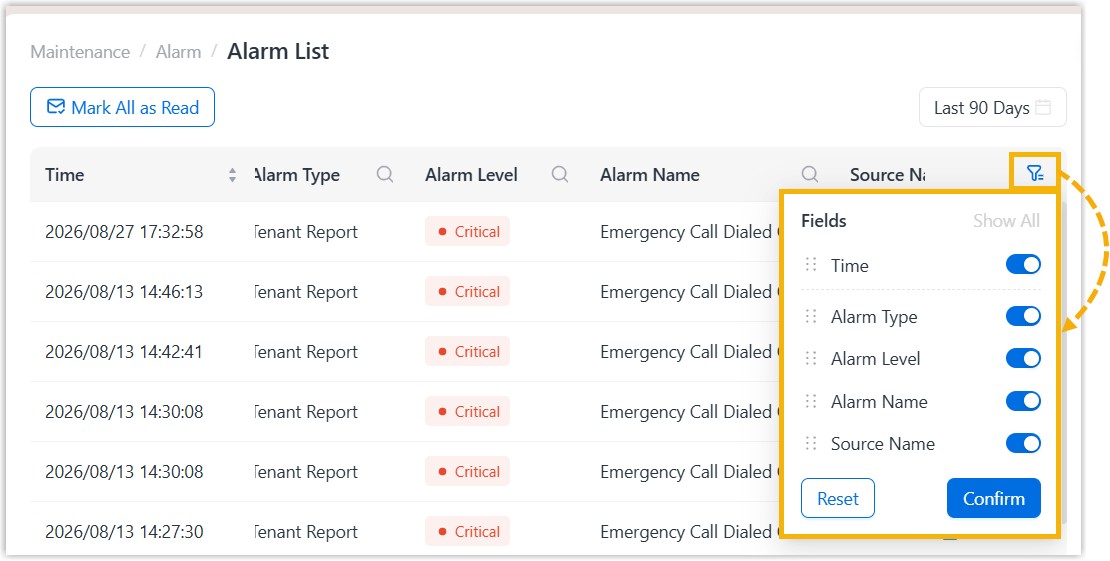
- Click
-
Optional: Configure which fields of alarm records can be displayed on the page.Note:
- To turn on all switches with one click, click Show all.
- To reset the field display settings to system defaults, click Reset.
- Click
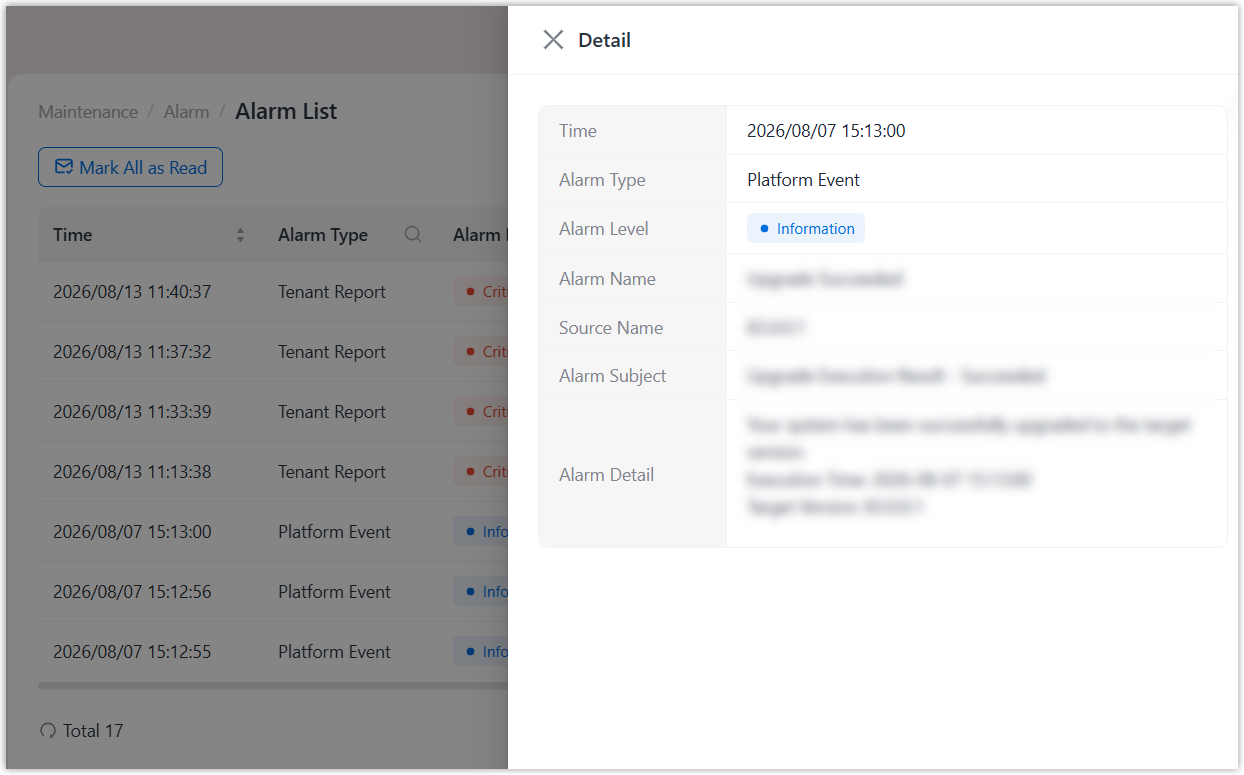
 beside a desired alarm record to check its details.
A right panel slides out and displays the alarm record detail.
Result
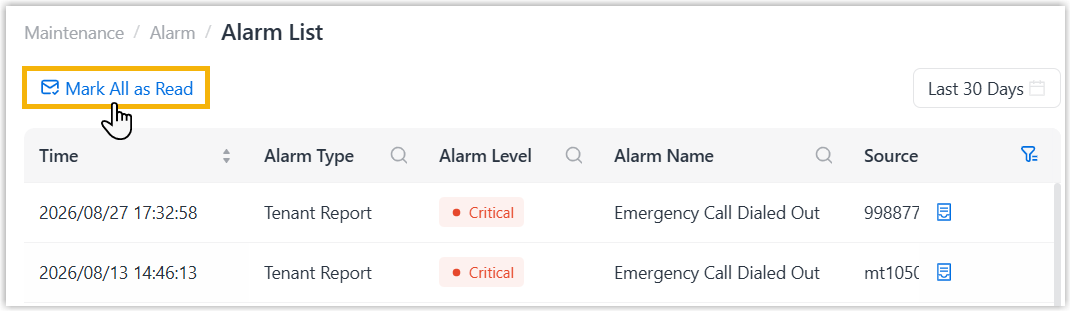
On Alarm List, the alarm record is marked as read.
Tip: If you need to mark all alarm records as read
in one click, click Mark All as Read at the top-left corner.