Send Call Details via Email
To streamline your call follow-up process, you can email call details, such as contact information, call notes, and AI call summary from the Linkus client. This feature is available both during an active call and after the call ends.
Requirements
- PBX Server
- The firmware of the PBX server is 83.21.0.66 or later.
- Yeastar Linkus for Google
-
- Version 4.18.1 or later
- Associated with Linkus Web Client (In Web
Client mode)
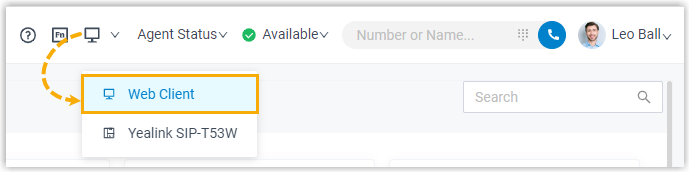
Prerequisites
You have selected the desired email client on the Linkus Web Client and completed the following settings.
- If you use the system default email client on your computer, set a default email client within your operating system and sign in to an account.
- If you use a web-based email client, sign in to an account in the corresponding web interface.
Procedure
-
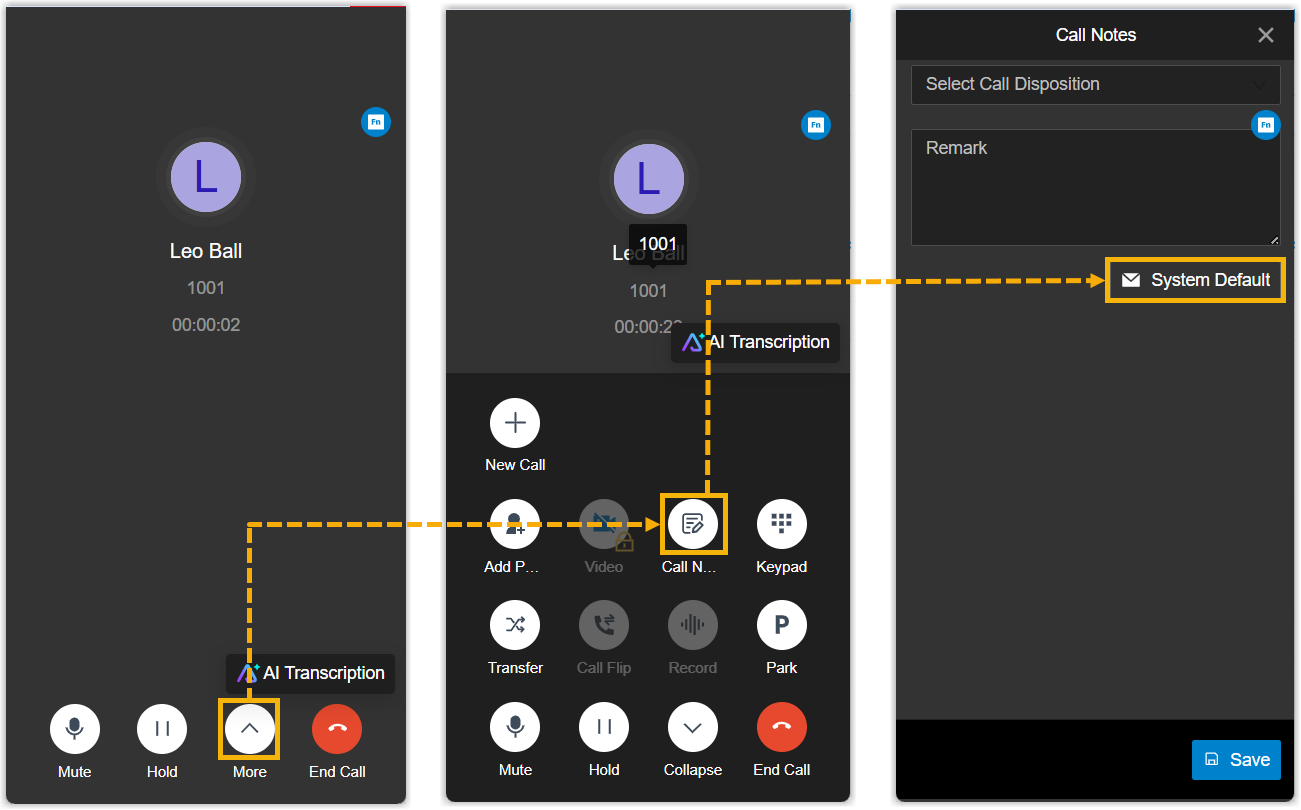
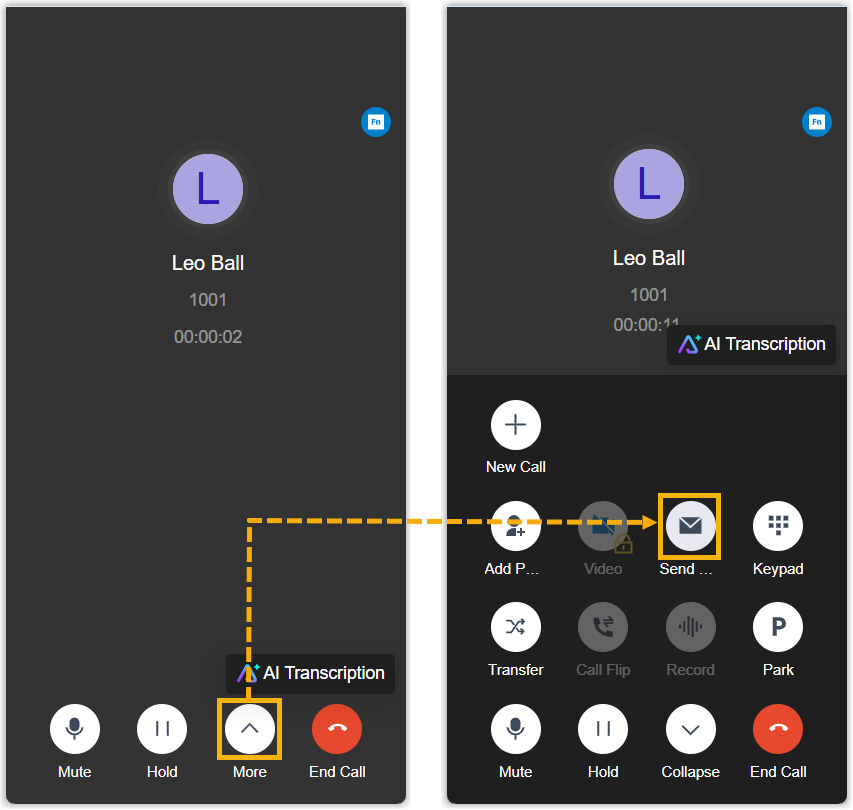
Locate and click the button for email sending based on your scenario.
Scenario Methods Send call details during an active call - If the call note feature is available, click .
- If the call note feature is unavailable, click .
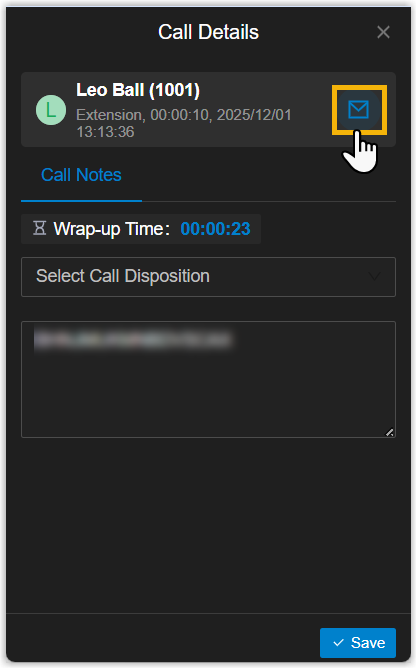
Send call details after a call ends - In the post-call pup-up window, click
 .
.
- Click
 on the top
left corner to redirect to Linkus Web Client and
click beside the desired call
log.
on the top
left corner to redirect to Linkus Web Client and
click beside the desired call
log.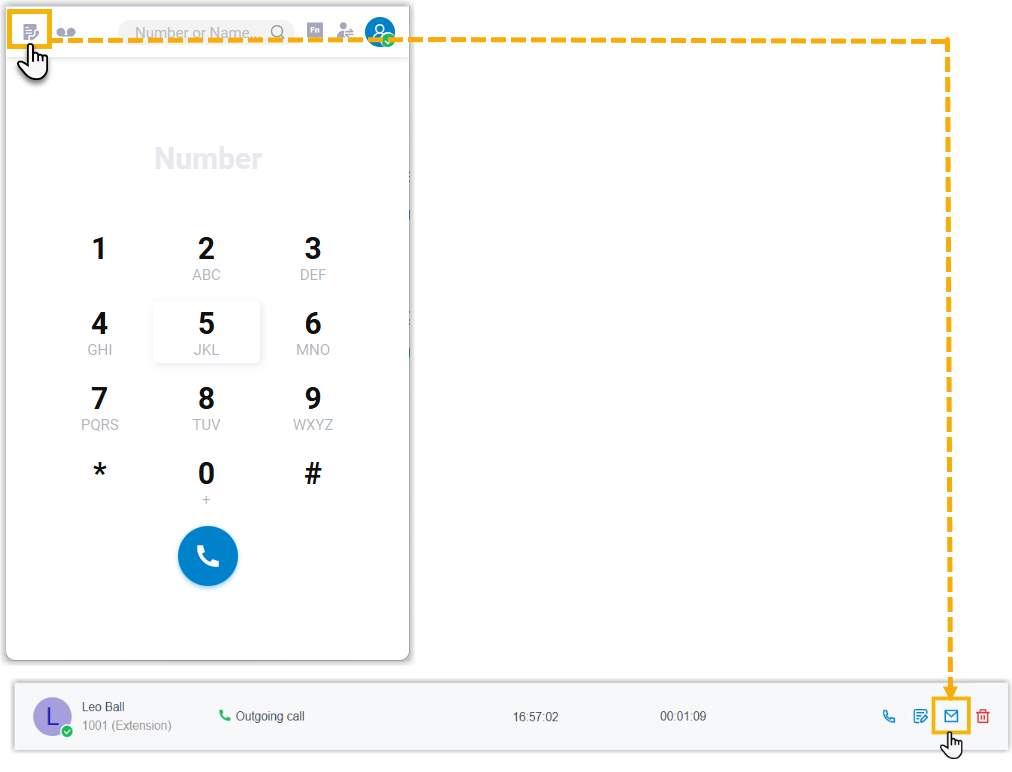
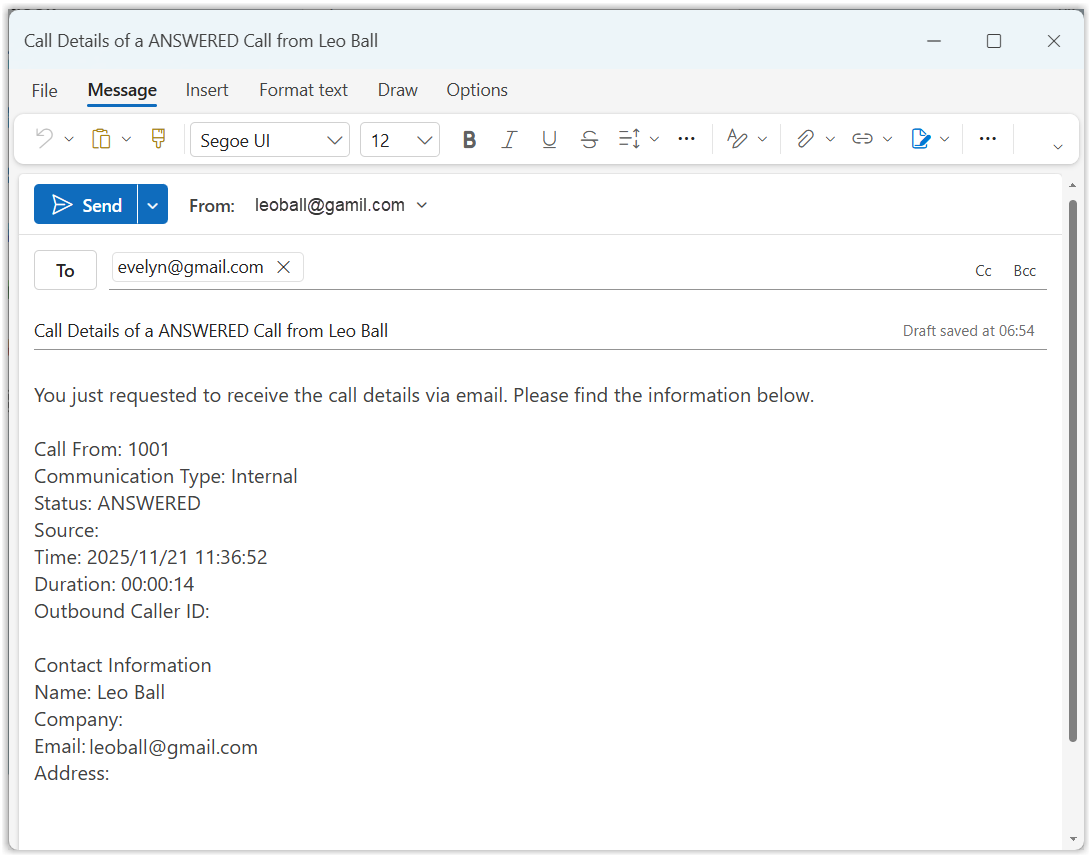
The Linkus client automatically launches the specified email client (a desktop application or a web application) and creates a new email that is pre-filled with the recipient's email address, a subject, and a body containing the call details.
- If the call note feature is available, click .
- In the new message window, add desired recipients' email addresses, review and
edit the email information as needed.Note: It is recommended to avoid entering excessively long content, as the email client or the browser will automatically truncate the message when it exceeds their allowed maximum size, resulting in incomplete content.
- Click Send.
Result
The call details are sent to the specified email addresses.