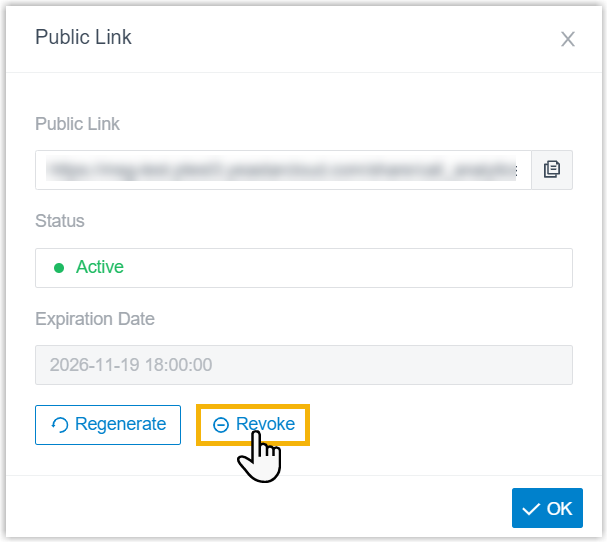
Manage Public Links
Public links allow you to display the call analytics dashboard on a shared screen such as wallboard. This topic describes how to generate, regenerate, and revoke public links.
Generate a public link
- Log in to Linkus Web Client, go to Call Analytics.
- Click
 .

- In the pop-up window, configure the following settings.
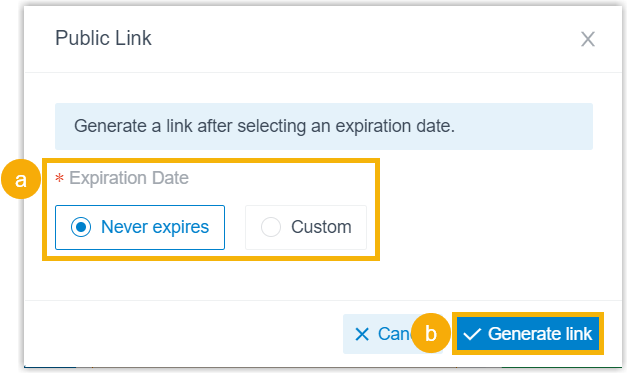
- In the Expiration Date field, set an expiration
date for the link.
If you select Custom, specify the expiration time.
- Click Generate link.
- In the Expiration Date field, set an expiration
date for the link.
- Click
 to copy the generated link, then open the link on the screen where you want to
display the dashboard.
Regenerate a public link
- Log in to Linkus Web Client, go to Call Analytics.
- Click .
- In the pop-up window, click Regenerate.
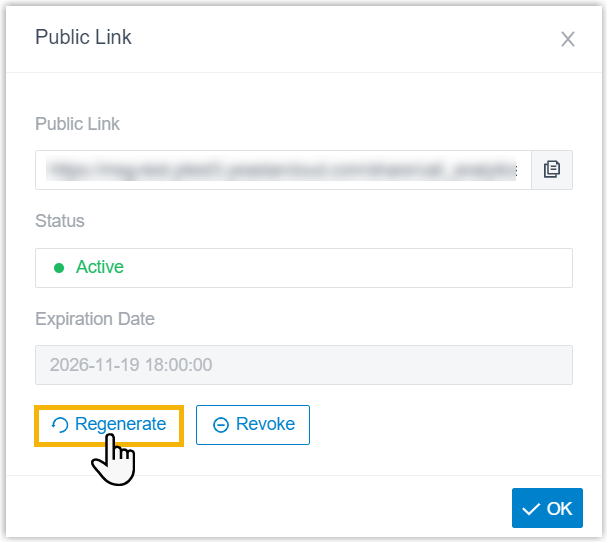
- Configure the following settings.
- In the Expiration Date field, set an expiration
date for the link.
If you select Custom, specify the expiration time.
- Click Generate link.
- In the Expiration Date field, set an expiration
date for the link.
- Click
to copy the generated link, then open the link on the screen where you want to
display the dashboard.
Revoke a public link
- Log in to Linkus Web Client, go to Call Analytics.
- Click .
- In the pop-up window, click Revoke and confirm the
operation.