Add Contents to Knowledge Base
Knowledge base is a centralized repository of information that AI receptionists query in real time to answer caller inquiries. You can add well-organized contents to the knowledge base by adding files or URLs containing FAQs, product details and other information, and assign the knowledge base to the desired AI receptionist so it can reference the information when answering caller questions.
Limitations
The PBX supports a maximum of 200 content entries (files and URLs).
Supported methods
Add contents by uploading file
You can upload a local document directly into the knowledge base for the agent to reference. For example, uploading a PDF manual of a product allows the agent to answer detailed questions based on the official documentation.
- Requirements
-
Item Requirements File size Maximum 10 MB per file. File type PDF, TXT, DOCX, HTML, and EPUB. - Procedure
-
- Log in to PBX web portal, go to .
- Click Upload File.
- In the pop-up window, select the desired file(s), then click
Open.Note: You can upload up to 10 files at the same time.The system will begin uploading the file(s).
- Result
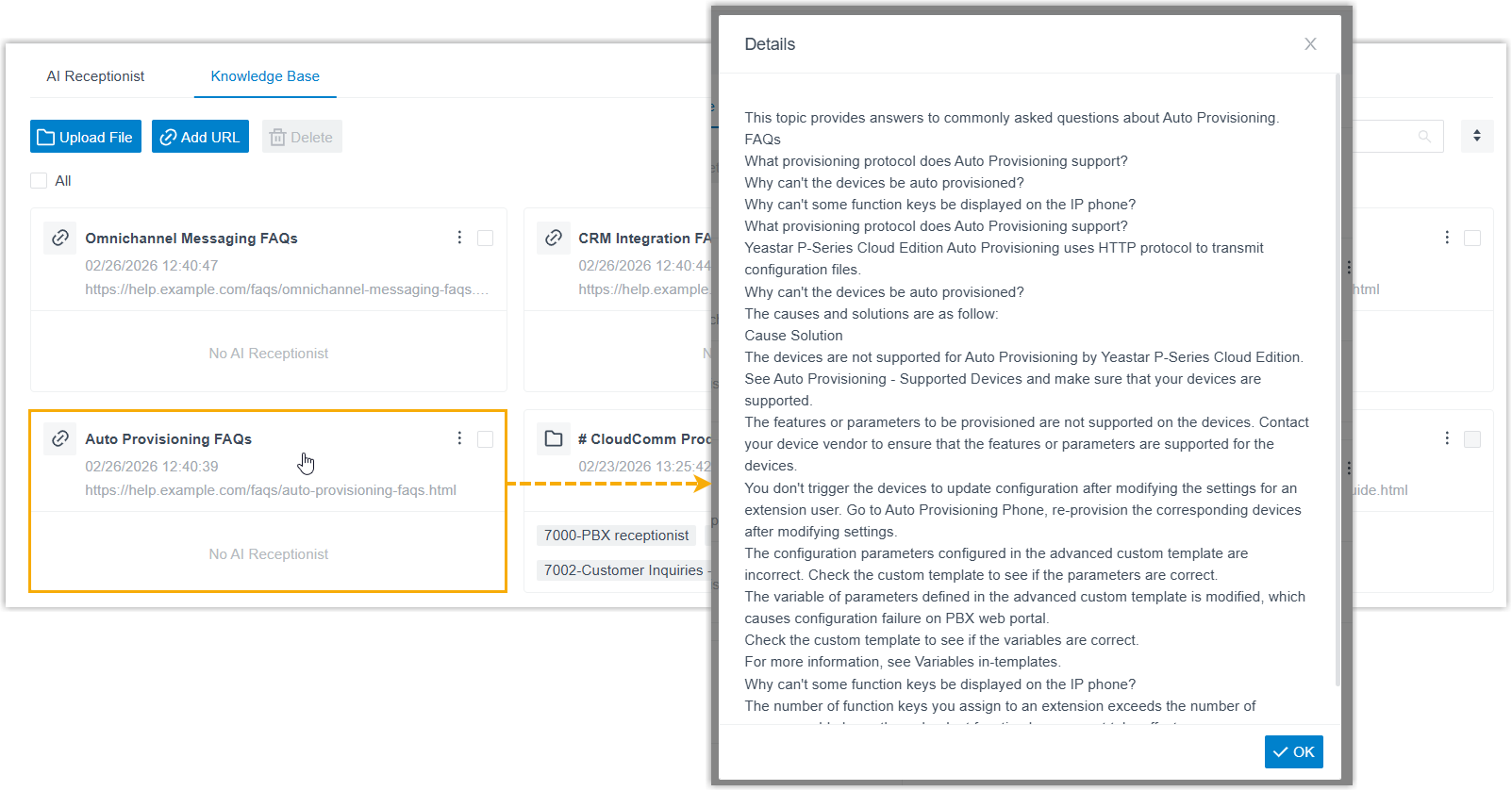
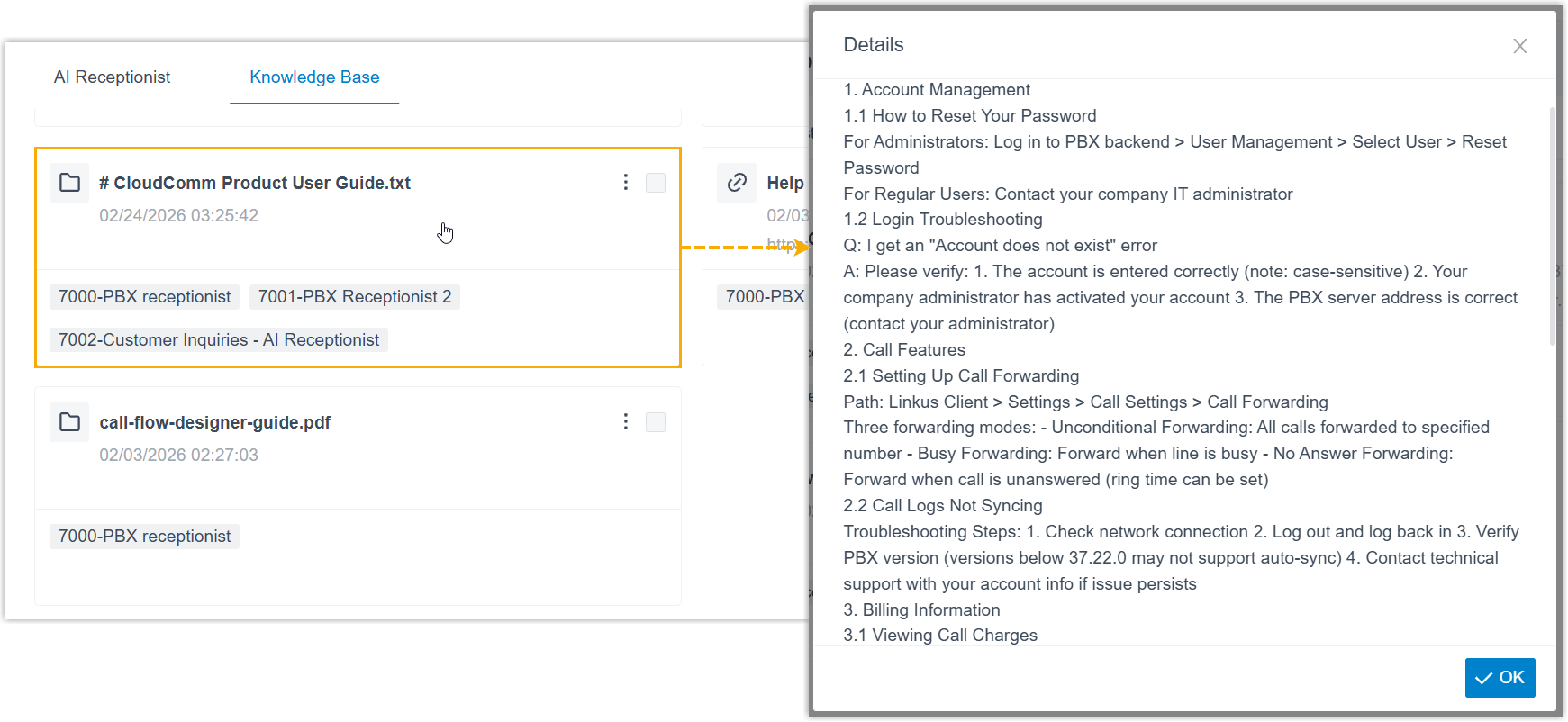
- The files are successfully uploaded and displayed in the knowledge base list. You can click the entry to view the content extracted from the file.
Add contents by adding URL
You can provide a web link for the agent to access and retrieve information from an online source. For example, adding a URL to a frequently updated online FAQ page for the agent to consult.
- Restrictions
-
- The AI receptionist only reads contents from the URL you provide. It does not automatically follow or crawl links embedded within that page to retrieve content from other pages. Therefore, if you need information from multiple pages, add each URL separately to your knowledge base.
- Contents uploaded via URL are not synced and updated automatically. If the page content changes, you need to re-upload the URL for the updates to take effect.
- Procedure
-
- Log in to PBX web portal, go to .
- Click Add URL.
- In the pop-up window, do as follows:Note: You can add up to 10 URLs at the same time.
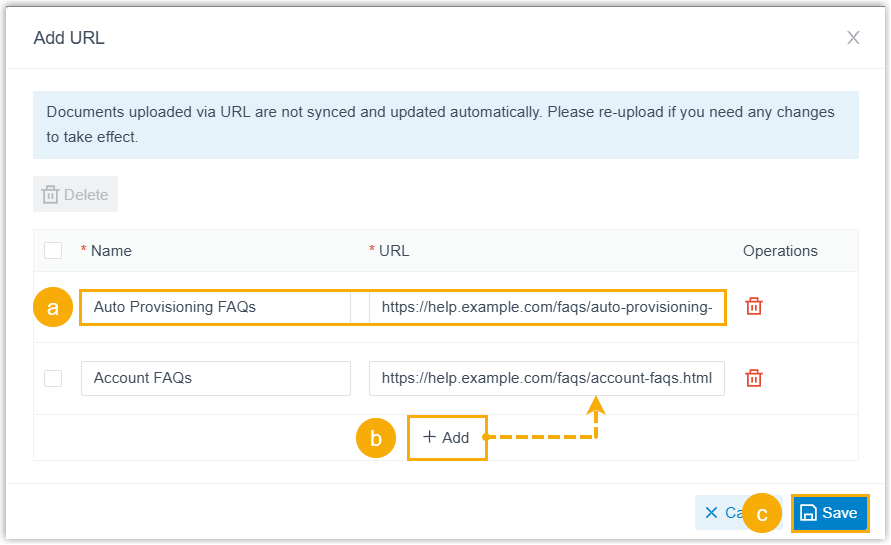
- Enter the URL information.
Setting Description Name Specify a name to help you identify the URL. URL Paste the URL (must start with https://) pointing to the desired content. - Click Add to add more URLs.
- Click Save.
- Enter the URL information.
- Result
- The system parses the contents from the URLs and add it to the knowledge
base. You can click the corresponding entry to view the extracted
content.