Manage Knowledge Base Contents
You can edit or delete existing content entries in the knowledge base as needed.
Edit a content entry
You can modify the name of a content entry to better identify it.
Note: It is not supported to edit the content of an uploaded
file or URL directly. To update content, delete the existing content entry and add a new one with the updated
information.
- Log in to PBX web portal, go to .
- Click
 on the desired entry, then select
Edit.
on the desired entry, then select
Edit.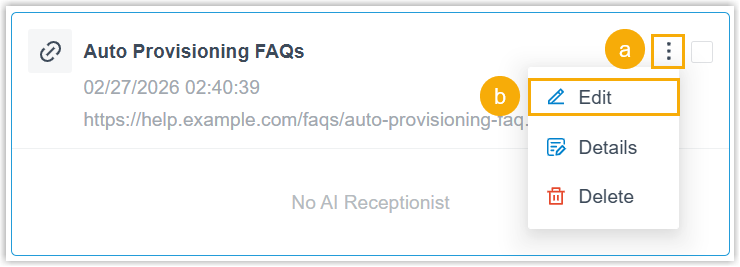
- In the pop-up window, change the name of the content entry, then click
Save.
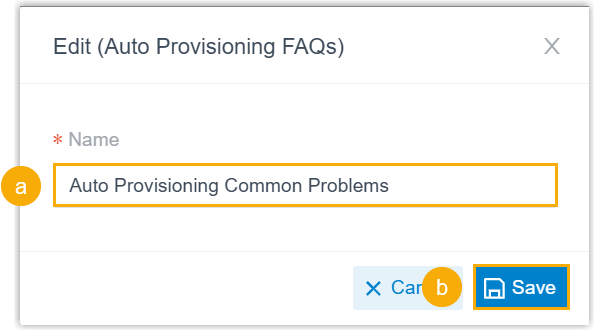
The entry name is updated successfully.
Delete content entries
You can remove content entries that are no longer needed.
Note: It is not supported to delete content entries that have been assigned to AI
receptionist(s).
- Log in to PBX web portal, go to .
- In the knowledge base list, delete one or more content entries according to
your need.
Operation Instruction Delete a single content entry 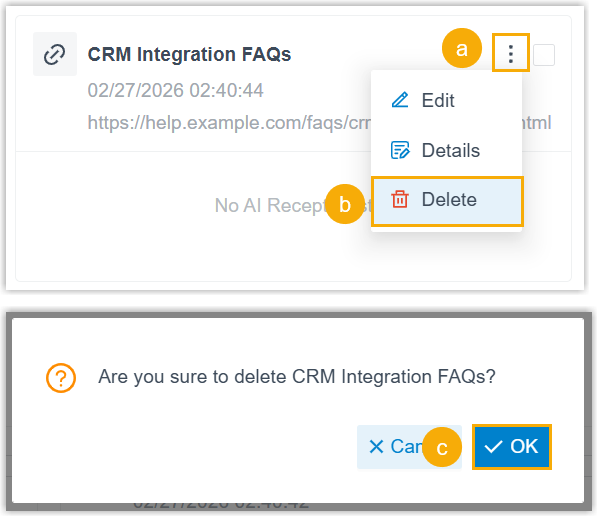
- Click on the desired
content entry.
- In the drop-down list, click Delete.
- In the pop-up window, click OK.
Delete multiple content entries in bulk 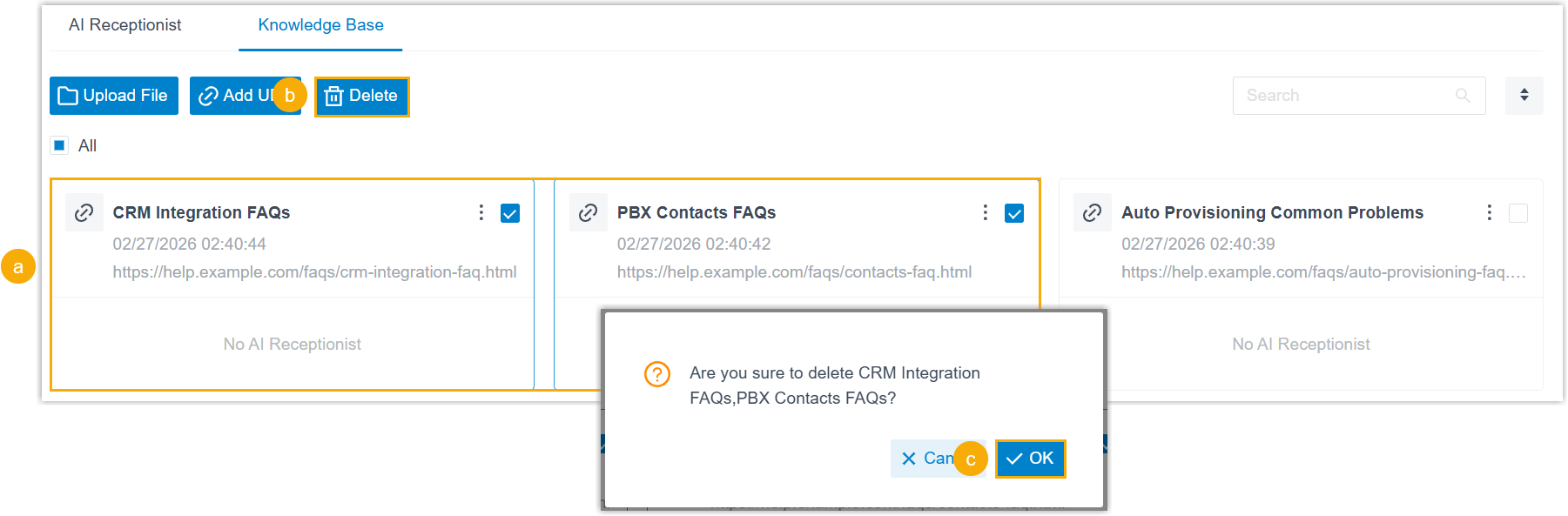
- Select the checkbox of desired content entries.
- At the top of the list, click Delete.
- In the pop-up window, click OK.
Delete all content entries 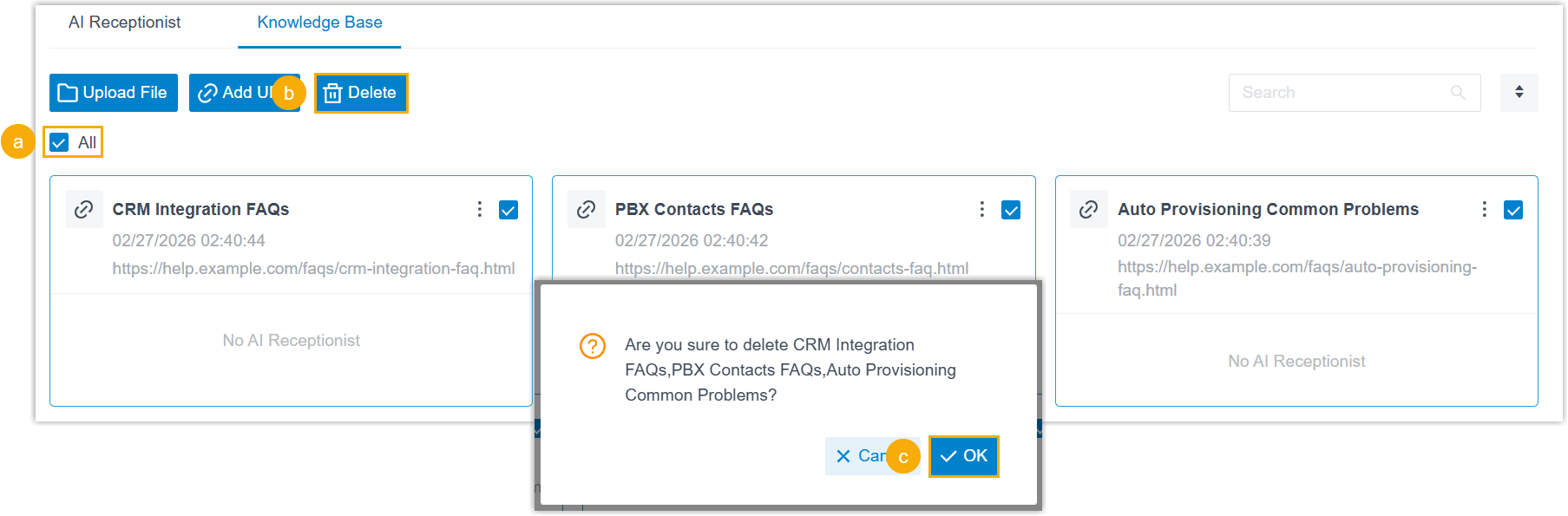
- Select the checkbox of All.
- At the top of the list, click Delete.
- In the pop-up window, click OK.
- Click