Set up Chat Journal to Zendesk
After the integration, you can set up chat journal to automatically synchronize the complete chat history between users and Zendesk contacts to Zendesk for follow-up and analysis.
Important: Chat histories are synced only when the
recipient's number of the chat session exactly matches the contact number stored in
the Zendesk (e.g.,
+1123456789 on both sides).Requirements
The firmware version of Yeastar P-Series PBX System is 37.23.0.83 or later.
Prerequisites
- PBX Server
-
- You have integrated Yeastar P-Series PBX System with Zendesk.
- At least one messaging channel is configured on PBX.
- Linkus UC Client
- The Zendesk user (associated with a PBX extension) has created an external chat session with a Zendesk contact via the messaging channel on the Linkus client.
Procedure
- Log in to PBX web portal, go to .
- On the Helpdesk integration page, turn on Chat Journal.
- In the Subject field, configure the subject for the
synchronized record according to your needs.
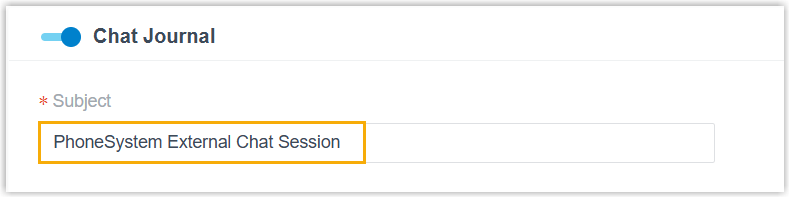 Note: The contents can be composed of variables. For the supported variables, see XML Descriptions for Integration Template - Chat Journal Scenario Variables.
 - Click Save.
Result
When an external chat session with a Zendesk contact is closed (by either the user or the system), the PBX automatically synchronizes the entire chat history to the contact's details page.
Note: The chat messages will be synced in chronological order,
including message channel type, time, sender, and content.