Configure AI Call Transcription
The AI-powered Call Transcription feature supports transcribing a call between two parties into readable texts, and automatically generating a summary after the call ends, helping you efficiently review call transcript, key points and to-do items. This topic describes how to configure AI call transcription on NovoOne Web Client.
Requirements
System administrator has enabled the Call Transcription feature and granted you permission to use it.
Procedure
- Log in to NovoOne Web Client, then go to .
- In the Call Transcription section, configure the
following settings according to your need.

Setting Description Automatic Call Transcription Specify whether to automatically transcribe your calls in real time. Note: If this option is disabled, you can also start transcription from the call screen manually during an active call as needed.Show Transcript after the Call Ends Specify whether to automatically display the transcript and summary in a pop-up window after the call ends. Language Select the desired language for call transcription. Note: If set to Follow System, the language specified in the system's call transcription settings will be used.Summary Template Select a template for call summary. Note: The available templates are synchronized from the system. You can choose a specific template, or select Follow System to use the global template configured by your system administrator. - Click Save.
Result
- Call audio can be recognized and transcribed in the configured language in real time, and can be automatically summarized after call ends.
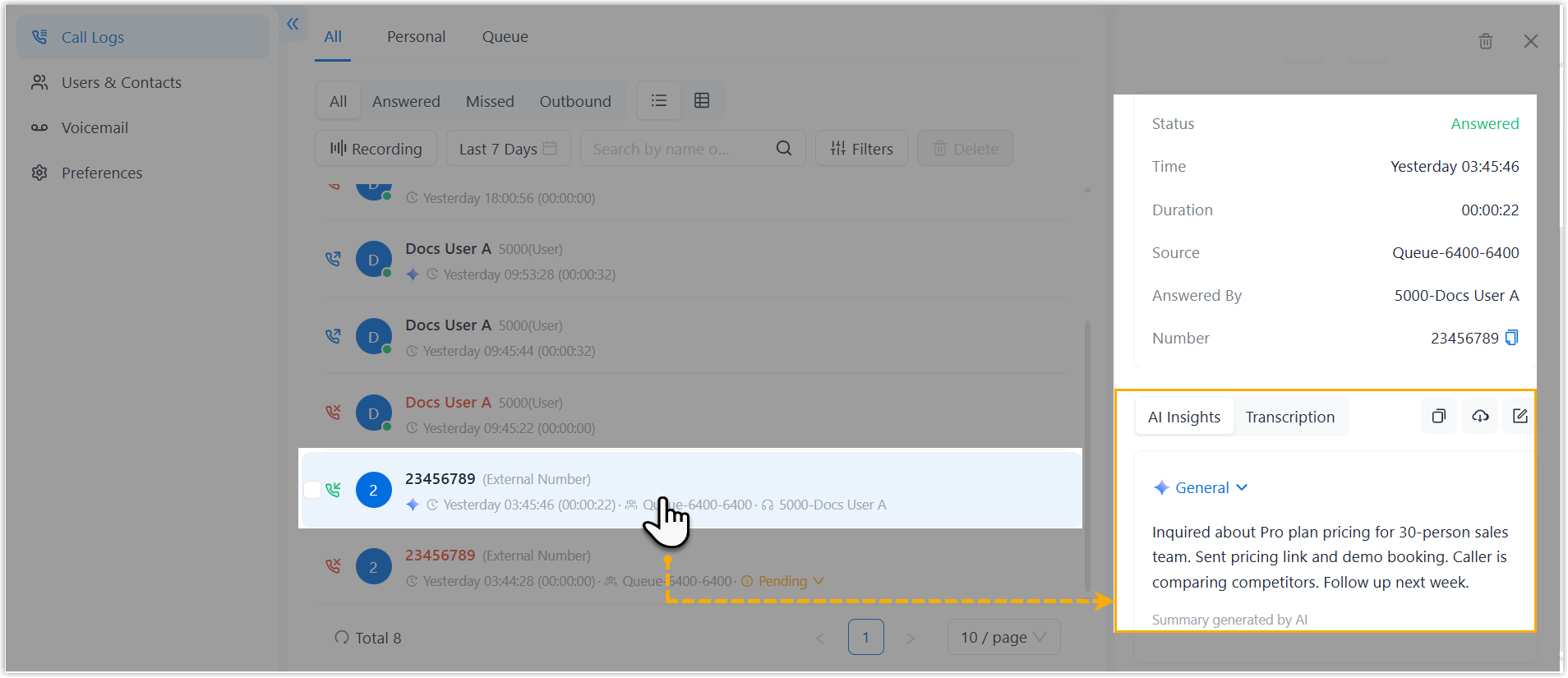
- You can access the AI-generated transcript and summary of transcribed calls
in call logs.