Configure Function Keys
Function keys allow you to monitor status of specific objects or quickly perform specific operations. This topic describes how to configure function keys on NovoOne Web Client.
Limitations
A maximum of 240 function keys are supported.
Supported function keys
NovoOne Web Client supports the following function key types:
| Key Type | Function |
|---|---|
| N/A | No function is assigned to the key. |
| Line | Select a SIP account for making calls. Note: The key type is supported on IP
phones only.
|
| BLF |
Monitor the registration status and call status of a specific
user.
Note: You can click the function
key to directly call the monitored user. |
| Speed Dial | Place a call to frequently dialed numbers. |
| Check Voicemail |
|
| Park & Retrieve |
|
| Intercom | Place an intercom call to a specific extension. |
| DTMF | Send DTMF digits without entering them manually each time. Note: Only numbers,
#,
and * are supported. |
| Agent Login/Logout |
|
| Agent Pause/Unpause |
|
| Call Forward | Always forward incoming calls to a specified destination. Note: The key type is supported on IP phones
only. |
| Action URL | Send an HTTP GET request to a specified URL. Note: The key type is supported on IP phones
only.
|
Procedure
- Log in to NovoOne Web Client, go to .
The function keys configured by system administrator for your extension are displayed in the list, if any.
- Configure function keys according to your needs.
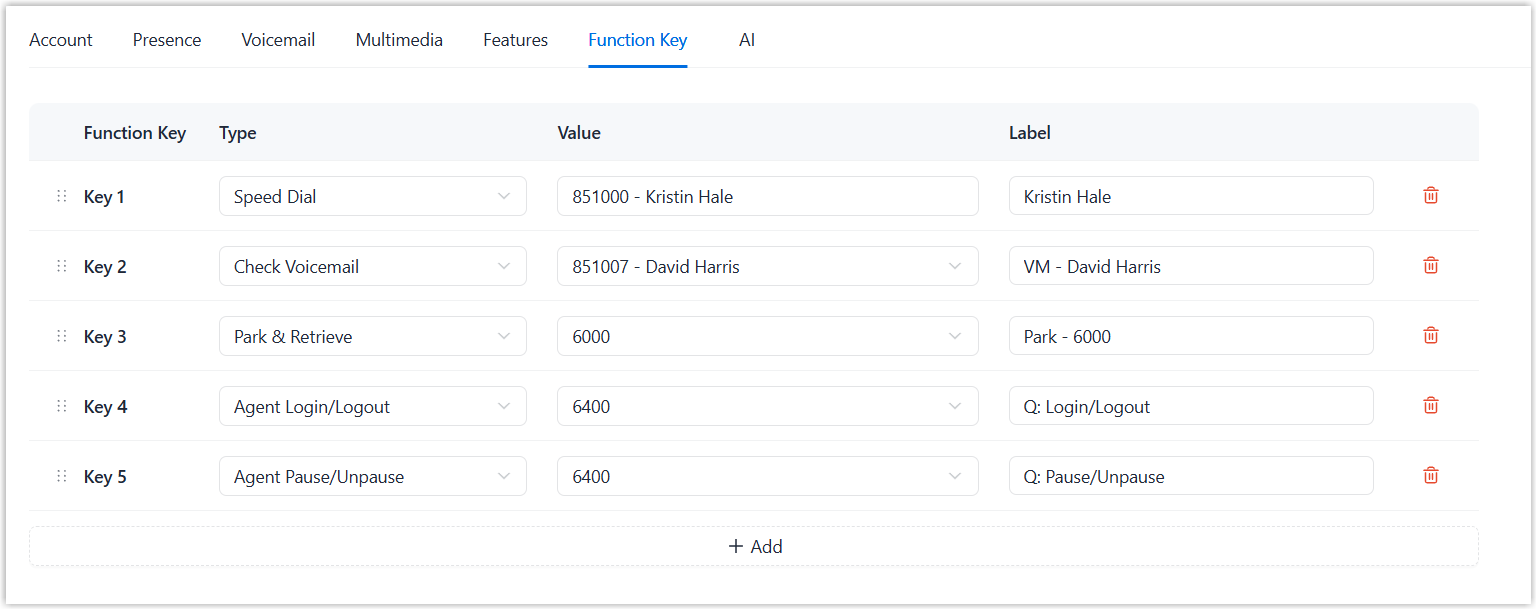
- Type: Select a key type.
- Value: Configure a desired value based on the key type, such as parking number, queue, or extension.
- Label: Optional. Enter a value to help you identify the function key.
- Click Save.
Result
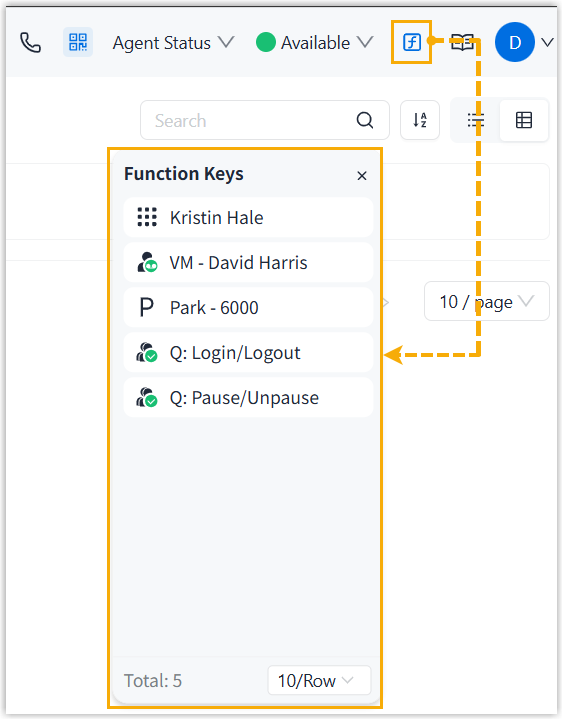
- The function keys are applied. You can click
 at the
top tool bar to bring up a mini panel, on which you can monitor status of
specific objects or quickly perform specific operations via function
keys.
at the
top tool bar to bring up a mini panel, on which you can monitor status of
specific objects or quickly perform specific operations via function
keys.