Manage Custom Auto Provisioning Templates
This topic describes how to edit, delete, export and import custom auto provisioning templates.
Edit a custom auto provisioning template
- Log in to NovoOne Platform portal, go to .
- Click
 beside a desired custom template.
 - Modify the device settings.
- Click Save.
Delete custom auto provisioning templates
Note: Once a custom auto provisioning template is deleted, you, assigned resellers, and
administrators for assigned tenants will no longer be able to use it; phones already
provisioned via this template still work normally.
- Log in to NovoOne Platform portal, go to .
- Delete custom templates as needed.
- To delete a custom template, click
 beside it.
 - To delete custom templates in bulk, select the checkboxes of desired templates, click Delete at the top.
- To delete a custom template, click
- In the pop-up dialog box, click Confirm.
Export and import custom auto provisioning templates
NovoOne Platform supports exporting and importing custom auto
provisioning templates, which allows template reuse across multiple platforms
without the need to recreate templates manually.
Note:
- The exported template files are encrypted and cannot be opened directly; they can only be imported and parsed by NovoOne Platform.
- Image files are not included in the exported template files.
- Log in to NovoOne Platform portal, go to .
- To export custom auto provisioning templates, do as follows:
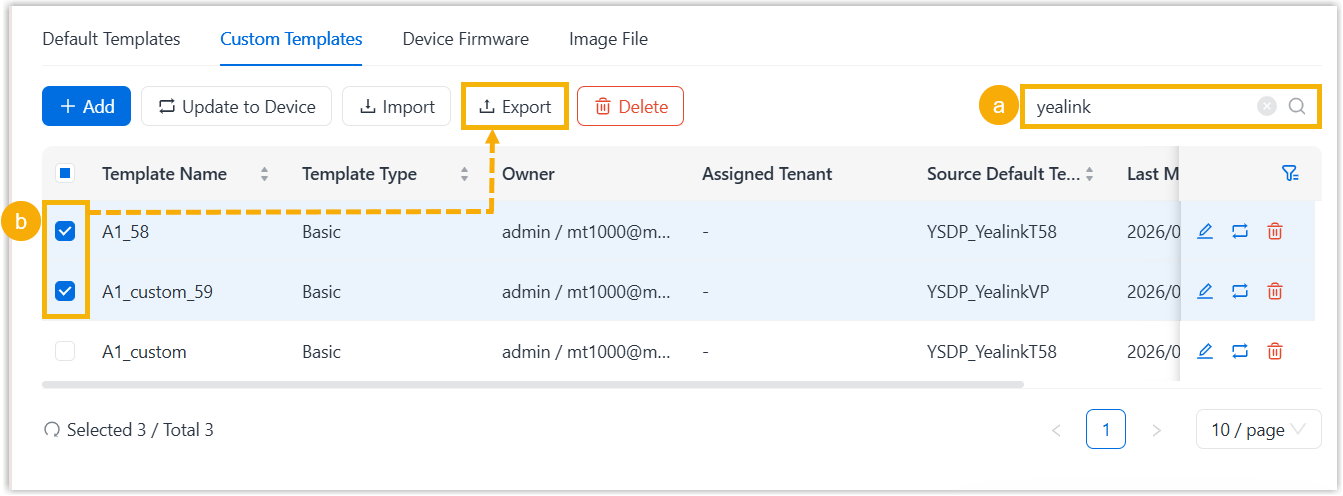
- Optional: At the top-right corner of the template list, enter
a value in the search box to perform a fuzzy search.
The matched templates are displayed on the web page.
- Select desired templates, and click Export at
the top of the list.
The template files are downloaded to your computer in
.custformat.
- Optional: At the top-right corner of the template list, enter
a value in the search box to perform a fuzzy search.
- To import a custom auto provisioning template, do as follows:
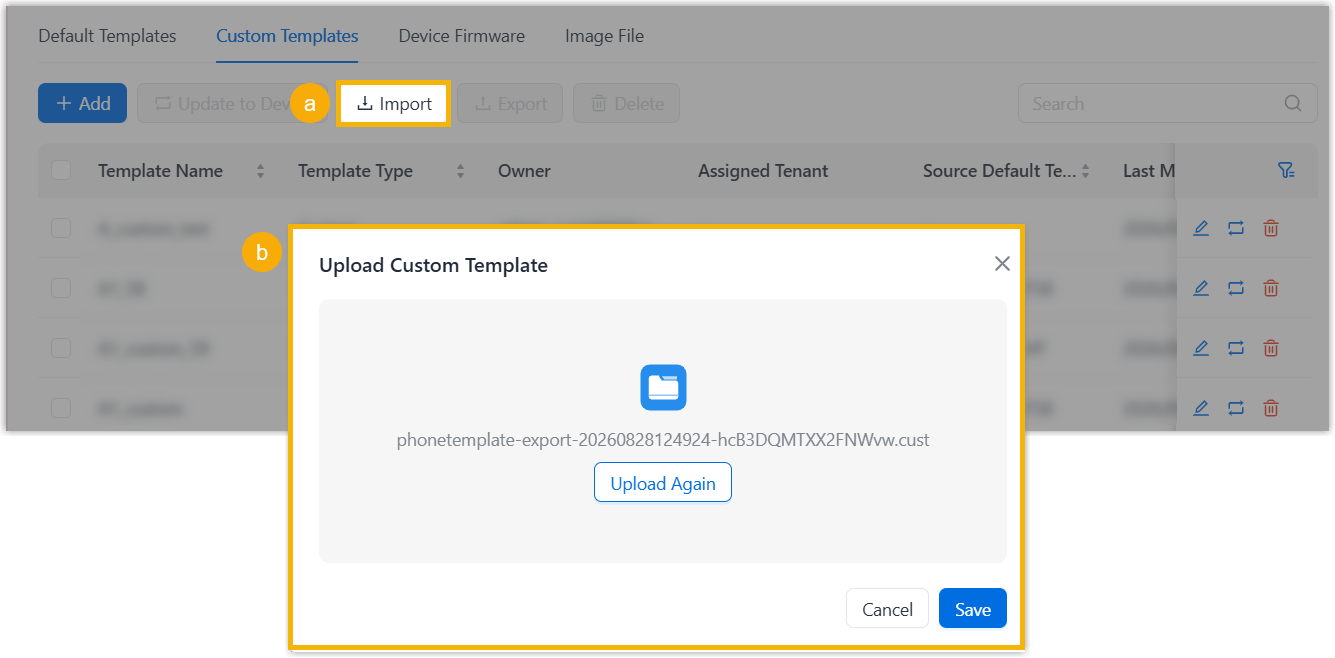
- At the top of the list, click Import.
- In the pop-up window, upload a
.custfile exported from another NovoOne Platform portal, then click Save.Note: The file must not exceed 100 MB.The templates in the
.custfile are imported and displayed on the list.