Enable MCP Service and Connect a Client
Enable MCP service on Yeastar P-Series Software Edition and connect an external AI agent or MCP client.
Requirements
The PBX's firmware version is 83.25.0.76 or later.
Step 1. Enable MCP service on the PBX
- Log in to PBX web portal, go to .
- Turn on the switch of MCP Service.

- In the MCP Server URL drop-down list, select and copy the URL that
your AI agent or MCP client can
reach.
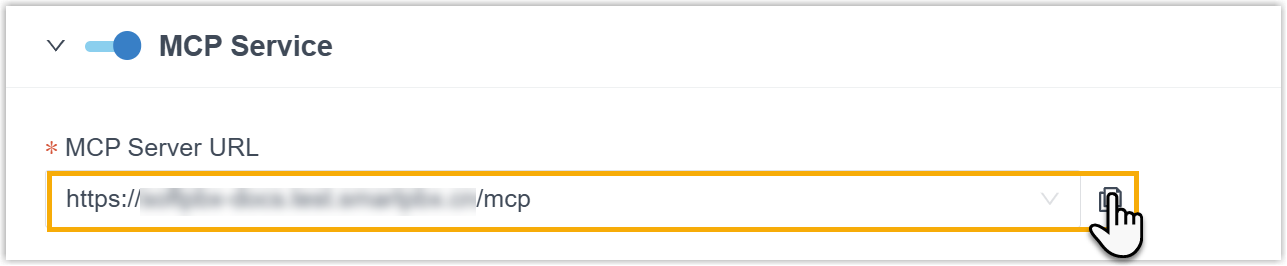
- Click Save.
MCP service is enabled on the PBX.
Step 2. Connect an external client to the PBX
Add the PBX MCP server to your client using the MCP Server URL, then sign in to the PBX and authorize access. This section takes Codex on Windows as an example to show you how to connect an external client to the PBX.
- Open PowerShell to run the commands for connecting Codex to the PBX MCP server.
-
Enter the following command in PowerShell to add the PBX MCP server.
codex mcp add {server_name} --url "{mcp_server_url}"Setting Description {server_name} A name used to identify this MCP server in Codex. Replace it with a name of your choice. {mcp_server_url} The PBX connection address. Replace the example URL with the MCP Server URL copied in Step 1. In this example, enter the following command to add a PBX MCP server named TestPBX.
codex mcp add TestPBX --url "https://softpbx.cn/mcp"
-
Sign in and authorize access
On the page that opens automatically in your browser, Sign in to your target PBX with an administrator account.
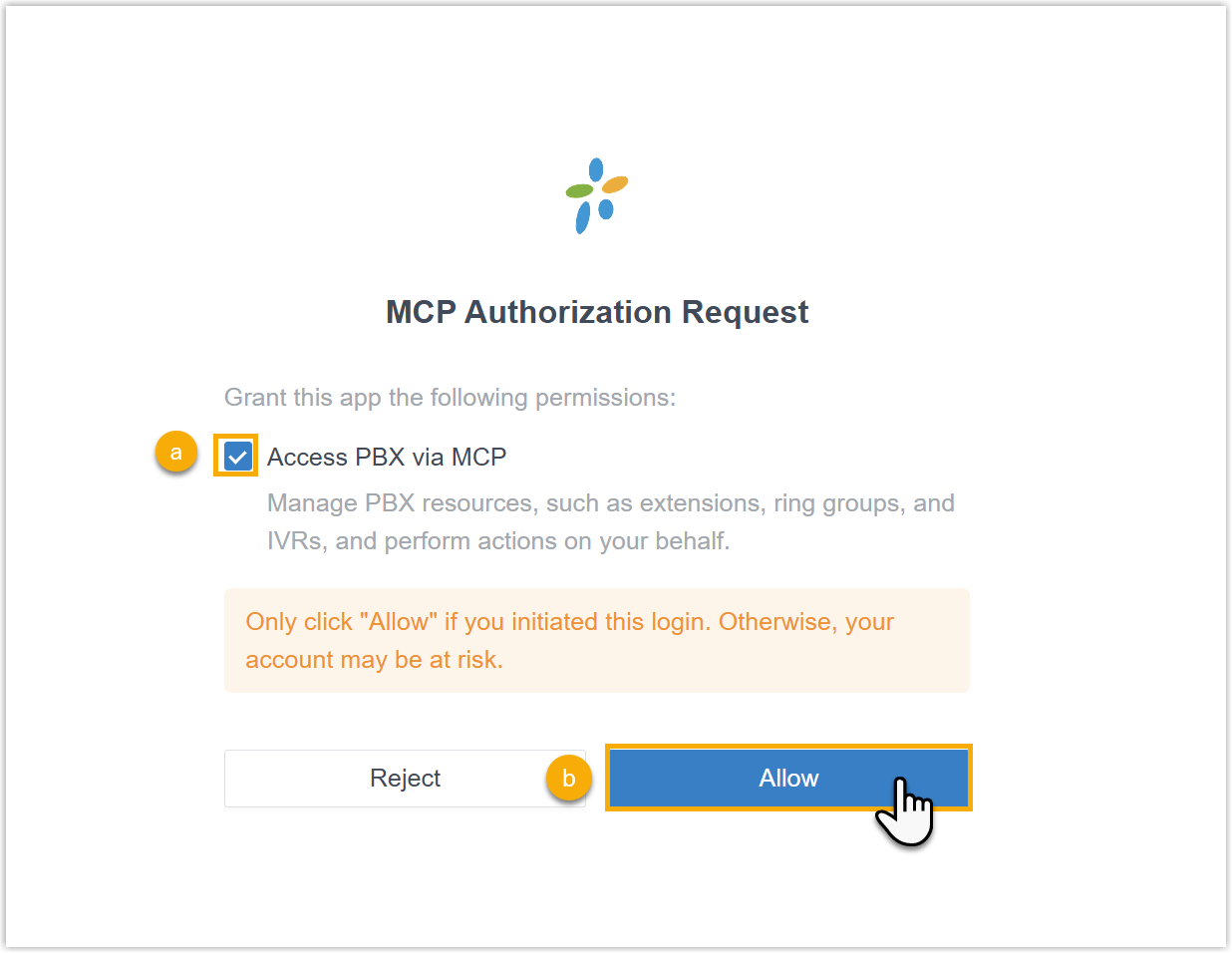
Note: If the browser does not open automatically, copy the authorization URL displayed in PowerShell and open it in your browser.- Select the checkbox of Access PBX via MCP and click
Allow.
-
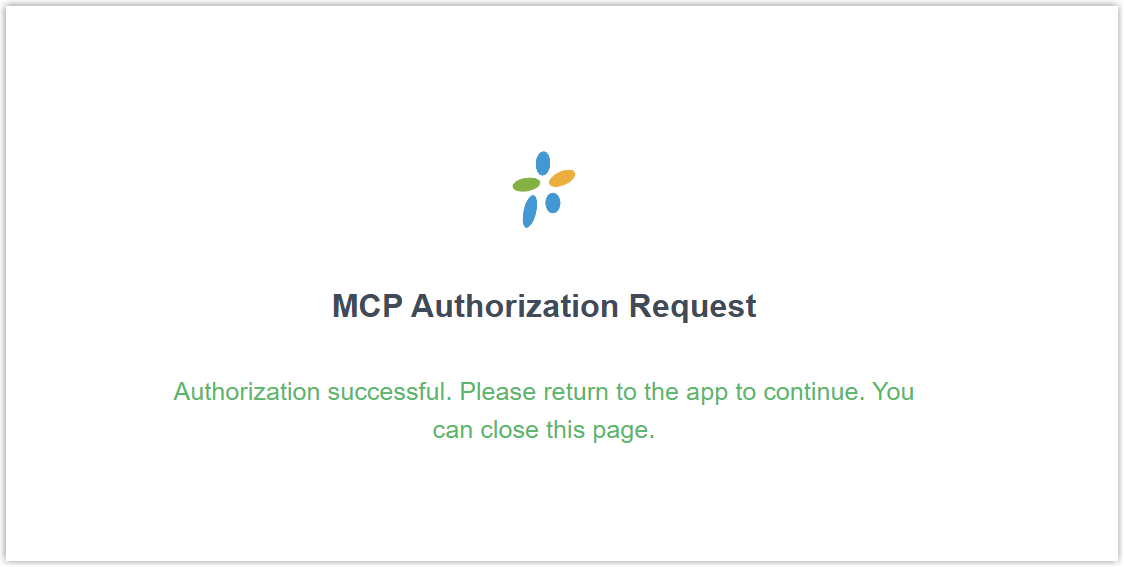
After authorization succeeds, the following is displayed:
- Select the checkbox of Access PBX via MCP and click
Allow.
-
Open a new PowerShell window and run the following command to start Codex CLI.
codex -
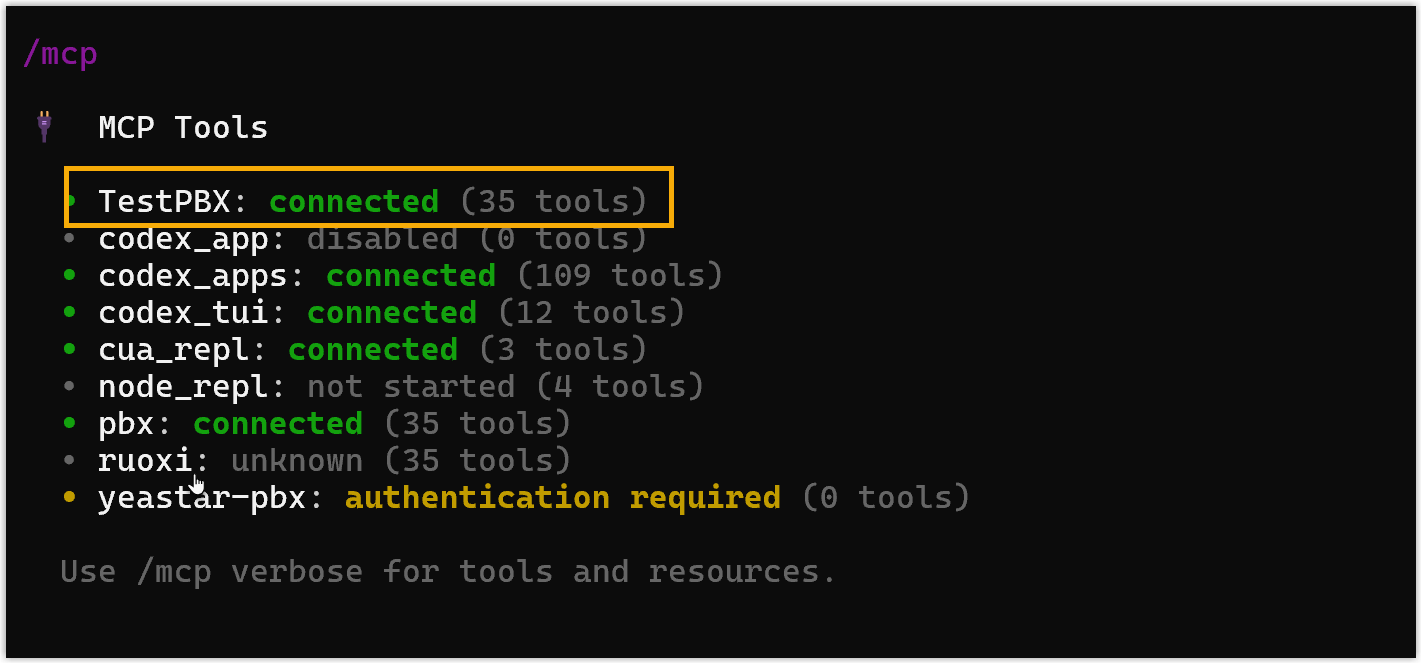
Enter the following command in Codex to check the MCP connection status.
/mcpConfirm that PBX MCP server is connected and the MCP tools are loaded.
 Note: If the MCP service is disabled or the admin password is changed, clients must authorize again before using the service.
Result
The PBX MCP service is connected to Client, and its MCP tools are loaded.
What to do next
Use the available MCP tools in your client to perform PBX tasks.
For more information, see MCP Tools List.