Manage Chat Sessions
This topic describes how to manage internal chat sessions, such as remove a chat session or clear chat history.
Remove a chat session from the list
You can remove a chat session if you do not want it to appear in your internal chat list.
Note: Removing a chat session does not affect its chat
history.
- Log in to the Linkus Web Client.
- On the left navigation bar, click Chat, and then click Internal Chat tab.
- Right click the desired session, and select
Remove.
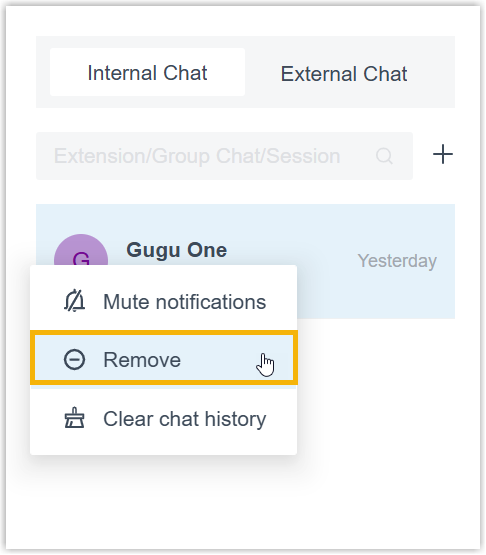
- In the pop-up window, click OK.
The chat session disappears from the list. When you initiate a new chat with or receive a new message from the same contact, the chat session will reappear along with the previous chat history.
Clear local chat history for a chat session
If you want to clear the chat history in a specific chat window but still be able to
view it later, you can clear the local chat history for the chat session.
- Log in to the Linkus Web Client.
- On the left navigation bar, click Chat, and then click Internal Chat tab.
- Do as follows to clear chat history:
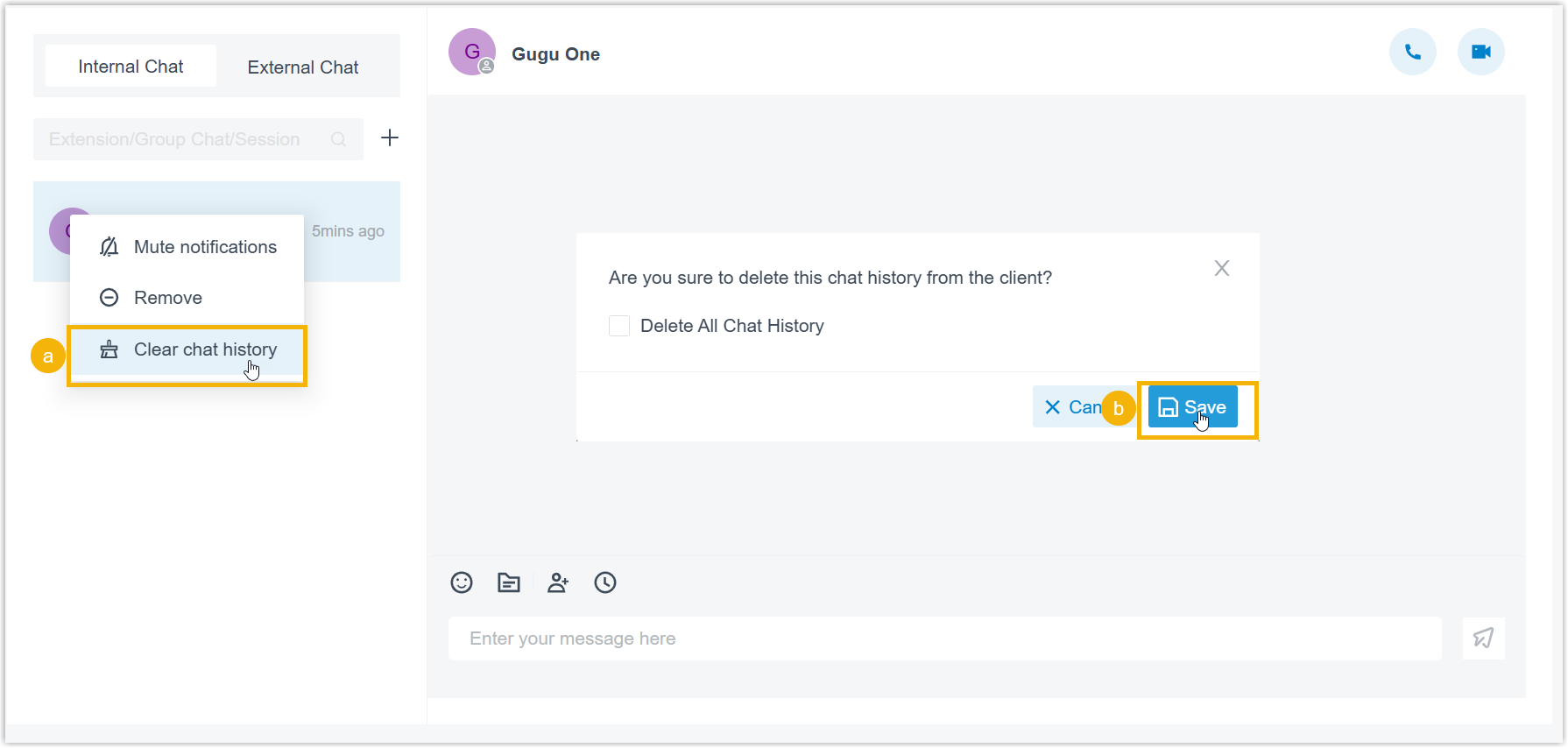
- Right click the desired session, and select Clear chat history.
- In the pop-up window, click OK.
The contents in the current chat window are cleared.
Tip: You can click the icon in the chat window to view the
full chat history.
icon in the chat window to view the
full chat history.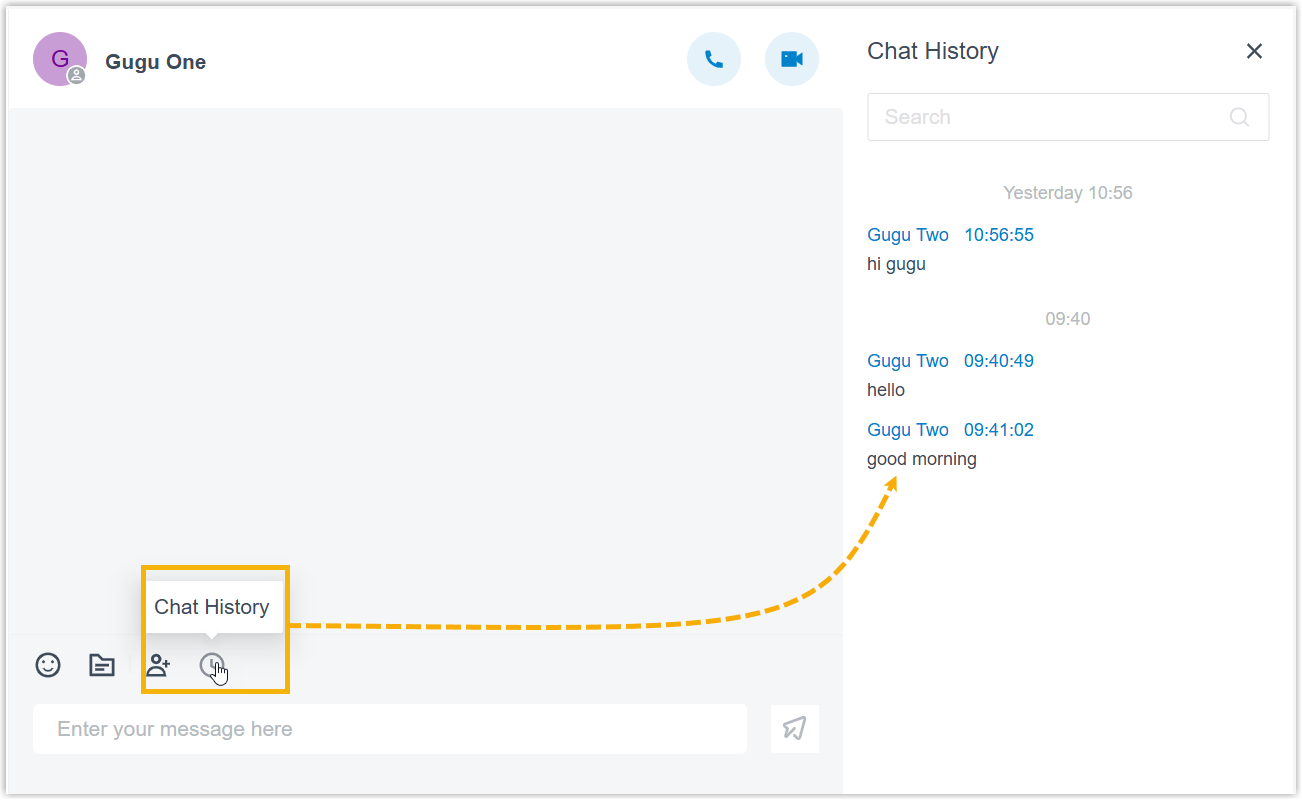
Permanently delete chat history for a chat session
For privacy or security reasons, you can permanently delete all chat histories for a
chat session.
Note: All chat history, both local and on the
server, will be permanently deleted. This operation cannot be
reversed.
- Log in to the Linkus Web Client.
- On the left navigation bar, click Chat, and then click Internal Chat tab.
- Do as follows to clear chat history:
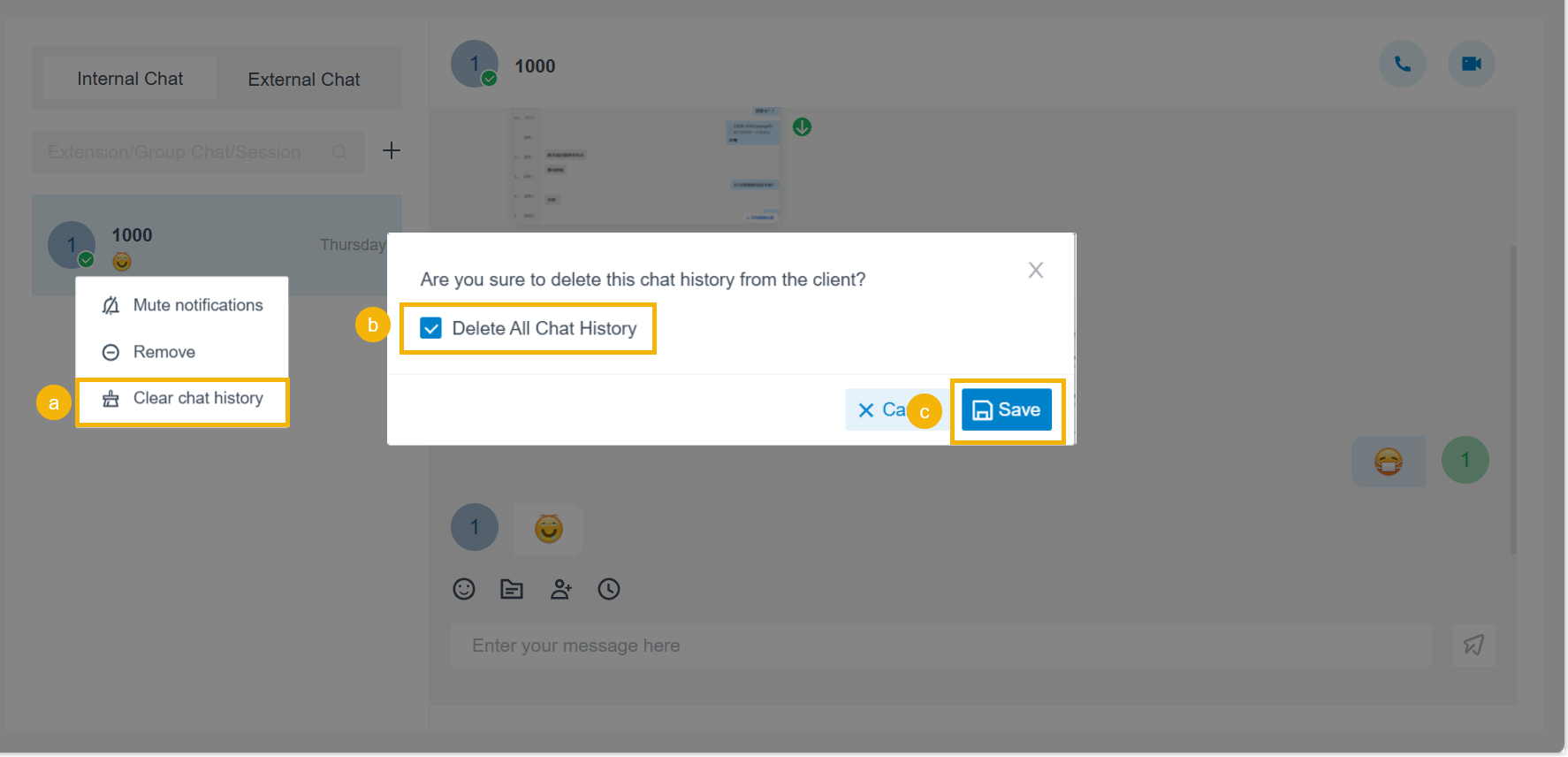
- Right click the desired conversation, and select Remove chat history.
- Select the checkbox of Delete All Chat History.
- In the pop-up window, click Save.