Make Outbound Calls through a Designated 4G Trunk
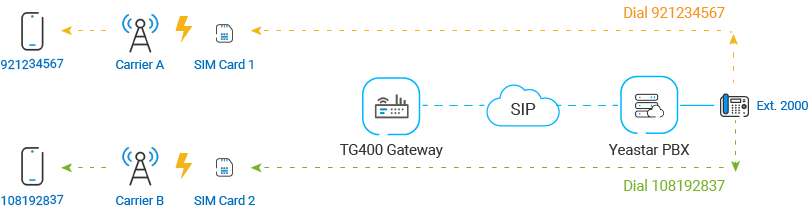
Many carriers have call plans that let you make free or low-cost calls between other numbers through the same carrier network. This topic describes how to make outbound calls through designated 4G trunks to save call charges.
Scenario
The instructions provided in this topic are based on the following scenario:
| Outbound Number Format | Trunk | Carrier |
|---|---|---|
| Number with prefix 92 | 4G trunk 1 | Carrier A |
| Number with prefix 10 | 4G trunk 2 | Carrier B |
Procedure
Step 1. Create an outbound route on Yeastar PBX system
On Yeastar PBX system, create an outbound route to allow PBX users to call through Yeastar TG400 gateway.
- Log in to PBX web portal, go to , click Add.
- Configure the following settings for the outbound route and leave other
settings as default.
- Name: Enter a name to help you identify it.
- Dial Pattern: Set the dial patterns
according to your needs. In this example, set
Pattern to X.,
which means that users can dial any number without
limitation.

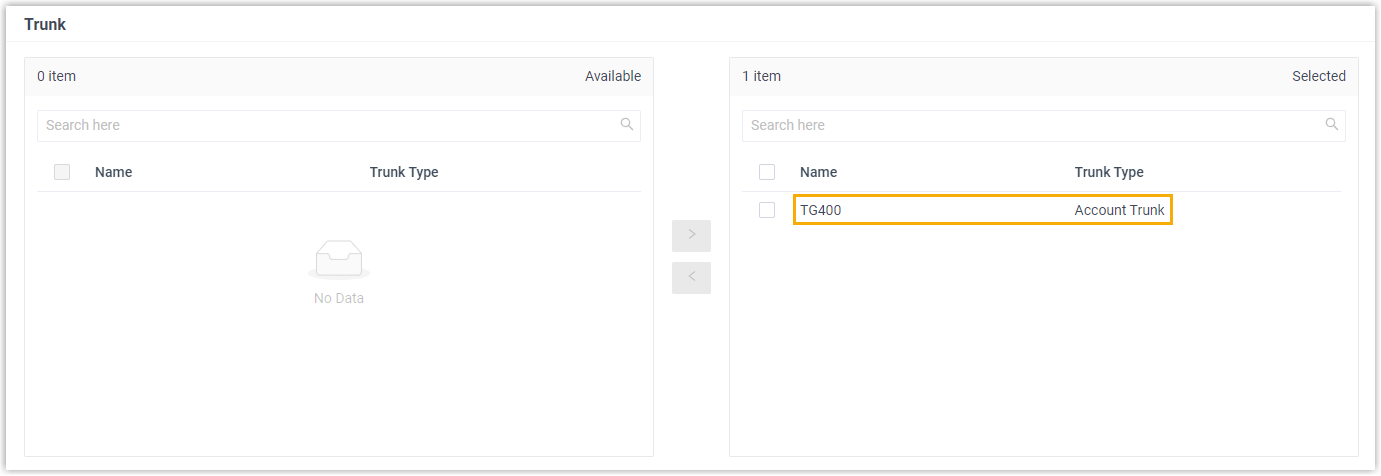
- Trunk: Select the SIP account trunk that is connected to the Yeastar TG400
gateway. In this example, select the trunk
TG400.
- Extension/Extension Group: Select the
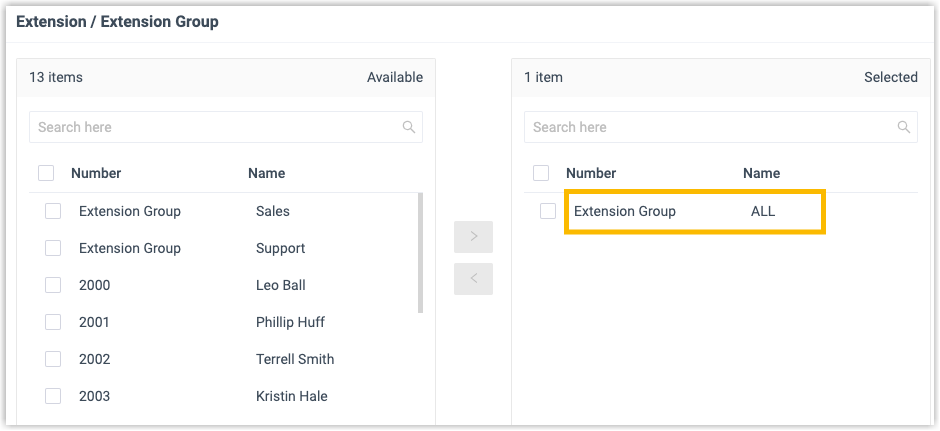
extensions that are allowed to make calls through this outbound
route. In this example, select all the extensions.
- Click Save and Apply.
Step 2. Create two 'IP to Mobile' routes on Yeastar TG400 gateway
On Yeastar TG400 gateway, create an 'IP to Mobile' route for carrier A, and create another one for carrier B. These two routes will match the dialed numbers from PBX, and send numbers out through designated 4G trunks.
- Log in to gateway web interface, go to , click Add IP to Mobile Route.
- In the pop-up window, configure the route, then click
Save and Apply
Changes.
The following table shows the required configurations for carrier A and carrier B.
Setting Description For Carrier A For Carrier B Simple Mode To keep simple mode with basic settings or to expand more settings. No No Route Name Enter a name to help you identify it. To-CarrierA To-CarrierB Call Source Select the SIP trunk that is connected to Yeastar PBX system. SIP Register Trunk - P_Cloud SIP Register Trunk - P_Cloud DID Number Enter the pattern or number to match dialed numbers from Yeastar PBX system. Note: If you want to match any incoming calls, you need to set DID Number to .(dot), or outbound calls would fail.Enter 92. to allow the numbers with prefix 92. Enter 10. to allow the numbers with prefix 10. Call Destination Select the 4G trunk that will be used to call out. Mobile – Trunk1 Mobile – Trunk2 Figure 1. 'IP to Mobile' route for carrier A 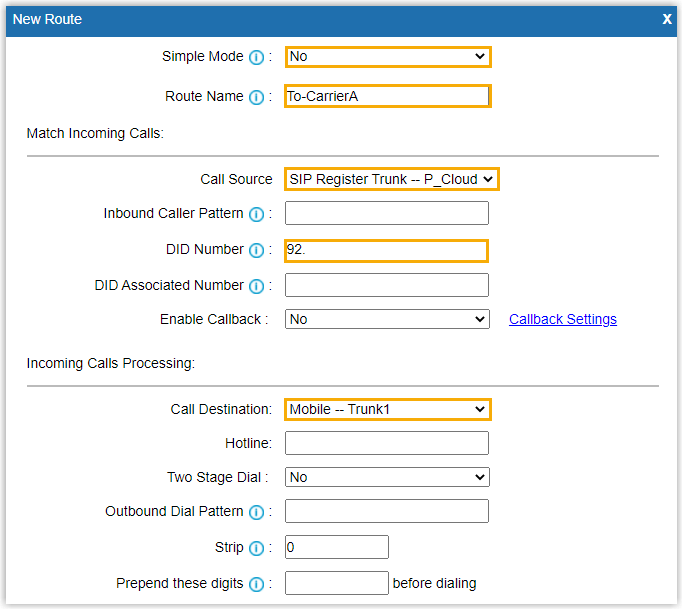
Figure 2. 'IP to Mobile' route for carrier B 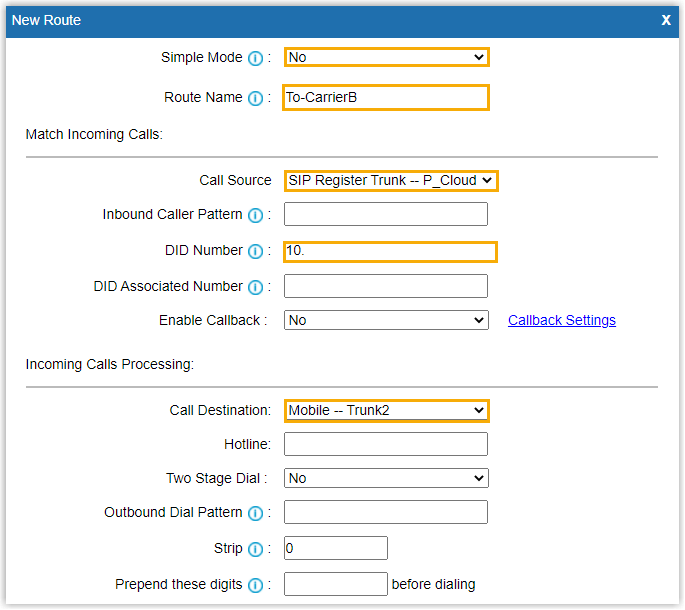
Step 3. Make test calls from Yeastar PBX system
Examples:
- Dial number 921234567, the call will be made through 4G trunk1.
- Dial number 108192837, the call will be made through 4G trunk 2.