Synchronize Users from Red Hat SSO to Yeastar P-Series Cloud Edition
After integrating Yeastar P-Series Cloud Edition with Red Hat SSO, you can synchronize Red Hat SSO users to Yeastar PBX and assign extensions to them, so that the users can use their office extensions for business communications with their Red Hat credentials.
Introduction
- Number of users supported for synchronization
- The number of users that can be synchronized from Red Hat SSO depends on the number of extensions that PBX system can create.
- Scopes of user for synchronization
- Yeastar PBX allows you to flexibly define the synchronization scope for Red Hat SSO users. Refer to the following table for more details.
Synchronize all Red Hat SSO users to Yeastar PBX
- Access the configuration page of user synchronization.
- Log in to PBX web portal, go to .
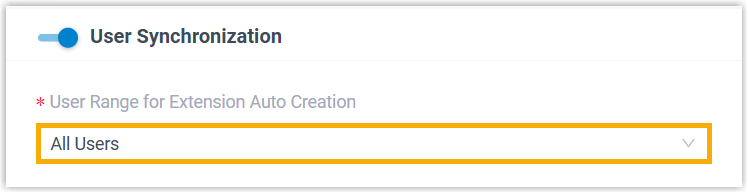
- Scroll down to the User Synchronization section.
- In the User Range for Extension Auto Creation
drop-down list, select All Users.
- Set up extension assignment policies to define how the synced Red Hat SSO
users are associated with PBX extensions.

- In the User's Extension
Number drop-down list, select a rule for assigning extensions.
Item Description Assign Automatically Assign extension numbers from a specific starting number. If you select this option, you need to specify a starting number in the Start Extension Number from field.
Read Specific Property Value Assign extension numbers based on the value of a specific user account property.
If you select this option, you need to specify a property name in the Property Name field.
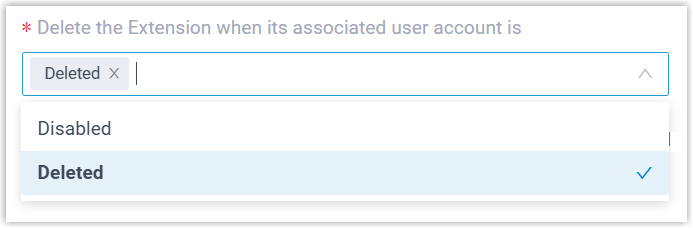
- In the Delete the Extension when its
associated user account is drop-down list, select
the account status(es) at which PBX will stop synchronizing the
users, and delete their associated extensions.
- For the Auto associate Extensions
with the Users that share the same email address
option, set whether to synchronize the Red Hat SSO users who have
the same email addresses as existing extensions.
- If selected, users whose email address in Red Hat SSO
(retrieved from the Red Hat Field
defined in the Email Address mapping)
matches the Email Address of
extensions in Yeastar PBX will be synchronized to PBX and
associated with the existing extensions.
The extensions' user information will be overwritten by that of the users.
Note: For security reasons, we recommend that you restrict Red Hat SSO users from modifying their email addresses. - If unselected, users whose email address in Red Hat SSO (retrieved from the Red Hat Field defined in the Email Address mapping) matches the Email Address of extensions in Yeastar PBX will NOT be synchronized to PBX, as Yeastar PBX does NOT allow duplicated email addresses.
- If selected, users whose email address in Red Hat SSO
(retrieved from the Red Hat Field
defined in the Email Address mapping)
matches the Email Address of
extensions in Yeastar PBX will be synchronized to PBX and
associated with the existing extensions.
- In the User's Extension
Number drop-down list, select a rule for assigning extensions.
- If you want to send Linkus Welcome Email to the synced users, select the checkbox of Send Welcome Email automatically after an extension is created.
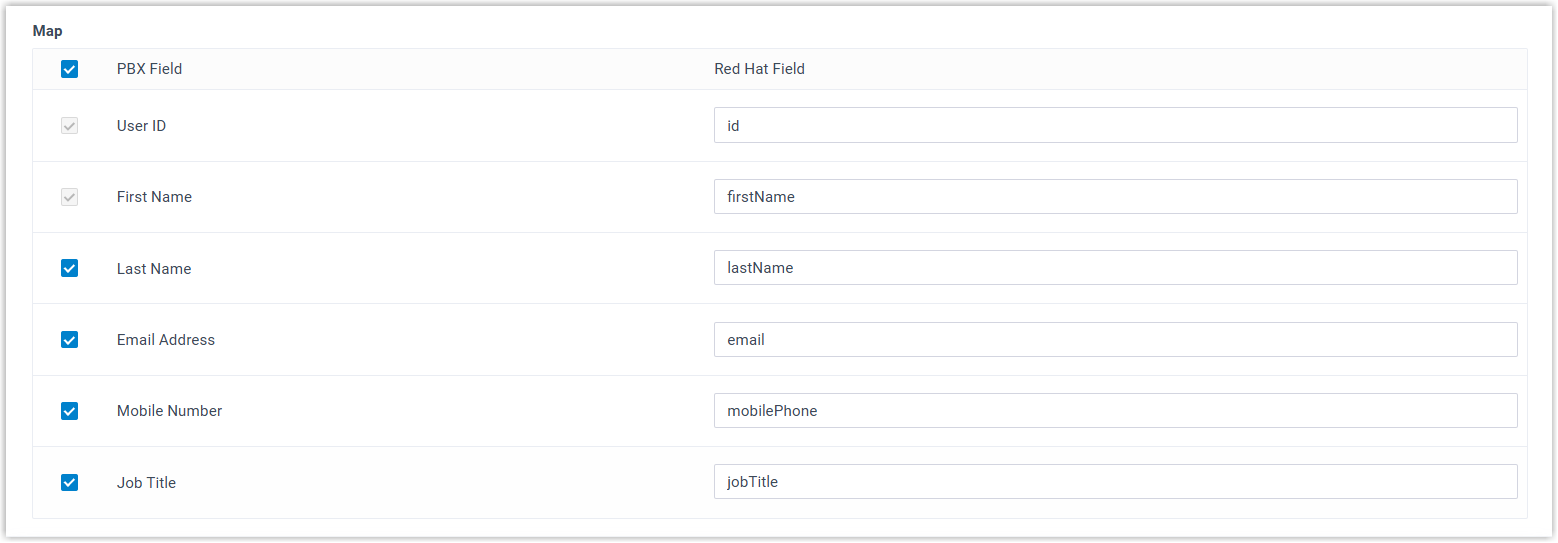
- In the Map section, select and map the
fields for the user information that you want to synchronize.
- Click Save.PBX will perform the initial user synchronization immediately. When the synchronization is completed, the followings are achieved:
- A notification banner appears to show the synchronization
result.

- All Red Hat SSO users are synchronized to the PBX
and assigned extensions (Path: ). These extensions are marked with
 , and can NOT be deleted from PBX.
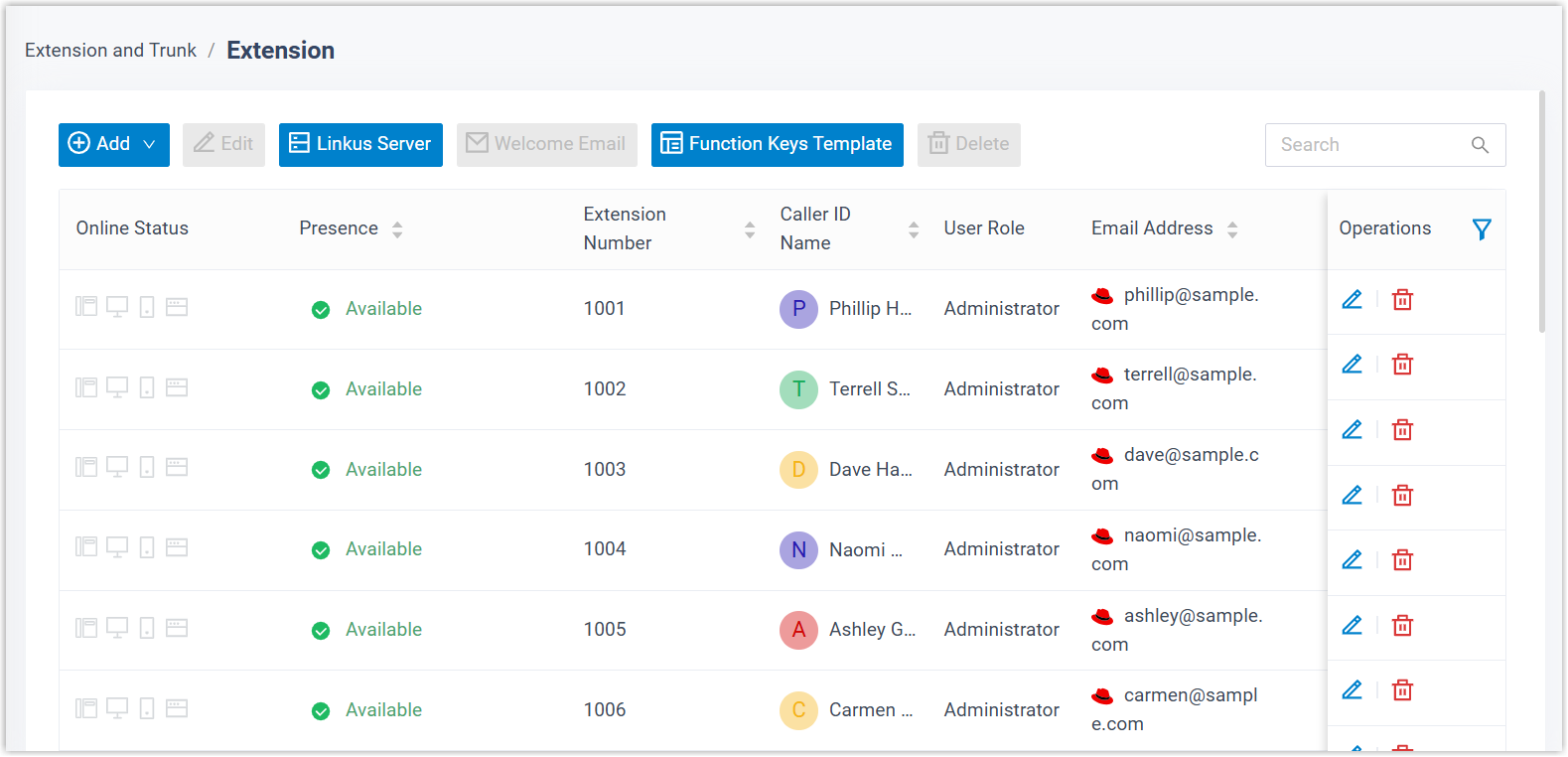 Note: The First Name, Last Name, Email Address, Mobile Number, and Job Title of these extensions are synchronized from Red Hat. Therefore, they can only be updated in Red Hat, and the changes will be reflected to the PBX during a synchronization.
- A notification banner appears to show the synchronization
result.
Synchronize Red Hat SSO users in specific organizational unit to Yeastar PBX
- Access the configuration page of user synchronization.
- Log in to PBX web portal, go to .
- Scroll down to the User Synchronization section.
- Set the system to synchronize users from specific organizational
unit(s).

- In the User Range for Extension Auto Creation drop-down list, select Users in Specific Organizational Unit.
- In the Organizational Units drop-down list, select one or more organization units.
- Set up extension assignment policies to define how the
synced Red Hat SSO users are associated with PBX extensions.
- If you want the system to automatically delete the
extensions associated with out-of-sync Red Hat SSO users, select the
checkbox of Auto delete the Extensions no longer in
sync.Note: This helps automatically remove unused extensions when the user synchronization scope changes.
- In the User's Extension
Number drop-down list, select a rule for assigning extensions.
Item Description Assign Automatically Assign extension numbers from a specific starting number. If you select this option, you need to specify a starting number in the Start Extension Number from field.
Read Specific Property Value Assign extension numbers based on the value of a specific user account property.
If you select this option, you need to specify a property name in the Property Name field.
- In the Delete the Extension when its
associated user account is drop-down list, select
the account status(es) at which PBX will stop synchronizing the
users, and delete their associated extensions.
- For the Auto associate Extensions
with the Users that share the same email address
option, set whether to synchronize the Red Hat SSO users who have
the same email addresses as existing extensions.
- If selected, users whose email address in Red Hat SSO
(retrieved from the Red Hat Field
defined in the Email Address mapping)
matches the Email Address of
extensions in Yeastar PBX will be synchronized to PBX and
associated with the existing extensions.
The extensions' user information will be overwritten by that of the users.
Note: For security reasons, we recommend that you restrict Red Hat SSO users from modifying their email addresses. - If unselected, users whose email address in Red Hat SSO (retrieved from the Red Hat Field defined in the Email Address mapping) matches the Email Address of extensions in Yeastar PBX will NOT be synchronized to PBX, as Yeastar PBX does NOT allow duplicated email addresses.
- If selected, users whose email address in Red Hat SSO
(retrieved from the Red Hat Field
defined in the Email Address mapping)
matches the Email Address of
extensions in Yeastar PBX will be synchronized to PBX and
associated with the existing extensions.
- If you want the system to automatically delete the
extensions associated with out-of-sync Red Hat SSO users, select the
checkbox of Auto delete the Extensions no longer in
sync.
- If you want to send Linkus Welcome Email to the synced users, select the checkbox of Send Welcome Email automatically after an extension is created.
- In the Map section, select and map the
fields for the user information that you want to synchronize.
- Click Save.PBX will perform the initial user synchronization immediately. When the synchronization is completed, the followings are achieved:
- A notification banner appears to show the synchronization
result.

- Red Hat SSO users in the specified organizational unit(s) are
synchronized to the PBX and assigned extensions (Path: ). These extensions are marked with , and can NOT be deleted from PBX.Note: The First Name, Last Name, Email Address, Mobile Number, and Job Title of these extensions are synchronized from Red Hat. Therefore, they can only be updated in Red Hat, and the changes will be reflected to the PBX during a synchronization.
- A notification banner appears to show the synchronization
result.
Synchronize Red Hat SSO users in specific group to Yeastar PBX
- Access the configuration page of user synchronization.
- Log in to PBX web portal, go to .
- Scroll down to the User Synchronization section.
- Set the system to synchronize users from specific group(s).

- In the User Range for Extension Auto Creation drop-down list, select Users in Specific Group.
- In the Group drop-down list, select one or more groups.
- Set up extension assignment policies to define how the
synced Red Hat SSO users are associated with PBX extensions.
- If you want the system to automatically delete the
extensions associated with out-of-sync Red Hat SSO users, select the
checkbox of Auto delete the Extensions no longer in
sync.Note: This helps automatically remove unused extensions when the user synchronization scope changes.
- In the User's Extension
Number drop-down list, select a rule for assigning extensions.
Item Description Assign Automatically Assign extension numbers from a specific starting number. If you select this option, you need to specify a starting number in the Start Extension Number from field.
Read Specific Property Value Assign extension numbers based on the value of a specific user account property.
If you select this option, you need to specify a property name in the Property Name field.
- In the Delete the Extension when its
associated user account is drop-down list, select
the account status(es) at which PBX will stop synchronizing the
users, and delete their associated extensions.
- For the Auto associate Extensions
with the Users that share the same email address
option, set whether to synchronize the Red Hat SSO users who have
the same email addresses as existing extensions.
- If selected, users whose email address in Red Hat SSO
(retrieved from the Red Hat Field
defined in the Email Address mapping)
matches the Email Address of
extensions in Yeastar PBX will be synchronized to PBX and
associated with the existing extensions.
The extensions' user information will be overwritten by that of the users.
Note: For security reasons, we recommend that you restrict Red Hat SSO users from modifying their email addresses. - If unselected, users whose email address in Red Hat SSO (retrieved from the Red Hat Field defined in the Email Address mapping) matches the Email Address of extensions in Yeastar PBX will NOT be synchronized to PBX, as Yeastar PBX does NOT allow duplicated email addresses.
- If selected, users whose email address in Red Hat SSO
(retrieved from the Red Hat Field
defined in the Email Address mapping)
matches the Email Address of
extensions in Yeastar PBX will be synchronized to PBX and
associated with the existing extensions.
- If you want the system to automatically delete the
extensions associated with out-of-sync Red Hat SSO users, select the
checkbox of Auto delete the Extensions no longer in
sync.
- If you want to send Linkus Welcome Email to the synced users, select the checkbox of Send Welcome Email automatically after an extension is created.
- In the Map section, select and map the
fields for the user information that you want to synchronize.
- Click Save.PBX will perform the initial user synchronization immediately. When the synchronization is completed, the followings are achieved:
- A notification banner appears to show the synchronization
result.
- Red Hat SSO users in the specified group(s) are synchronized to
the PBX and assigned extensions (Path: ). These extensions are marked with , and can NOT be deleted from
PBX.Note: The First Name, Last Name, Email Address, Mobile Number, and Job Title of these extensions are synchronized from Red Hat. Therefore, they can only be updated in Red Hat, and the changes will be reflected to the PBX during a synchronization.
- A notification banner appears to show the synchronization
result.
Synchronize specific Red Hat SSO users to Yeastar PBX
- Access the configuration page of user synchronization.
- Log in to PBX web portal, go to .
- Scroll down to the User Synchronization section.
- Set the system to synchronize specific users and manually assign extensions
to the users.
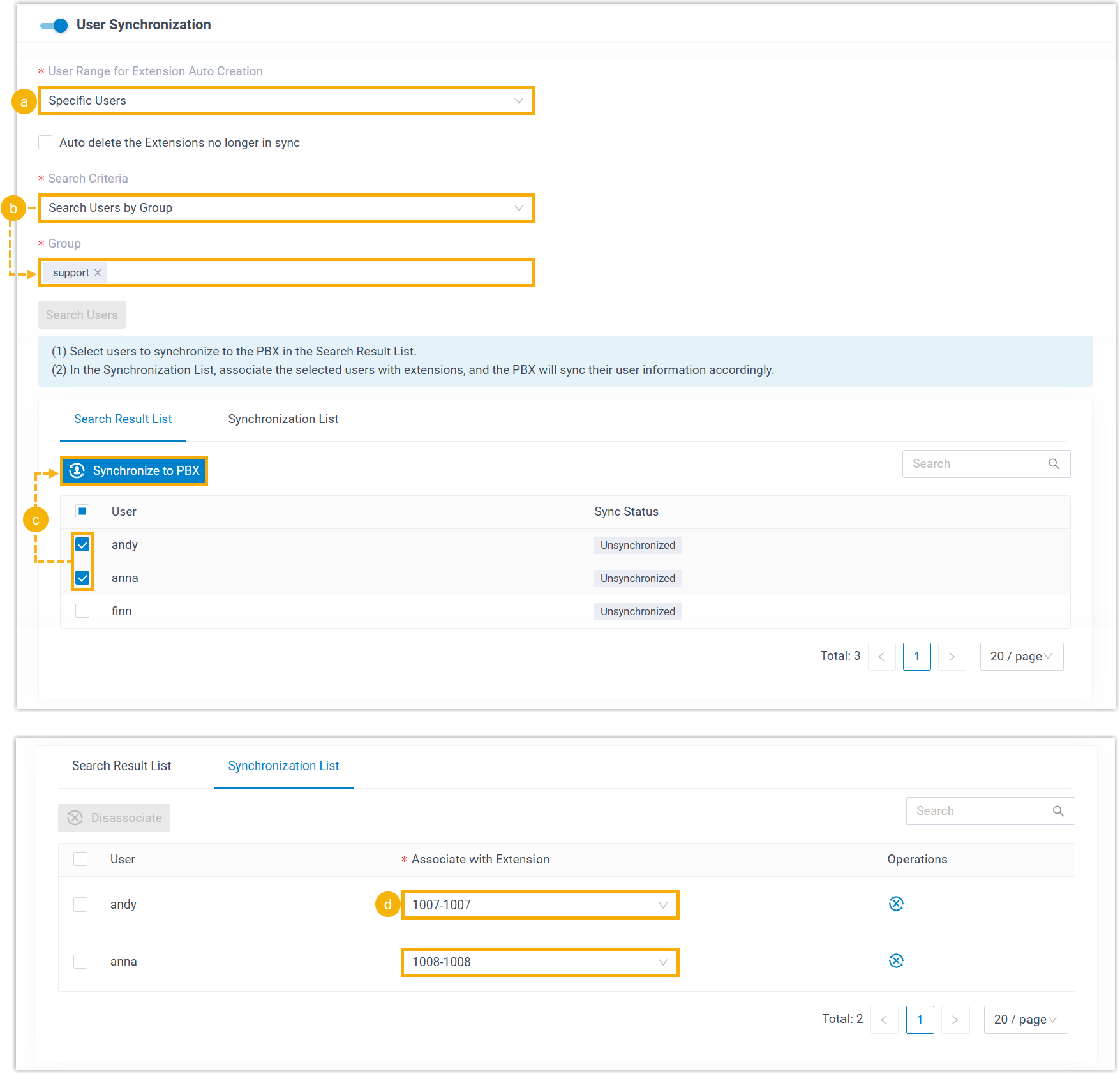
- In the User Range for Extension Auto Creation drop-down list, select Specific Users.
- In the Search Criteria drop-down list, set
whether to search users by organizational unit or by group. Then
specify the target unit or group, and click Search
Users.
Users that match the selected criteria are listed in the search results.
- In the Search Result List section, select the checkboxes of the desired users, then click Synchronize to PBX.
- In the Synchronization List, select an
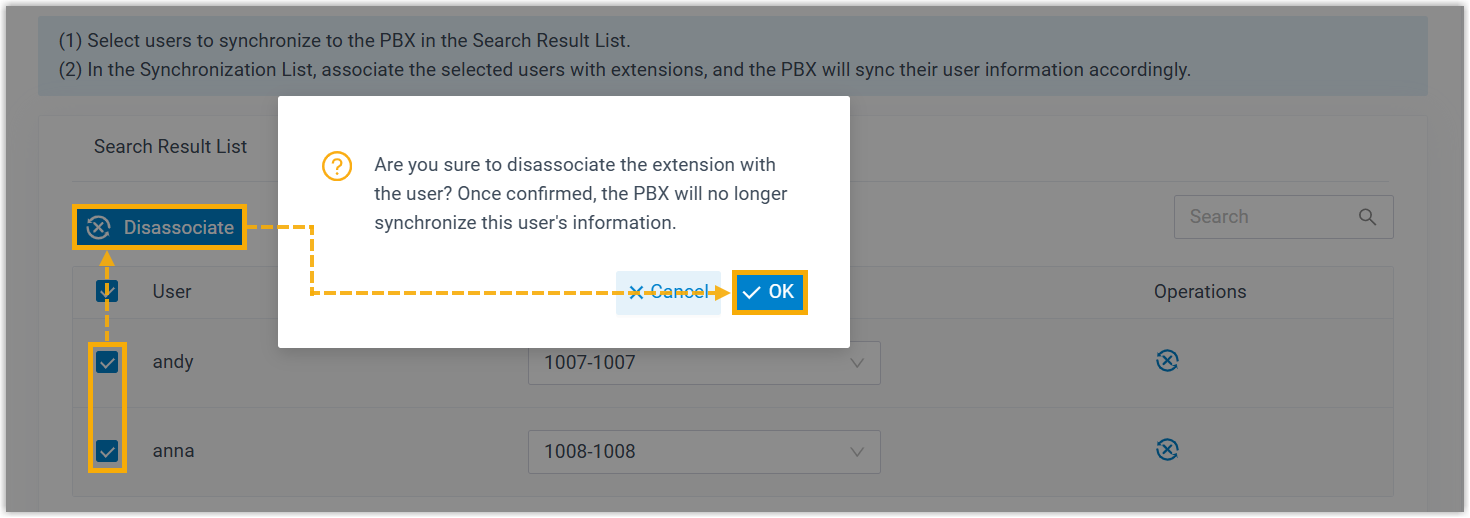
extension from the drop-down list to associate with the user.Note: In case you want to cancel syncing a selected Red Hat SSO user, proceed as follows:
- Set up extension management policies to define how to handle the extensions
associated with Red Hat SSO users when the user synchronization scope or
user account status changes.
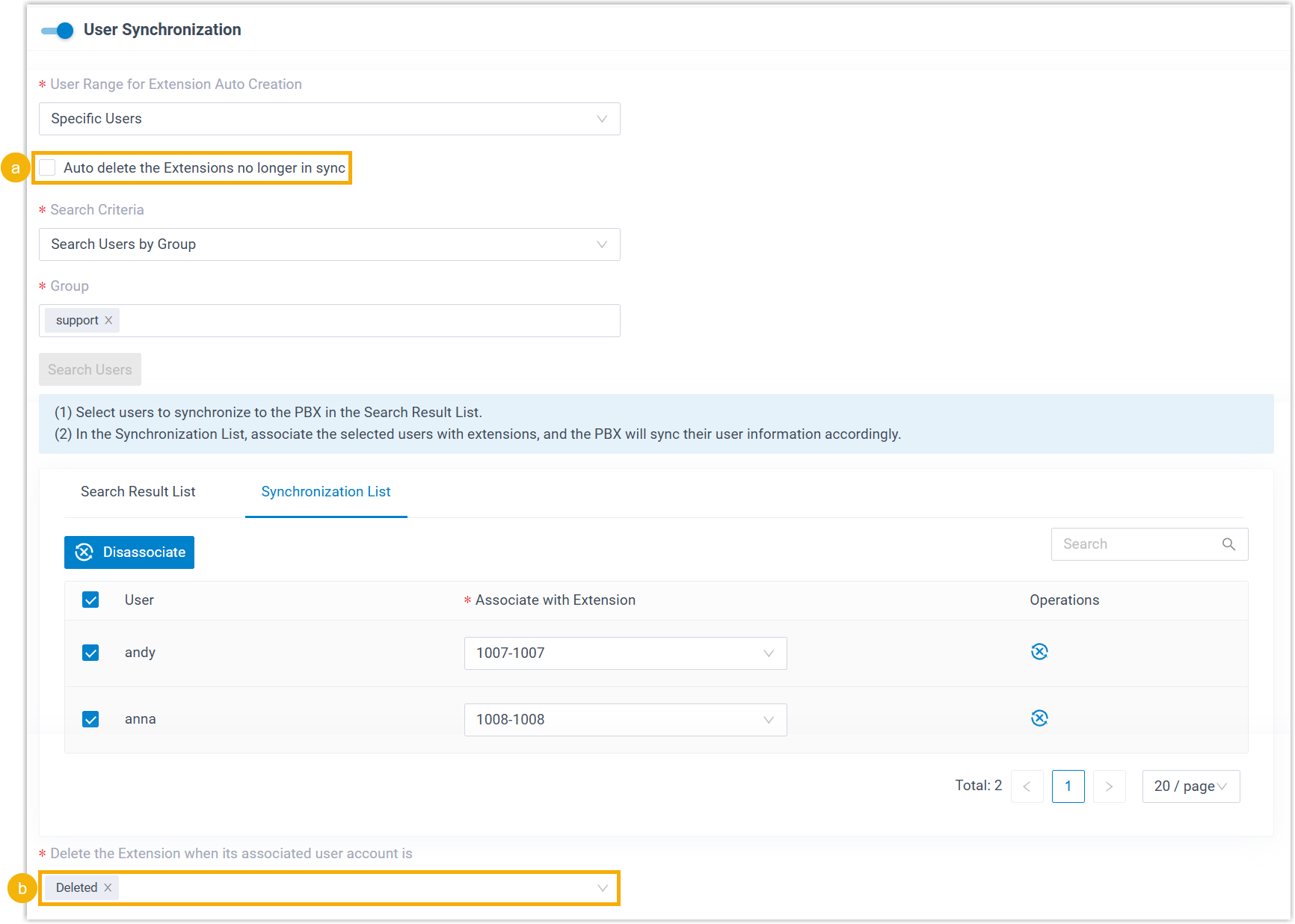
- If you want the system to automatically delete the
extensions associated with out-of-sync Red Hat SSO users, select the
checkbox of Auto delete the Extensions no longer in
sync.Note: This helps automatically remove unused extensions when the user synchronization scope changes.
- In the Delete the Extension when its associated user account is drop-down list, select the account status(es) at which PBX will stop synchronizing the users, and delete their associated extensions.
- If you want the system to automatically delete the
extensions associated with out-of-sync Red Hat SSO users, select the
checkbox of Auto delete the Extensions no longer in
sync.
- If you want to send Linkus Welcome Email to the synced users, select the checkbox of Send Welcome Email automatically after an extension is created.
- In the Map section, select and map the
fields for the user information that you want to synchronize.
- Click Save.PBX will perform the initial user synchronization immediately. When the synchronization is completed, the followings are achieved:
- A notification banner appears to show the synchronization
result.
- The specified Red Hat SSO users are synchronized to PBX and
assigned extensions (Path: ). These extensions are marked with , and can NOT be deleted from
PBX.Note: The First Name, Last Name, Email Address, Mobile Number, and Job Title of these extensions are synchronized from Red Hat. Therefore, they can only be updated in Red Hat, and the changes will be reflected to the PBX during a synchronization.
- A notification banner appears to show the synchronization
result.
What to do next
Enable the Single Sign-on (SSO) feature to allow the synced users to log in to Linkus UC Clients using their Red Hat credentials.
For more information, see Allow Users to Log in to Linkus UC Clients with Red Hat SSO.