Manage Tools
This topic describes how to manage custom tools, including edit, download, and delete.
Edit a tool
- Log in to PBX web portal, go to .
- Click
 beside the desired tool.
 - Modify the settings as needed.
- Click Save to apply the changes.
Download tools
To back up a tool or replicate its configurations, you can download the tool as a JSON file.
- Log in to PBX web portal, go to .
- Select one or multiple tools, then click Download at
the top of the list.
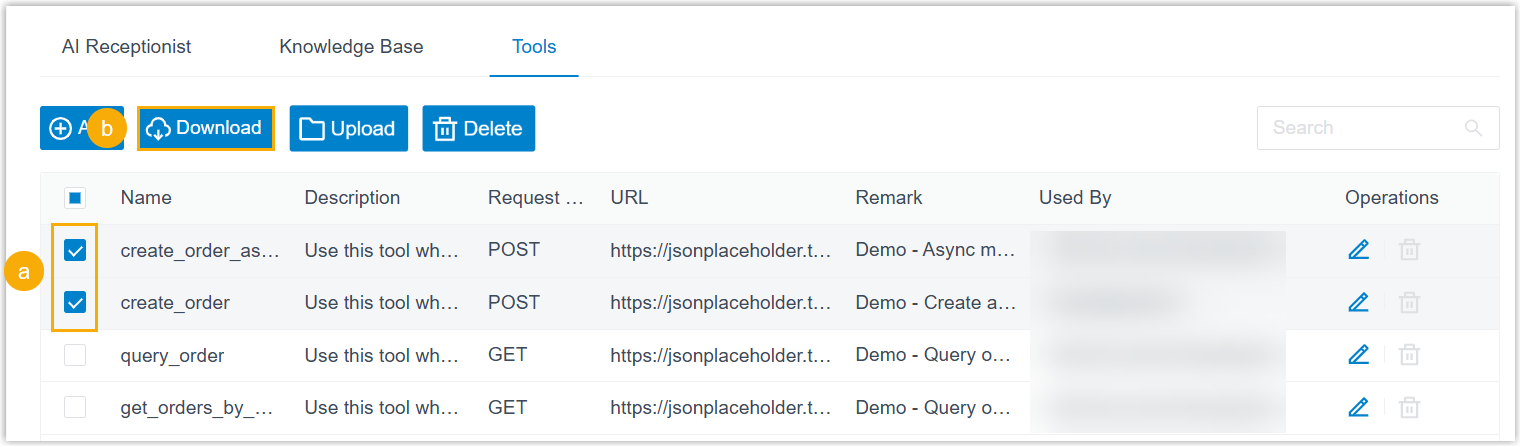 The JSON file of the tool is downloaded to your local computer.Note: If multiple tools are selected, they will be compassed in a ZIP file.
Delete tools
You can remove tools that are no longer needed.
Note: It is not
supported to delete tools that have been assigned to AI
receptionist(s).
- Log in to PBX web portal, go to .
- To delete a single tool, do as follows:
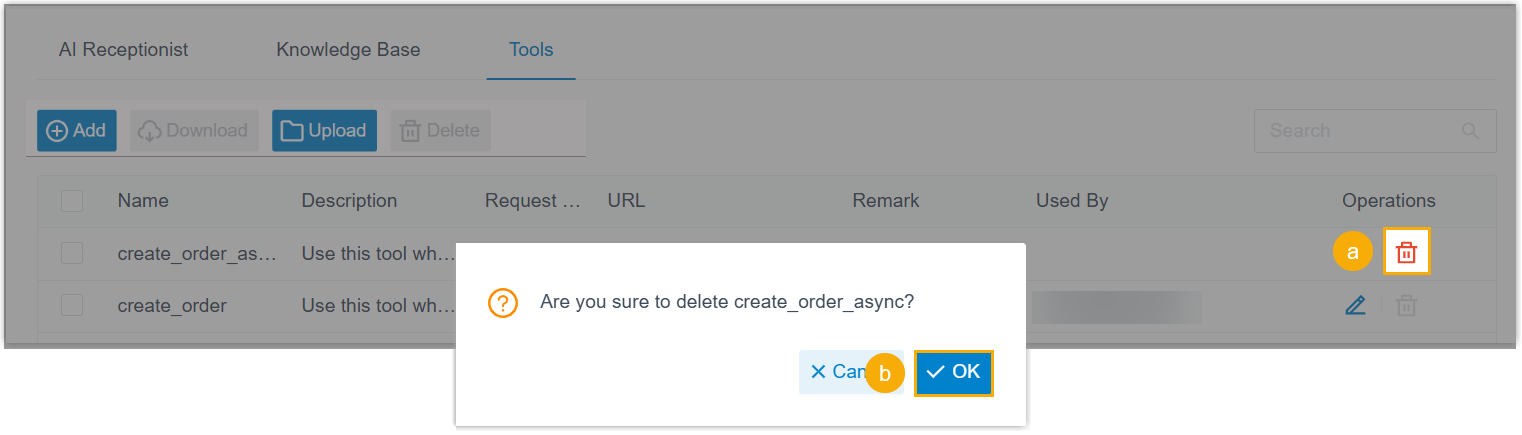
- Click
 beside the desired tool.
 - In the pop-up window, click OK.
- Click
- To delete tools in bulk, do as follows:
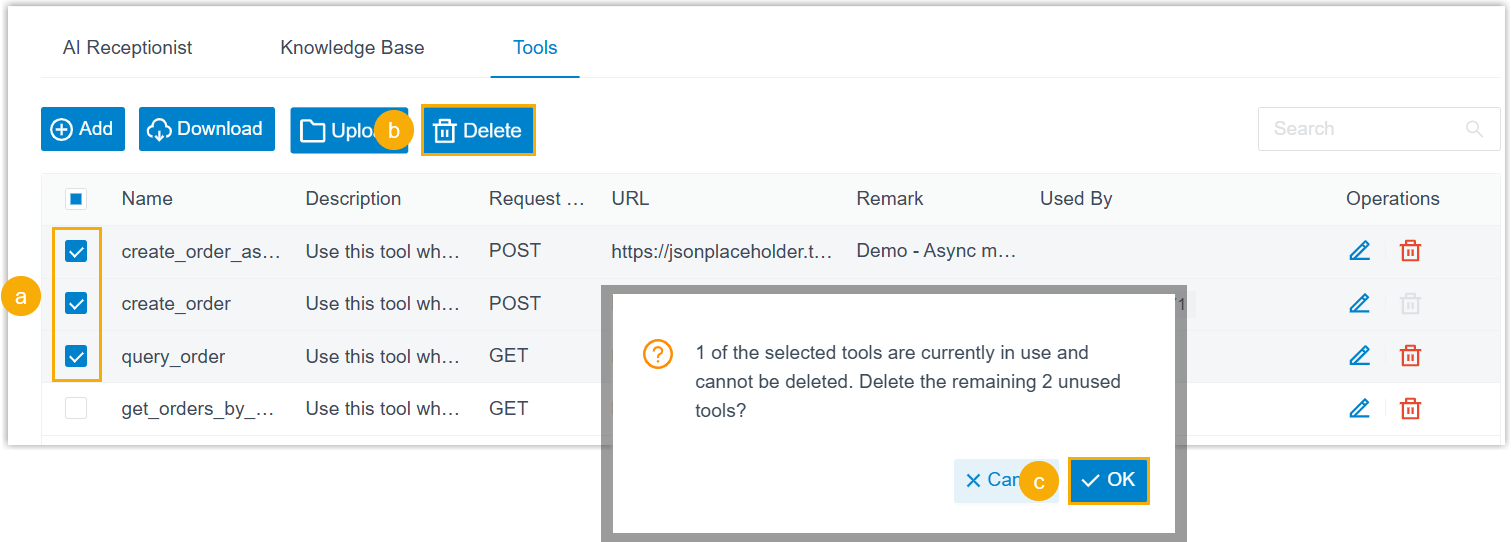
- Select the checkboxes of desired tools.
- At the top of the list, click Delete.
- In the pop-up window, click OK.