Manage MCP Servers
This topic describes how to manage MCP servers added to the PBX, including editing and deleting.
Edit an MCP server
You can edit the remark, execution rule, or header parameters of an MCP server as needed.
- Log in to PBX web portal, go to .
- Click
 beside the desired MCP server.
 - Modify the settings as needed.
- Click Save to apply the changes.
Delete MCP servers
You can remove MCP servers that are no longer needed.
Note: It
is not supported to delete MCP servers that have been assigned to AI
receptionist(s).
- Log in to PBX web portal, go to .
- To delete a single MCP server, do as follows:
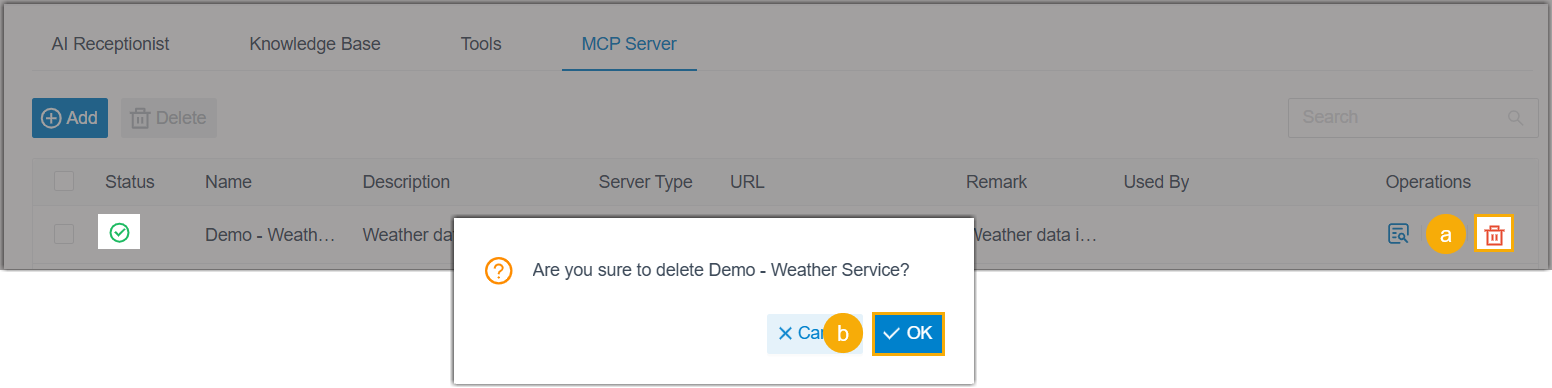
- Click
 beside the desired MCP server.
 - In the pop-up window, click OK.
- Click
- To delete MCP servers in bulk, do as follows:
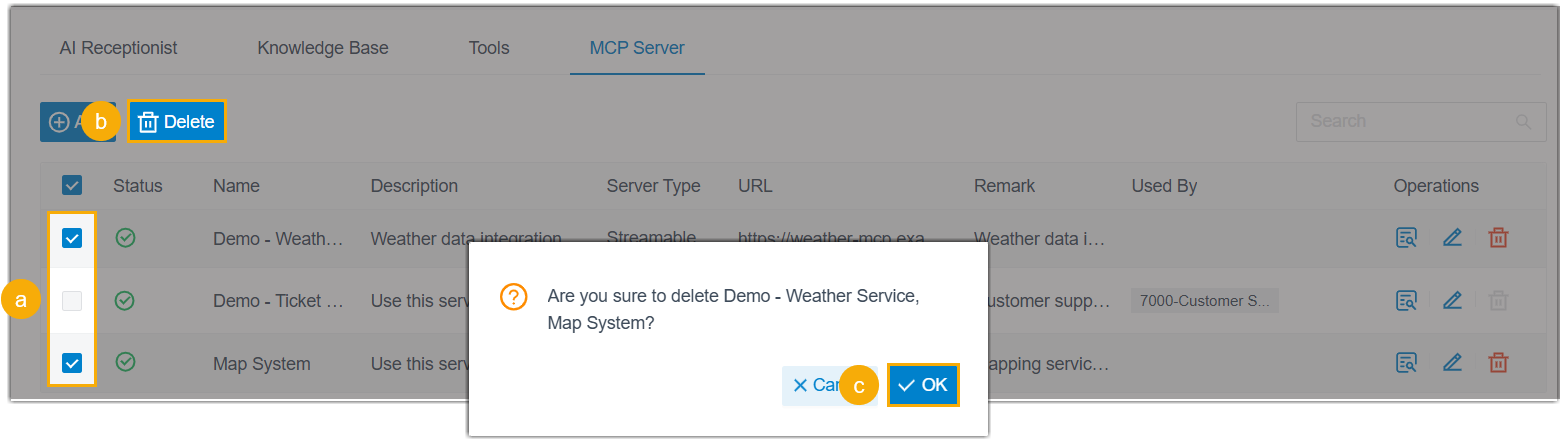
- Select the checkboxes of desired MCP servers.
- At the top of the list, click Delete.
- In the pop-up window, click OK.