Configure AI Call Transcription with Built-in Service
Yeastar P-Series Cloud Edition supports AI call transcription powered by built-in AI engine, transcribing the audio of a two-party call into readable text in real time and automatically generating call summaries. This topic describes how to configure AI call transcription with the built-in AI engine.
Requirements
| Item | Requirement |
|---|---|
| Firmware | 84.24.0.30 or later. |
| Subscription |
The AI Transcription feature includes one-time free minutes with your plan subscription (120 minutes for Enterprise Plan or 240 minutes for Ultimate Plan). To expand AI transcription minutes, contact your service provider to subscribe to the following add-on service(s) (Path: ). 
Note: If both services are subscribed,
minutes are deducted from the monthly quota pack
first. |
Procedure
- Log in to PBX web portal, go to .
- Turn on the switch of Call
Transcription.
 Tip: If you have already configured AI Voicemail Transcription with the built-in AI engine, you can directly click Copy Settings from Voicemail Transcription at the top-right corner to reuse the configuration, then modify the settings as needed.
 - In the Service Type drop-down list, select Build-in Service.
-
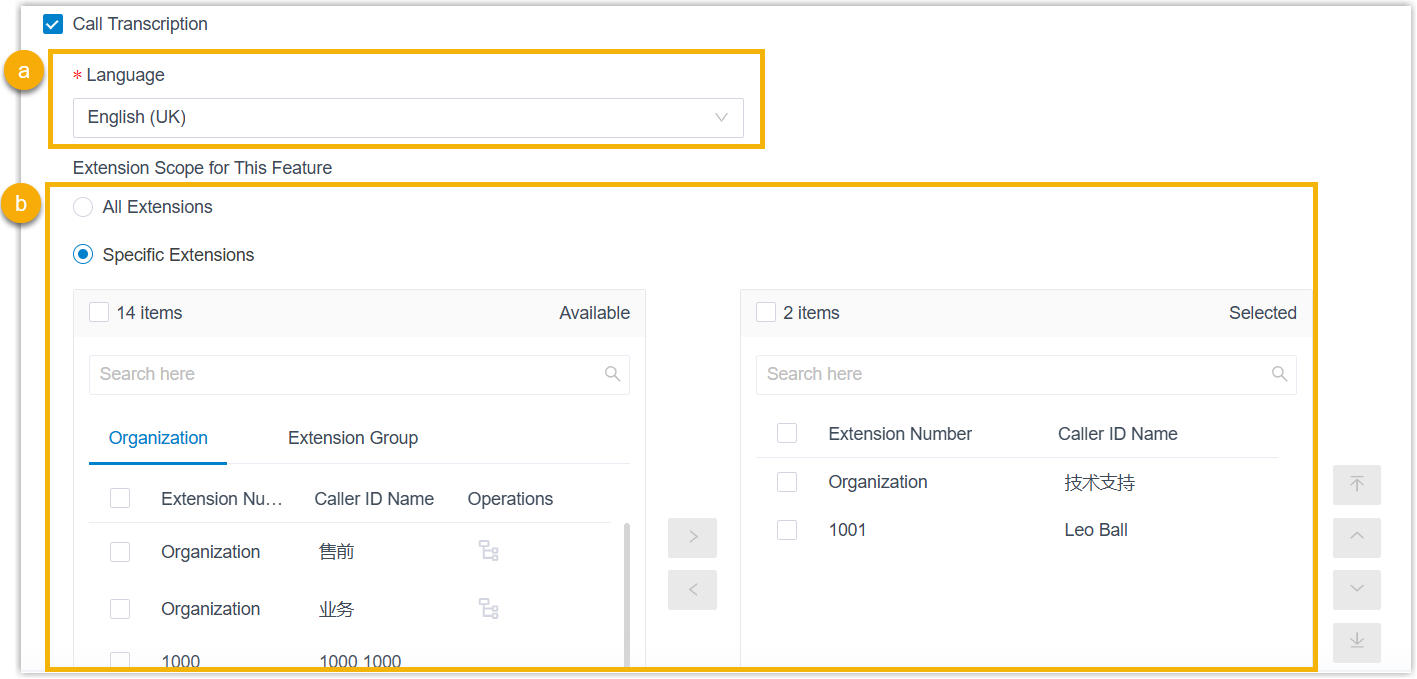
In the Language drop-down list, select the desired language to be detected and transcribed for call audio.
- In the Extension
Scope for This Feature section, specify which extensions /
extension groups / departments have access to the call transcription
feature.
- All Extensions: All extensions can use this feature.
- Specific Extensions: Only selected extensions can use this feature.
- Optional: In the
Automatic Call Transcription section, configure
which call types will be automatically transcribed for the extensions that are allowed to use call transcription.Note: This setting takes precedence over the extension-level Automatic Call Transcription configuration (either the setting that you configured for individual extensions or those set by extension users in their Linkus UC Clients).
Call Type Description Internal If selected, all internal calls involving the authorized extensions will be automatically transcribed. Outbound If selected, all outbound calls from the authorized extensions will be automatically transcribed. Inbound If selected, you need to further configure automatic call transcription based on the inbound call scenarios. 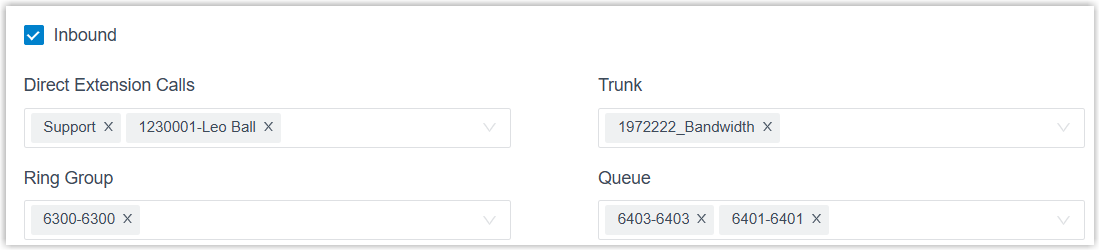
- To automatically transcribe calls that are directly routed to specified extensions, select the desired extensions / extension groups / departments in the Direct Extension Calls drop-down list.
- To automatically transcribe calls routed through specified trunks to any authorized extension, select the desired trunks in the Trunk drop-down list.
- To automatically transcribe calls that are routed to specified ring groups and answered by the authorized extensions, select the desired ring groups in the Ring Group drop-down list.
- To automatically transcribe calls that are routed to specified queues and answered by the authorized extensions, select the desired queues in the Queue drop-down list.
- Click Save.
Result
- The AI call transcription feature powered by the built-in AI engine is
enabled. Call audio can be detected and transcribed into readable text in
the specified language in real time, and a call summary can be generated
automatically after the call ends.Note: You can configure the call transcription language and mode (either automatic or manual) for extensions individually as needed (Path: Extension and Trunk > Extension >
 > AI > Call Transcription). For more information, see Configure AI Call Transcription for an Extension.
 - The system automatically monitors
transcription usage and sends notifications when specific capacity
thresholds are reached:
- When transcription utilization rate (used minutes / total minutes)
of either the one-time capacity or
the monthly quota pack has reached the pre-configured
capacity thresholds, the PBX sends a notification Your AI
Transcription Usage is Reaching the Capacity Limit
to notify relevant contacts.Note:
- The default thresholds are 80%, 90%, and 95%.
- You can customize the thresholds for
one-time capacity and monthly quota pack
individually (Path: ).

- The total AI transcription minutes (both one-time capacity and monthly quota pack) is fully used, the PBX sends a notification AI Transcription Limit Reached to notify relevant contacts.
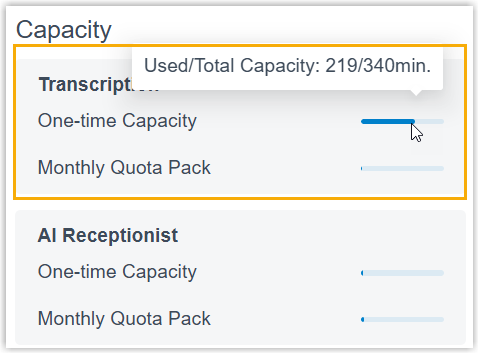
Note: In addition, you can track AI transcription usage using one of the following methods.- View used transcription minutes from the Transcription Usage Details report. For more information, see Access Transcription Usage Details Report.
- View used transcription minutes and total capacity directly from the
Dashboard (Only visible to super
administrator account).
- When transcription utilization rate (used minutes / total minutes)
of either the one-time capacity or
the monthly quota pack has reached the pre-configured
capacity thresholds, the PBX sends a notification Your AI
Transcription Usage is Reaching the Capacity Limit
to notify relevant contacts.