Monitor User's Extension Status on an IP Phone
This topic describes how to provision a BLF key on an IP phone to monitor a user's extension status.
Introduction
NovoOne allows users to monitor another user's extension status
on an IP phone using a BLF key. You can implement this in either of the following
ways:
- Configure BLF keys individually on IP phone's web interface.
For more information, contact the phone manufacturer.
- Provision BLF keys in bulk.
For more information, see the following instructions.
Prerequisites
You have provisioned a user's extension on an IP phone. For more information, see Auto Provision an IP Phone.
Procedure
- Assign a BLF key for a user.
- Log in to NovoOne Tenant portal, go to .
- Click
 beside the
desired user.
beside the
desired user. - In the Function Keys tab, add and
configure a function key to monitor a user's extension
status.
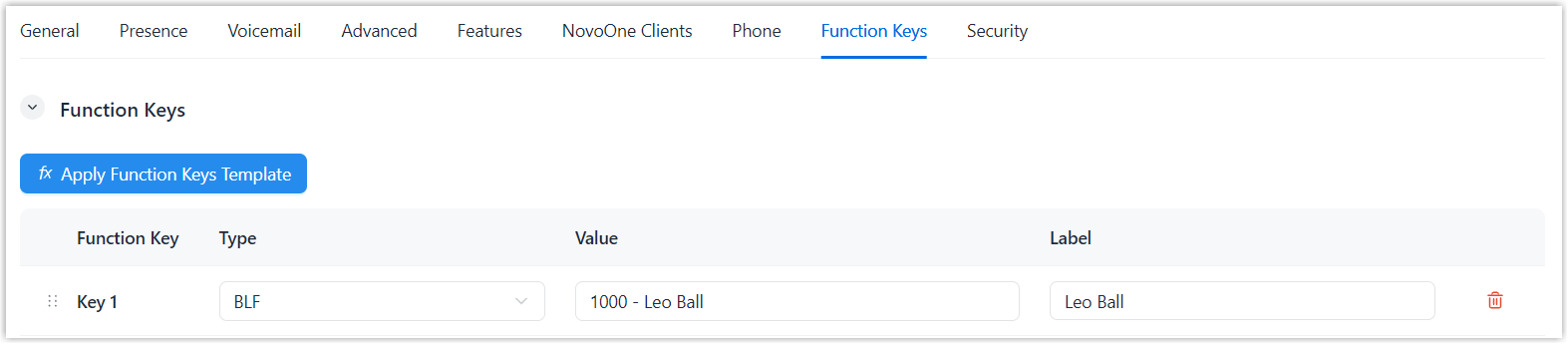
Setting Description Type Select BLF. Value Select a user extension. Label Optional. Enter a label, which will be displayed on the phone screen. - Click Save.
- Re-provision IP phone.
- Go to .
- Click
 beside the IP
phone, then select Reboot and
confirm the operation.
beside the IP
phone, then select Reboot and
confirm the operation.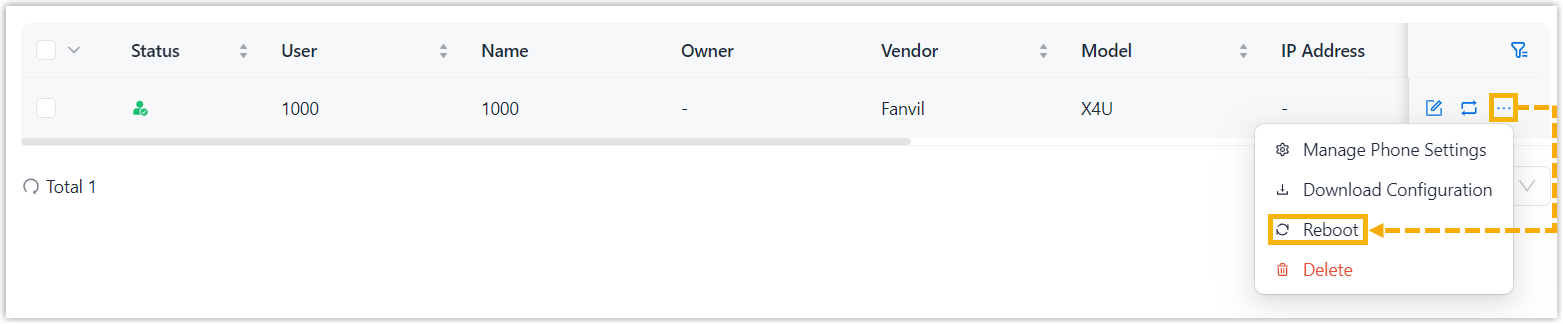
The BLF key is assigned to the IP phone. When the monitored user extension receives an incoming call, the BLF key flashes red.
Result
The BLF key is provisioned to the IP phone. The user can monitor the selected
extension's status from the LED indicator.
- Green LED: The monitored extension is registered and idle.
- Red LED: The monitored extension is on a call.
- Red LED Flash: An incoming call is ringing at the monitored extension.
- LED Off: The monitored extension is not registered.