Manage Colleague Accounts
This topic describes how to edit, export, freeze, and delete colleague accounts.
Edit a colleague account
- Log in to NovoOne Platform portal, go to .
- Click
 beside a desired account.
 - Change colleague's basic information or user permission as needed.Note: If you change the Email, the email address that you have set earlier can NOT access NovoOne Platform.
- Click Save.
Export colleague accounts
- Log in to NovoOne Platform portal, go to .
- Optional: Filter colleague accounts using one of the following
methods.
- Click
 beside a desired column, enter a desired value and
click Confirm.
beside a desired column, enter a desired value and
click Confirm.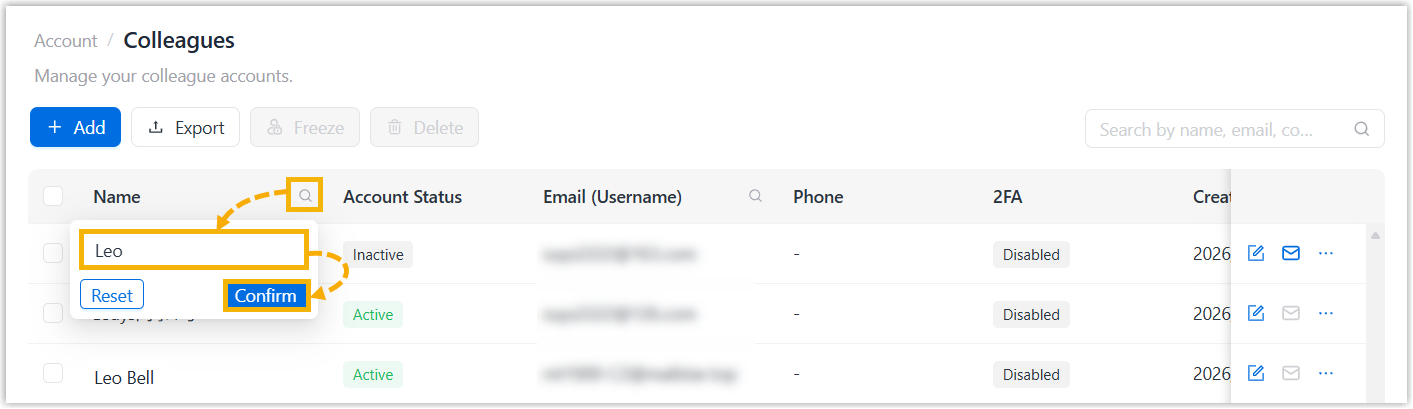
- At the top-right corner of the colleague list, enter a value in the
search box to perform a fuzzy search.
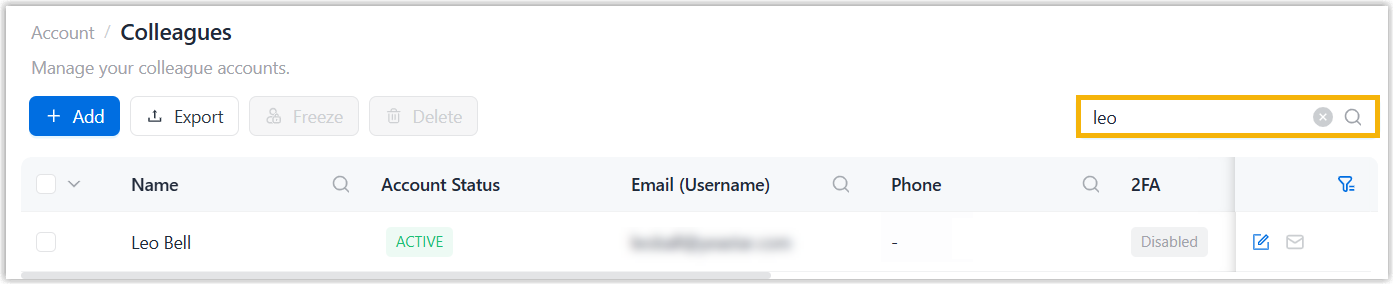
The matched colleague accounts are displayed.
- Click
- Optional: Select desired resellers in the list.
- Click Export.
The reseller accounts are exported to a
.xlsxfile.
Freeze colleague accounts
- Log in to NovoOne Platform portal, go to .
-
To freeze a colleague account, do as follows:
- Click
 beside a desired account and click
Freeze.
beside a desired account and click
Freeze. - In the pop-up window, click Freeze.
- Click
-
To bulk freeze colleague accounts, do as follows:
- Select the checkboxes of desired accounts, then click Freeze at the top.
- In the pop-up window, click Freeze.
The frozen colleague accounts are displayed with FROZEN status. Frozen users can no longer be able to log in to NovoOne Platform, and currently logged-in users will be automatically signed out.
Delete colleague accounts
- Log in to NovoOne Platform portal, go to .
-
To delete a colleague account, do as follows:
- Click beside a desired account and click
Delete.
- In the pop-up window, click Delete.
- Click
-
To bulk delete colleague accounts, do as follows:
- Select the checkboxes of desired accounts, then click Delete at the top.
- In the pop-up window, click Delete.