Create a NovoOne Platform Account for Your Colleague
A colleague account allows your colleague to collaborate with you in managing NovoOne Platform. This topic describes how to create a NovoOne Platform account for your colleague.
Procedure
Note: Up to 100 accounts for your colleagues can be
created.
- Log in to NovoOne Platform portal, go to .
- Click Add.
- Under the Account Information tab, fill in the
colleague's basic information.
Settings Description Profile Image Click Upload to upload profile image for this user. First Name Enter the user's first name. Last Name Enter the user's last name. Email (Username) Enter the user's email address. The user can use this email address to receive activation emails, reset their password, and log in to NovoOne Platform. Phone Enter the user's phone number. Address Enter the user's address. System Language Select a language to initiate the user's system language setting. Remark Enter a remark. - Under the Account Permissions tab, select or deselect the permission checkboxes to control which features the colleague can access.
- Save the settings using one of the following methods:
- Click Save to save directly.
- Click Save & E-mail to save and
immediately send an activation email to the configured email
address.Note: Activation link in the email is valid for 7 days and can be used only ONCE.
Result
The colleague account is created and displayed in the Colleagues list.
What to do next
- If an activation email is sent to the colleague's email address when saving, the
colleague needs to access the email and click the activation button to activate
the account.
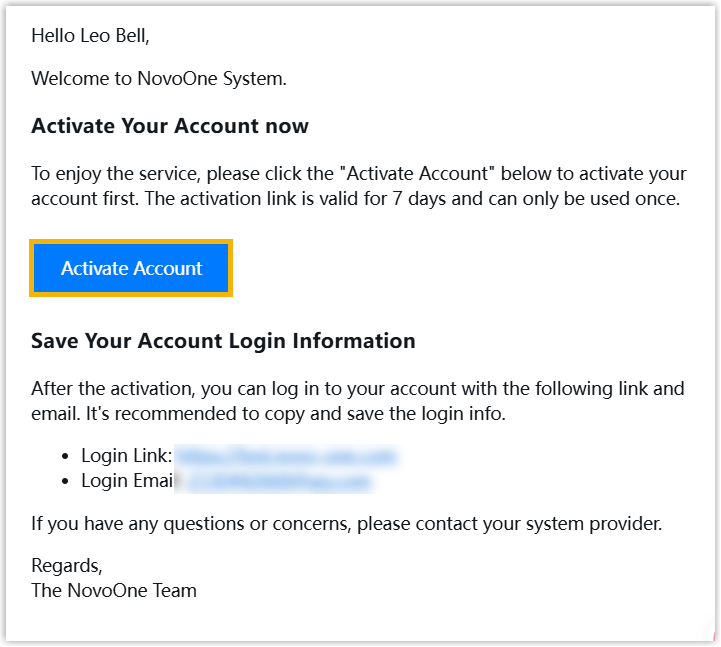
- If you only save the settings without sending an activation email to the colleague, go to send email for colleague account activation.