Export Call Legs
This topic describes how to export call legs from NovoOne Platform to your local computer.
Procedure
Step 1. Filter call legs
The filtered call legs in the list can be exported. You can filter call legs by setting either basic filter criteria or advanced filter criteria.
- Set basic filter criteria
-
- Log in to NovoOne Platform portal, go to .
- At the top of the list, complete the following settings as
needed.
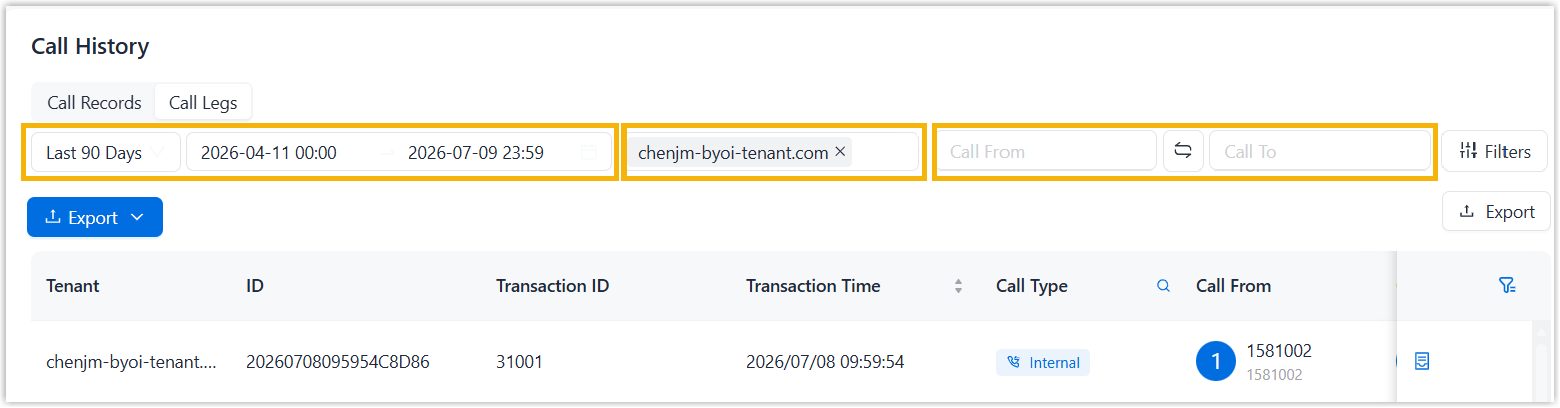
- Set the time range using one of the following methods.
- In the first drop-down list, select a default time range.
- In the second time selector, set the start date & time and end date & time separately.
- In the Select Tenant drop-down list, select desired tenants.
- In the Call From and Call
To fields, enter the name or extension
number of the caller and callee.Note: If needed, you can click
 between the Call
From field and Call
To field to quickly swap their
values.
between the Call
From field and Call
To field to quickly swap their
values.
- Set the time range using one of the following methods.
- Set advanced filter criteria
-
- Log in to NovoOne Platform portal, go to .
- At the top of the list, click Filters.
A right panel pops up.
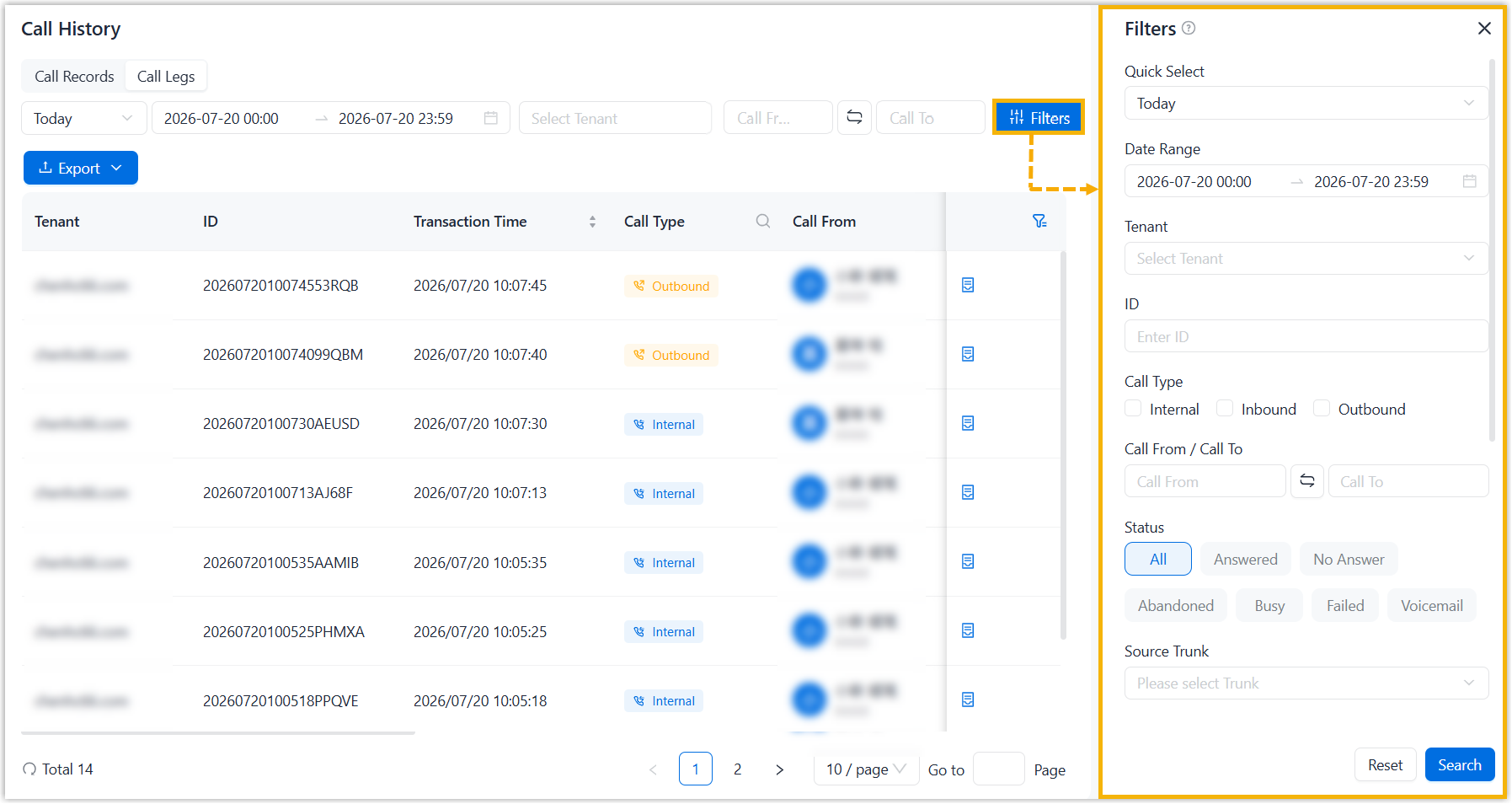
- In the pop-up panel, configure following filters as needed and click
Search.
Filter Instruction Quick Select Select a default time range. Date Range Customize the start date & time and end date & time separately. Tenant Select desired tenants. ID Enter the ID of the desired call. Call Type Select the desired communication type of calls. - Internal: Internal calls.
- Inbound: Inbound calls.
- Outbound: Outbound calls.
Call From / Call To Enter the name or extension number of the caller, callee, or both parties. Note: If needed, you can click between the caller field
and callee field to quickly swap their
values.Status Select call status. - All
- Answered
- No Answer
- Abandoned
- Busy
- Failed
- Voicemail
Source Trunk Select desired source trunks that route inbound calls. Destination Trunk Select desired destination trunks that route outbound calls. DID/DDI Select desired DID number(s). DOD Enter the Outbound Caller ID (DOD). Caller IP Address Enter the caller's IP address. PIN Code Enter the PIN code. SHAKEN Attestation Select the SHAKEN attestation level or signature verification result. - A: Calls signed with SHAKEN attestation level
A. - B: Calls signed with SHAKEN attestation level
B. - C: Calls signed with SHAKEN attestation level
C. - Invalid: Calls with an invalid SHAKEN signature (applicable to inbound calls).
- Unknown: Calls with an unidentifiable SHAKEN attestation level (applicable to inbound calls).
- Unsigned: Calls where the
Identifyheader is missing (applicable to inbound calls).
The matched call legs are displayed on the page.
(Optional) Step 2. Configure export fields
If you need to export specific fields of call legs, configure display fields. The displayed fields will be included in exports.
- At the top-right corner of the call leg list, click
 .
. - In the pop-up window, toggle the switches for desired fields and click
Confirm.Note:
- To turn on all switches with one click, click Show all.
- To reset the field display settings to system defaults, click Reset.
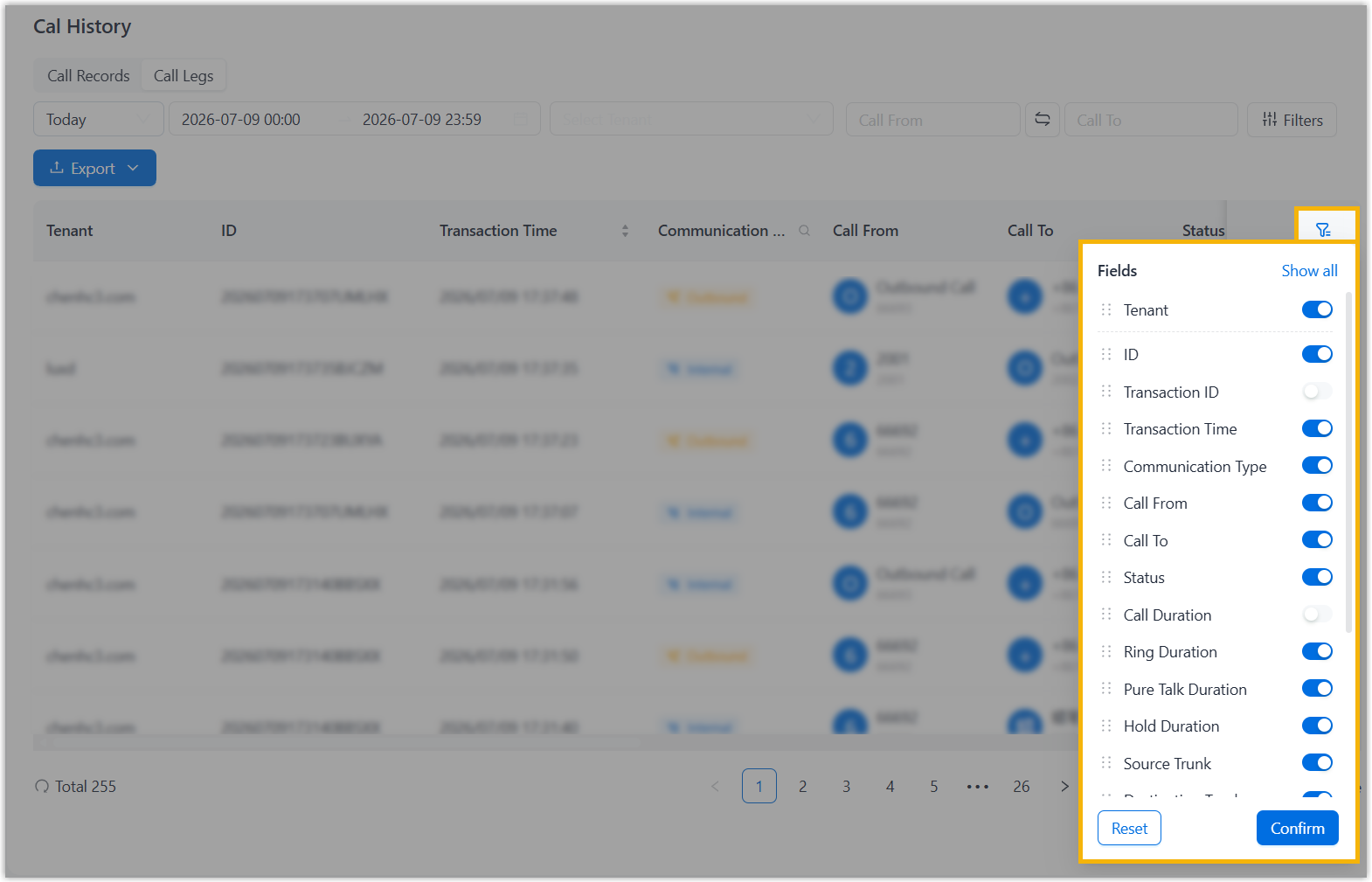
The enabled fields for call legs are displayed on the page.
(Optional) Step 3. Configure export settings
- At the top of the list, click Export and select
Export Settings.
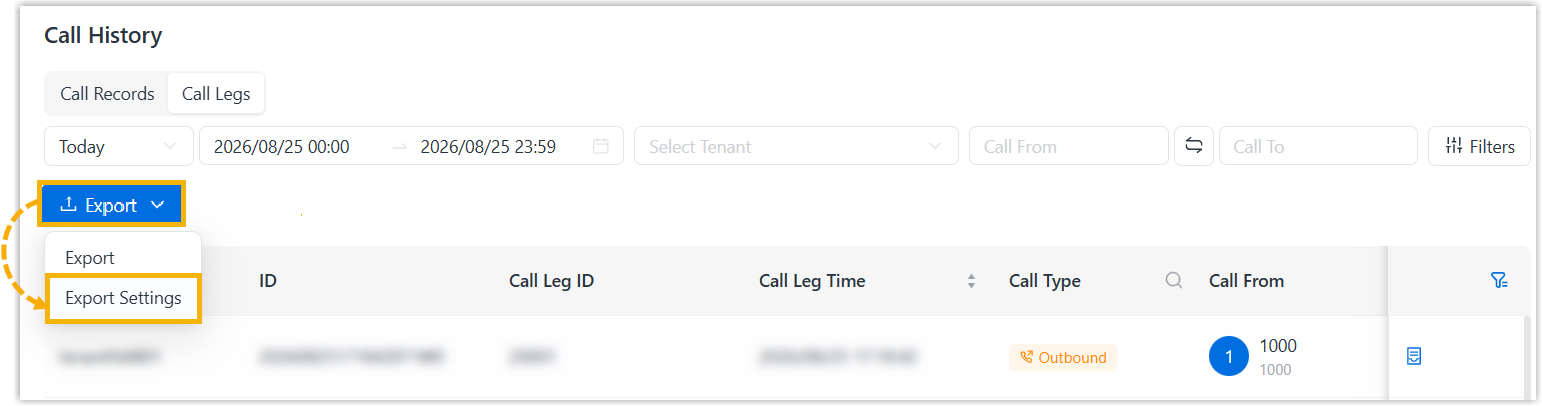
- In the pop-up window, complete the following settings and click
Save.
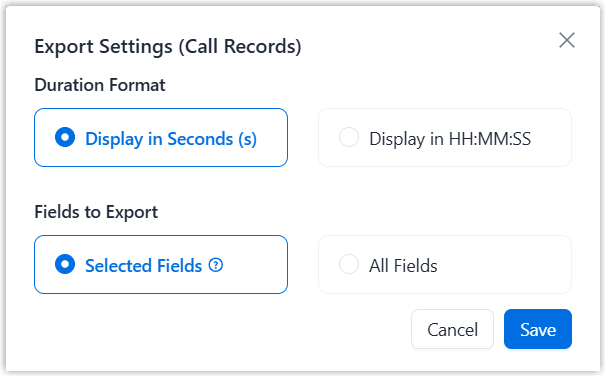
- Duration Format: Select duration format.
- Fields to Export: Select to control which
fields can be exported as needed.
- Selected Fields: Only currently selected visible fields will be exported.
- All Fields: All fields will be exported.
Step 4. Export call legs
At the top of the list, click Export and select Export.
Result
Call legs matching the filter criteria are exported in .csv format
file and downloaded to your local computer.