Log in to Yeastar Central Management using Microsoft Account
This topic describes how to log in to Yeastar Central Management using Microsoft account.
Prerequisites
The firmware version of Yeastar Central Management is 87.19.0.76 or later.
- You has integrated Yeastar Central Management with Microsoft SSO.
- Make sure that your Microsoft account email has been set
as login credential of the Yeastar Central Management.Note: If your colleagues or subordinate users need to log in via Microsoft SSO, make sure that their Microsoft account emails have been registered on Yeastar Central Management.
Procedure
- Launch your web browser, visit the domain name of Yeastar Central Management.
- On the login page, click Log in with
Microsoft.
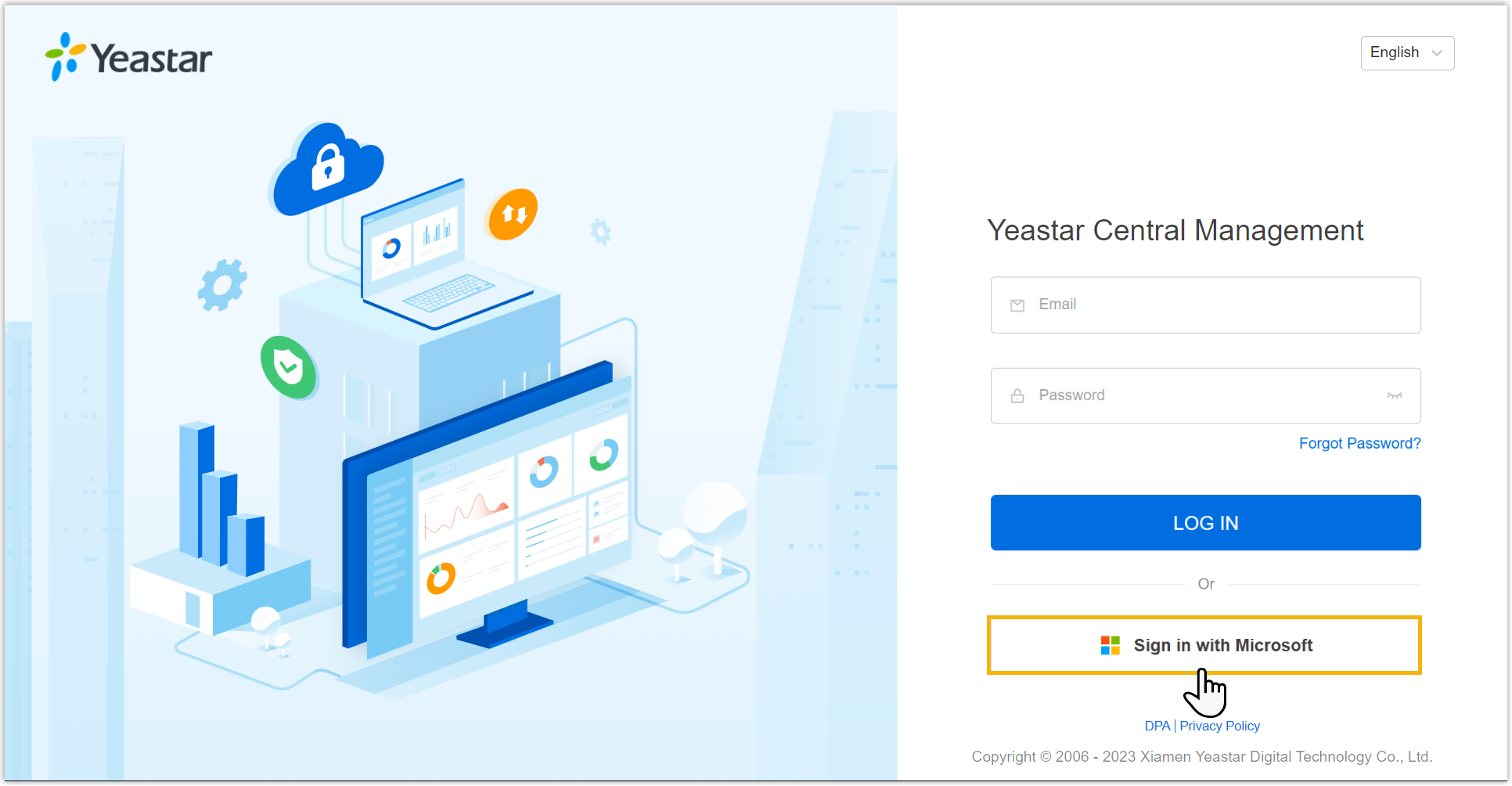
You are redirected to the Microsoft sign-in page.
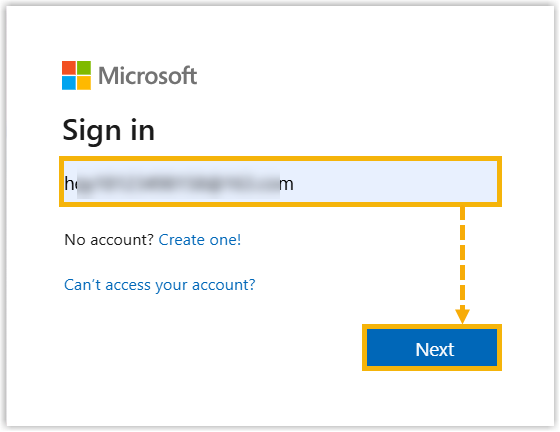
- Sign in to your Microsoft account.
- In the Sign in field, enter the email address
of your Microsoft account and click
Next.
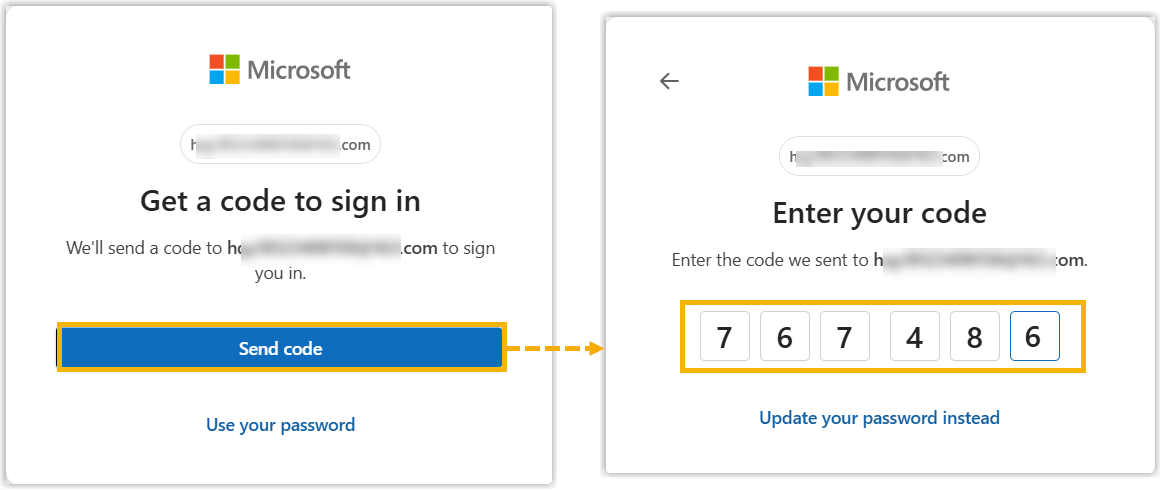
- Enter your credentials using either of the following ways:
- OTP code: Click Send code,
then enter the code you received in your Microsoft account
email.
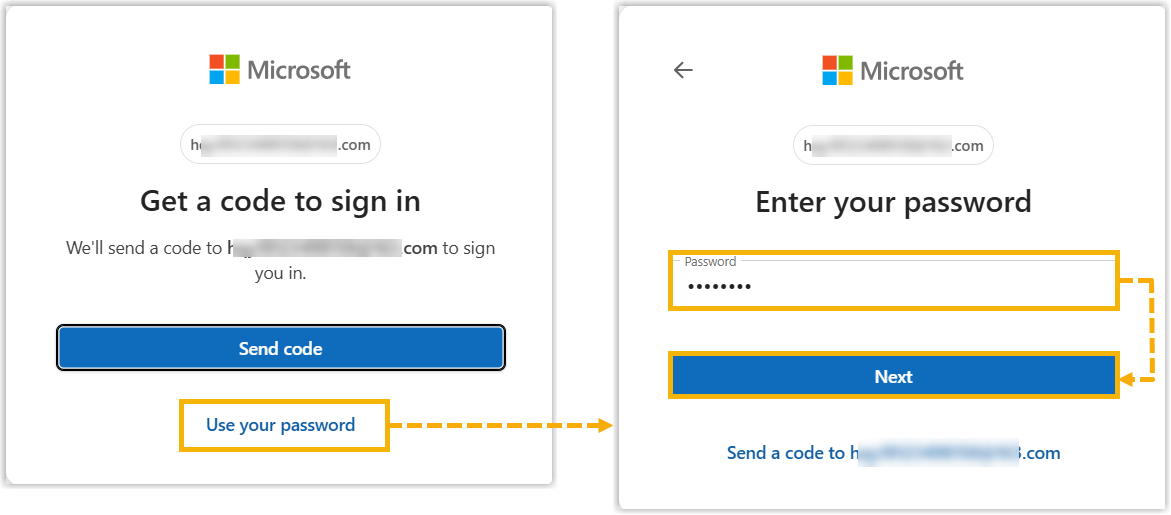
- Password: Click Use your
password, enter the password of your
Microsoft account, and then click
Next.
- OTP code: Click Send code,
then enter the code you received in your Microsoft account
email.
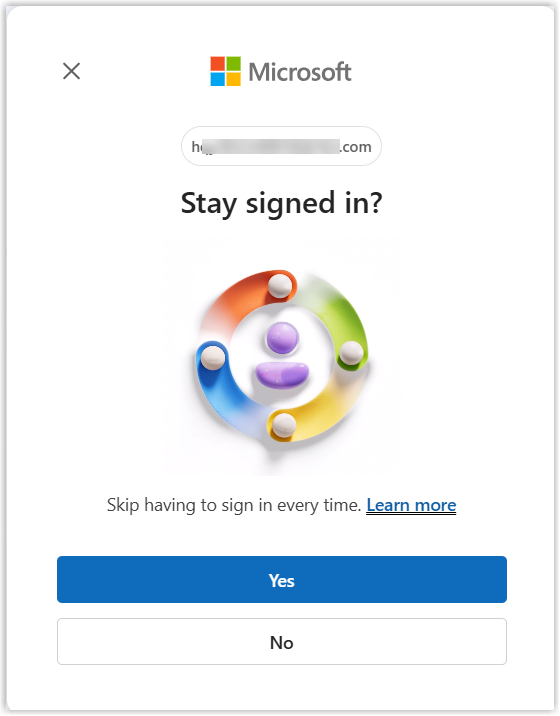
- In the stay signed-in prompt window, select as needed.
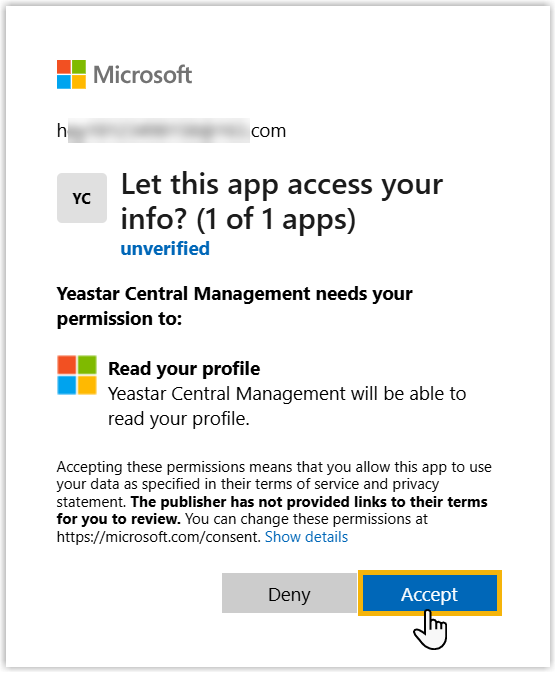
- In the permission prompt window, click Accept
to grant consent for the necessary permissions.
You are successfully logged into Yeastar Central Management.
- In the Sign in field, enter the email address
of your Microsoft account and click
Next.