Transcribe a Call
With AI call transcription feature, your calls with the other party can be transcribed to readable texts in real time, and can be summarized automatically after the call ends.
Requirements
- PBX Server
-
- The firmware of the PBX server is 84.20.0.74 or later.
-
System administrator has enabled Call Transcription for your extension.
-
There is sufficient transcription time available for the AI transcription.
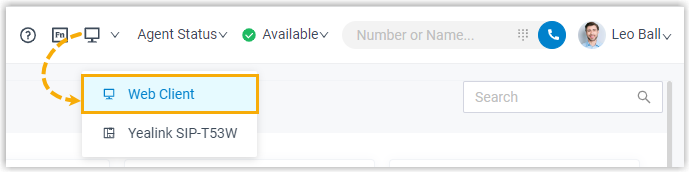
- Yeastar Linkus for Google
-
- Version 4.15.1 or later
- Associated with Linkus Web
Client (In Web Client
mode)
Procedure
Note: If the Automatic Call
Transcription setting for your extension is enabled,
or the call belongs to a call type for which the system administrator has
configured automatic transcription, transcribing starts automatically.
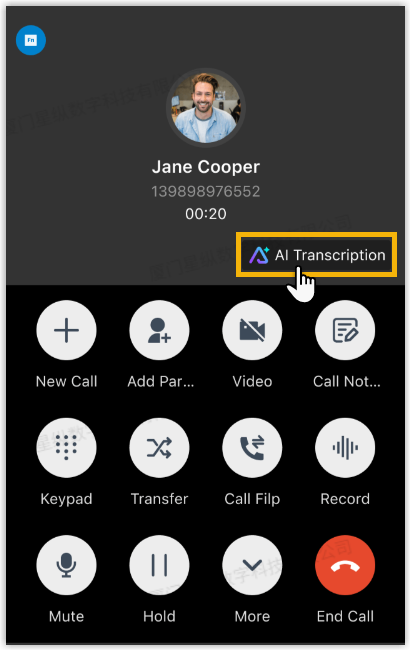
- During an active call, click AI Transcription to open
the transcription panel.
- Transcribe the call according to your needs.
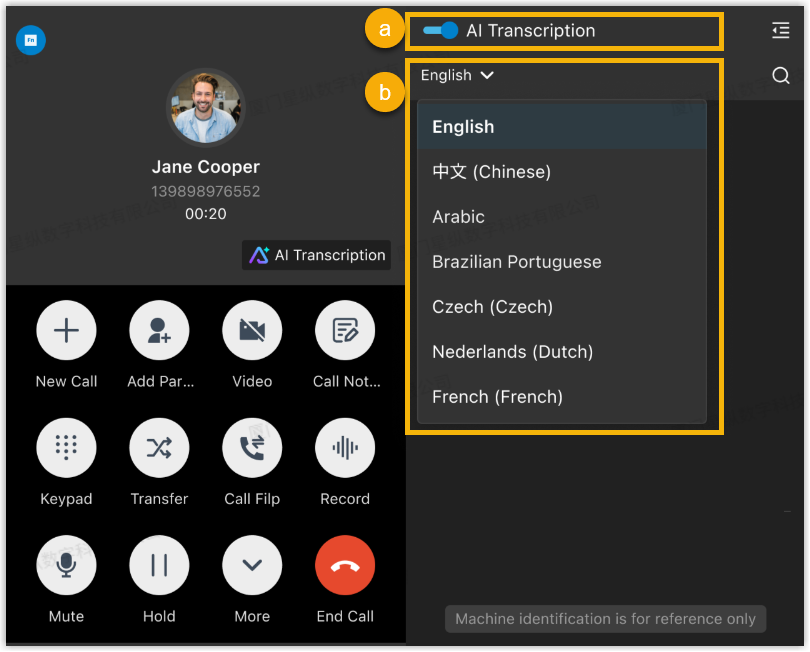
- Turn on AI Transcription.
Once enabled, the audio of both parties will be transcribed into readable texts in real time.
- Optional: In the language drop-down list, change the
transcription language for the current calls as needed.Note: For internal calls between extension users, only one party’s language setting is applied, and the language option for the other party is hidden.
- If both parties have enabled Automatic Call Transcription, the caller's language setting applies.
- Otherwise, the language setting of the party who first initiates AI Transcription will be used.
- Turn on AI Transcription.
Result
- During the call, the audio is being transcribed into readable text in real
time and is being displayed in the right panel.
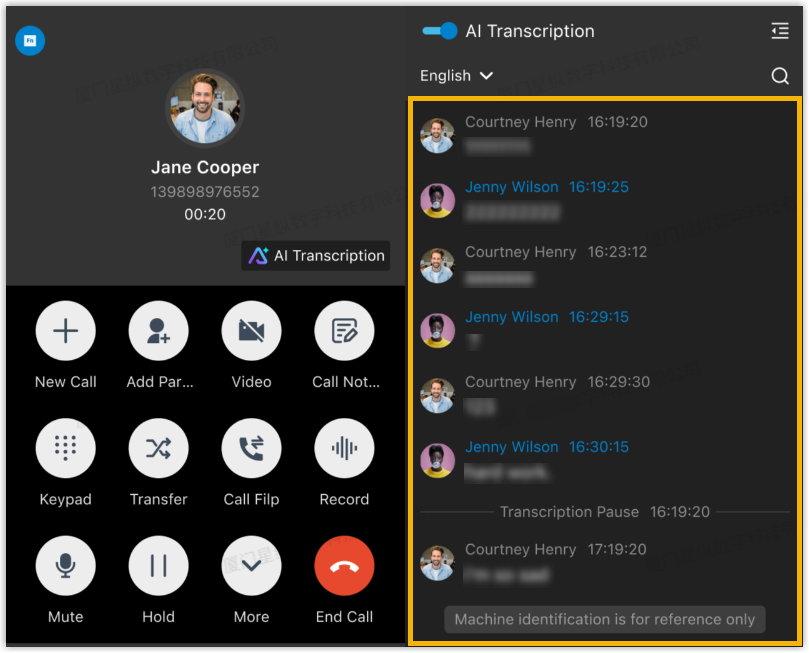 STip: To search for specific transcribed content, click
 beside the language drop-down list. The matching text will be
highlighted.
beside the language drop-down list. The matching text will be
highlighted. -
After the call ends, the AI-generated summarize and transcript will be displayed in a automatic pop-up.Note: The pop-up appears only when Show Transcription Text After the Call is enabled, while automatic summary generation depends on the system administrator's configurations on the PBX server.
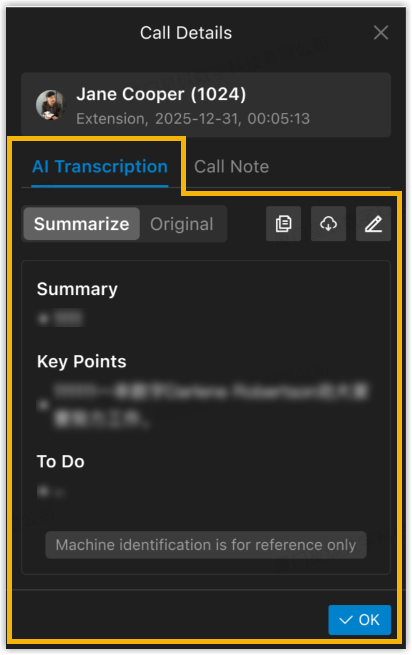 Tip: You can manage the summarize and transcript as needed.
- To edit the summarize, click
 in the Summarize
section. After editing, click Save in
the top-right corner.
in the Summarize
section. After editing, click Save in
the top-right corner.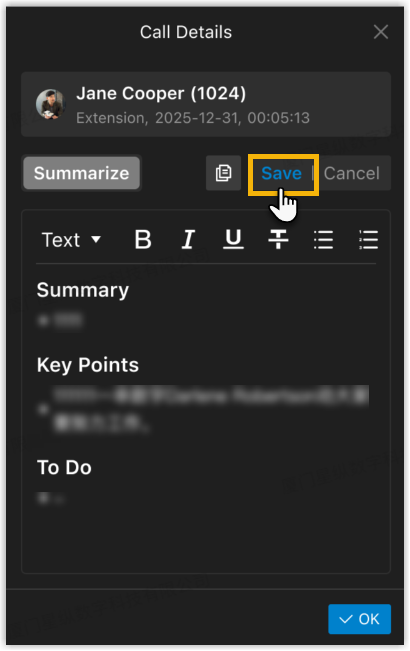
- To copy the content of summarize, click
 in the Summarize
section.
in the Summarize
section. - To search the content of transcript, click in the Original
section.
- To download the summarize or transcript, click
 and select the desired file
type.
and select the desired file
type.
- To edit the summarize, click
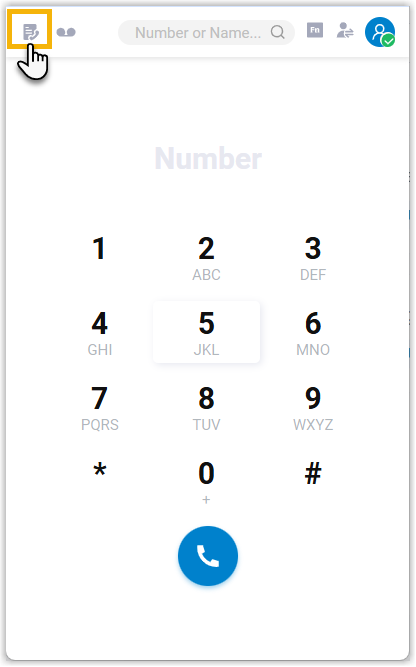
- To search for transcription content in call logs, click
 on the top left corner to redirect to Linkus
Web Client and view transcript for specified calls. For more information,
see Linkus Web Client -
Transcribe a Call.
on the top left corner to redirect to Linkus
Web Client and view transcript for specified calls. For more information,
see Linkus Web Client -
Transcribe a Call.