Enable Yeastar P-Series Cloud Edition API
Before establishing a connection between a third-party application and Yeastar P-Series Cloud Edition, you need to enable API feature and configure relevant settings on the PBX.
Procedure
- Log in to PBX web portal, go to .
- Turn on API.

- Optional: Enable the IP Restriction, and add at least
one permitted IP address and subnet mask.
If you set up this option, only the permitted IP address(es) can use the API feature.
- In the Advanced Settings section, enable the status
monitor for extensions and trunks as needed.
- Go to the Extension Status Monitor tab,
enable the monitoring feature for extensions.
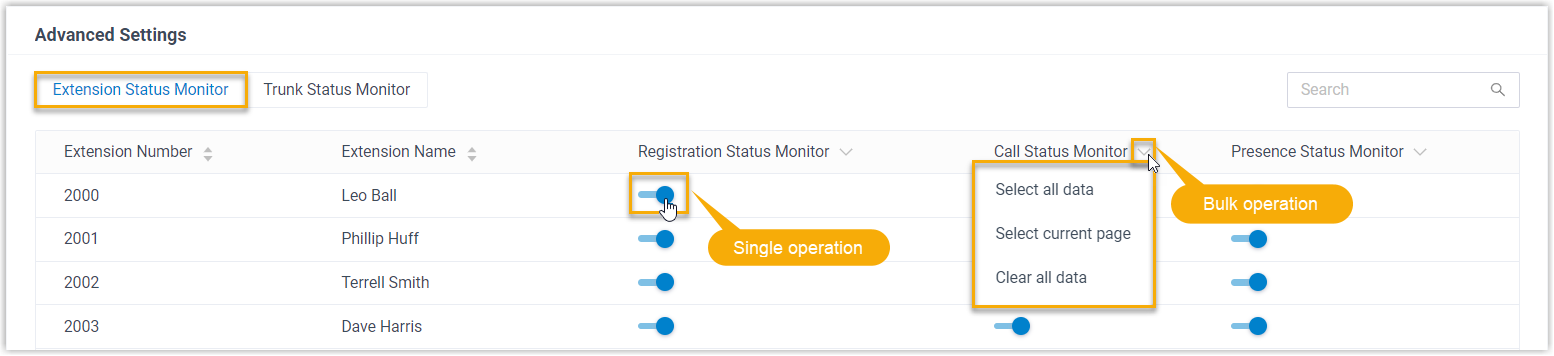
Setting Description Registration Status Monitor If enabled, when the extension registration status is changed, the PBX will send an event report 30007to the third-party application.Call Status Monitor If enabled, when the extension call status is changed, the PBX will send an event report 30008to the third-party application.Presence Status Monitor If enabled, when the extension presence status is changed, the PBX will send an event report 30009to the third-party application. - Go to the Trunk Status Monitor tab, enable
the monitoring and inbound call control features for desired trunks.
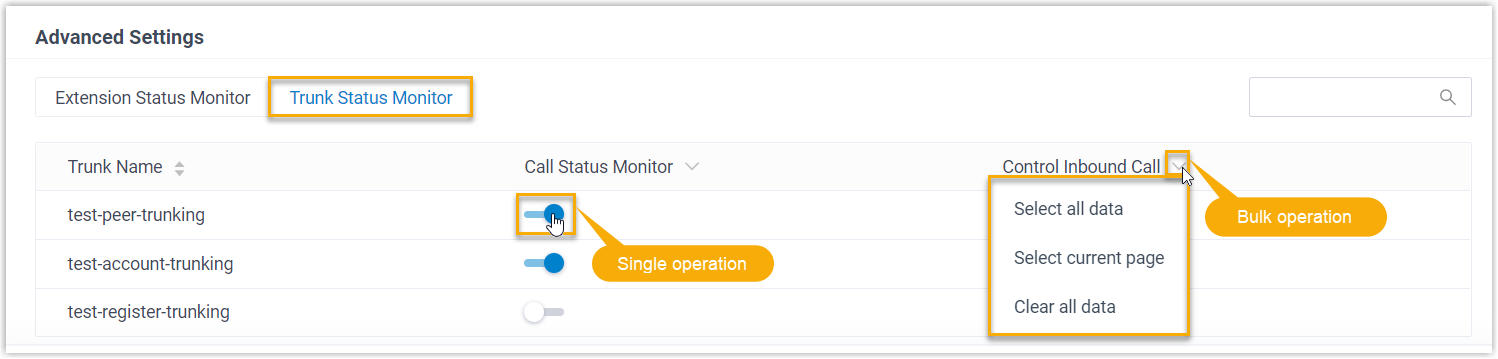
Setting Description Call Status Monitor If enabled, when the trunk registration status is changed, the PBX will send an event report 30010to the third-party application.Control Inbound Call If enabled, when an inbound call comes from the monitored trunk, the followings can be implemented: - The PBX will send an event report
30016to the third-party application. - The third-party application can use the API interfaces to control the inbound calls, including accept and refuse inbound calls.
- The PBX will send an event report
- Go to the Extension Status Monitor tab,
enable the monitoring feature for extensions.
- Click Save.
What to do next
- Obtain the Client ID and Client
Secret from the PBX, and use the credentials to request for
the API access token. For more information, see Get Access Token.

- Use the access token to send requests and monitor API events for seamless
integration.
This guide provides examples for sending requests and monitoring API events via Postman. For more information, see the following topics: