Allow Agents to View Queue Call Logs on Linkus Clients
This topic describes how to allow agents to view queue call logs on their Linkus UC Clients.
Procedure
- Log in to PBX web portal, go to .
- Click
 beside the desired queue, and enter the Queue Panel
Permissions tab.
beside the desired queue, and enter the Queue Panel
Permissions tab. - Scroll down to the Agents section, and complete the
following settings.
- Select the checkbox of Queue Call
Logs.
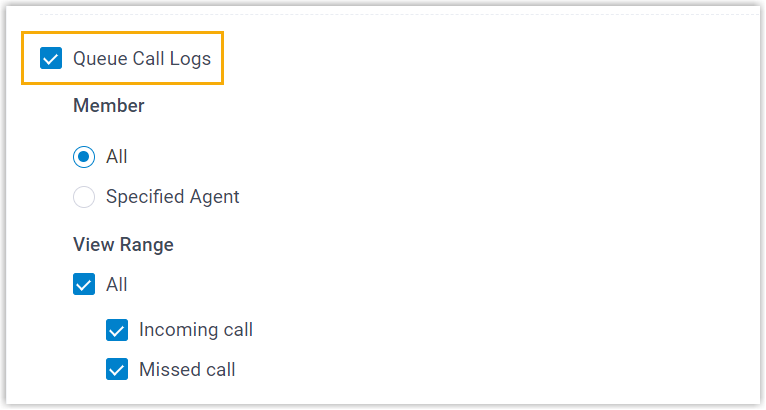
- Set up the viewing permission.
Item Description Member Specify the agents who can view call logs of the queue on their Linkus clients. - All: All the queue agents can view the queue call logs.
- Specified Agent: Only
the specified agents can view the queue call
logs.
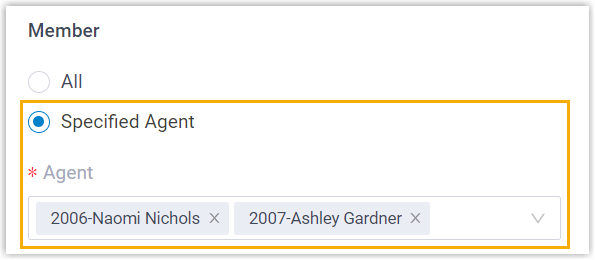
View Range Specify the type of queue call logs that the authorized agents can view. - All: Agents can view all call logs, including incoming calls and missed calls.
- Incoming call: Agents
can view the call logs of answered queue
calls.
You can further specify range of call logs that agents are allowed to view.
- Personal Only: Agents can view only the calls they answered.
- All Agents: Agents can
view all calls answered by any agent in the queue.Note: Only queue call logs generated in version 37.21.0.117 or later are accessible. Historical queue call logs prior to this version are not supported.
- Missed call: Agents can view the call logs of missed queue calls, as well as the missed call processing status.
- Select the checkbox of Queue Call
Logs.
- Click Save.
Result
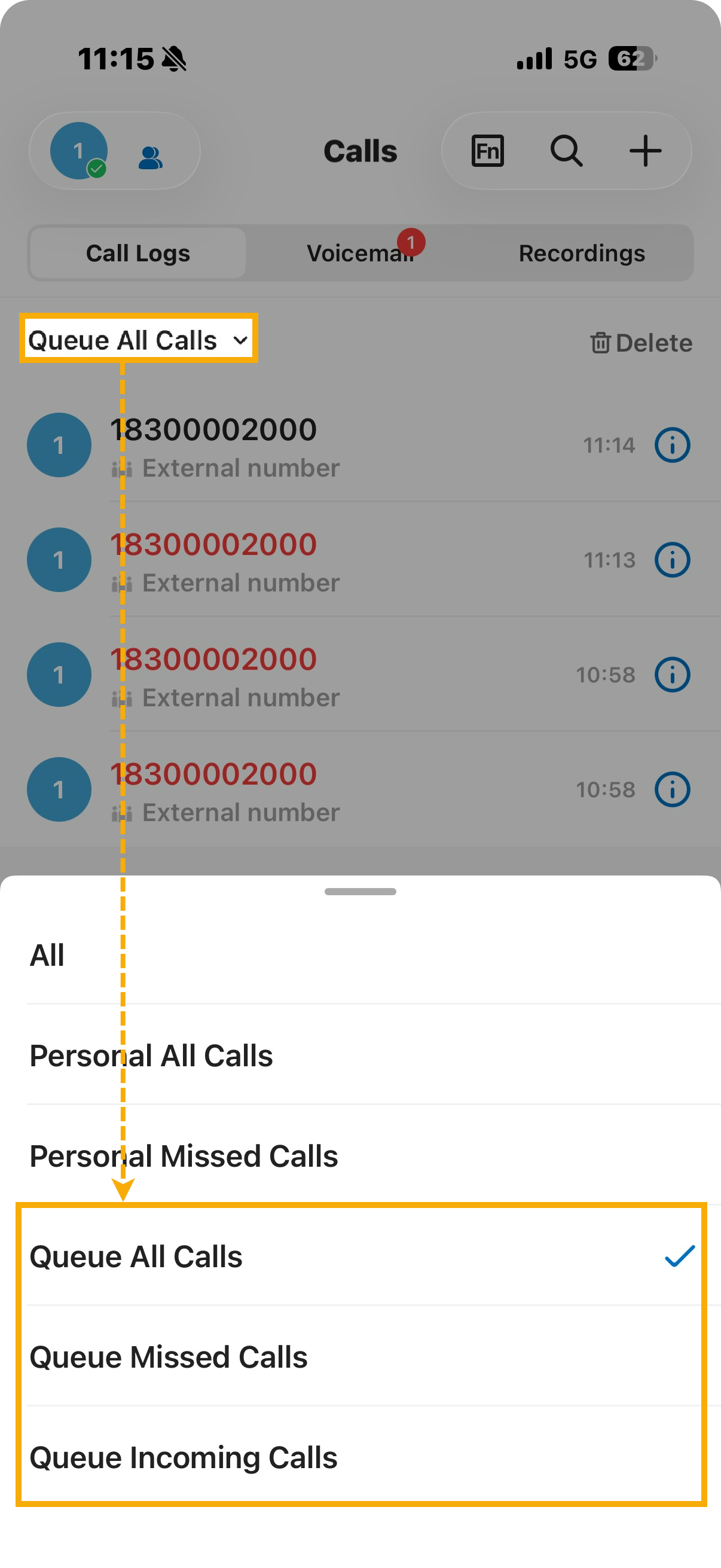
The authorized agents are able to view queue call logs on their Linkus UC Clients (Path: Call Logs).
| Linkus Web Client | Linkus Desktop Client | Linkus Mobile Client |
|---|---|---|
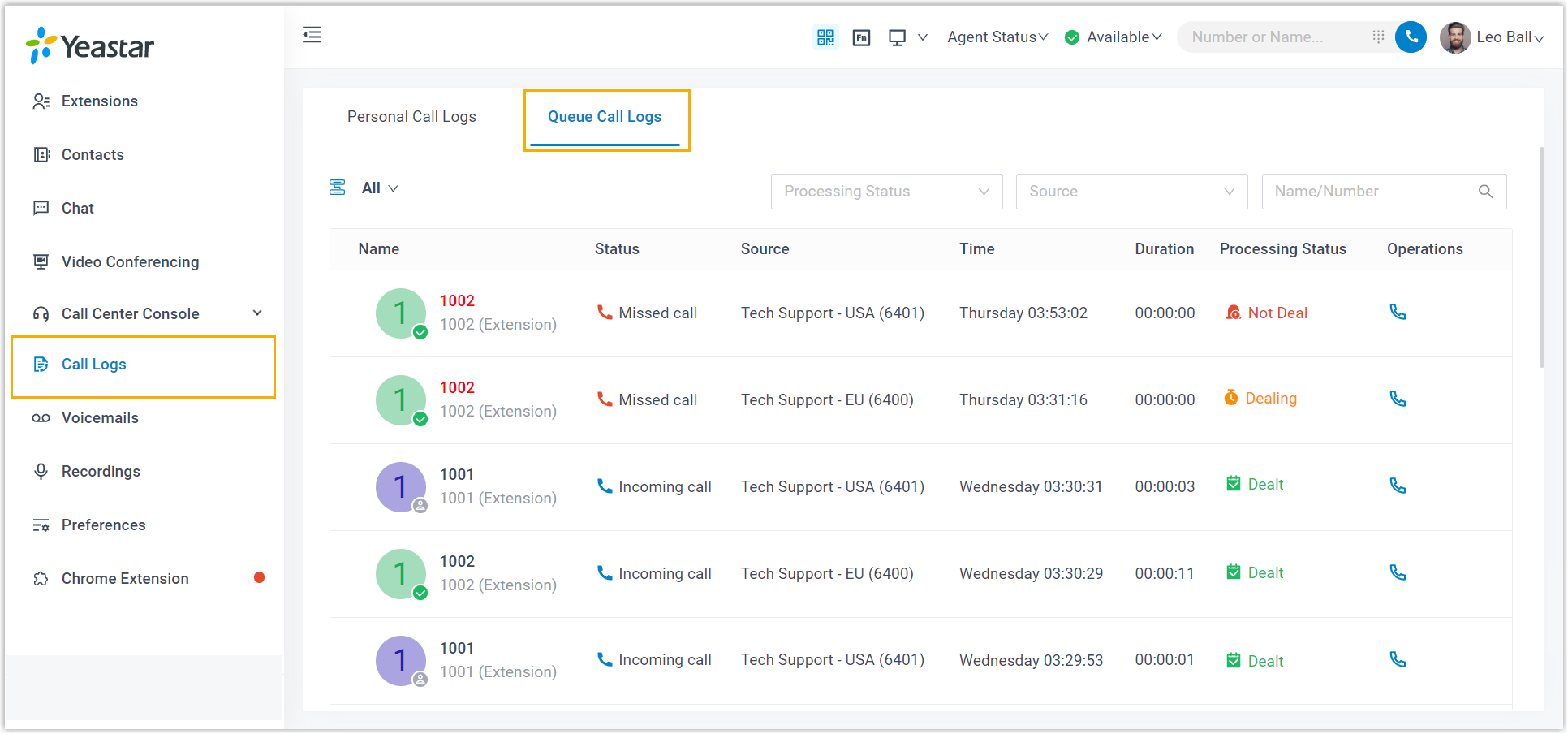 |
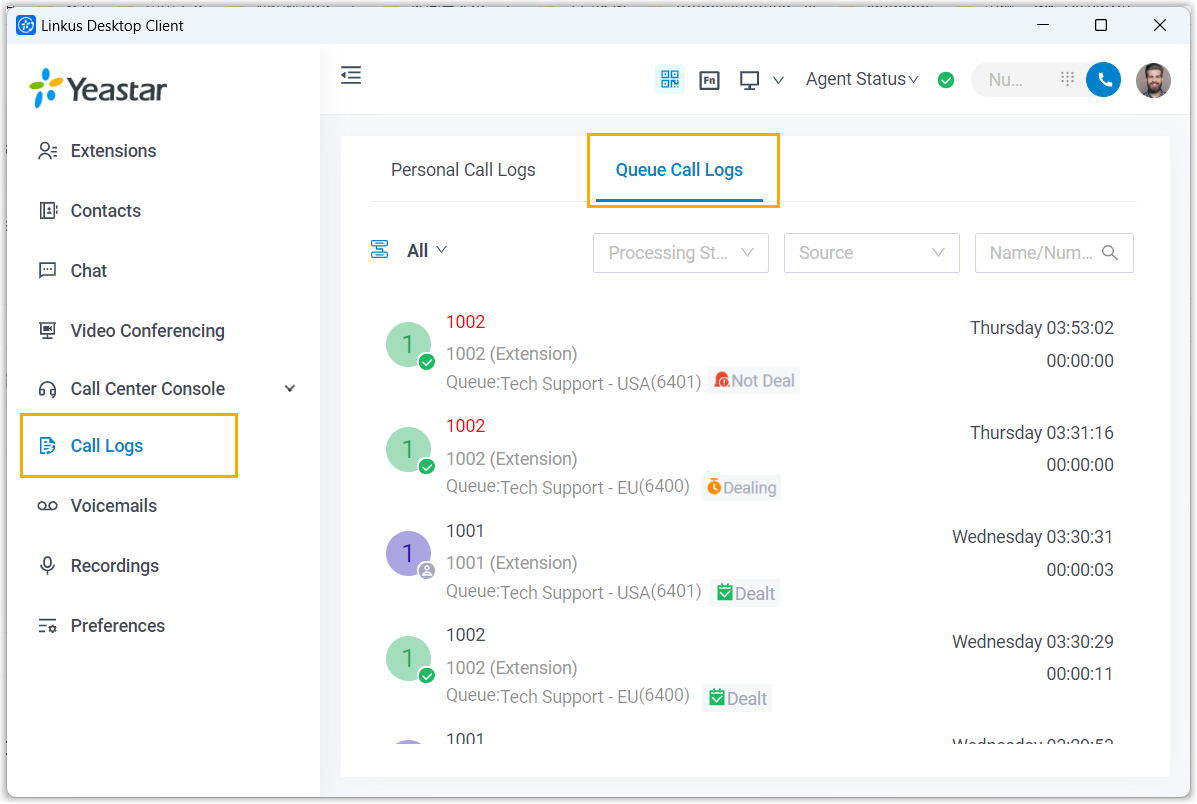 |
 |