Edit a Reseller Account
You can modify a reseller's basic account information, assign your available resources and desired permissions to him/her. This topic describes how to edit a reseller account on NovoOne Platform.
Prerequisites
You have synced reseller accounts from Yeastar Partner Portal to NovoOne Platform.
Edit account information
- Log in to NovoOne Platform portal, go to .
- Click
 beside a desired reseller.
 - Under the Account Information tab, modify the
following account information as needed.Note: Some grayed-out account information is synced from Yeastar Partner Portal and cannot be edited here. To edit, click Partner Portal at the bottom-left corner to go to Yeastar Partner Portal.
- Password: Enter a new password.
- System Language: Select a language. The language will be synced to the reseller's system language setting (Path: ).
- Click Save.
Change account limits
- Log in to NovoOne Platform portal, go to .
- Click beside a desired reseller.
- Under the Account Limits tab, specify the number of
tenants the reseller can create and allocate the system resources you purchased
to him/her.Note:
- To check subscribed resource details associated with the settings listed below, go to My Subscription.
-
The configured number for these settings must not exceed your available resources and cannot be less than the current resource usage of the reseller.
Settings Instruction Tenants Configure whether to limit the number of tenants the reseller can create. - Unlimited: No limit.
- Limited: After selected, you need to set a number.
Users Set the number of extension users. The reseller can allocate the number among tenants to control how many extension users each tenant can own. Concurrent Calls Set the number of concurrent calls based on your subscription. The reseller can assign the concurrent calls to different tenants as needed. - If your Concurrent Calls subscription is
unlimited, configure whether to limit the number of
concurrent calls.
- Unlimited: No limit.
- Limited: After selected, you need to set a number.
- If your Concurrent Calls subscription is limited, set a number.
White Label Enable or disable the White Label service. After enabled, the reseller can set up a custom domain and customize tailor-fit branding options to establish his/her own brand. Note:- This setting is visible only when you have subscribed to White Label service.
- The setting will be grayed out if the resources are insufficient.
Transcription Users Set the maximum number of extension users that can use the transcription feature across the reseller's tenants. Note:- This setting is visible only when you have subscribed to Transcription service.
- The value cannot exceed either your available resources or the maximum set in Users.
AI Receptionist (On-Time Capacity) Set the number of AI transcription minutes. The reseller can assign these transcription minutes to different tenants as needed. Note: This setting is visible only when you have subscribed to AI Receptionist (On-Demand Minute Pack) service.AI Receptionist (Monthly Rolling Plan) Set the number of AI transcription monthly quota packs. Note: This setting is visible only when you have subscribed to AI Receptionist (Monthly Rolling Plan) service.Recording Users Assign available recording resources to the reseller. The reseller can assign the recording resources to different tenants as needed.
Note: This setting is visible only when you have subscribed to Call Recording service.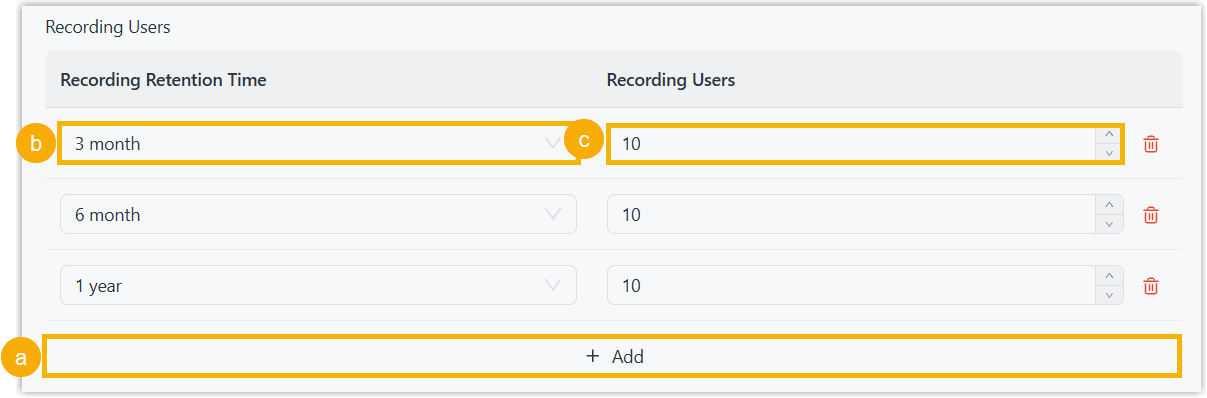
- Click Save.
Change account permissions
- Log in to NovoOne Platform portal, go to .
- Click beside a desired reseller.
- Under the Account Permissions tab, select or deselect the permission checkboxes to control which features the reseller can access.
- Click Save.