Assign DID Numbers to a Specified Tenant
After adding DID numbers and associating them with SIP trunks, you can assign the numbers to a specified tenant, so that the DID numbers can be used within the tenant's inbound routes to direct inbound calls to matching destinations.
Prerequisites
| Target | Prerequisites |
|---|---|
| Assign DID numbers to one of your own tenant |
|
| Assign DID numbers to one of your resellers' tenants |
|


Procedure
- Log in to NovoOne Platform portal, go to Tenant.
- Click
 beside the desired tenant and go to Assigned
DIDs.
beside the desired tenant and go to Assigned
DIDs. - In the Assign DIDs section, assign SIP trunks and
corresponding DID numbers to the tenant.
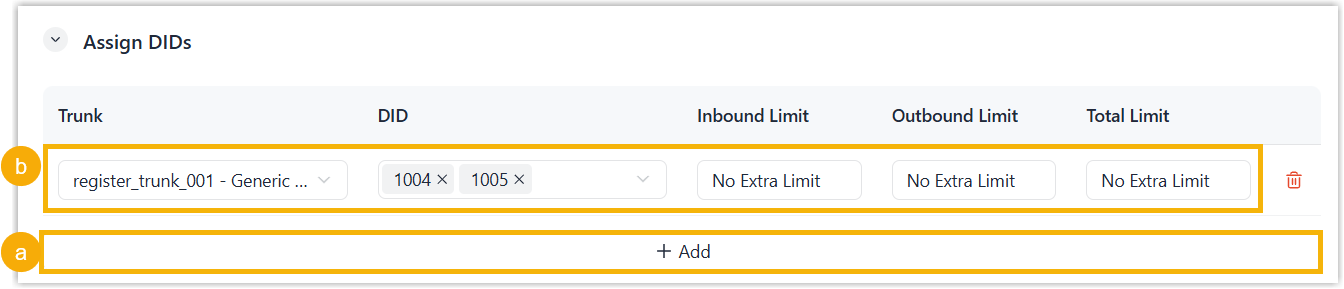
- Click Add.
- Fill in the fields of the following columns.
- Trunk: Select a SIP trunk from the drop-down list.
- DID: Select desired DID number(s) from the drop-down list.
- Inbound Limit: Select No Extra Limit or a value to limit the
- Outbound Limit: Select No Extra Limit or a value to limit the
- Total Limit: Select No Extra Limit or a value to limit the
- Optional: In the Default Outbound Caller ID
section, configure one of the assigned DID numbers as the tenant-level
default Outbound Caller ID for each assigned trunk.
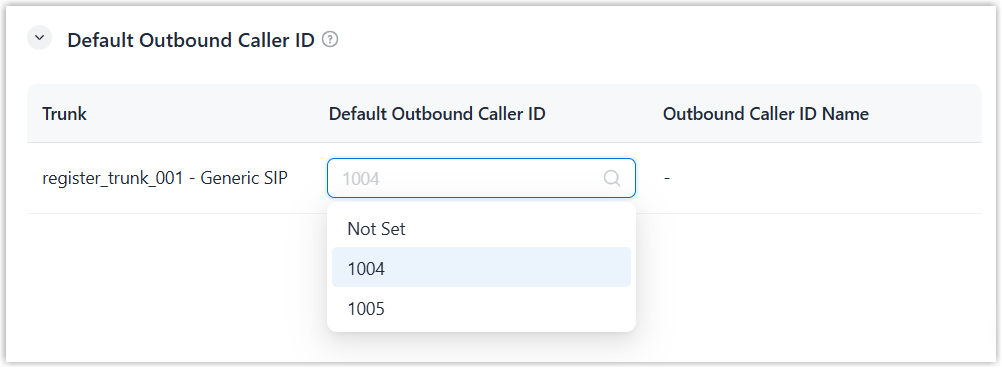
After configuration, if an outbound route within the tenant uses the associated trunk and no other category of Outbound Caller ID is configured for the route, the specified number is used for outbound calls routed through this outbound route.
- Click Save.