View and Manage Contacts
This topic describes how to view and manage your personal contacts and company contacts on NovoOne Mobile Client.
Procedure
- On NovoOne Mobile Client, go to .
- Manage the contact according to your need.Tip: You can directly place a call to the contact by tapping
 .
.Operation Instruction Share a contact Copy the contact's information for quick sharing.
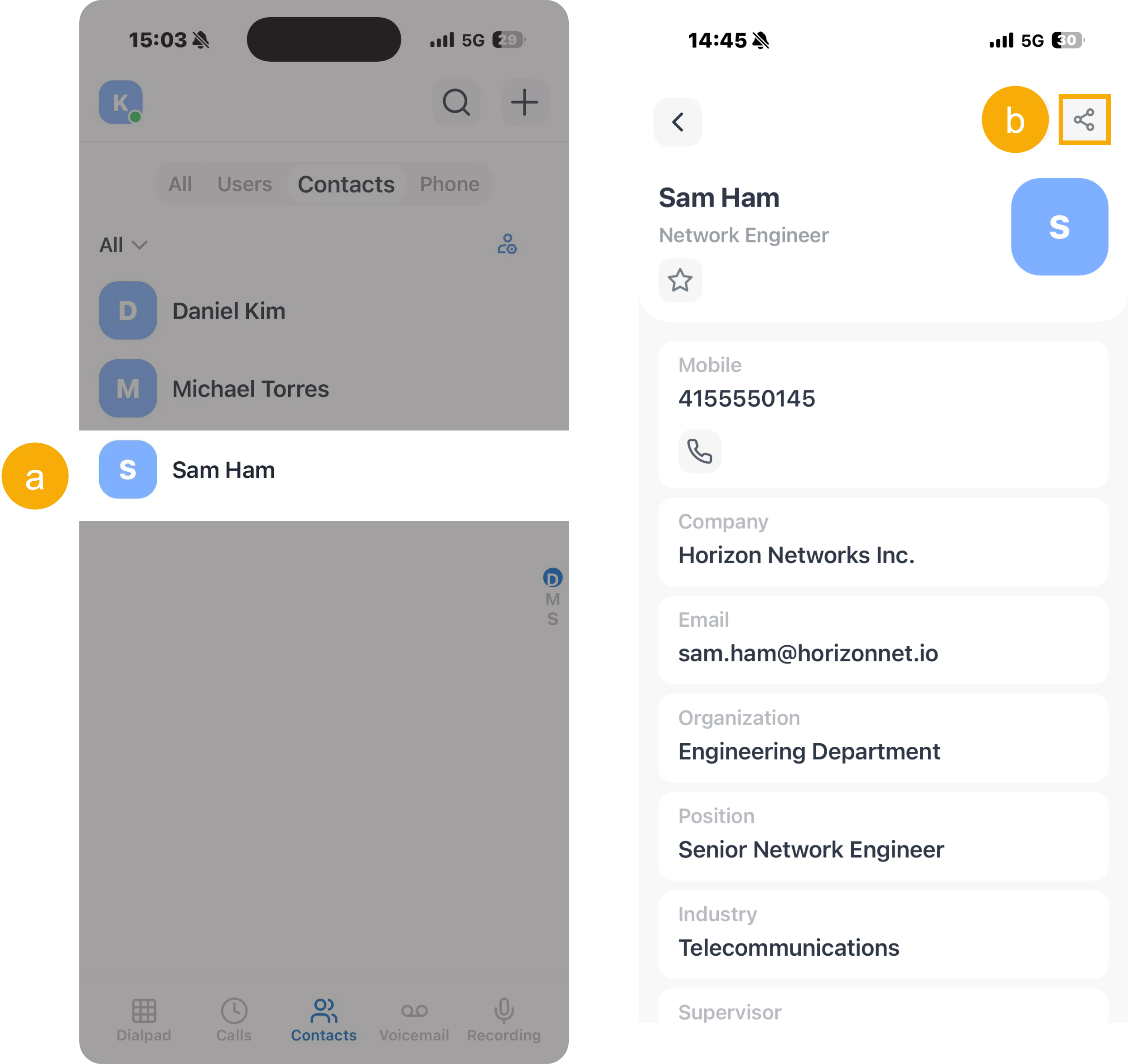
- Tap the desired contact to enter the details page.
- At the top-right corner of the contact details
page, tap
 .
.A prompt "Contact info copied" appears, indicating that the contact's information (name, company, email address, and phone numbers) have been copied to your clipboard.
Edit a contact Update the contact's information as needed.
Note: This operation is available only for Personal Contacts.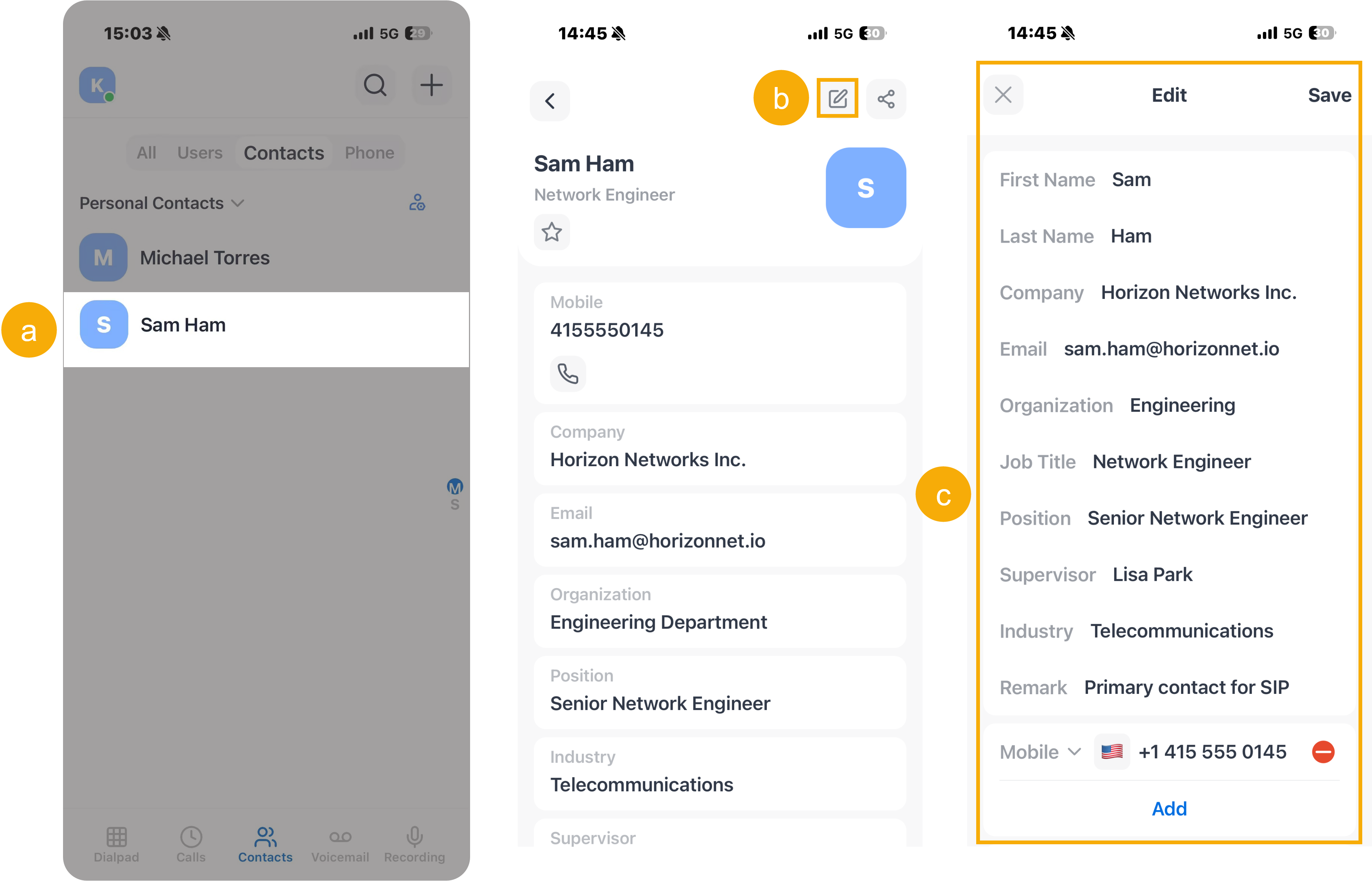
- Tap the desired contact to enter the details page.
- At the top-right corner, tap
 .
. - Edit the contact's information, then tap Save.
Delete contacts Remove contacts that are no longer needed
Note: This operation is available only for Personal Contacts.- To delete a single contact, do as
follows:
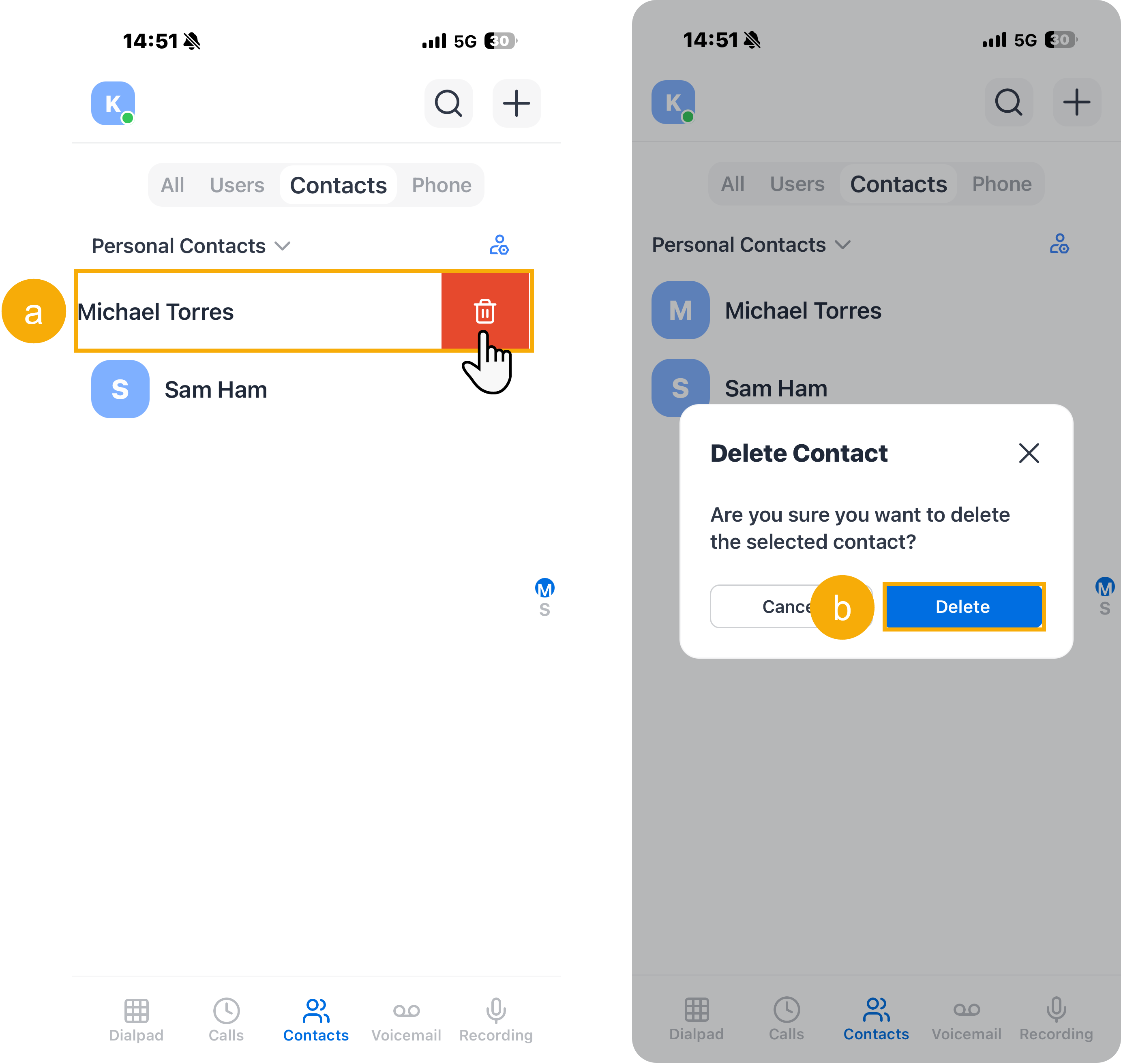
- Swipe left on the desired contact, then tap
 .
. - In the pop-up window, tap Delete to confirm your operation.
- Swipe left on the desired contact, then tap
- To delete contacts in bulk, do as
follows:
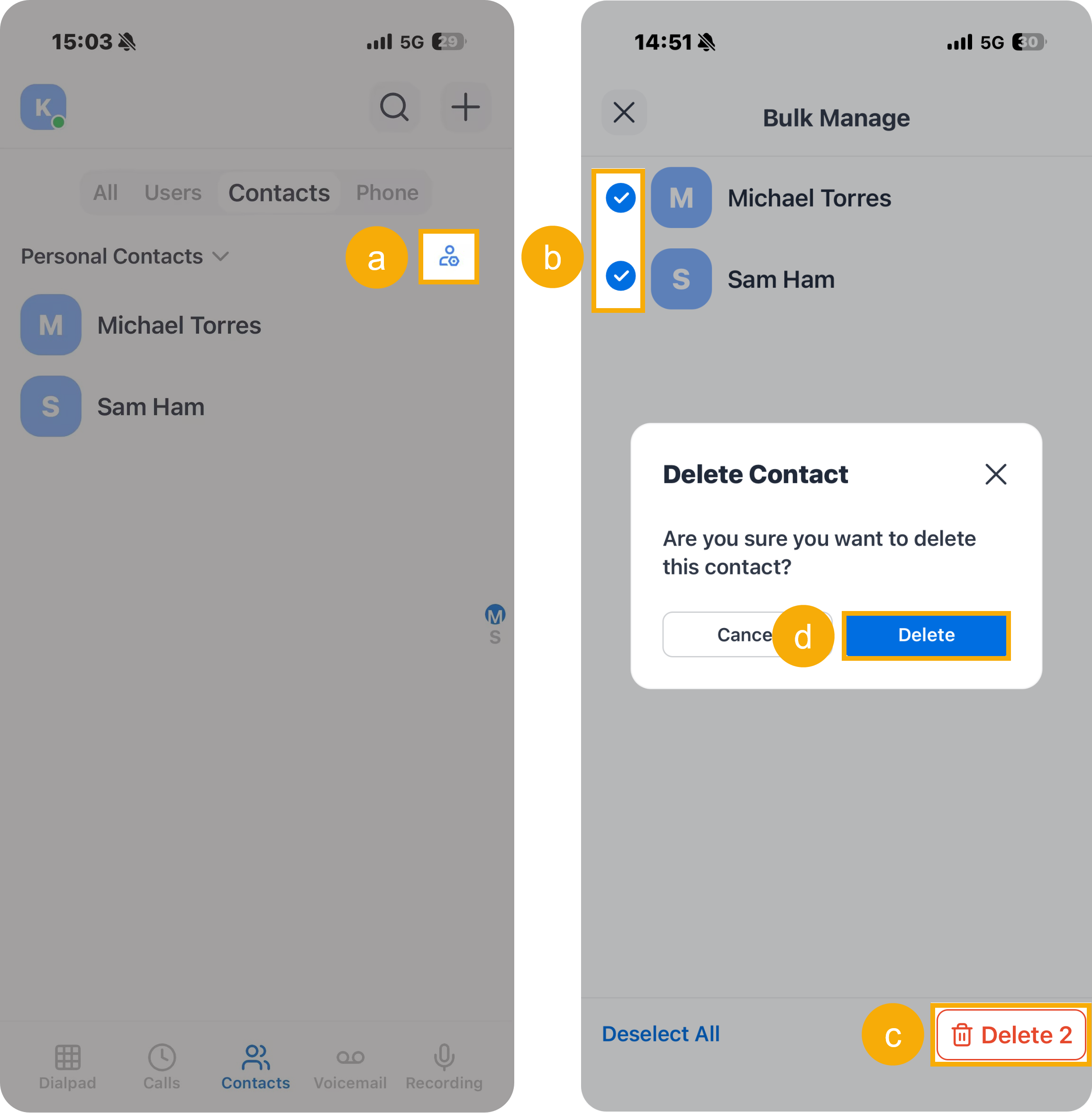
- At the top-right corner of the contact list,
tap
 .
. - Select the checkboxes of the desired contacts.
- At the bottom-right corner, tap Delete.
- In the pop-up window, tap Delete to confirm your operation.
- At the top-right corner of the contact list,
tap