View and Manage Voicemails
This topic describes how to view and manage your voicemails on NovoOne Mobile Client.
Procedure
- At the bottom of NovoOne Mobile Client, tap the Voicemail tab.
- Optional: At the top-left corner, select a read status to filter
voicemails.
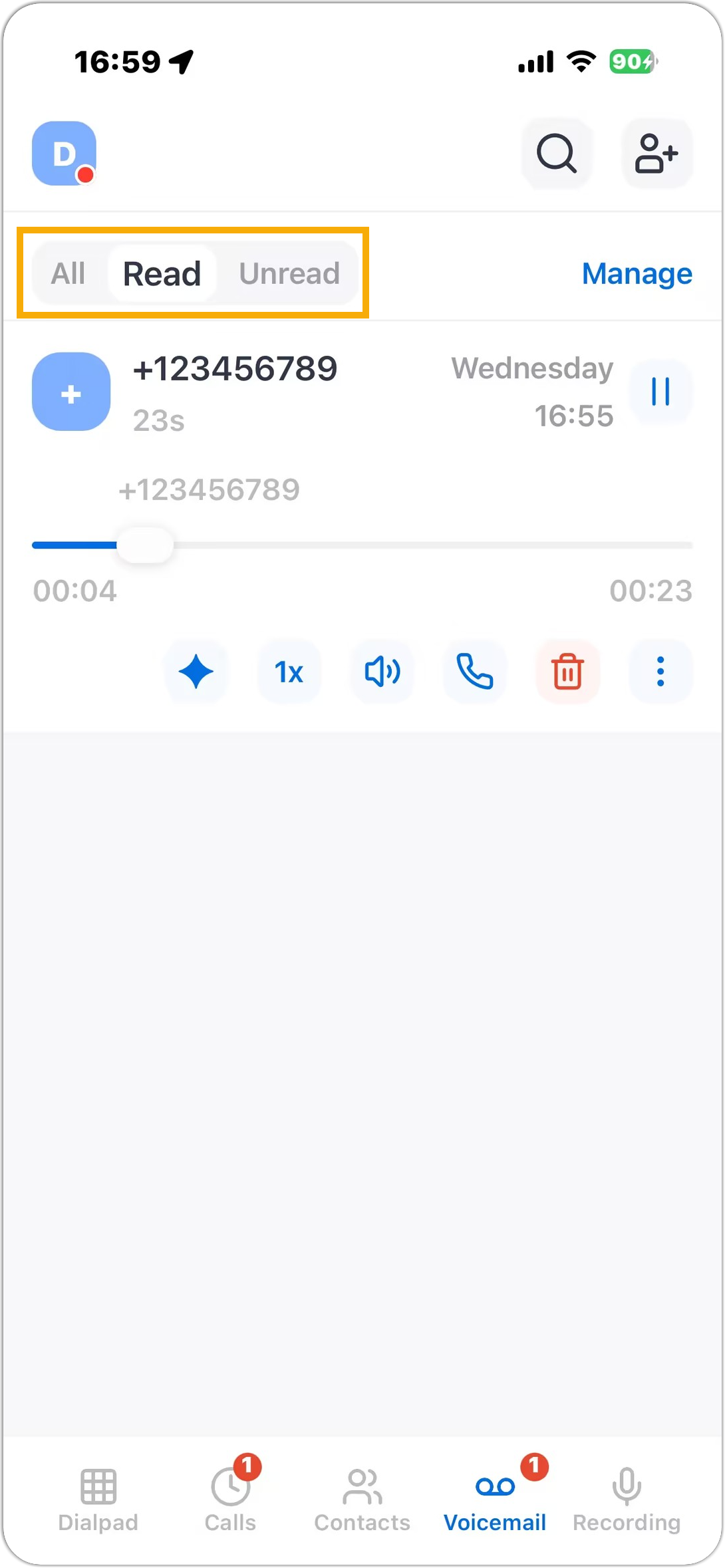
- In the voicemail list, manage your voicemails as needed.Tip: You can directly place a call to the number by tapping
 .
.Operation Instruction Play a voicemail Listen to a voicemail message to catch any information you may have missed. 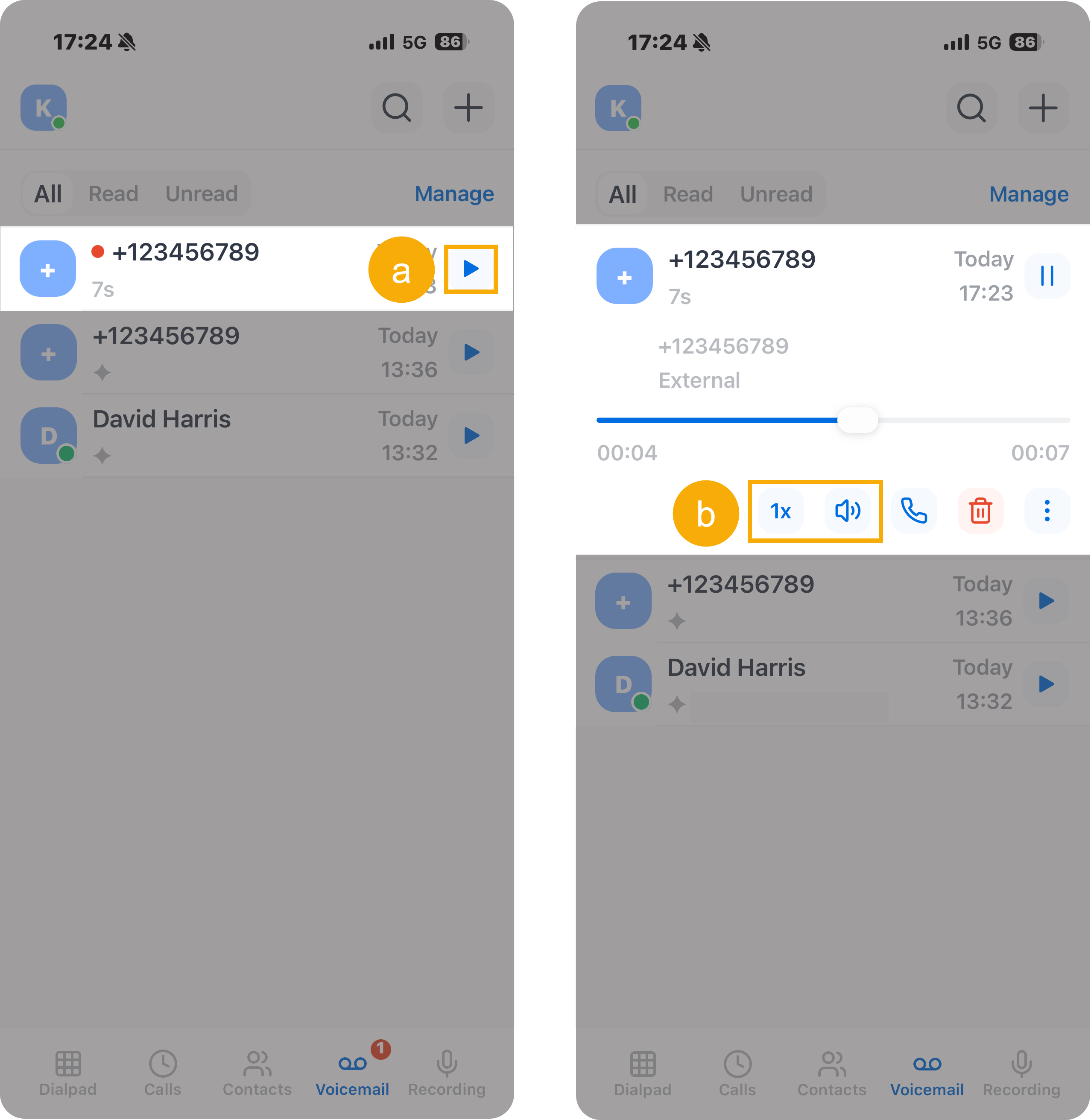
- Tap
 to play the
voicemail.
to play the
voicemail. - Optional: In the expanded panel, adjust the playback speed or audio output device as needed.
View the transcript of a voicemail Read the voicemail transcript to quickly grasp the message without listening to the audio. Note: This operation is available only if the system administrator has enabled the Voicemail Transcription feature and granted you permission to use it.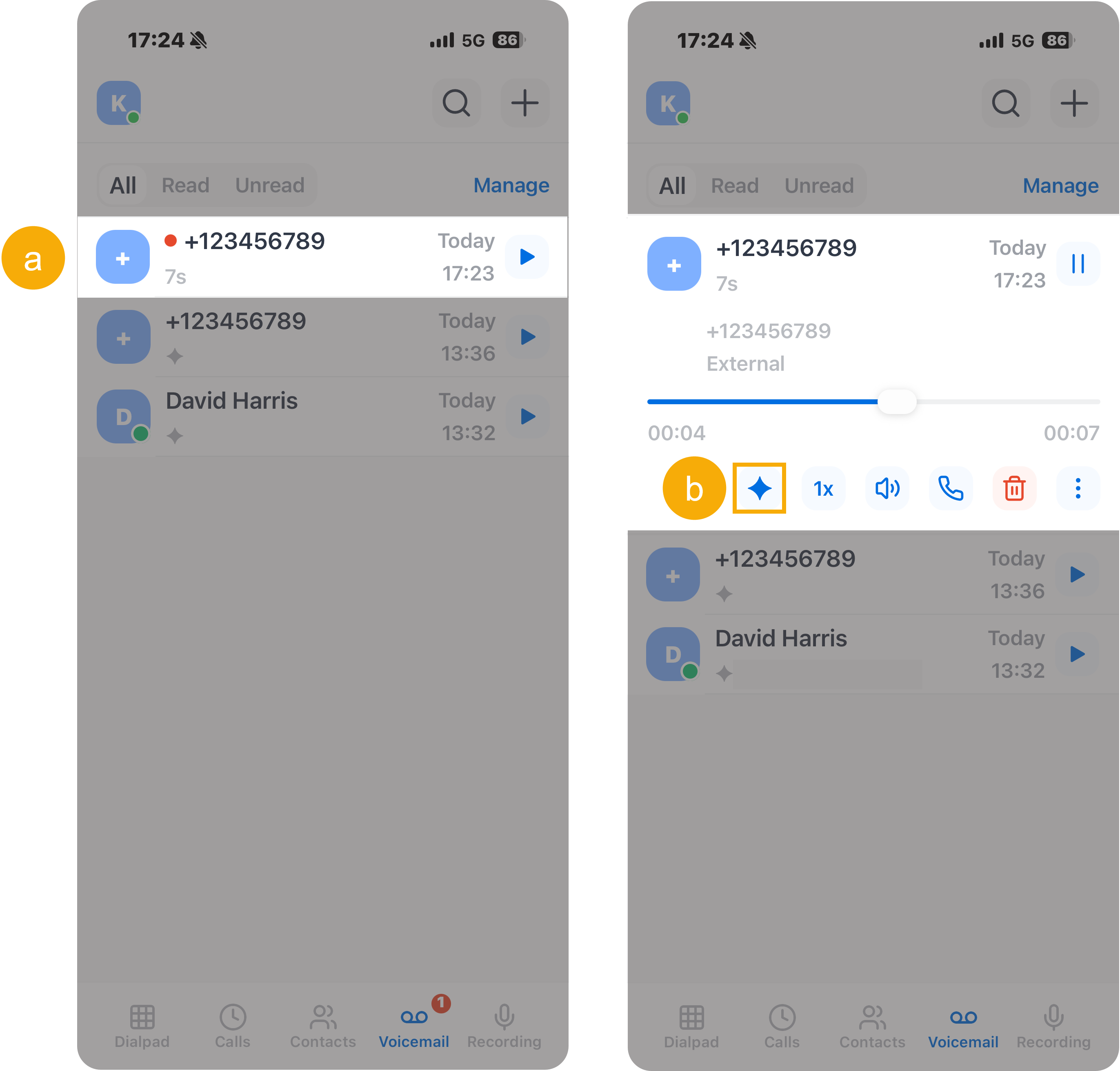
- Tap the desired voicemail.
- In the expanded panel, tap
 .
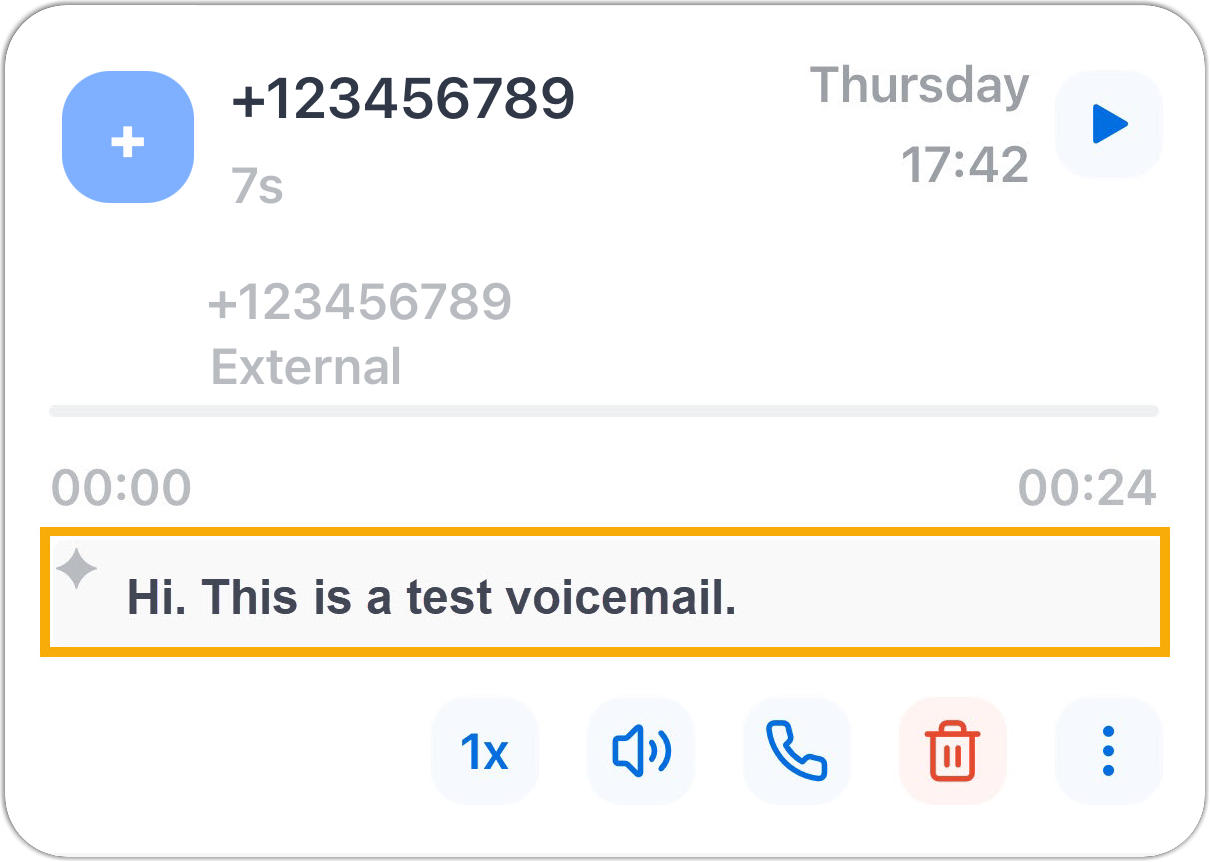
.The transcribed text is displayed in the text box below the voicemail.
Forward a voicemail Forward a voicemail to colleagues for their reference. 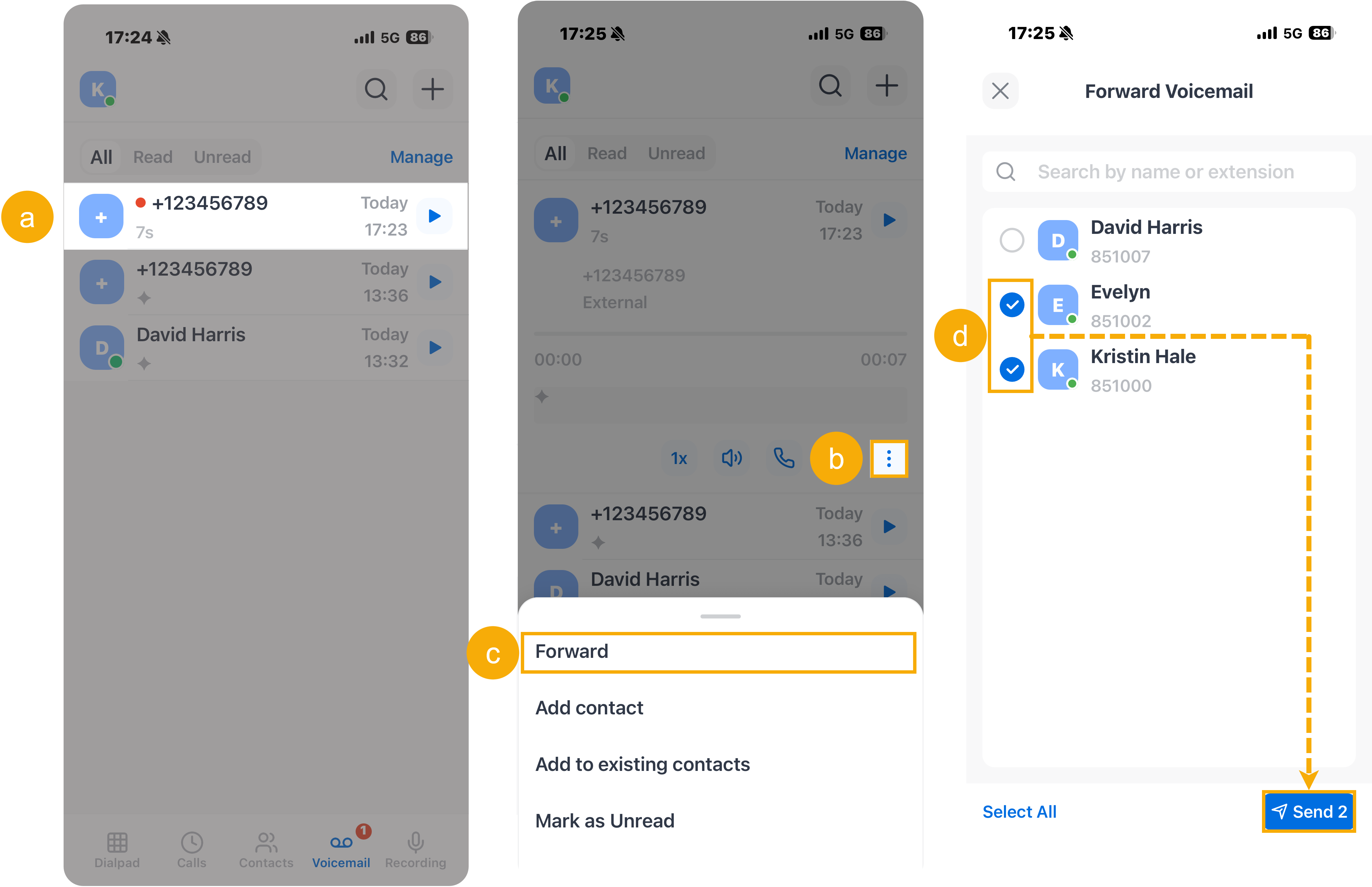
- Tap the desired voicemail.
- In the expanded panel, tap
 .
. - In the pop-up menu, tap Forward.
- In the user list, select one or multiple
users, then tap Send.A "Forwarded successfully" prompt appears, and the recipient will see the voicemail marked with
 in their list.Note: The original voicemail remains in your list without any change.
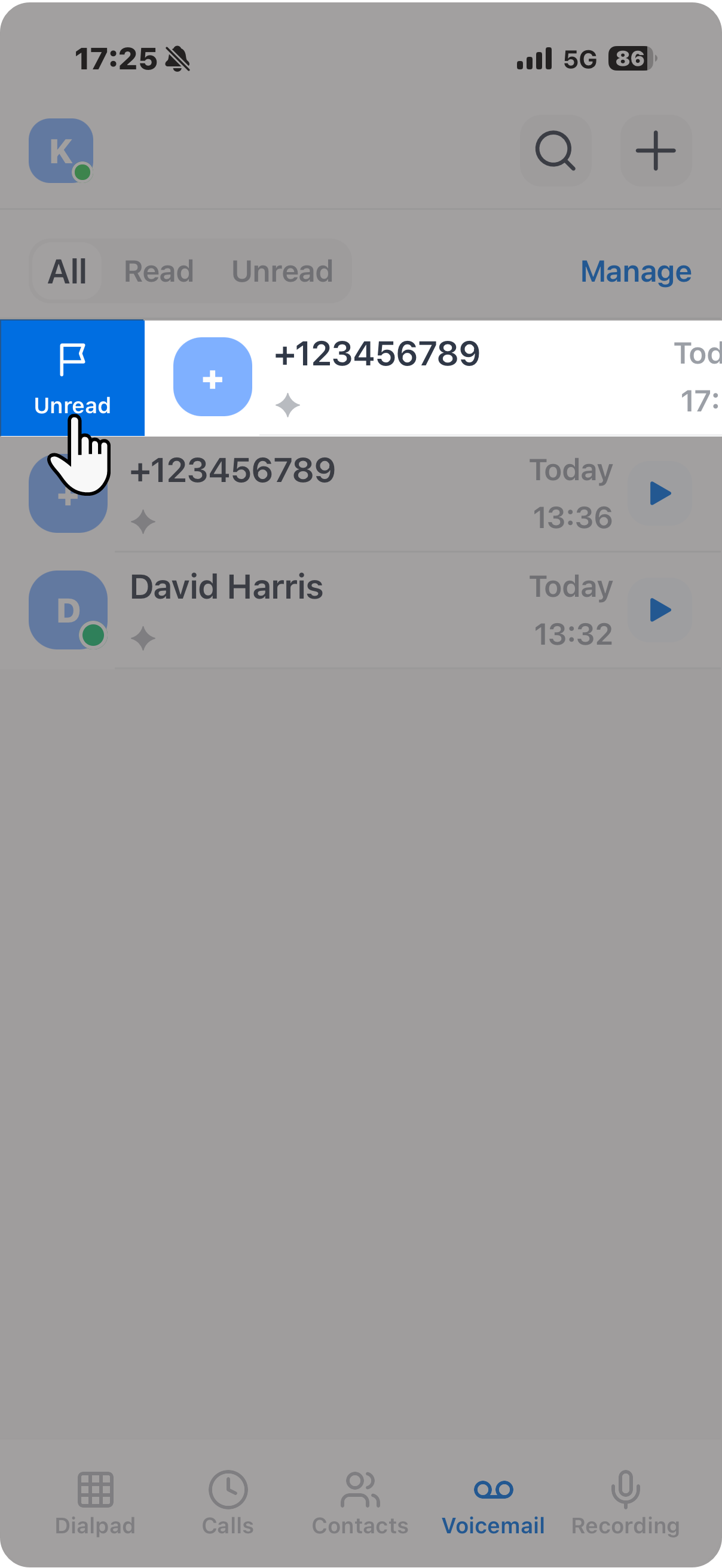
Change voicemail read status Mark voicemails as read or unread to track which messages you have reviewed. Note: Unread voicemails are marked with a red dot ( ).
).- To change the status of a single voicemail,
swipe right on the voicemail, then tap
Read /
Unread.
- To change the read status in bulk, do as
follows:
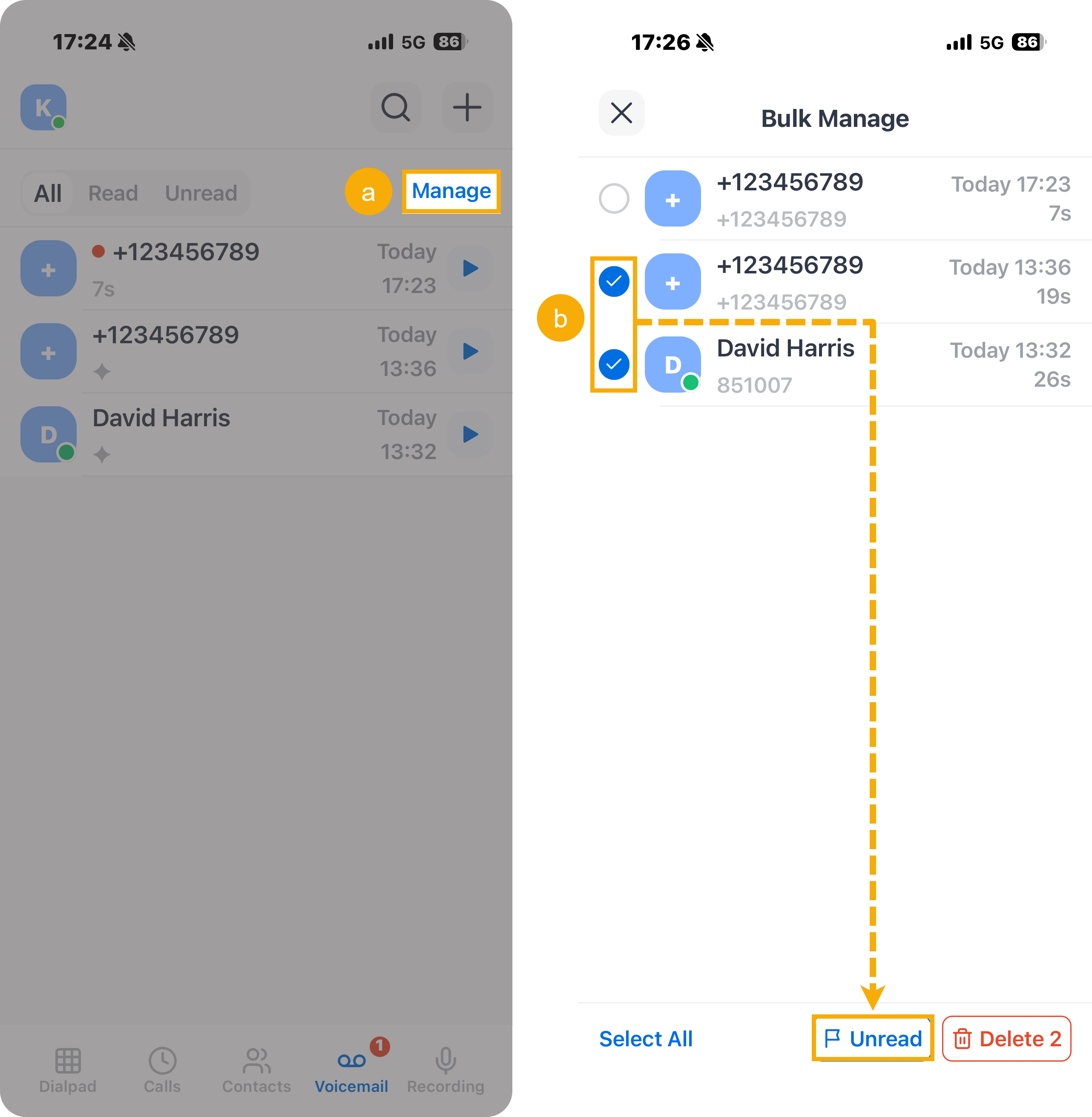
- At the top-right corner, tap Manage.
- Select one or multiple voicemails, then tap Read / Unread at the bottom.
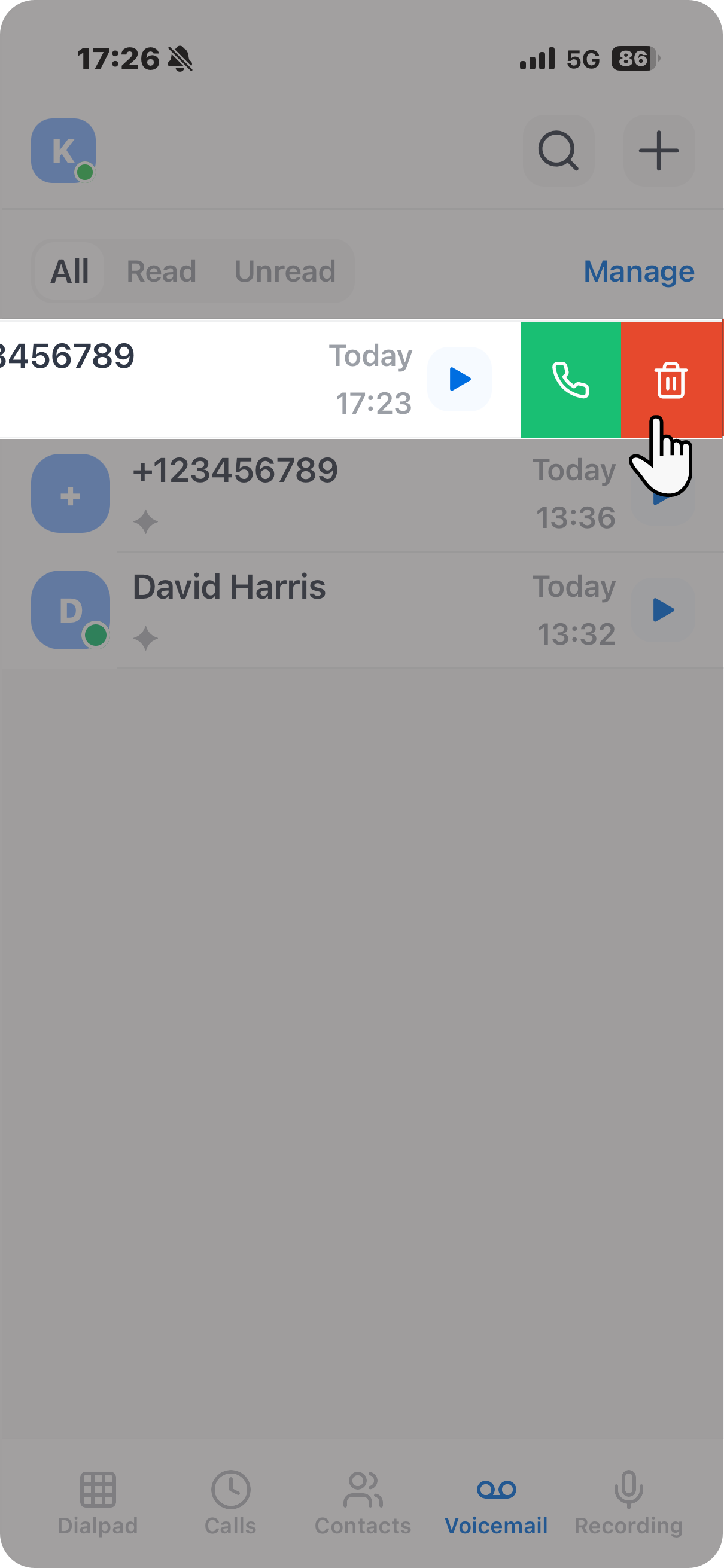
Delete voicemails Remove unwanted voicemails as needed. - To delete a single voicemail, swipe left on
the desired voicemail, then tap
 .
.
- To delete voicemails in bulk, do as
follows:
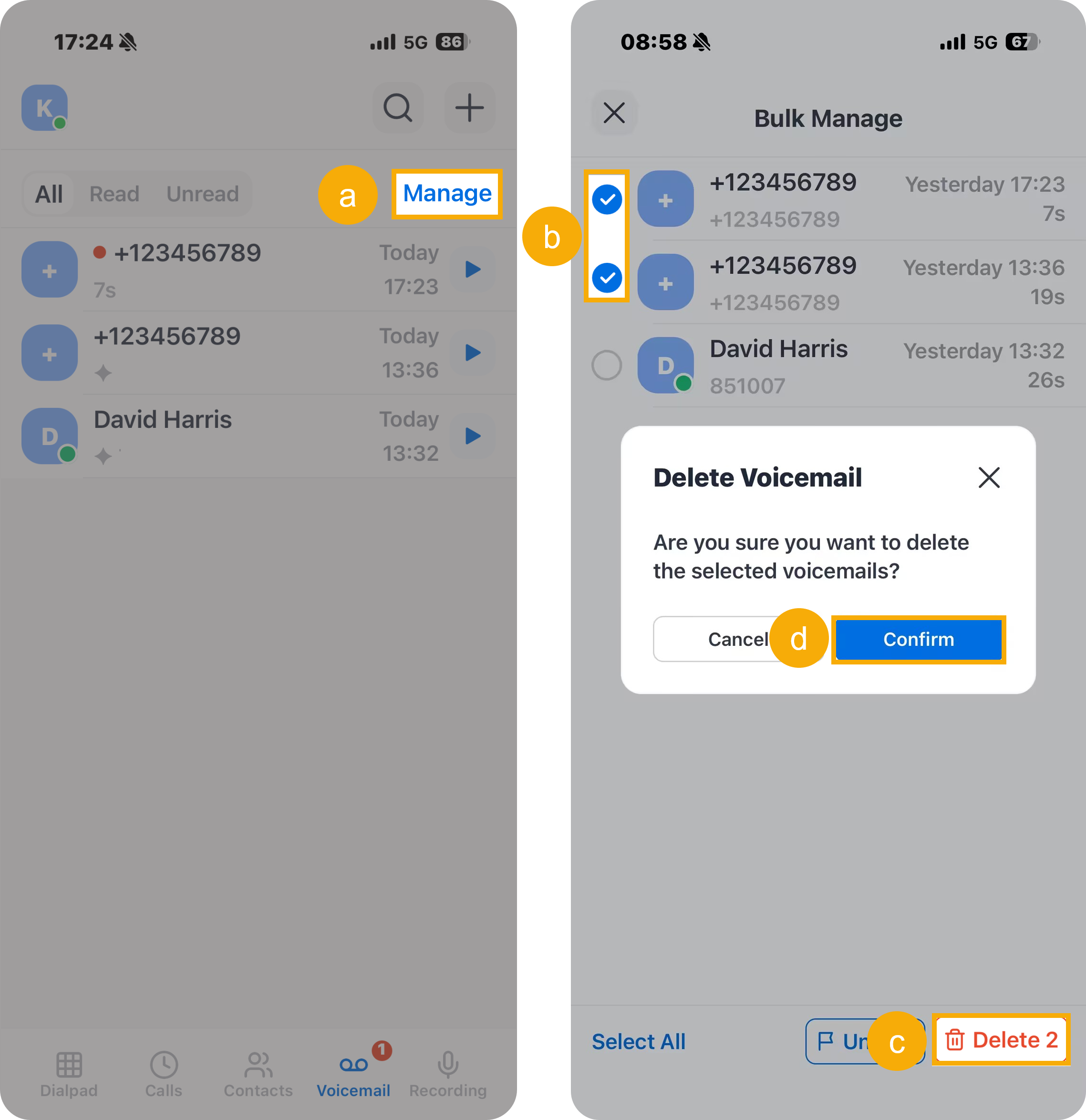
- At the top-right corner, tap Manage.
- Select one or multiple voicemails.
- At the bottom-right corner, tap Delete.
- In the pop-up window, tap Confirm.
- Tap