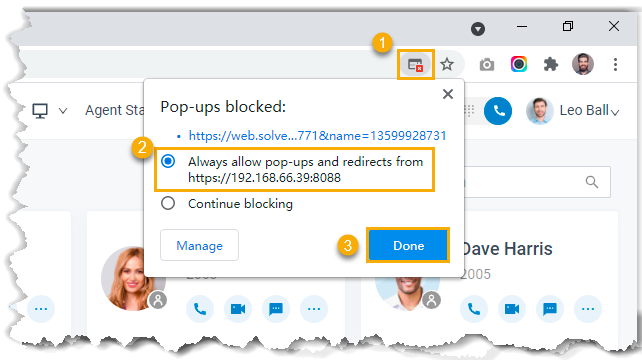
Set up Call Popup for Linkus UC Clients
Yeastar supports a lightweight integration with a third-party application (such as CRM system, ERP system, etc.) to achieve call popup via custom popup URL, allowing users to view relevant contact details on the pop-up web page. You can enable call popup for extension users' Linkus Desktop Client or Web Client, and the setting will be synchronized to their Linkus Clients.
Restrictions and requirements
- Restrictions
-
The feature only works when Linkus Desktop Client or Web Client is logged in.
- Requirements
-
- PBX server: Version 83.21.0.16 or later.
- Third-party application:
- Web-based.
- Support to provide a URL that can identify callers via Caller ID and Caller ID Name.
Procedure
Follow the instructions below to set up call popup for extension users' Linkus Desktop Client and Web Client in bulk. You can also customize it for a specific extension.
- Log in to PBX web portal, go to .
- Select the checkboxes of the desired extensions, click Edit.
- Under the Linkus Clients tab, select the checkboxes
of Bulk Edit and Open Contact URL Using
Custom Popup URL for the desired Linkus Client.

- Set up third-party integration via Popup URL.
Setting Description Popup URL Enter the third-party URL, followed by the variables that you want to pass. Supported variables:- .{{.CallerNumber}}: Incoming Caller ID
- .{{.CallerDisplayName}}: Incoming Caller ID Name.
- .{{.DIDNumber}}: DID Number (only for inbound calls)
- .{{.DIDName}}: DID Name (only for inbound calls)
- .{{.StartTime}}: Call initiation time
Take Solve360 CRM as an example: https://web/solve.360.com/{{.CallerNumber}}&{{.CallerDisplayName}}
Communication Type Select which types of calls will trigger the call popup.
- Inbound: Inbound calls from external users.
- Internal: Internal calls from colleagues.
Popup Method Decide the method of call popup.- Automatically popup: If you want the
Linkus client to automatically open the contact
details page, do as follows.
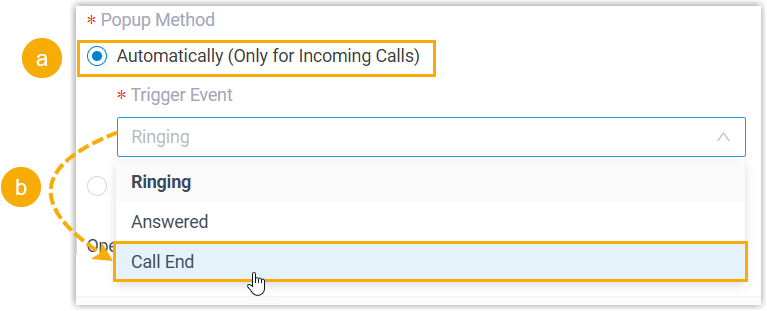
- Select Automatically (Only for Incoming Calls).
- In the Trigger Event
drop-down list, set when the call popup will be
automatically triggered.
- Ringing: An incoming call reaches.
- Answered: An incoming call is answered.
- Call End: An incoming call is ended.
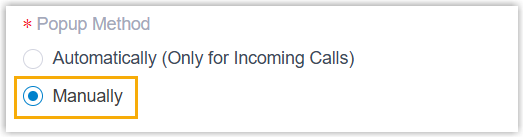
- Manually popup: If you want the
extension user to manually open the contact's URL
during a call, select
Manually.
- Click Save.
Result
- If automatic call popup is configured, when the extension receives an incoming call, a browser webpage automatically pops up based on the specified call-related events, displaying relevant customer information.
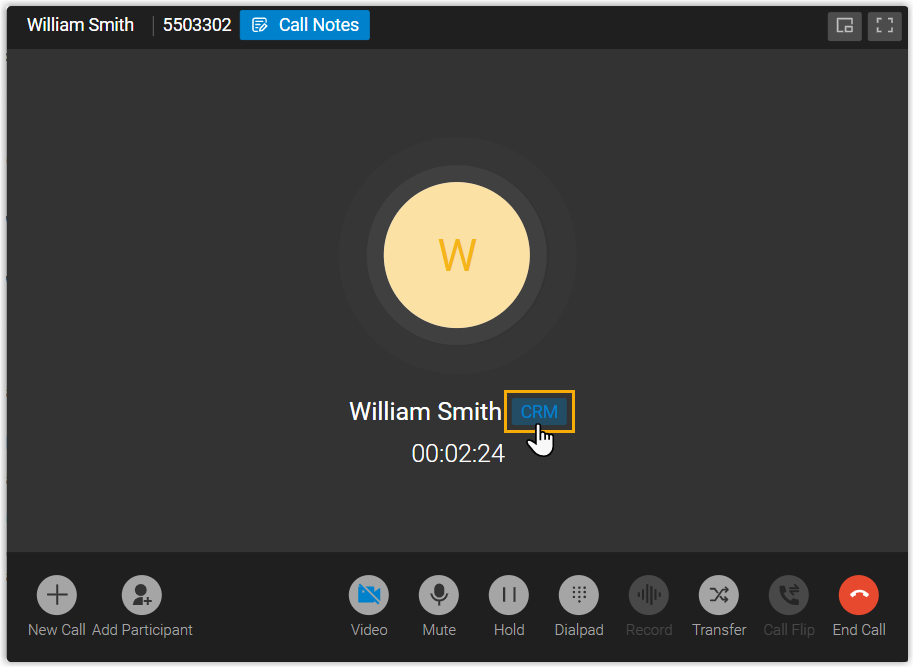
- If manual call popup is configured, the extension users can click the
CRMlabel on the call window to manually open the contact's details page during a call.