Contingency Plan
Although anti-hacking measures can be taken to protect your phone system, there is no absolute safety. Therefore, a contingency plan should in place to ensure a timely and effective response in case fraudsters successfully infiltrate your PBX or force your PBX to fail. You can utilize the Event Notification and Logging policy to monitor and get notified of critical events in real time, and the Backup and Archive policy to back up data and configurations in case of system failure or data loss.
Event Notification and Logging
Yeastar P-Series Cloud Edition supports to monitor and log system events, and notify relevant contacts when events occur.
You can control the events to monitor, the contacts to receive notifications, the way to notify (send email, call extension, or call mobile), as well as the content to send.
- Go to .
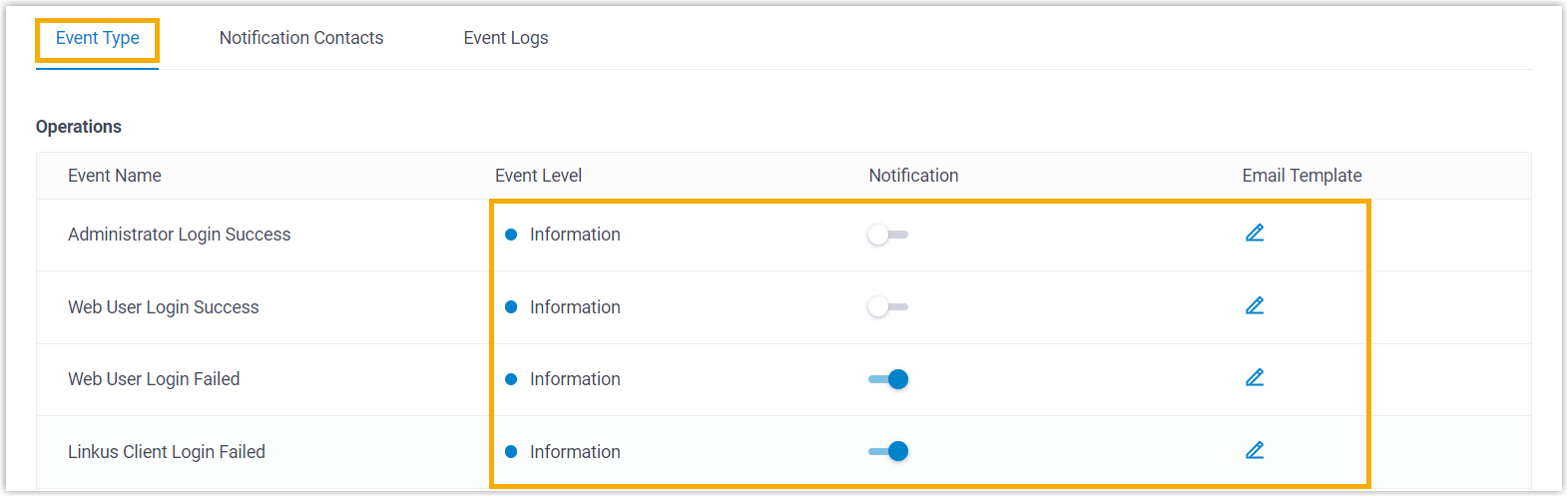
- Under Event Type tab, turn on the notification of the
desired events, and customize the event level and email template as
needed.
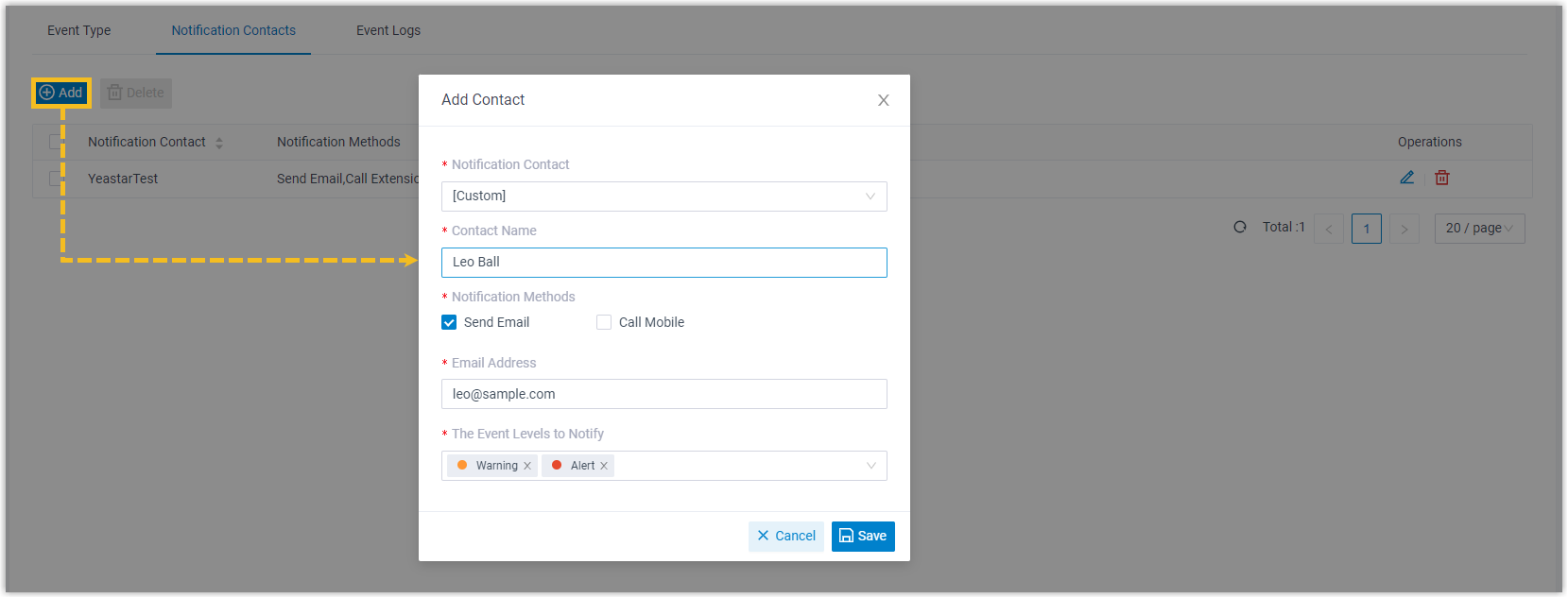
- Under Notification
Contacts tab, add contacts to receive event
notifications.
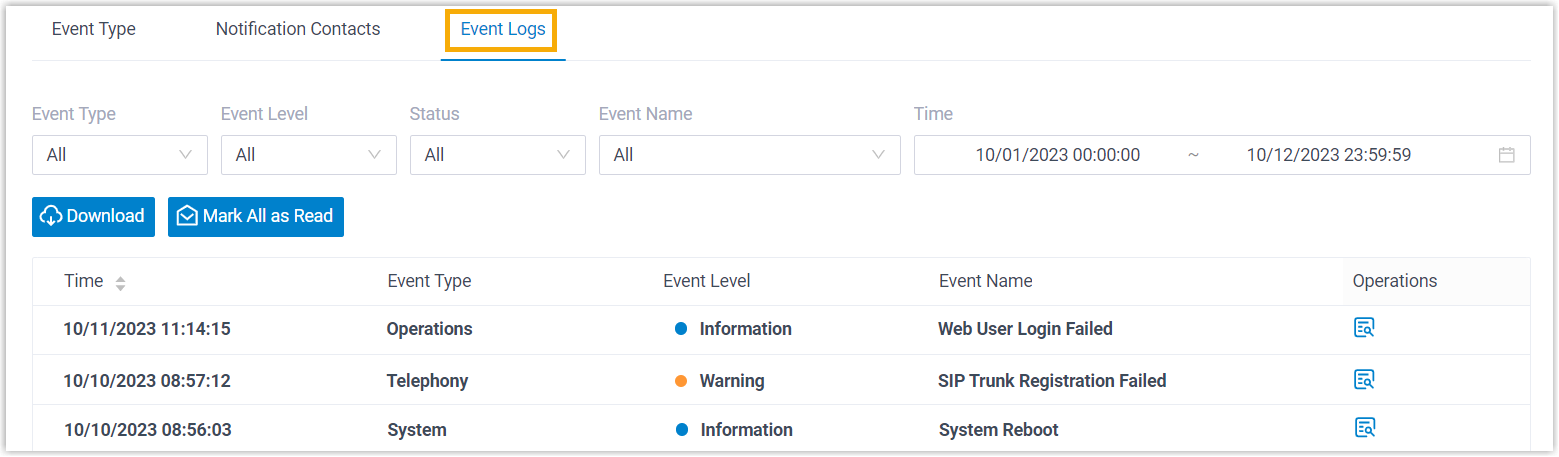
After receiving event notifications, you can check the details on PBX web portal (Path: ).
Backup and Archive
Yeastar P-Series Cloud Edition allows you to back up the PBX's data and configurations, and even archive the backup files to external servers. This will help you minimize downtime and prevent data loss, ensuring business continuity in the event of a system failure.
- Back up PBX data and configuration
-
You can schedule automatic backups or create manual backups as needed.
- Go to .
- To schedule automatic backups, click Backup
Schedule, then set up and save the backup
task.
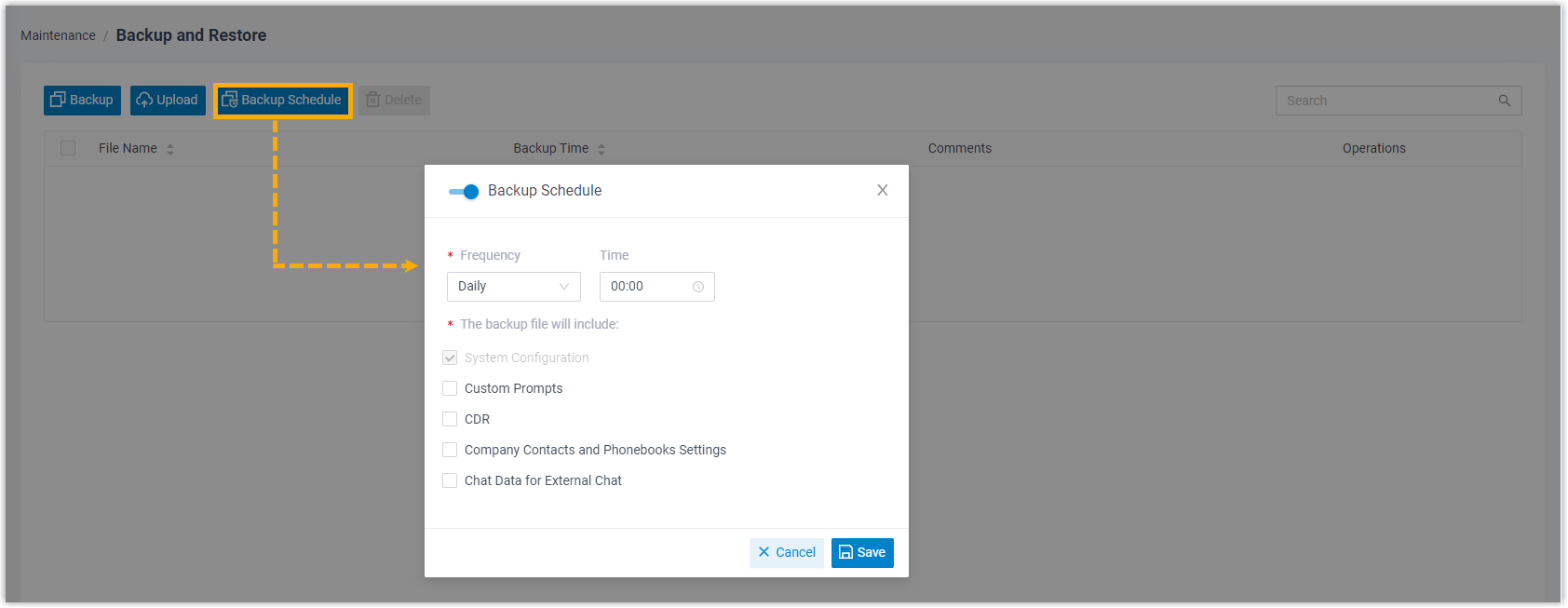
- To create a manual backup, click Backup,
then choose the data and configurations to back up and save the
backup task.
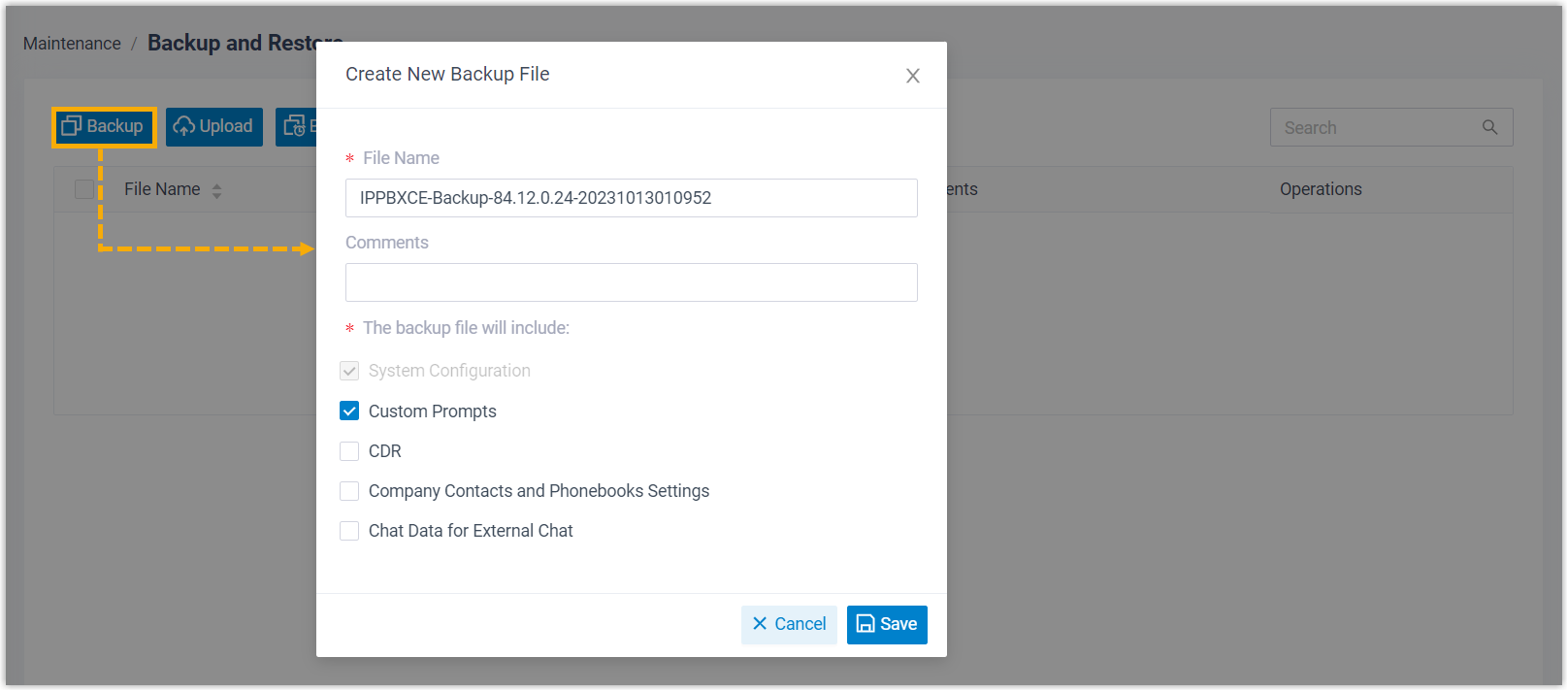
Note: For detailed introduction and instruction about Backup, see Overview of Backup and Restore.
- Archive backup files to external server
-
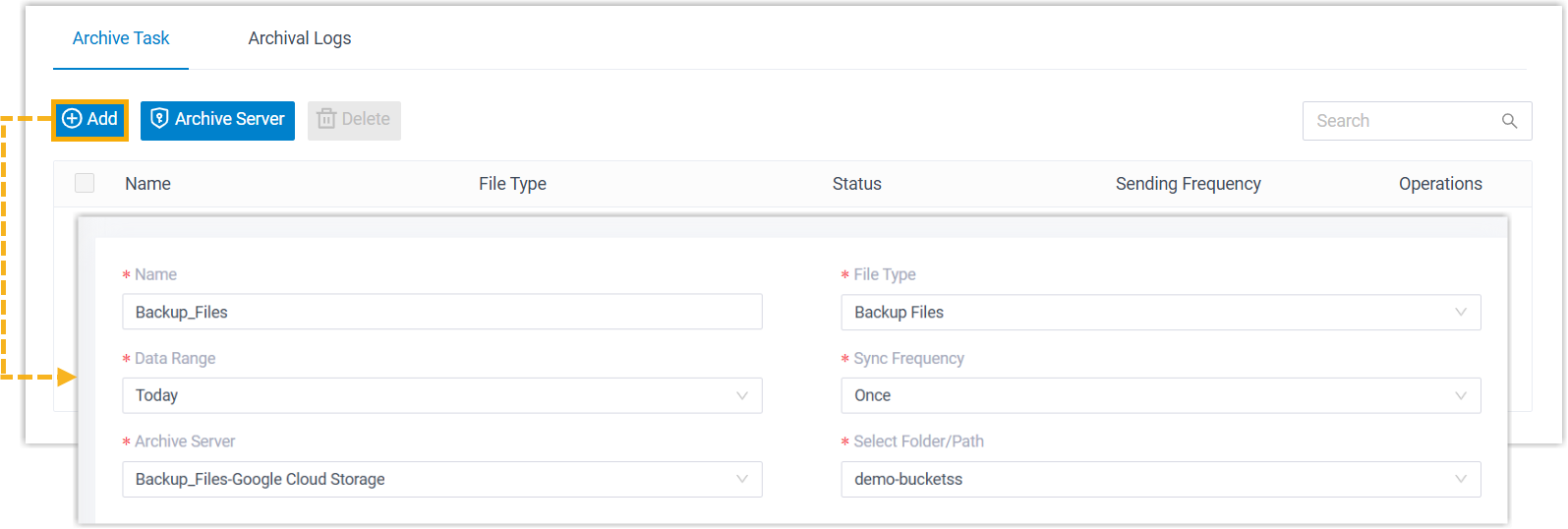
To provide an extra layer of protection for your backups, you can archive them to third-party storage such as FTP Server, SFTP Server, S3-compatible Object Storage, Google Cloud Storage, or Microsoft SharePoint.
- Go to .
- Click Archive Server to add a archive
server.
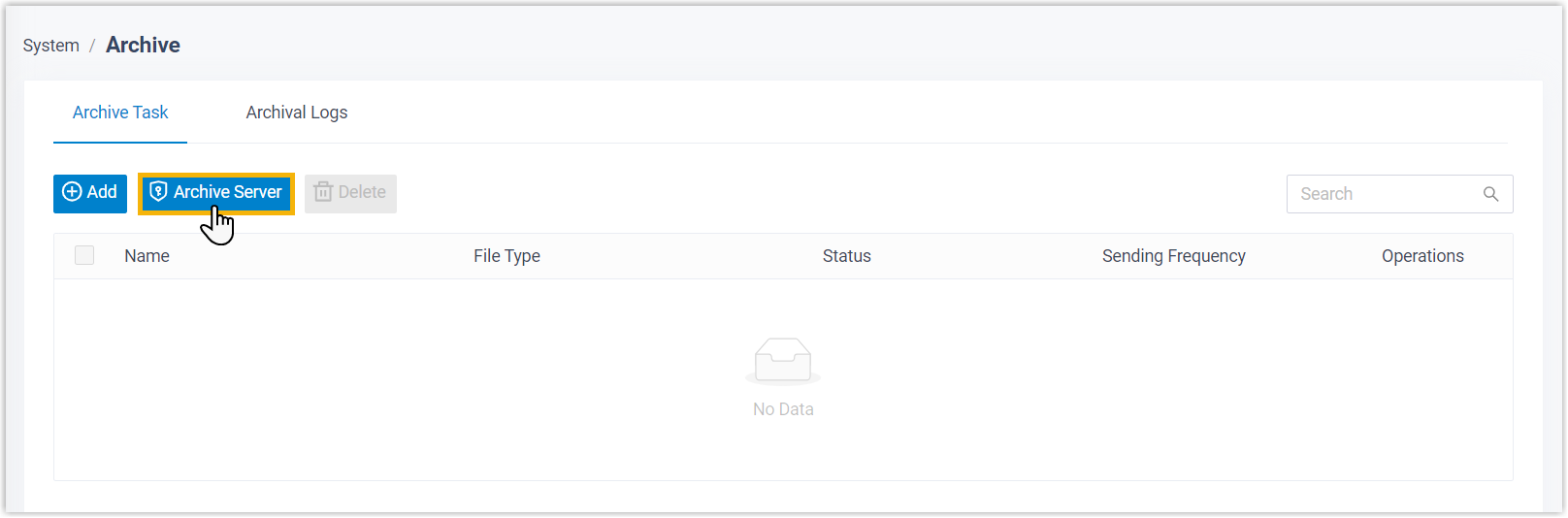
- Click Add to create and set up an archive
task.